Manage freelancer capacity
Overview
Smartcat makes it easy to assign freelancers to a task in a project. It can get tricky, though, if you do not know in advance whether a freelancer is ready to take on a new task and whether they can complete it on time. Smartcat relieves project managers of this difficulty by calculating freelancer capacity in advance and presenting it in a clear, accessible way.
Set up freelancer profile information
To enable Smartcat to assess capacity correctly, freelancers are asked to update their profile with the relevant information. This information includes the following:
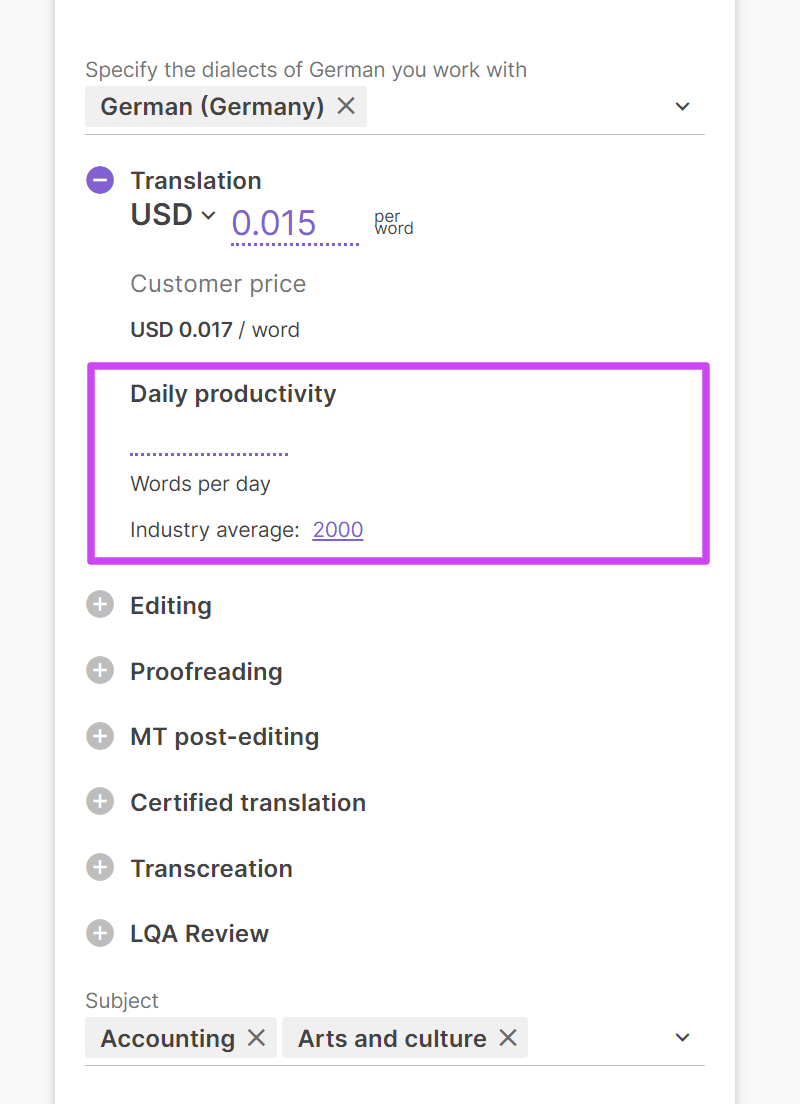
- Average daily performance in words per day, set for every service the freelancer offers
- Whether the freelancer is open for work, which working days they keep during the week, and which days they are unavailable, entered in the Availability section of the freelancer profile
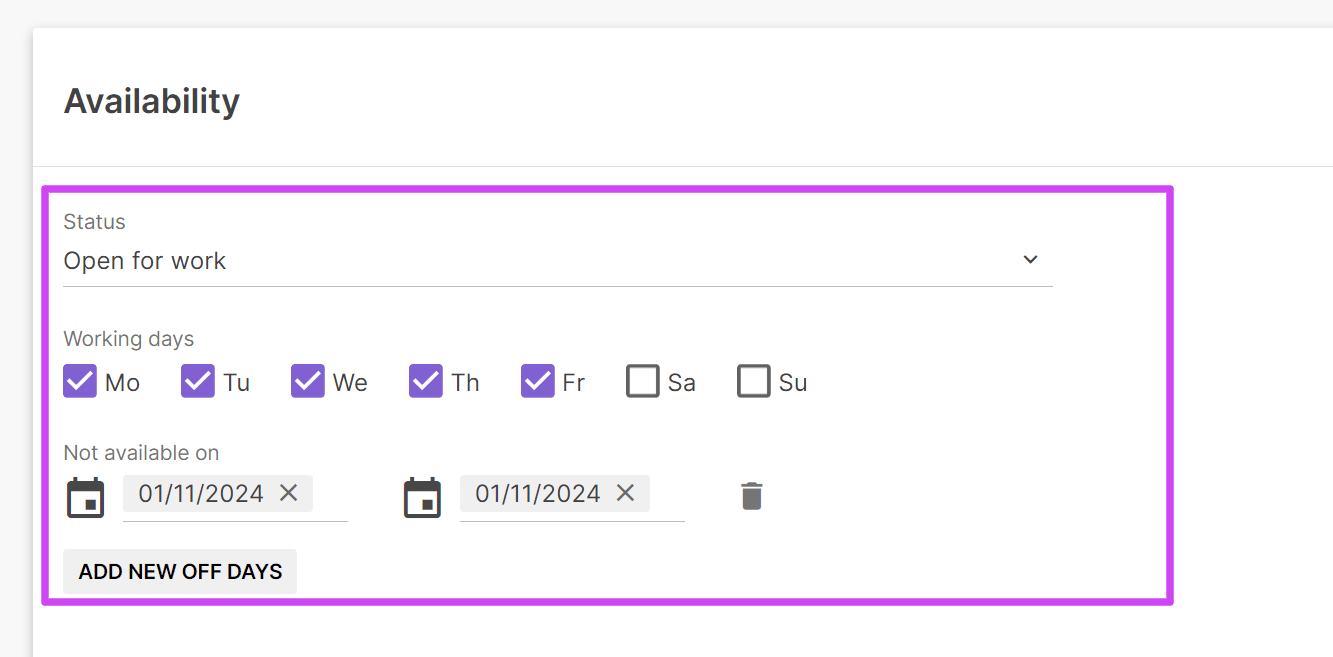
💡 Providing these parameters makes capacity assessment significantly more accurate. If they are not set, Smartcat uses industry-average productivity and a typical work week.
Find suppliers for a task
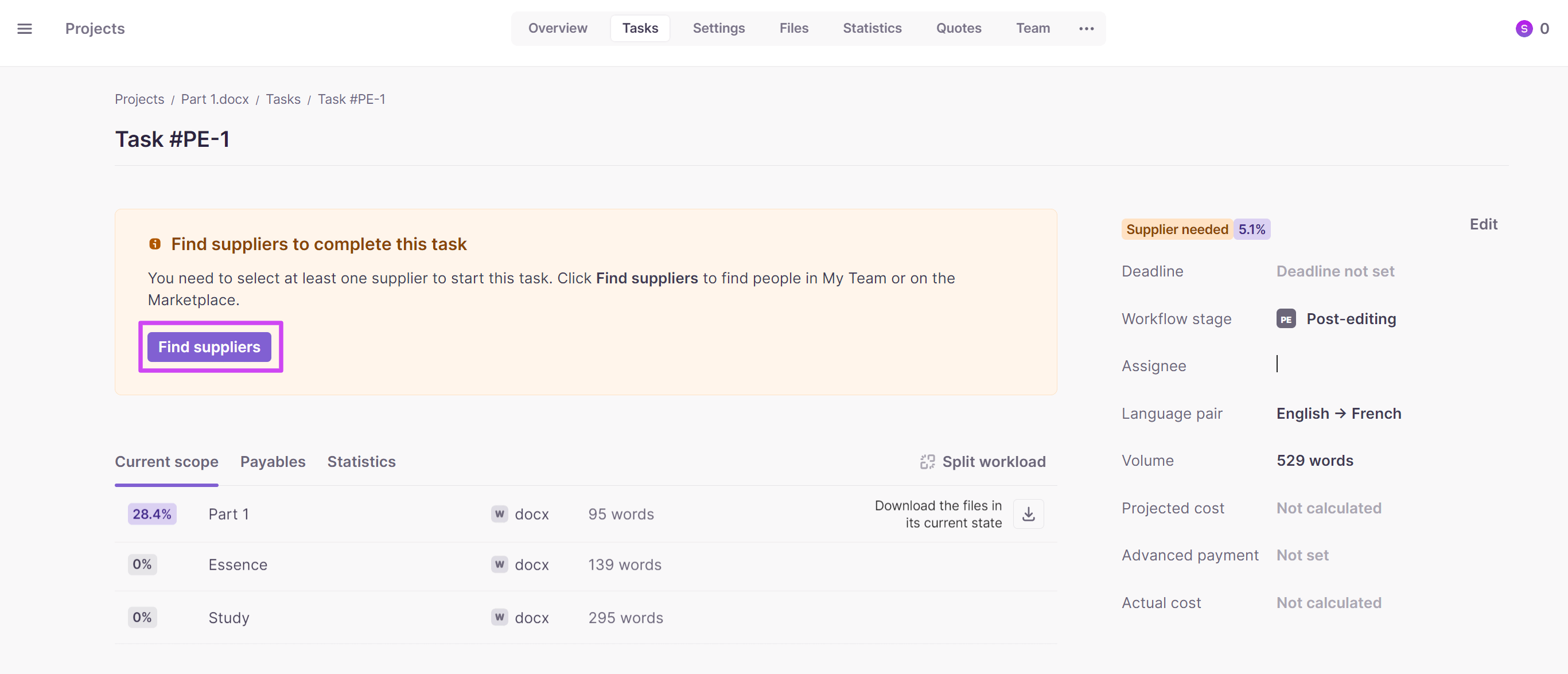
When looking for a supplier for a specific task, go to the Tasks tab in the project settings, open the required task, and click Find suppliers.
Smartcat then sifts through the suitable suppliers, assesses their capacity and productivity, and displays them in a list sorted by availability.
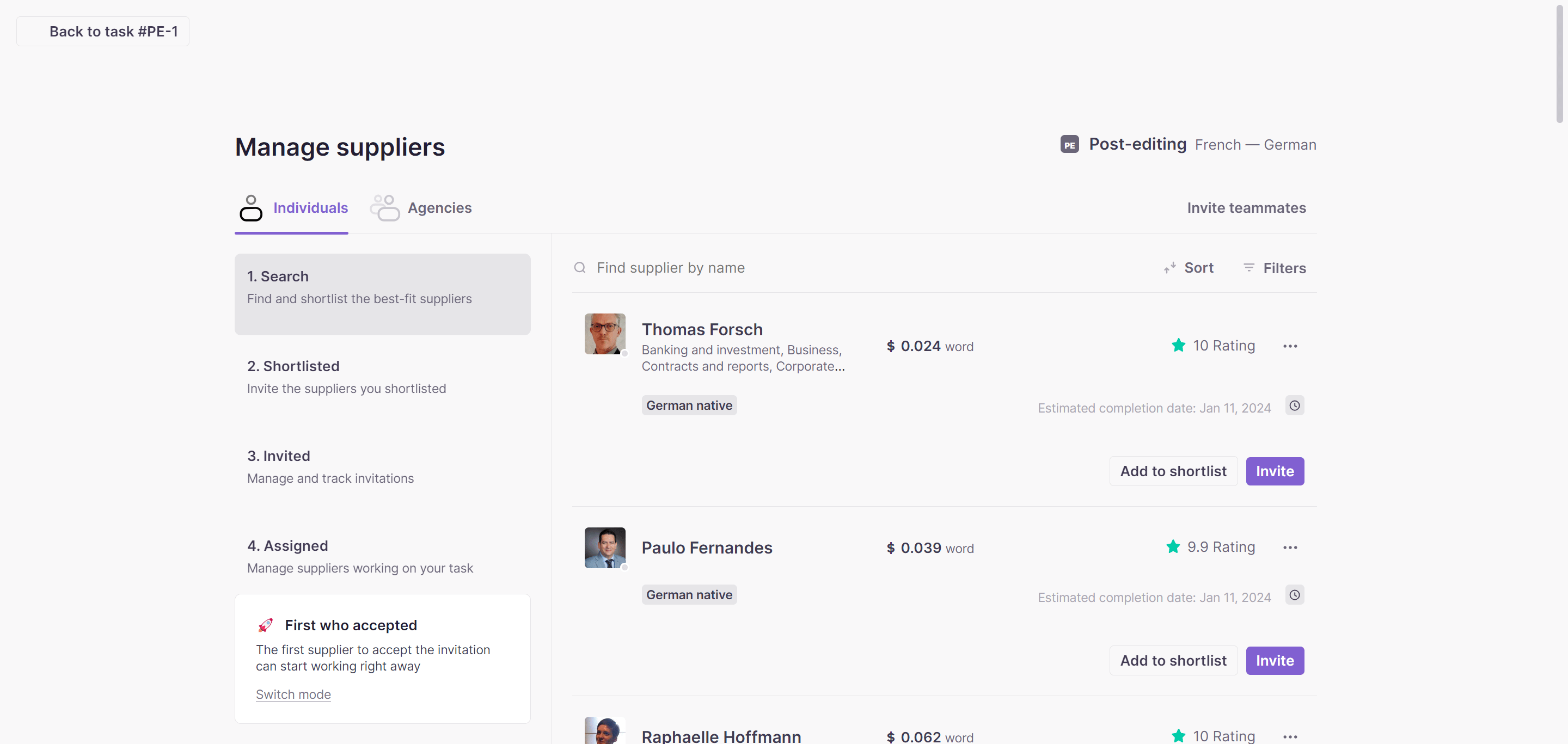
You now have a ranked list of suppliers to choose from for the task.
How Smartcat calculates capacity
Hovering over the Estimated completion date for a specific freelancer shows what the calculation is based on. Smartcat also takes into account the tasks currently assigned to the freelancer.
Consider a freelancer who works five days a week with a Daily performance of 1,500 words per day. This freelancer is currently assigned two tasks of 3,000 words each. When calculating this freelancer's availability, Smartcat factors in the four days needed to complete the outstanding tasks before taking on a new one.
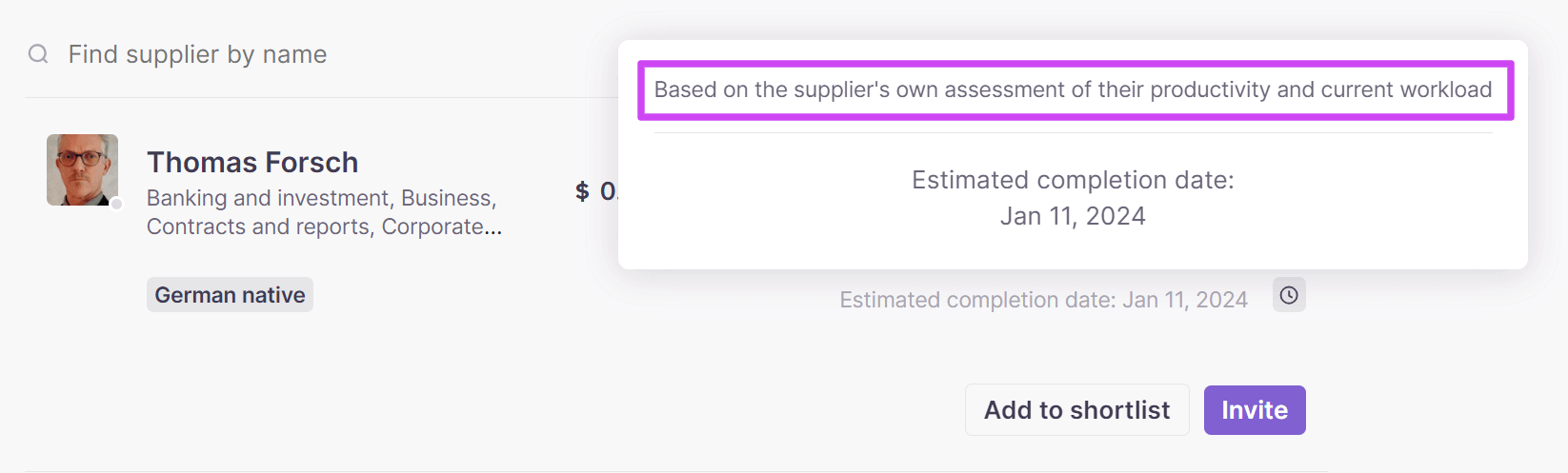
📌 If the task deadline is specified, Smartcat evaluates whether it will be met by the estimated completion date. If yes, the clock icon next to the date is green; if not, it is red. If the deadline is not specified, the clock icon stays grey.
Freelancer availability status
Unavailable freelancers appear after the available ones, with their status set to Busy. Smartcat determines that a freelancer is unavailable for several reasons. In addition to the obvious cases where the freelancer's profile indicates they are currently not available, freelancers who do not log in to Smartcat for over two weeks are automatically assigned Busy status.
If a freelancer does not log in for 30 days, their profile is also hidden from marketplace search, in addition to being marked busy.
FAQs
What information should freelancers add to their profile for accurate capacity calculations?
Their average daily performance in words per day for each service they offer, and their availability details (working days and days they're unavailable) in the Availability section of their profile.
What happens if a freelancer hasn't set their daily performance or availability?
Smartcat uses industry-average productivity and a typical work week to estimate their capacity instead.
Why does a freelancer show as "Busy" even though their profile says they're available?
Freelancers who haven't logged in to Smartcat for over two weeks are automatically assigned Busy status, in addition to cases where their profile explicitly marks them unavailable.
What does the colored clock icon next to a freelancer's estimated completion date mean?
It compares the estimated completion date to your task deadline. Green means the deadline is likely to be met, red means it likely won't be, and grey means no deadline was specified.
How does Smartcat estimate a freelancer's completion date for a new task?
It factors in the freelancer's daily performance and their currently assigned tasks. For example, a freelancer with a 1,500 words/day capacity and two 3,000-word tasks already assigned would need about four days to clear existing work before starting anything new.
Want to learn more?
See how Smartcat can transform your localization workflow.
Still need help?
Our support team responds within one business day.