Translate your SCORM courses in Smartcat

Overview

SCORM translation is a skill of the Learning Content Agent that lets you translate entire SCORM courses into multiple languages, without needing access to the original authoring tools.

Smartcat SCORM translation gives you everything you need to ensure high-quality results:

  • AI translation — translate all course assets (text, images, audio, video, attachments) into 280+ languages

  • Human review — invite your own team members or choose professional linguists from the Marketplace

  • Glossaries — apply your terminology so translations stay consistent with your company's voice

  • Translation Memory (TM) — every edit and piece of feedback is saved, so your translations improve and become faster with each project

Smartcat is not affiliated with, endorsed by, or sponsored by Articulate 360.


Requirements and limitations

  • Currently supported for Rise-based SCORM files

  • You need a SCORM 1.2 or 2004 package in .zip format

  • You can upload multiple SCORM courses at once, but each package must be a valid .zip


How it works

Smartcat currently supports two workflows:

  • Workflow A — import SCORM directly into Smartcat

  • Workflow B — translate SCORM using the Smartcat browser extension


Workflow A: Import a SCORM package into Smartcat

📌 Best when you don't have access to the original source file and only have the SCORM .zip file (for example, a legacy Rise course you need to translate or update).

Step 1: Create a translation project

  1. Go to the Course Translator

  2. Enter project details: name, deadline, and confirm source language

  3. Select one or multiple target languages (from 280+ supported)

  4. Upload your SCORM .zip package. You can upload one or many courses at once

Step 2: Review course assets

Smartcat automatically analyzes your SCORM and detects assets (text, images, audio, video, attachments). Each asset is pre-classified:

  • Translate — items Smartcat is confident need translation

  • Needs Review — items for you to confirm

  • Skipped — items not relevant for translation

You can override any decision to include or exclude text, images, audio, video, and attachments.

Asset review screen showing detected course assets grouped by Translate, Needs Review, and Skipped

Step 3: Run the translation workflow

  1. AI translation starts automatically

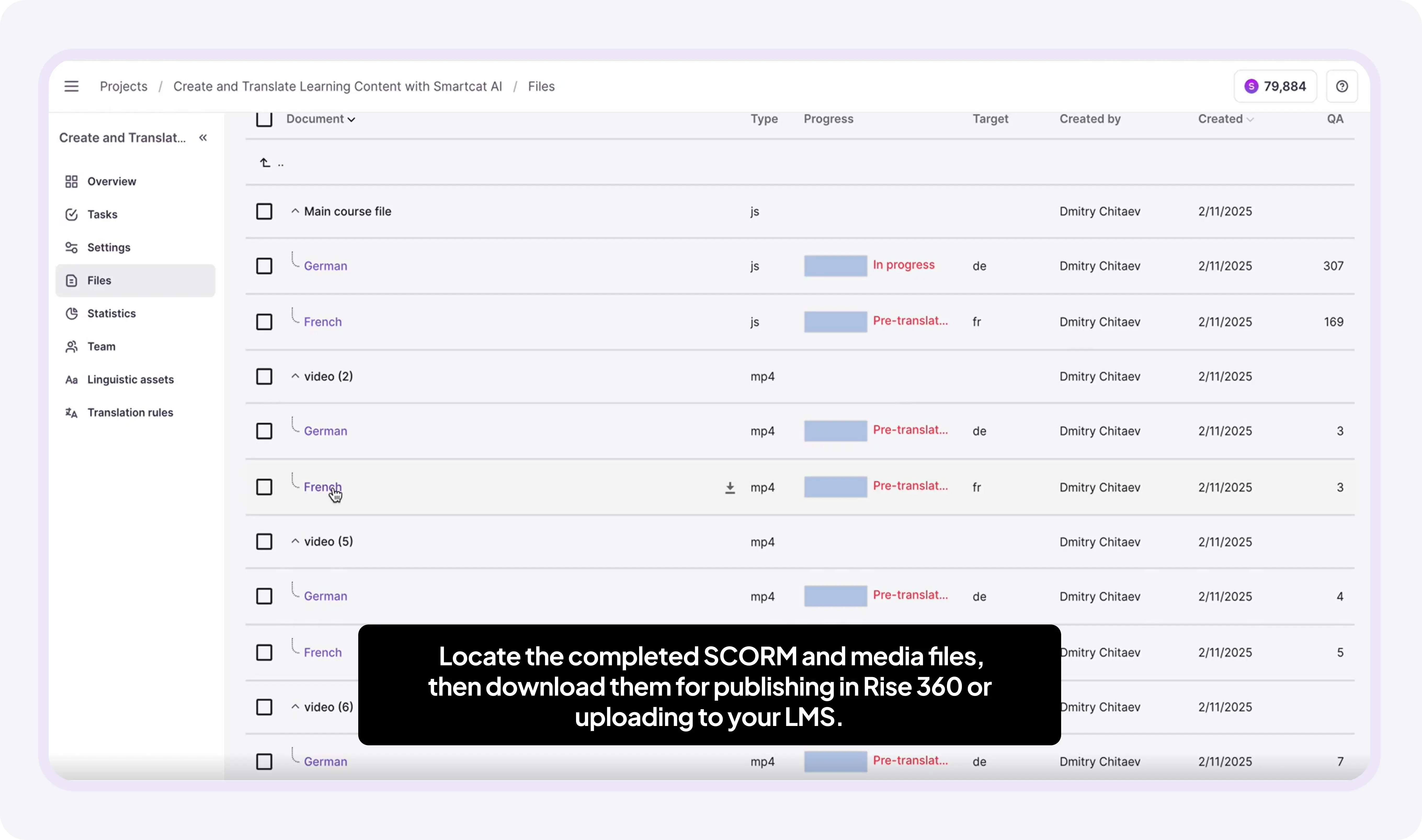
  2. Track progress in the Projects window for each language

  3. Click Invite in Tasks to invite reviewers or translators from your team or the Marketplace

    Projects window showing translation progress bars per language with an Invite in Tasks button

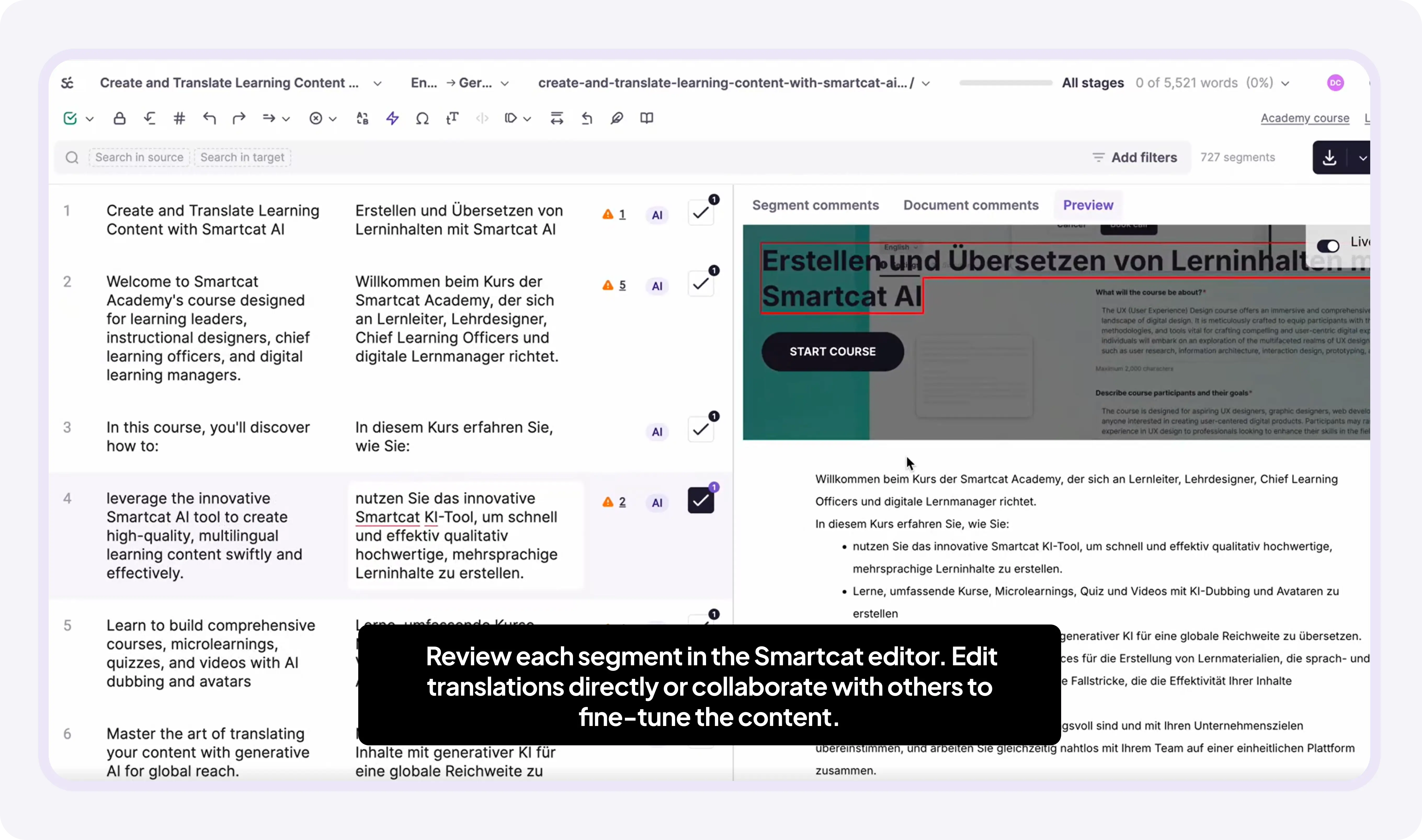
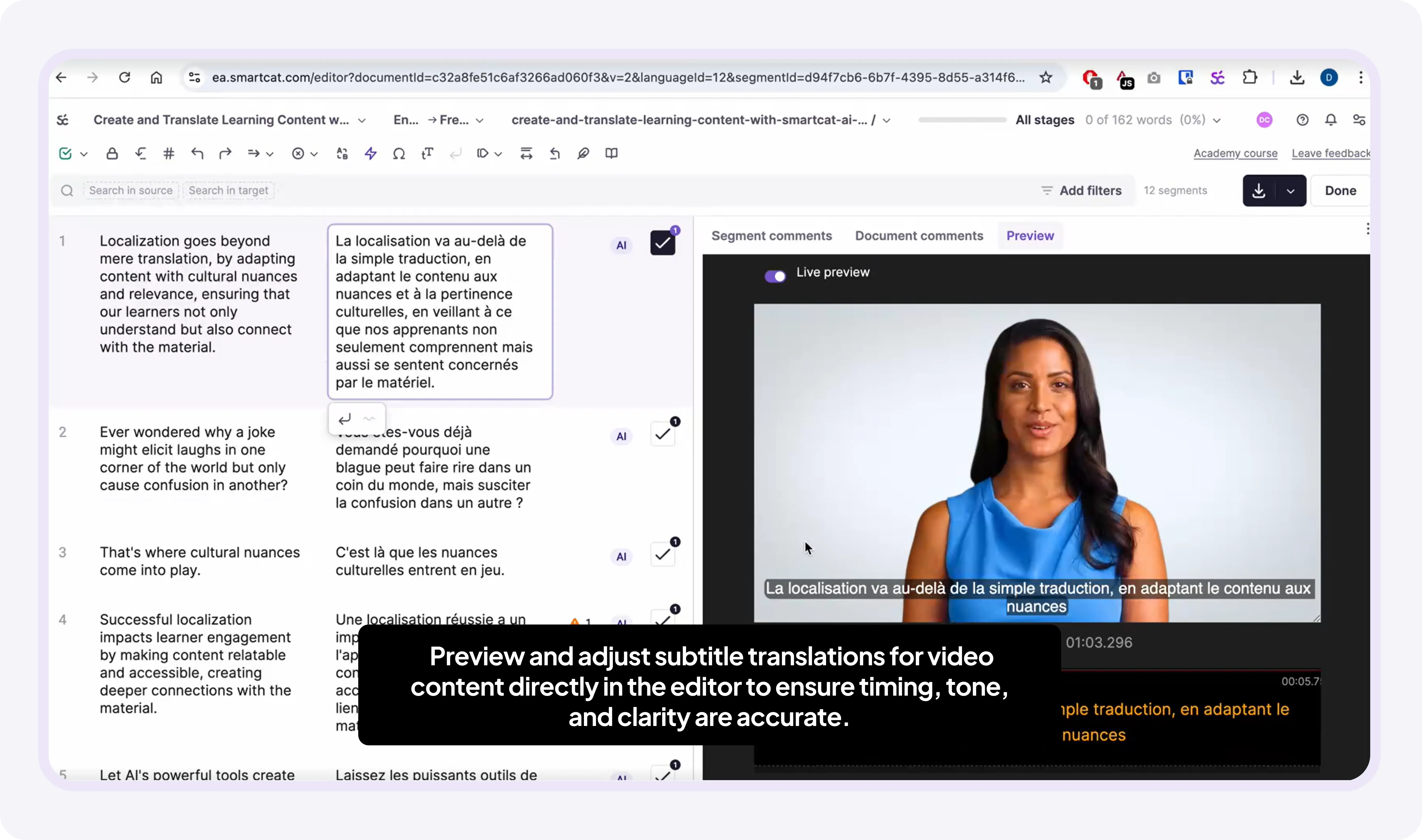
  4. Click Open in Editor for side-by-side editing and live preview inside the course layout

    CAT editor with source and target text side by side and a live course preview

  5. When the translation review is ready, click Done to confirm all the edits

Editor with the Done button highlighted to confirm translation edits

Your course is now translated and ready to preview and edit.

Step 4: Preview and edit the course

  1. Open Course Preview to test navigation, layout, and course appearance on different devices

    Course preview showing the translated course rendered across desktop and mobile layouts

  2. Customize branding with Theme Settings (logo, fonts, colors)

    Theme Settings panel with options for logo, fonts, and colors

  3. From this preview mode, click Edit to switch to the Canvas Editor and make structural or design changes

    Preview mode with the Edit button that opens the Canvas Editor

  4. In the Canvas Editor you can:

  5. Edit the content of the course

  6. Check the course description and outline

  7. Add new content blocks from the Block Library with drag and drop

Canvas Editor showing course content blocks and the Block Library panel

Your course now reflects your branding and structural changes, ready for export.

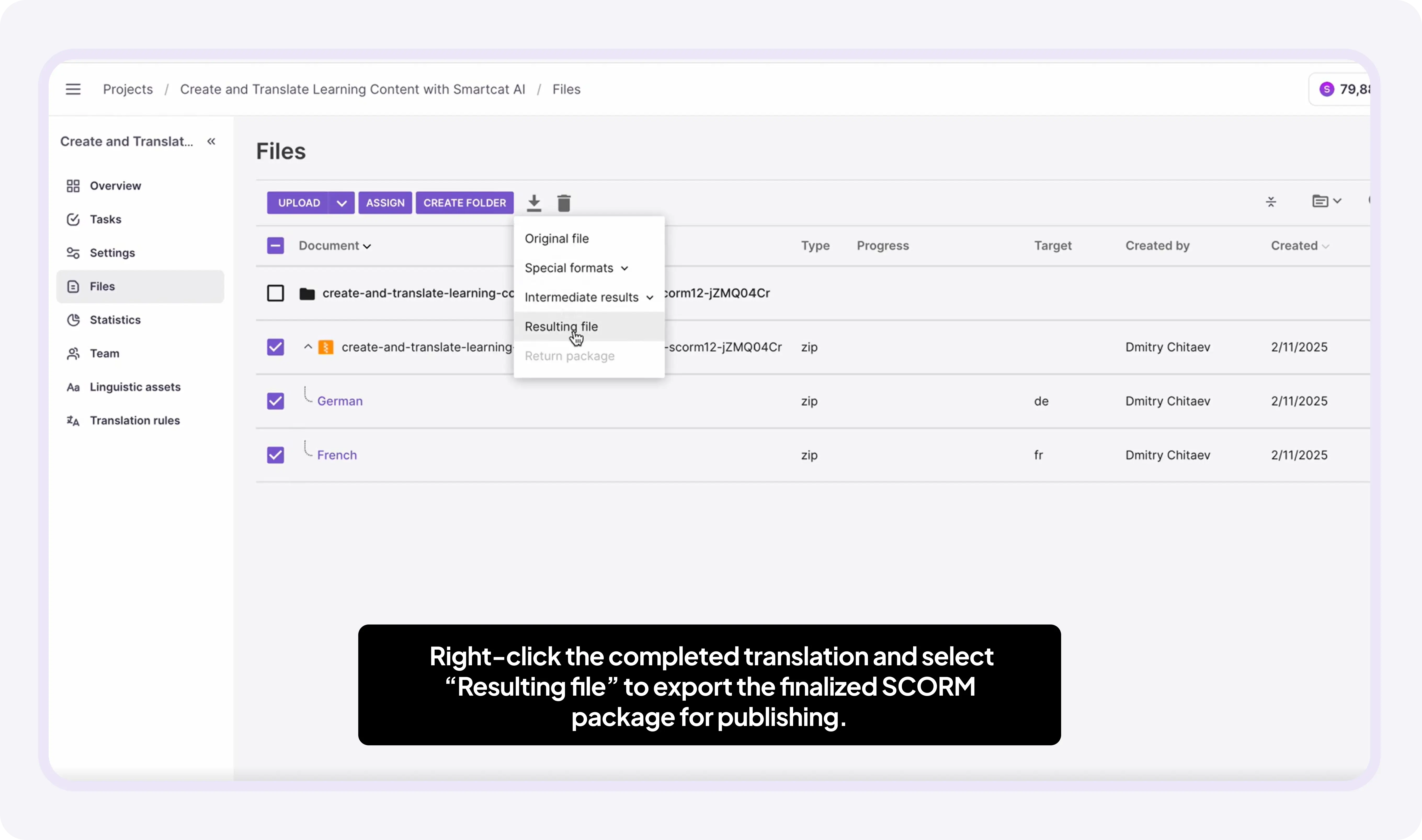
Step 5: Export multilingual SCORM

  1. Click Export

  2. Choose SCORM 1.2 or 2004

  3. Export one or multiple languages (as a multilingual SCORM) at once

  4. Set completion or quiz tracking before export

  5. Upload your package to the LMS

Export dialog with SCORM version, language selection, and tracking options

You now have an LMS-ready multilingual SCORM package.


Workflow B: Translate SCORM via the Smartcat browser extension

This workflow is best when you have access to Rise and can use extensions directly inside your browser.

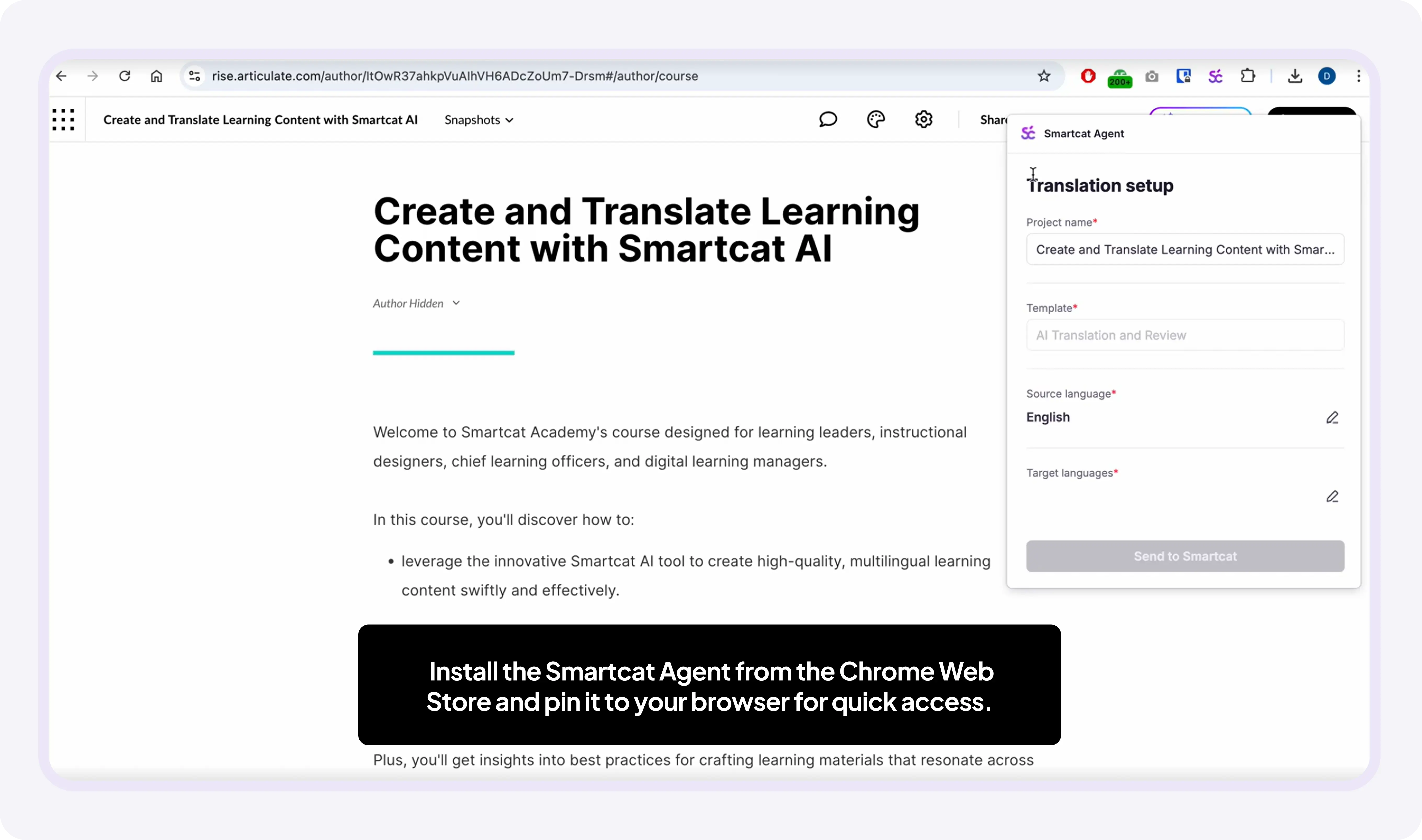
Step 1: Open the course in Articulate Rise and launch the Smartcat browser extension

  1. Install the Smartcat Agent browser extension (available in Google Chrome, Microsoft Edge, Mozilla Firefox)

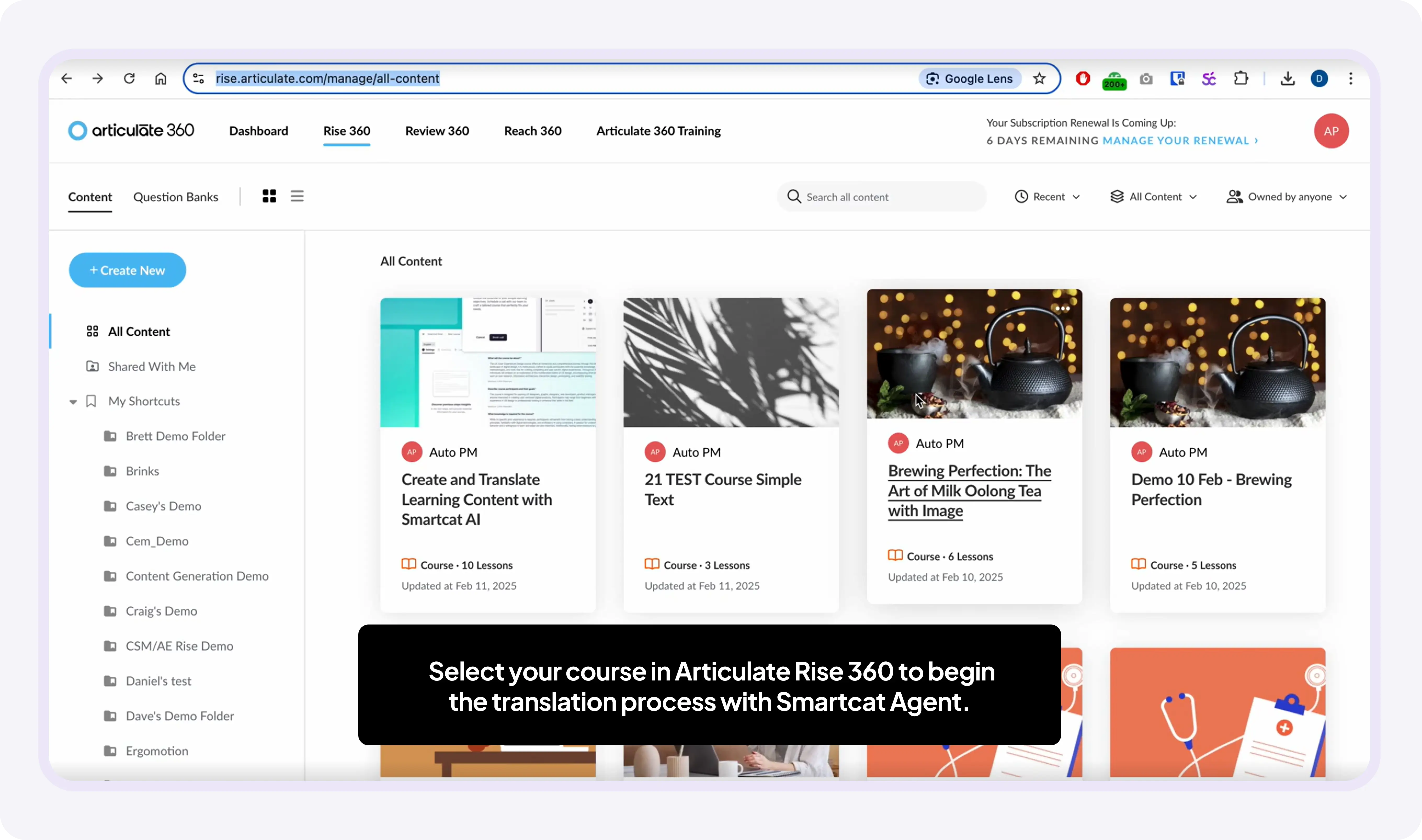
  2. Log into Articulate Rise and open the course you want to translate
  3. Click the Smartcat icon in your browser toolbar to launch the extension

  4. Confirm the source language (auto-detected)

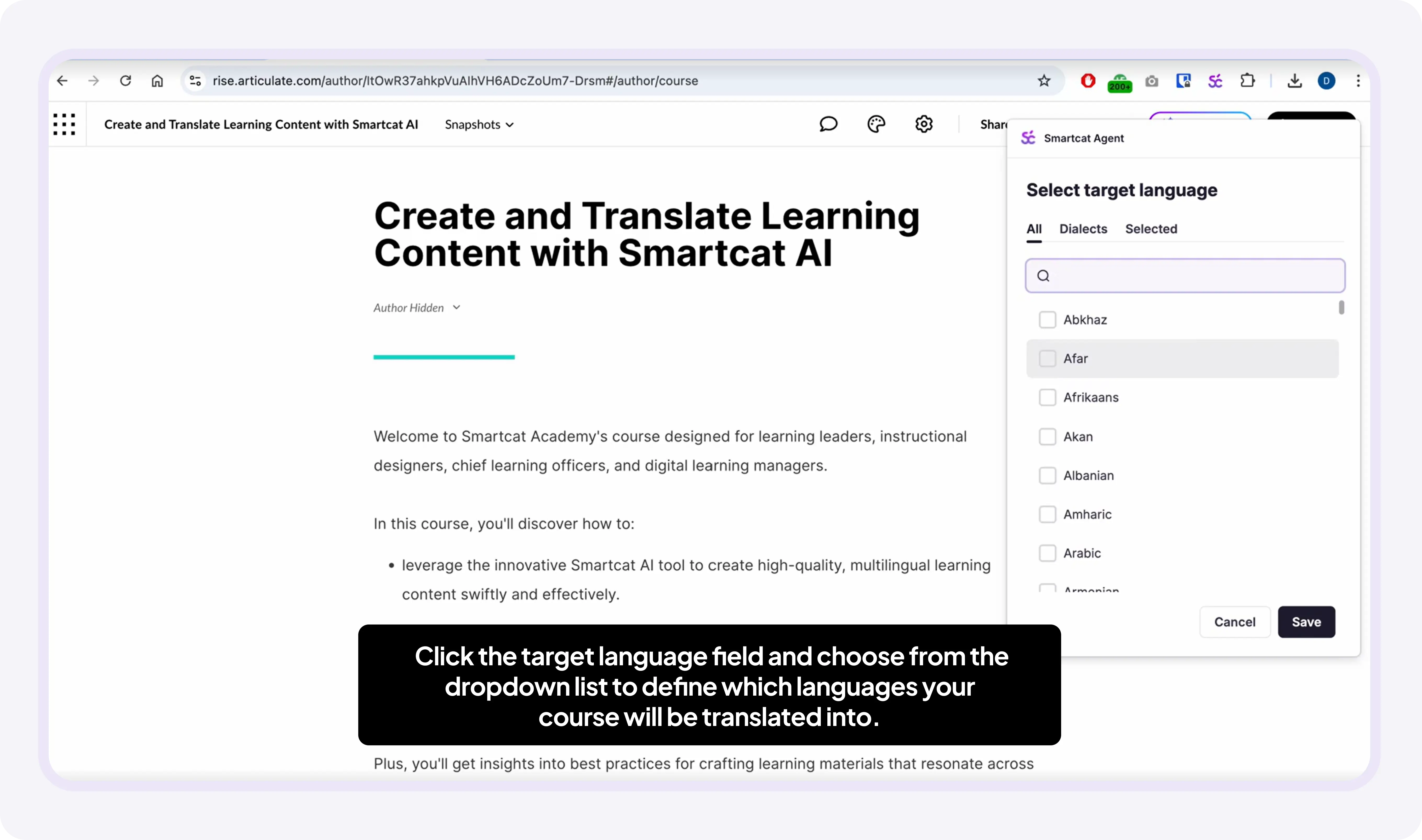
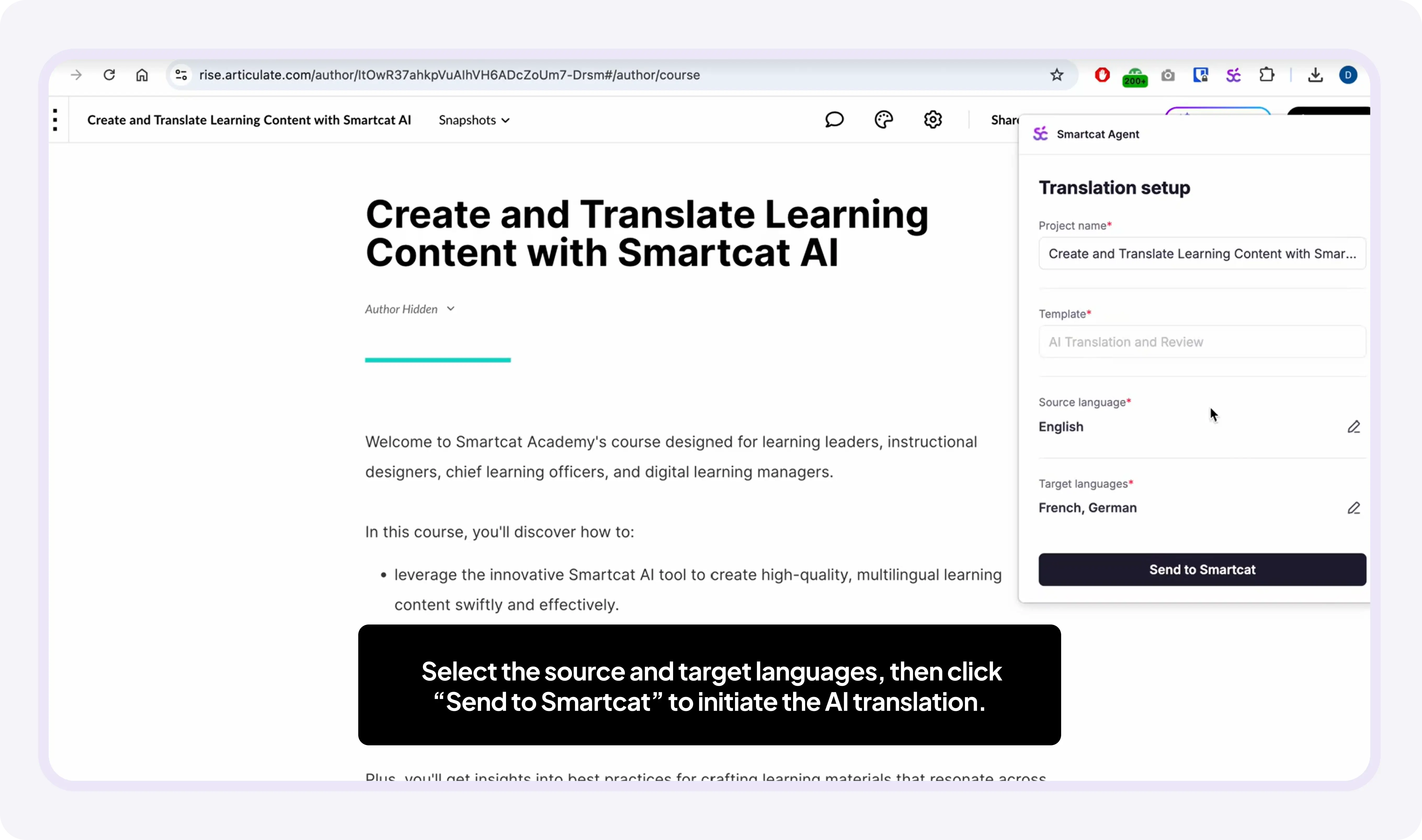
  5. Select one or multiple target languages

    Smartcat browser extension open over an Articulate Rise course with language selection

  6. Choose the assets you want to include in translation (for example, to translate videos but not images with text on them, clear the checkbox for images)

  7. Click Send to Smartcat

Extension asset selection with checkboxes for text, images, and video and a Send to Smartcat button

Your course is sent to Smartcat to set up the translation project.

Step 2: Set up the translation project

  1. Wait until the course translation is set up and sent to Smartcat

  2. Track translation progress by clicking Show translation progress

    Extension showing translation progress for the course

  3. To see the course inside Smartcat, click Open project in Smartcat

Extension with the Open project in Smartcat button

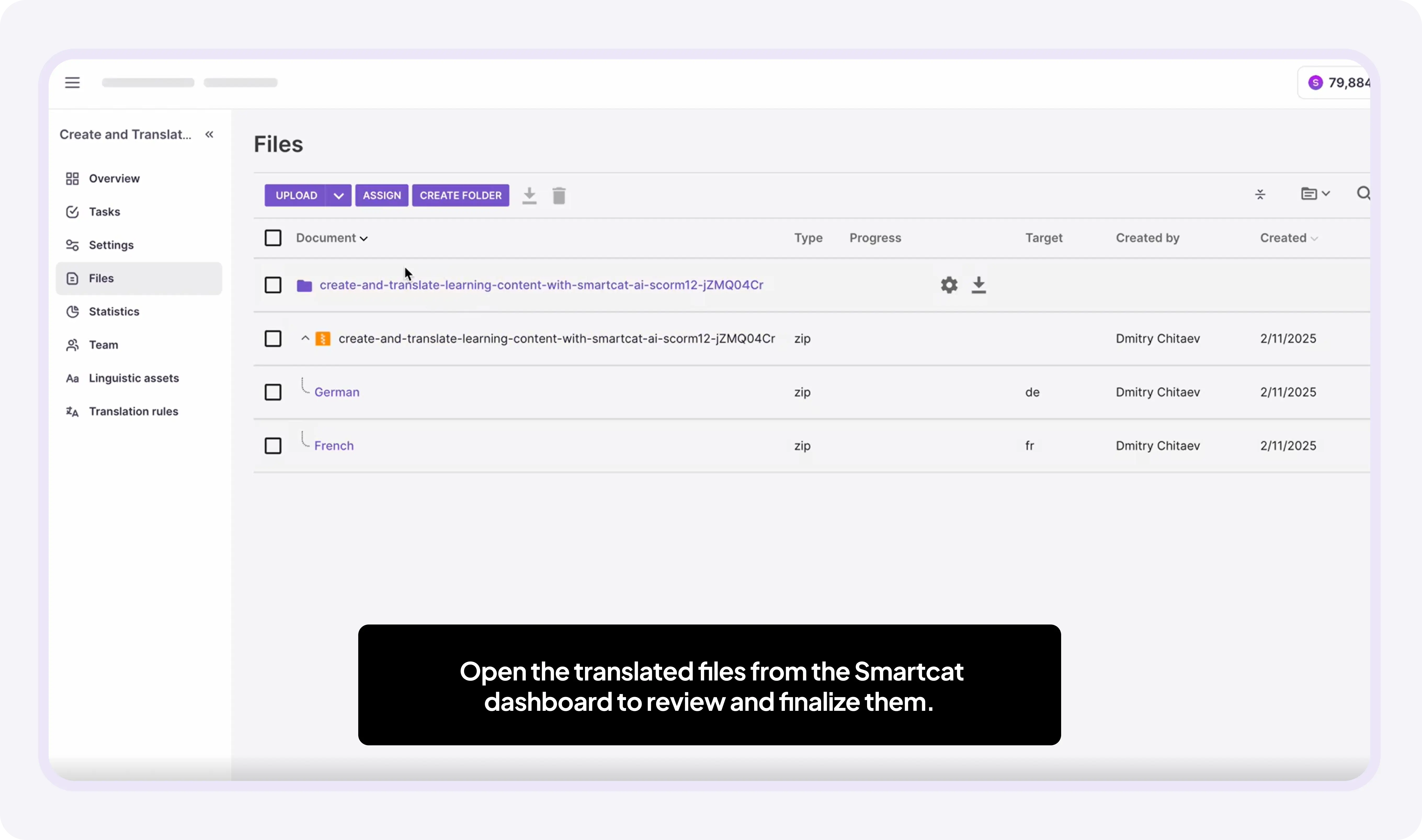
Step 3: Open the translation project in Smartcat for further review and refinement

You are automatically redirected to Smartcat Projects. From here you can perform all the actions described in Workflow A above.

Smartcat Projects view with the imported course translation project

Course open in the Smartcat editor for review and refinement


Key takeaways

  • Two flexible workflows, whether you have just the SCORM file or also direct access to Rise

  • Translate every asset type with AI plus optional human review

  • Preview, edit, and brand your course before export

  • Export LMS-ready multilingual SCORM packages

💡 With SCORM translation, you can scale global training faster, cut costs, and deliver a seamless learner experience, all without rebuilding content from scratch.

Still need help?

Our support team responds within one business day.

Open a support case