Configuring Skills in the Intelligence Fabric
Overview
A skill is repeatable procedure your Chief of Staff follows to complete a task. It specifies the steps, the inputs it needs, the tools it uses, and how it validates its work. A skill is not a one-off prompt and it is not a permission; it is a reusable procedure your chief of staff follows the same way every time.
In the Intelligence Fabric, each skill has three parts: a name, a one-line description shown in the skills list, and a free-form body — the instruction the coworker follows when it applies the skill. A skillisn't code or a separate module, it's text your coworker reads and acts on as a rule.
Skills come in three types:
-
Personal — created and edited by you, for yourself, in the Personal section. Personal skills are subject to a per-user limit based on your subscription plan
-
Global — created and edited by your workspace admin, in the Workspace view. Global skills are always on for every user in the workspace and have their own limit, separate from Personal
-
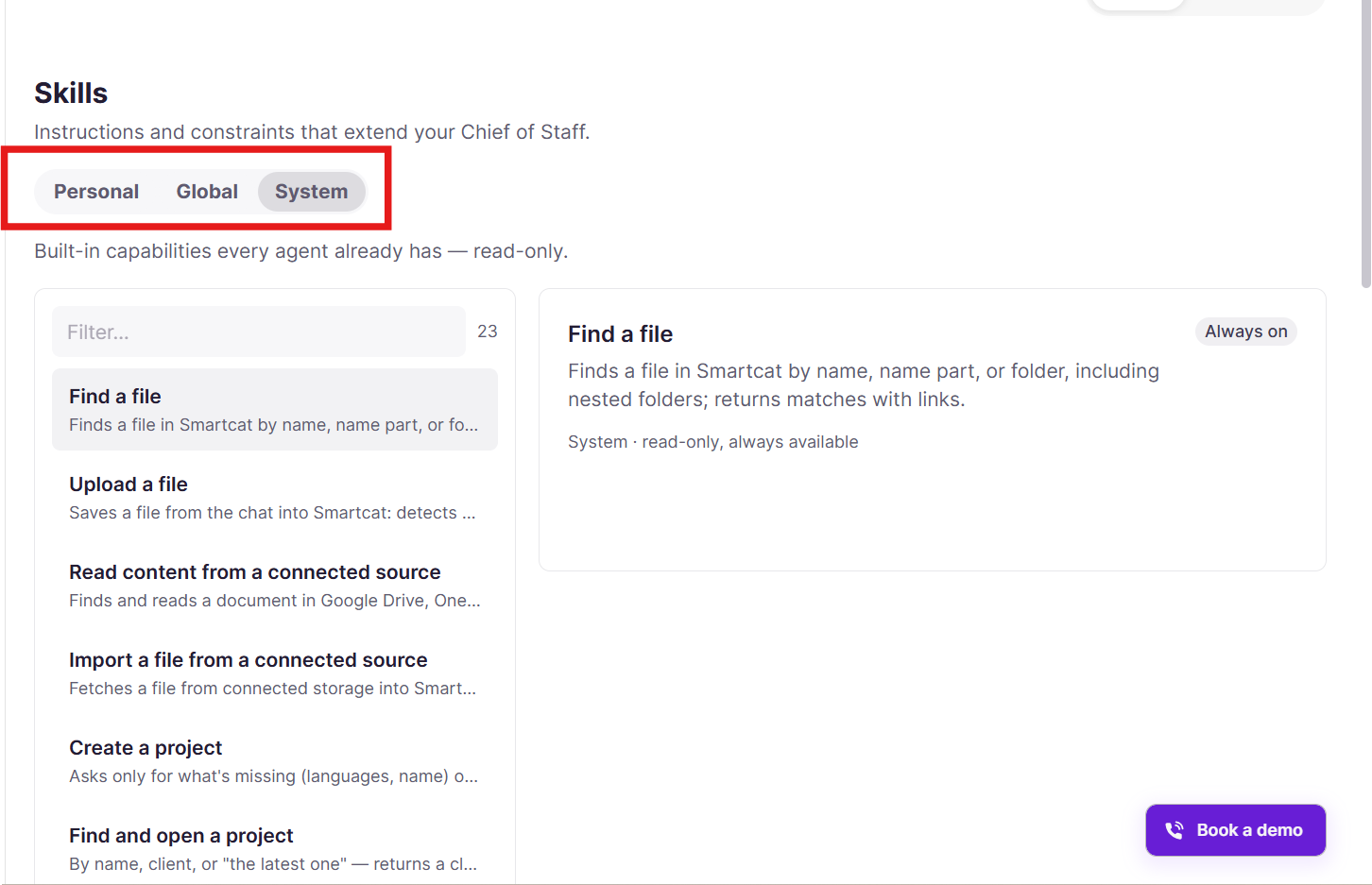
System — built-in capabilities your coworker already has. You can't create, edit, or remove a system skill. It's always available and always on.
An automation isn't a fourth type of skill. It's a repeatable instruction that starts automatically by a trigger, available on the Anticipate and Autonomous pricing plans.
When to use it
-
Extend what your Chief of Staff or the Translator Coworker can do beyond its built-in System capabilities
-
Standardize a recurring instruction so your coworker applies it consistently every time, without you repeating it
How to use it
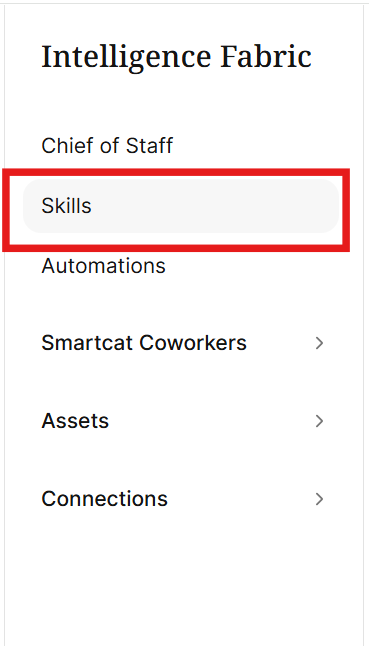
- In the left navigation sidebar, click Intelligence Fabric.

- Click Skills
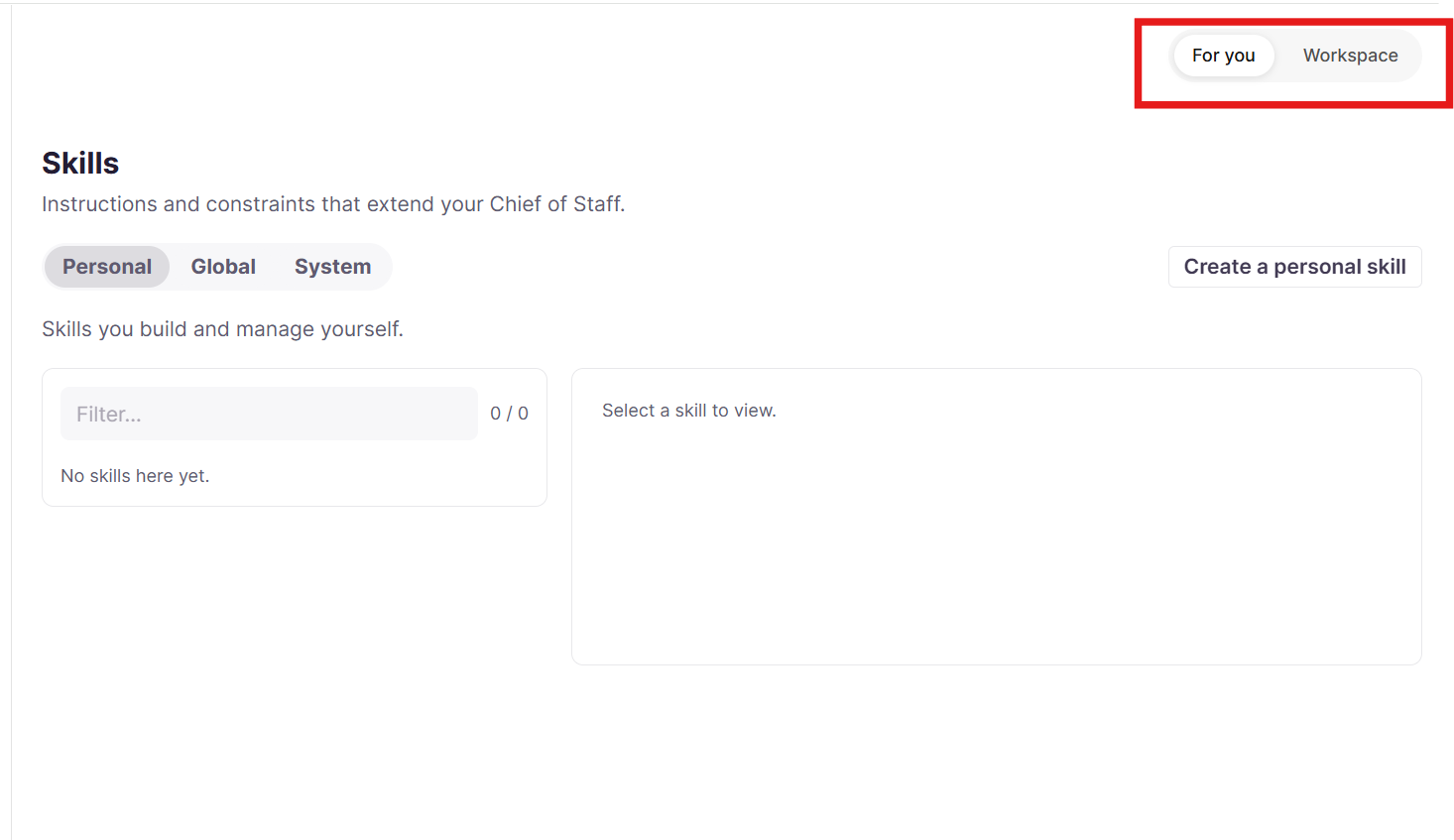
- Go to the For You section to create a skill for yourself or review the skills available to your chief of staff, or go to the Workspace view if you're a workspace admin creating or reviewing global skills
Create a personal skill
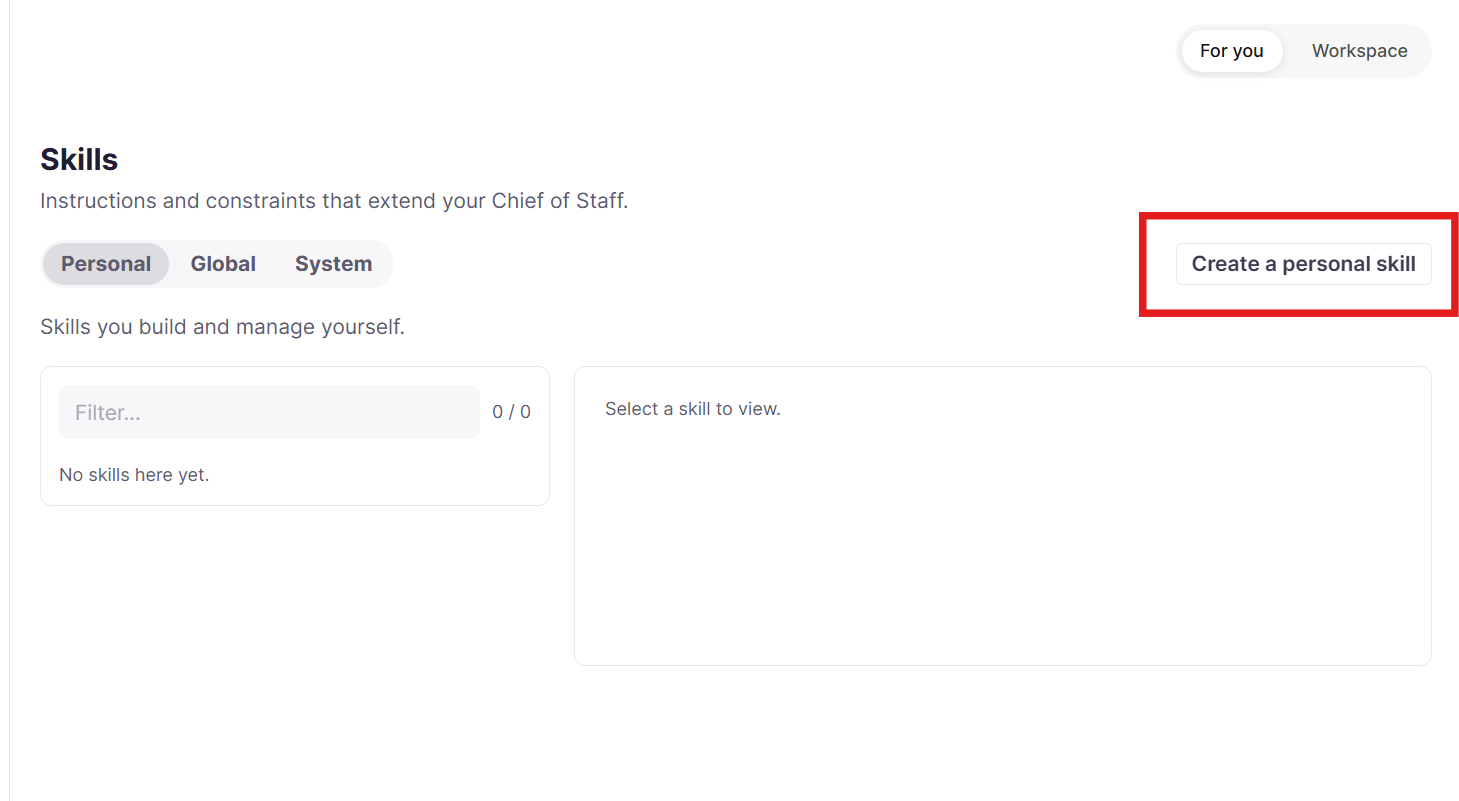
- In the For You section, click Create a personal skill
-
Choose how to start:
-
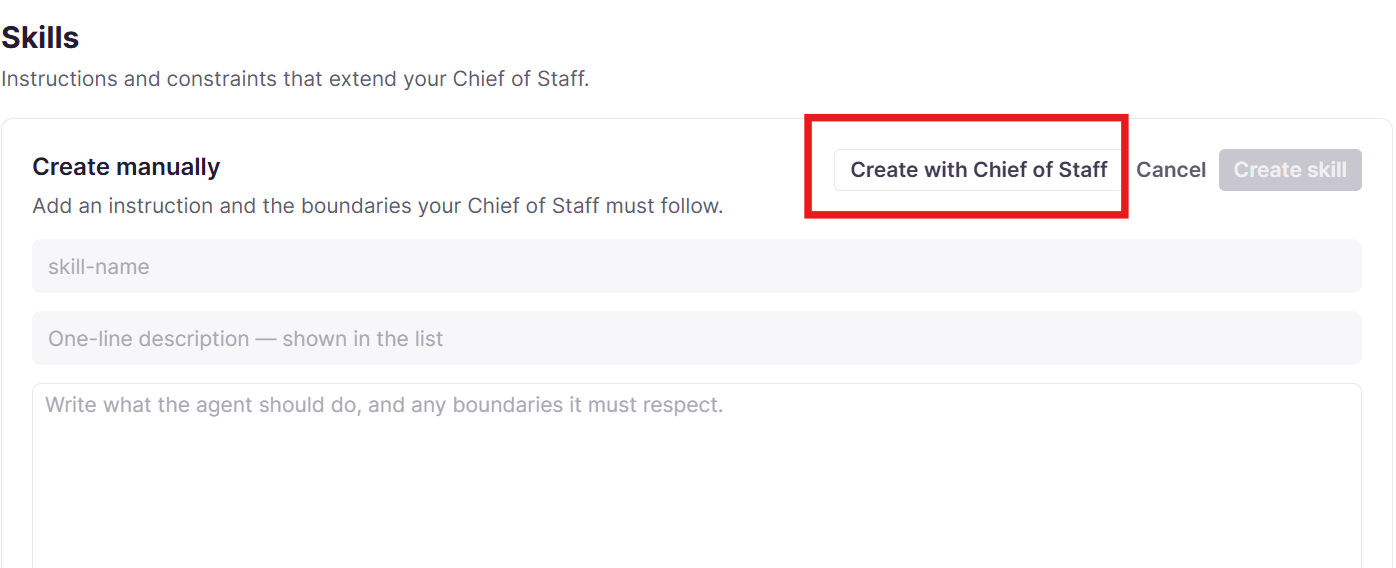
When you first see the skill creation screen, you see the Create manually section, which allows you to enter a skill name, one line description of the skill , and the body of the skill. click Create with Chief of Staff and describe what you need in plain language in chat, or fill in the manual form directly with a name, one-line description, and the body of the skill.
-
Click Create with Chief of Staff to open a new Chief of Staff chat. You can then design the skill with conversational language with the Chief of Staff. When you are finished, the skill appears on the Skills page just like if you created it manually.
-
-
Click Create Skill or tell your Chief of Staff the skill is ready in your chat. Smartcat routes you into a chat with Chief of Staff either way.
-
Review the skill with Chief of Staff in that chat. It checks the instruction for correctness, helps refine the wording, checks any tools or capabilities the skill references, and tests the actual tool call before saving
Your skill is validated end to end before it's saved, so you don't end up with a skill that looks correct but doesn't actually do anything.
💡 Validation with Chief of Staff is mandatory for every skill, whether you started it from a chat description or wrote the text yourself.
Create a Global Skill
If you are a workspace administrator, you can create a global skill in the Workspace view. Select Global from the toggle and follow the same steps you would for a personal skill.
Review Existing Skills
You can review your existing skills on the Skills page.
- Use the toggle at the top of the page to determine what type of skill you’re reviewing
-
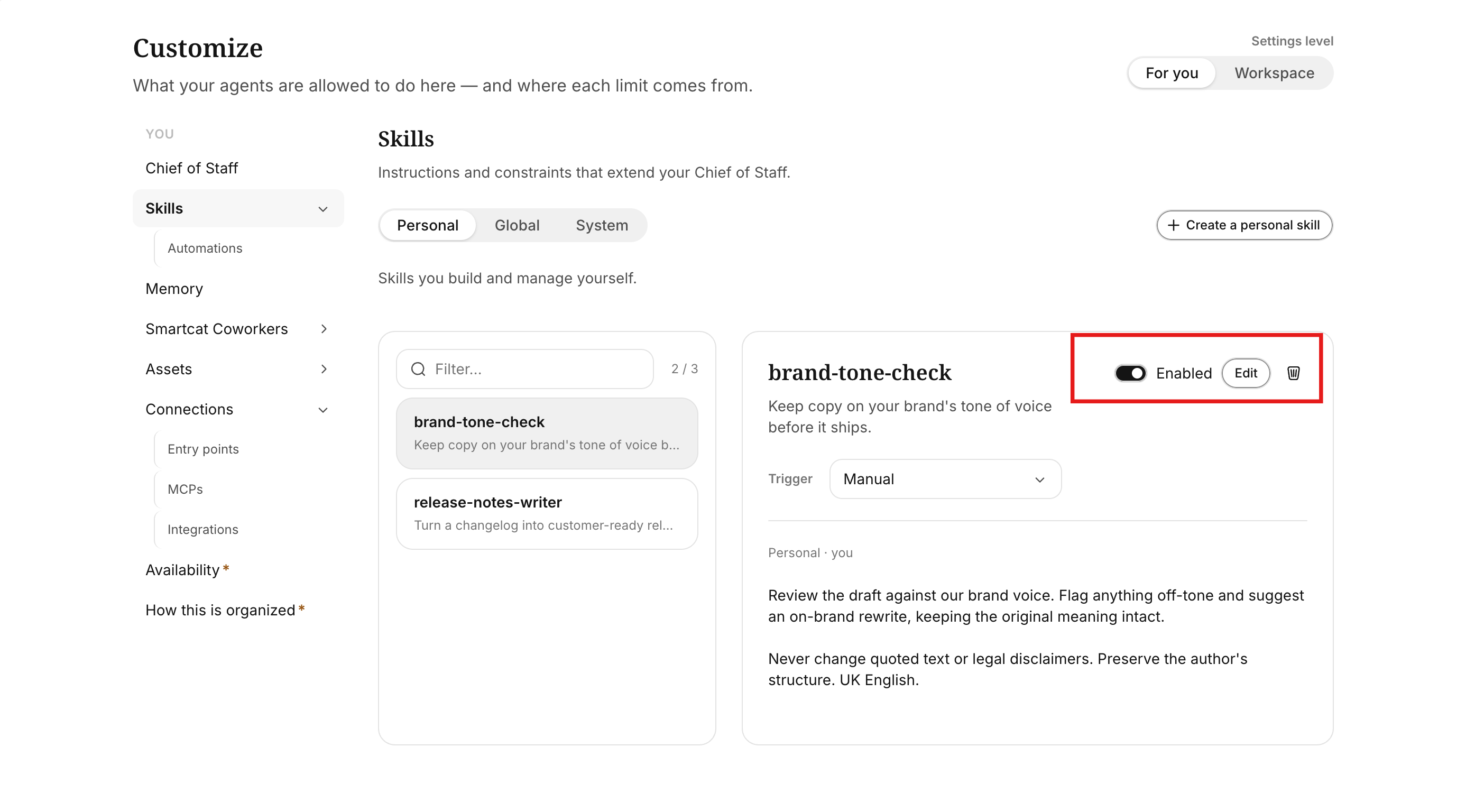
If needed, use the search filter to type in the name or part of the description of a skill to locate the skills you want to review.
-
When viewing a personal skill, or a global skill as a workspace admin, you can use the Enable toggle to turn the skill on or off. Click Edit to make changes to the skill. Click the trash icon to delete the skill.
Automations
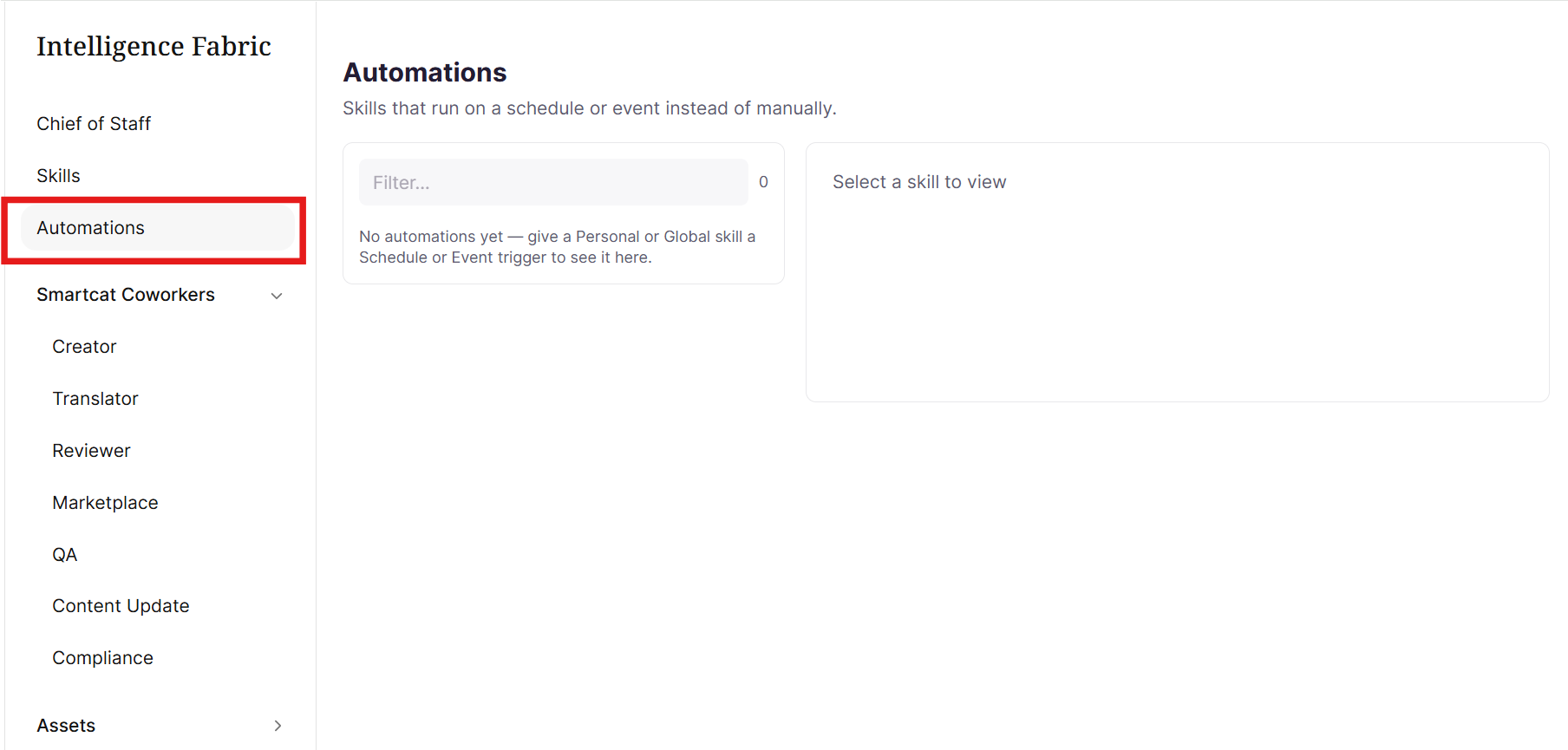
On the Anticipate and Autonomous plans, you can create automated skills which activate on a trigger you design when creating the skill. You can review your configured automations on the Automations page of the Intelligence Fabric.
Requirements and Limitations
The number of personal and global skills available is determined by what plan you are on. Global skills exist across all workspaces on a plan, so, on an Anticipate or Autonomous account, creating a global skill in one workspace automatically makes it available in all other workspaces on that plan.
| Plan | Personal skills | Global skills | Workspaces |
|---|---|---|---|
| Adapt (formerly Basic) | 3 | 5 | 1 |
| Accelerate (formerly Team) | 7 | 8 | 1 |
| Anticipate (formerly Enterprise) | 15 | 20 | 2 |
| Autonomous | 25 | 100 | 7 |
FAQs
What's the difference between a skill and just asking my Chief of Staff to do something once?
A skill is a reusable procedure your Chief of Staff follows the same way every time, not a one-off prompt or a permission. Once saved, it standardizes a recurring instruction so you don't have to repeat yourself.
What are the three types of skills?
Personal skills (created and edited by you, private to you), Global skills (created by a workspace admin and always on for everyone in the workspace), and System skills (Smartcat's built-in capabilities, always available, not created or edited by users).
How many skills can I create?
It depends on your plan. Adapt allows 3 personal / 5 global skills; Accelerate allows 7 personal / 8 global; Anticipate allows 15 personal / 20 global; Autonomous allows 25 personal / 100 global.
Do I have to write a skill from scratch myself?
No — you can click "Create with Chief of Staff" and describe what you need conversationally, or fill in the manual form yourself. Either way, the skill is validated end-to-end with Chief of Staff before it's saved.
Is an automation the same thing as a skill?
No — an automation is a repeatable instruction that starts automatically from a trigger, available on the Anticipate and Autonomous plans. A skill runs when you or your Chief of Staff invokes it.
Want to learn more?
See how Smartcat can transform your localization workflow.
Still need help?
Our support team responds within one business day.