Review and edit AI translations in the Subtitle Editor
Overview
The Subtitle Editor in Smartcat lets you review, edit, and finalize AI translations of subtitles. Organizations often manage multiple subtitle files across teams, and the editor helps you keep them consistent and high quality.
Click through the interactive demo below to see the Subtitle Editor in action.
https://docs.google.com/document/d/1CzuHTawn1iO6GPEPKSZeHCGDDZ1YNzURQphx-O6i76U/edit
Open the Subtitle Editor
-
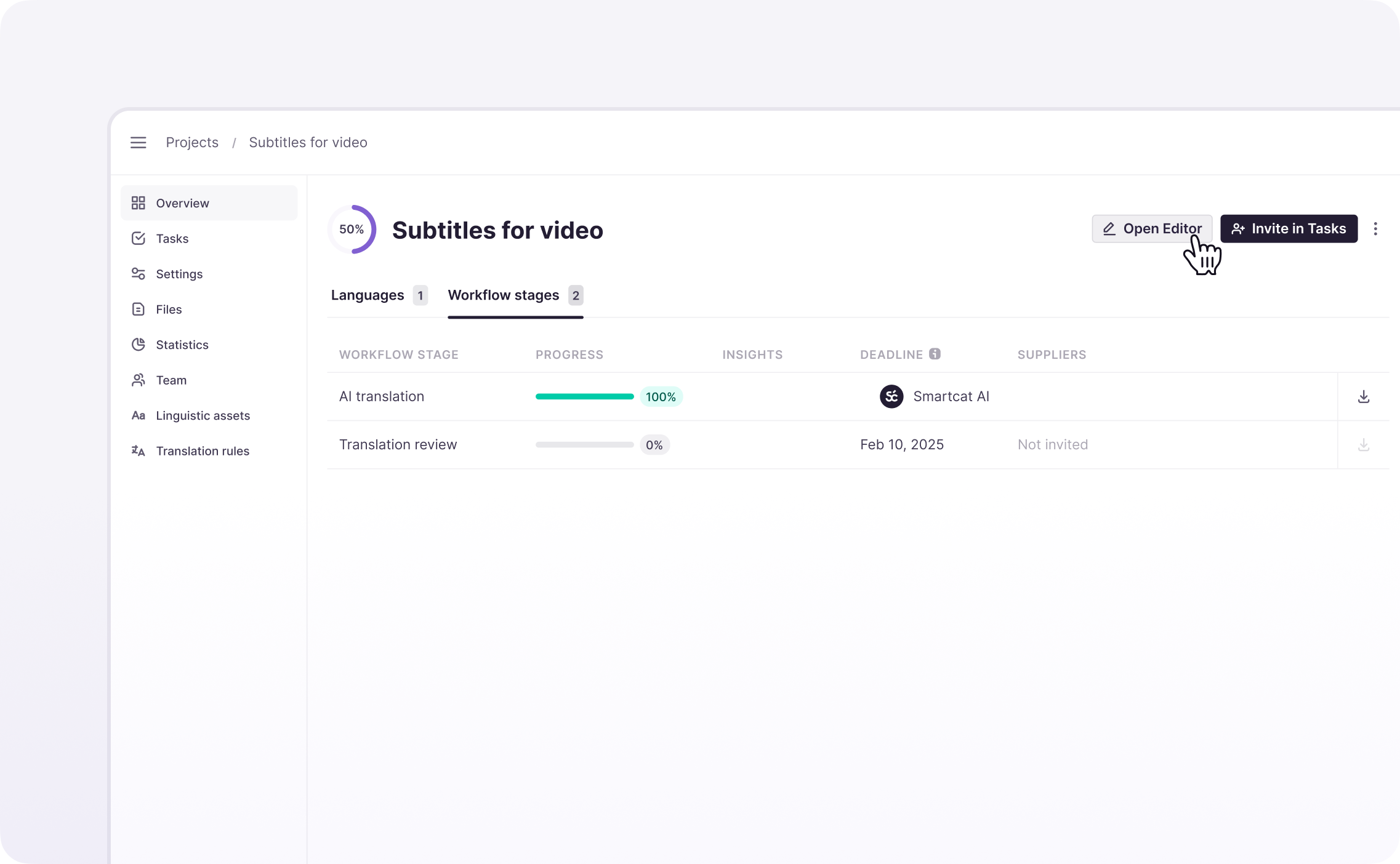
Go to the Projects section in Smartcat
-
Click the Open Editor button to review and refine the translation so it meets your quality standards
-
You can also find the subtitle file under Files and click Open Editor to start editing that file
The Subtitle Editor opens with your file ready for review.
Understand the editor layout
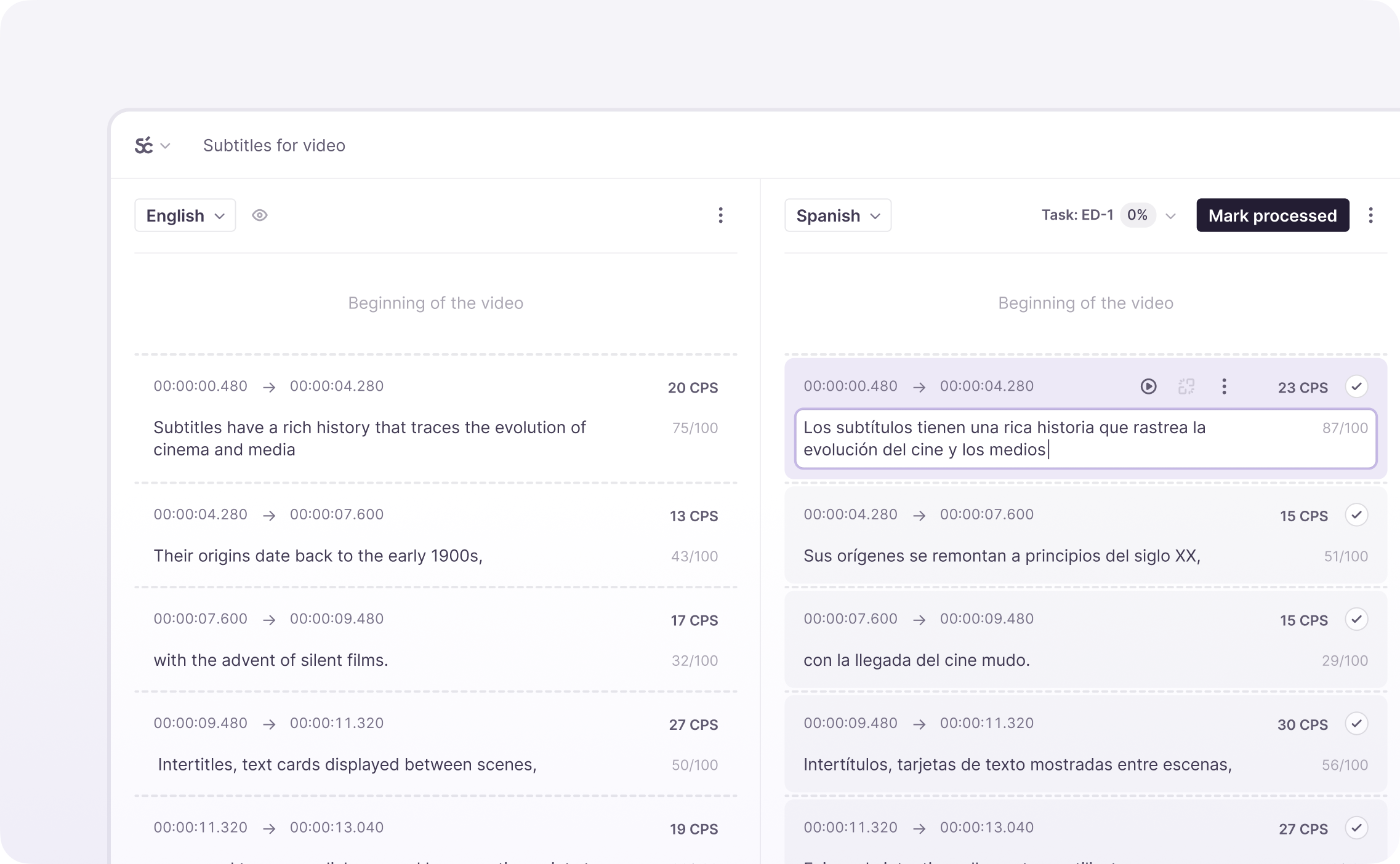
The left column shows the source text (non-editable). The right column contains the AI translation, displayed in cues (time-synced segments of text).
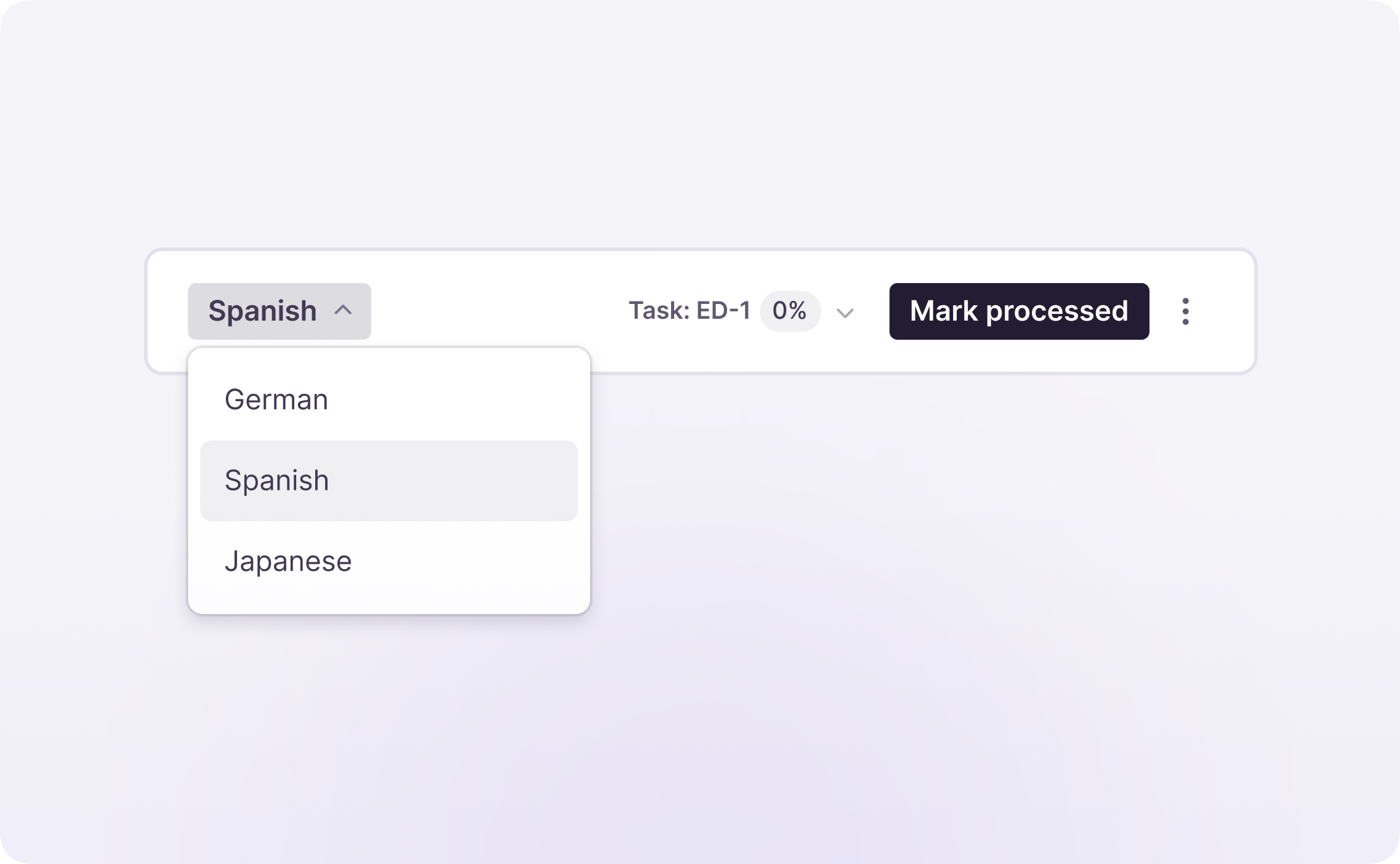
Use the Language selector to switch between multiple target languages.
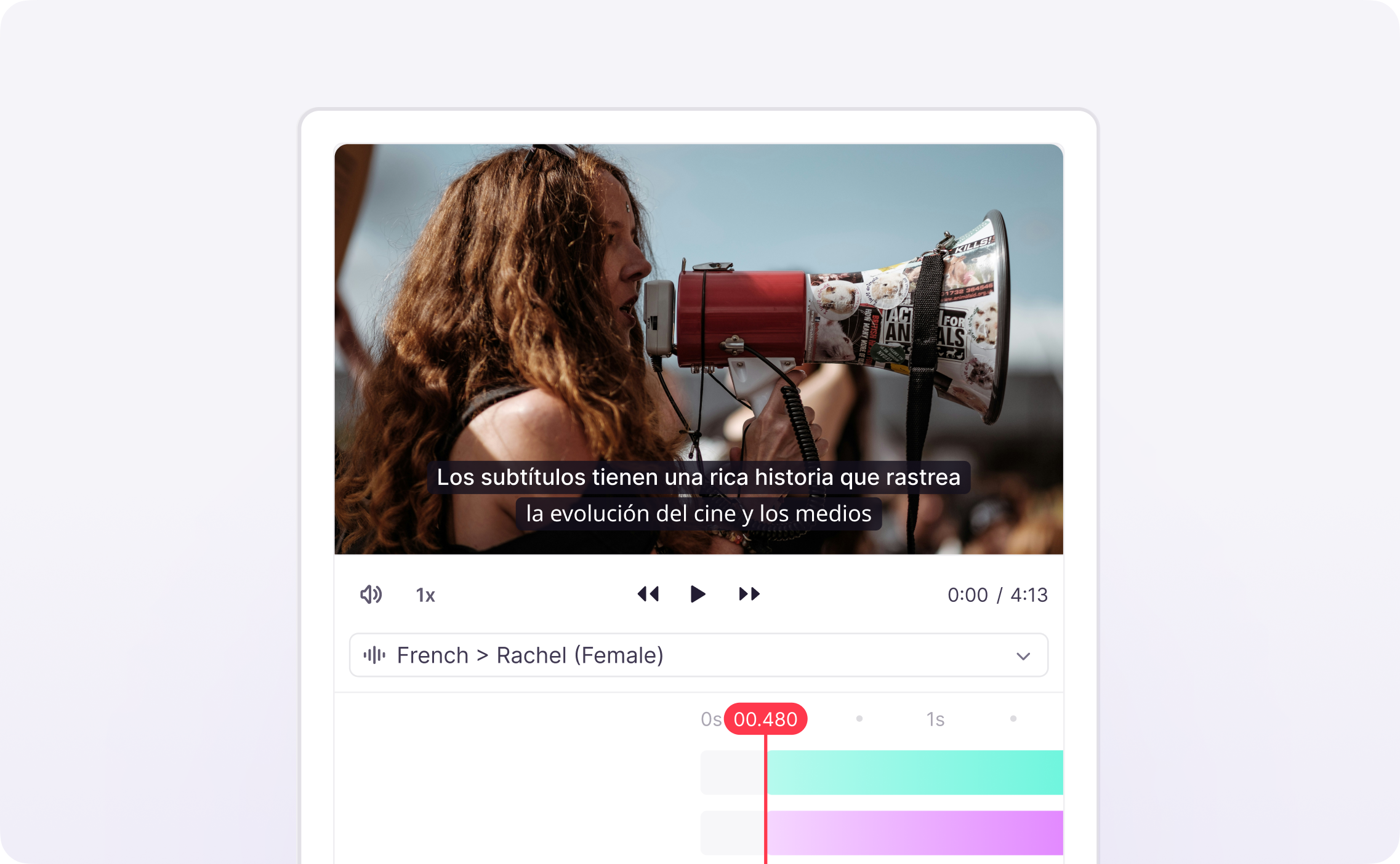
On the far right, you find the preview area and the timeline panel. The preview area shows how subtitles align with the video, while the timeline panel shows how subtitles are distributed over time, giving a clear visual representation of their placement and duration.
Edit and review translations
-
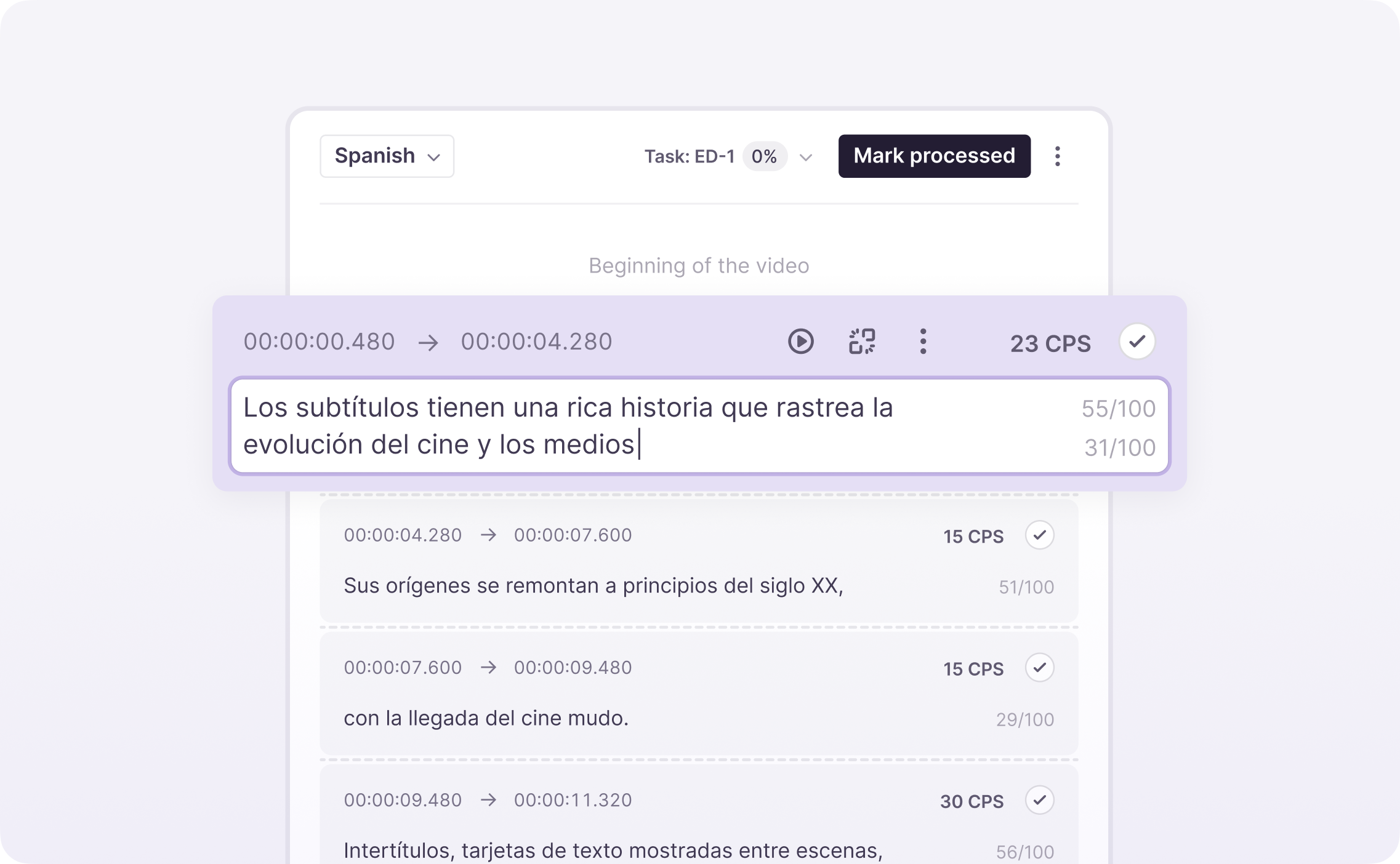
Click the text box or cue and make your edits
-
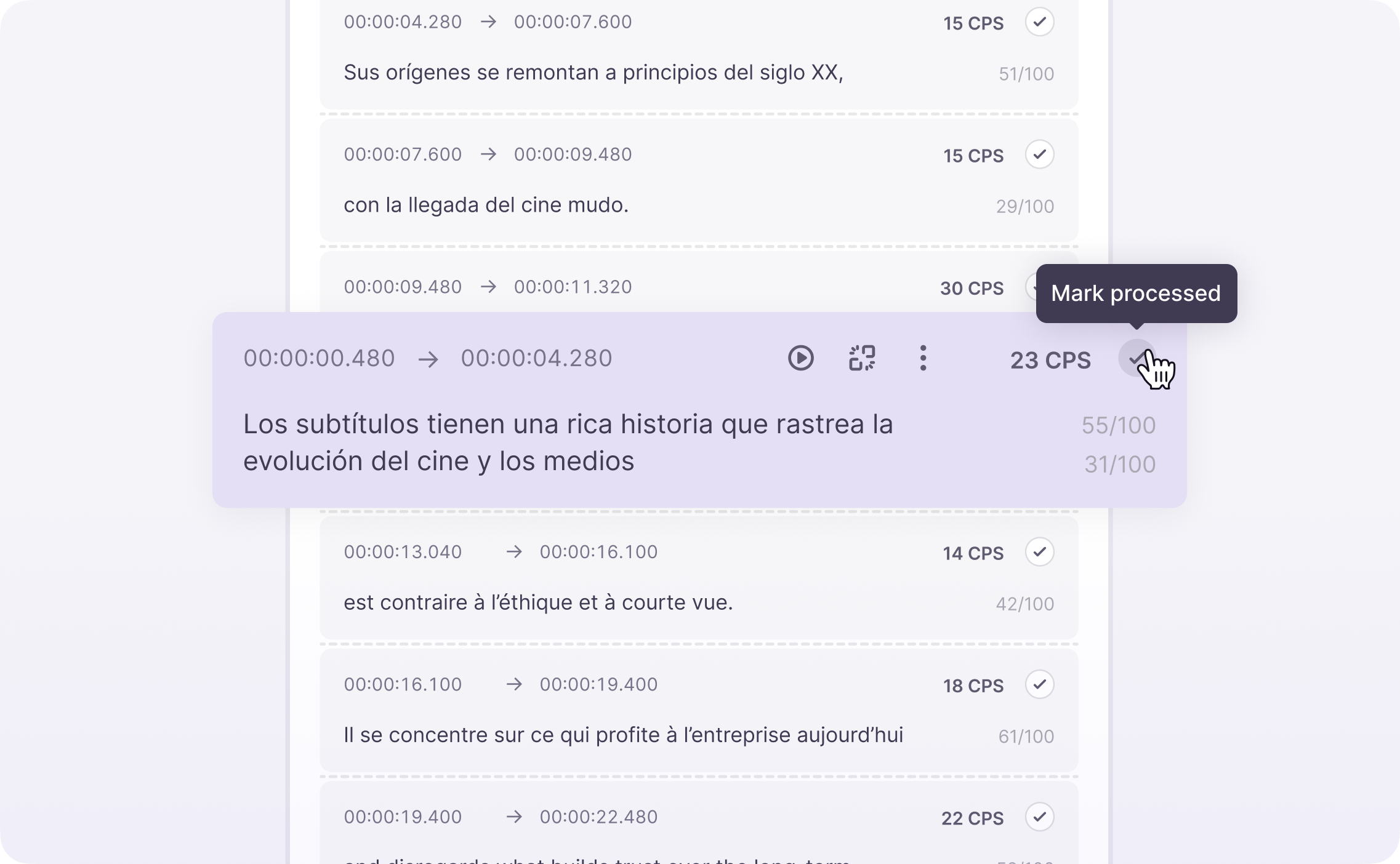
Select the check mark to confirm the cue as processed
Each confirmed cue is marked as processed so you can track what remains.
Adjusting cues
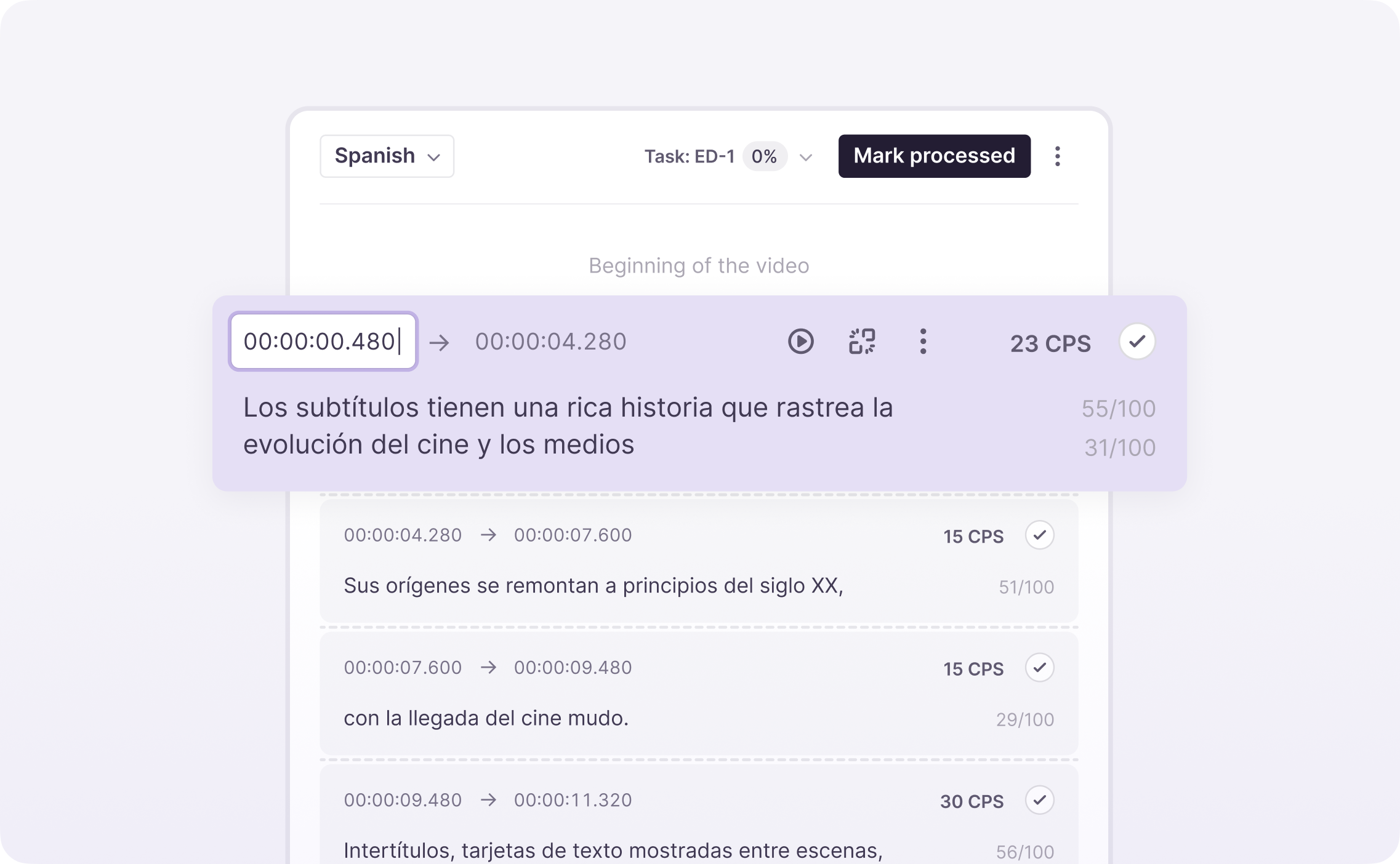
If the subtitles are not aligned with the video, you can adjust their start and end times to control their duration. Each cue has a CPS (characters per second) value, which indicates whether the reading speed is too high and whether the subtitles may not match the timing and need to be modified.
-
Click a cue in the translation column to modify it
-
Check the CPS (characters per second) value to ensure readability, and adjust start and end times if needed
-
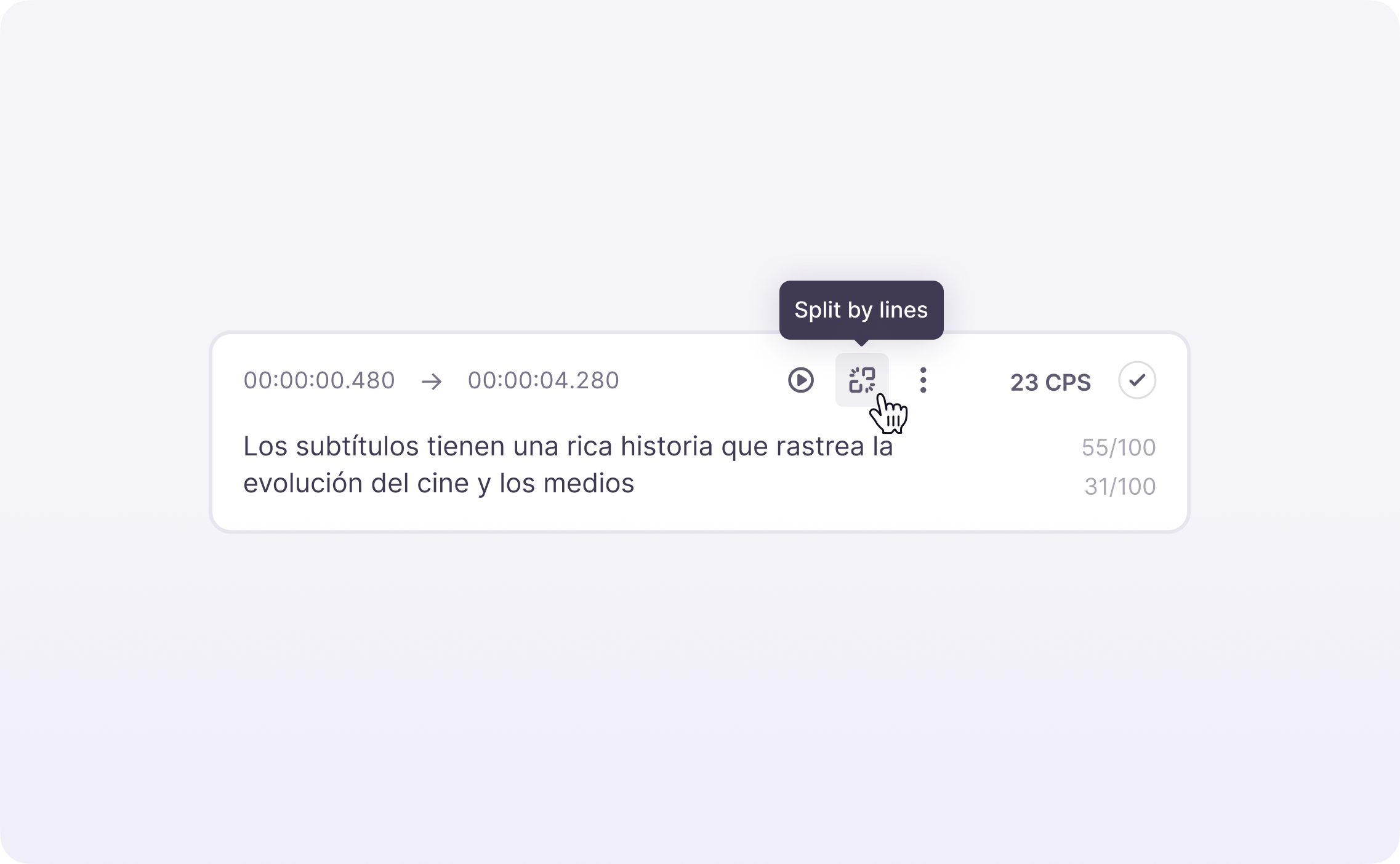
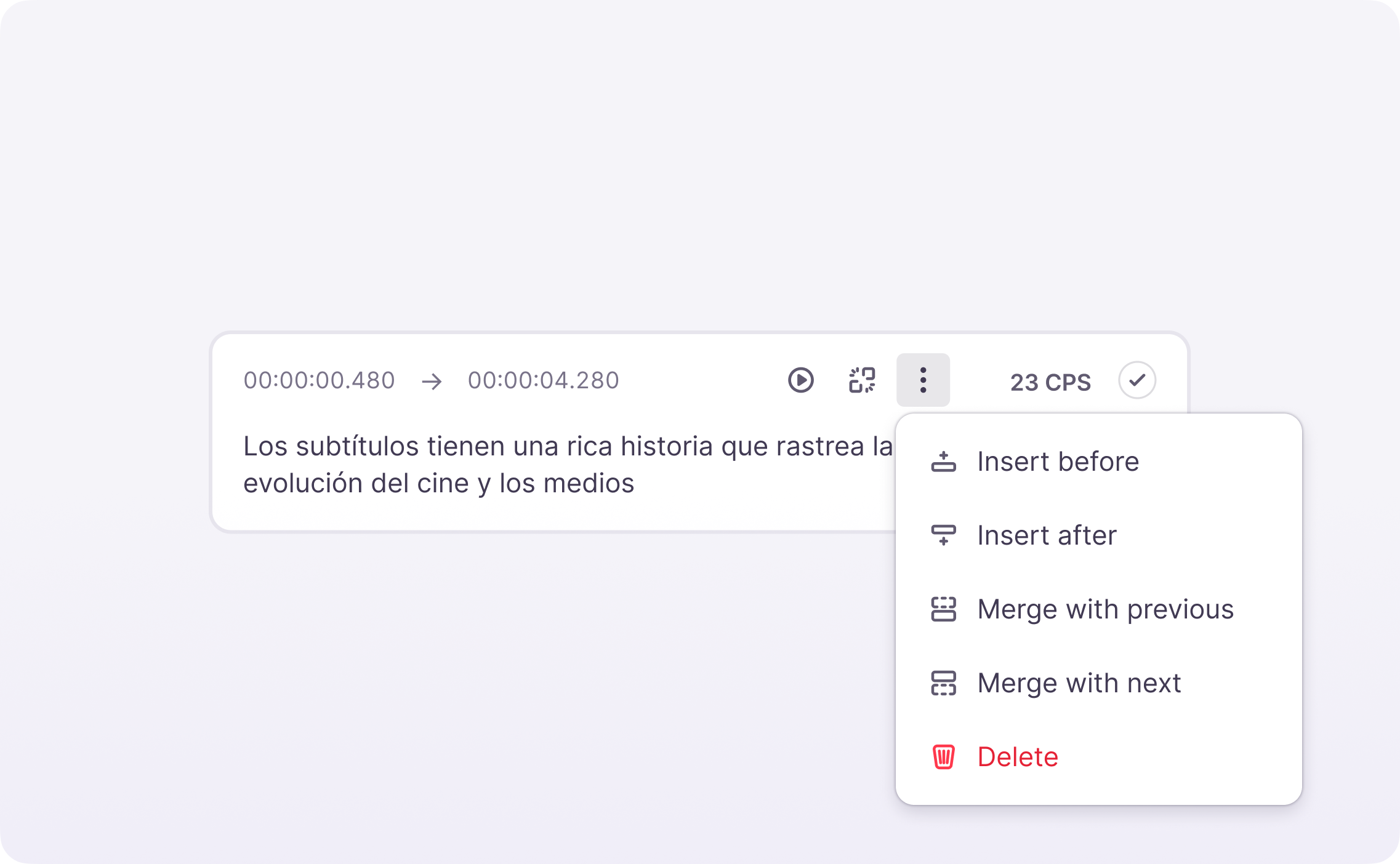
Split or merge cues for better synchronization using the Split by Lines or Dots menu
- To create multiple lines within a cue, press the Enter key
Your cues stay in sync with the video and within the reading-speed limits.
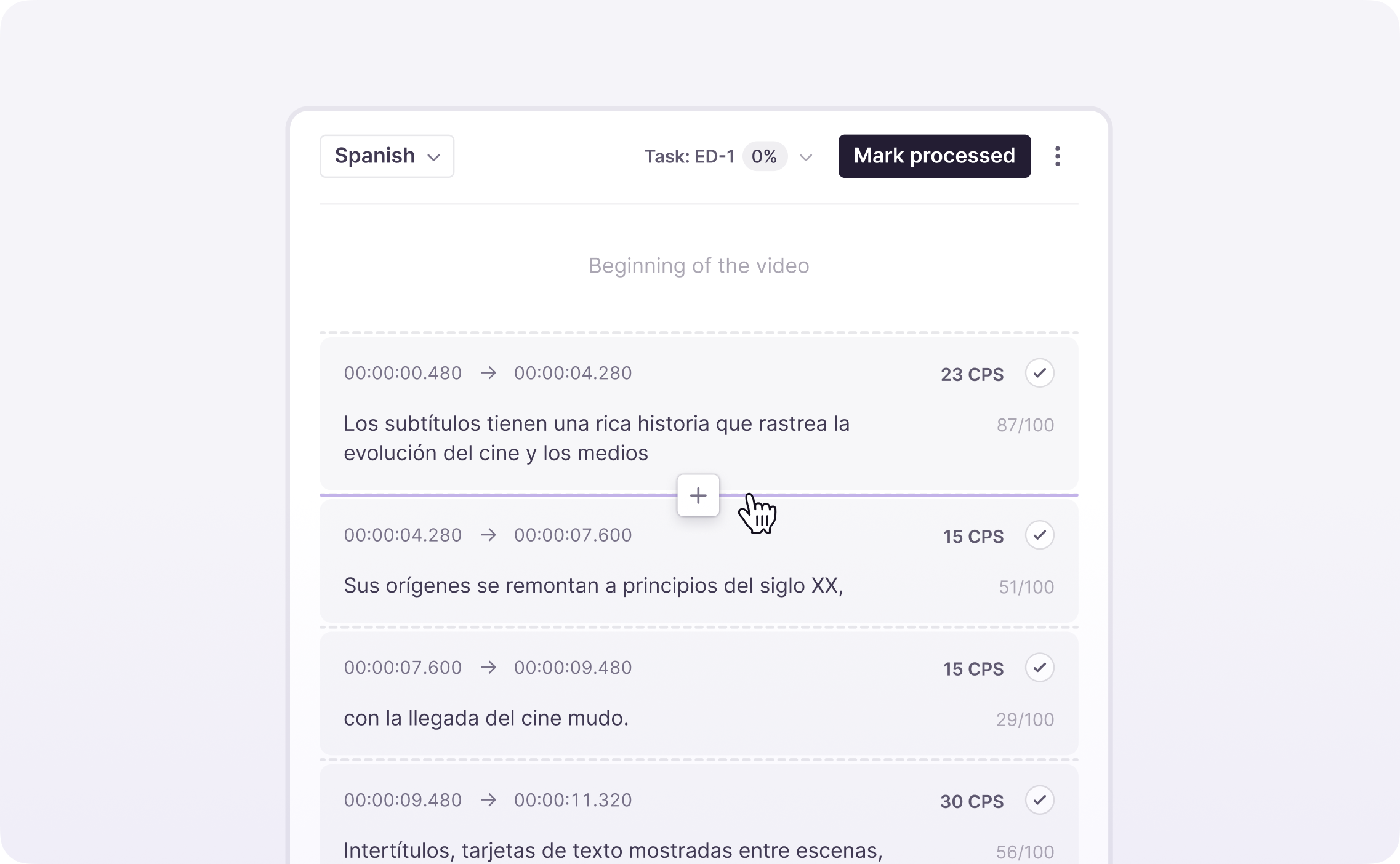
💡 For a faster experience, hover over a border and click the Insert cue button.
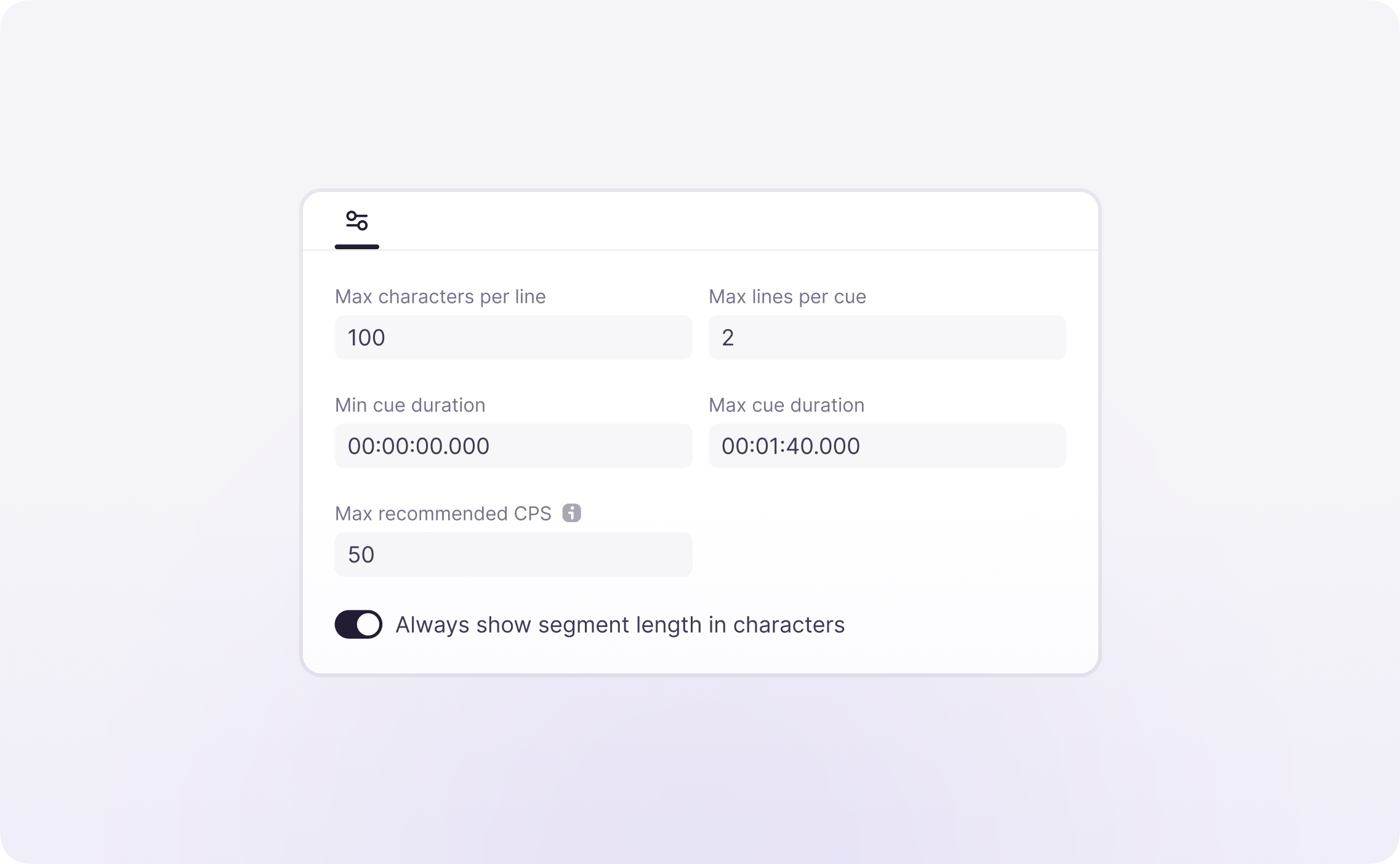
Below the preview area and timeline panel is the Settings section, where you can configure limit parameters for all cues. This ensures consistency across the entire subtitle file, improving both the overall quality and the accuracy of your translations.
Finalize and export
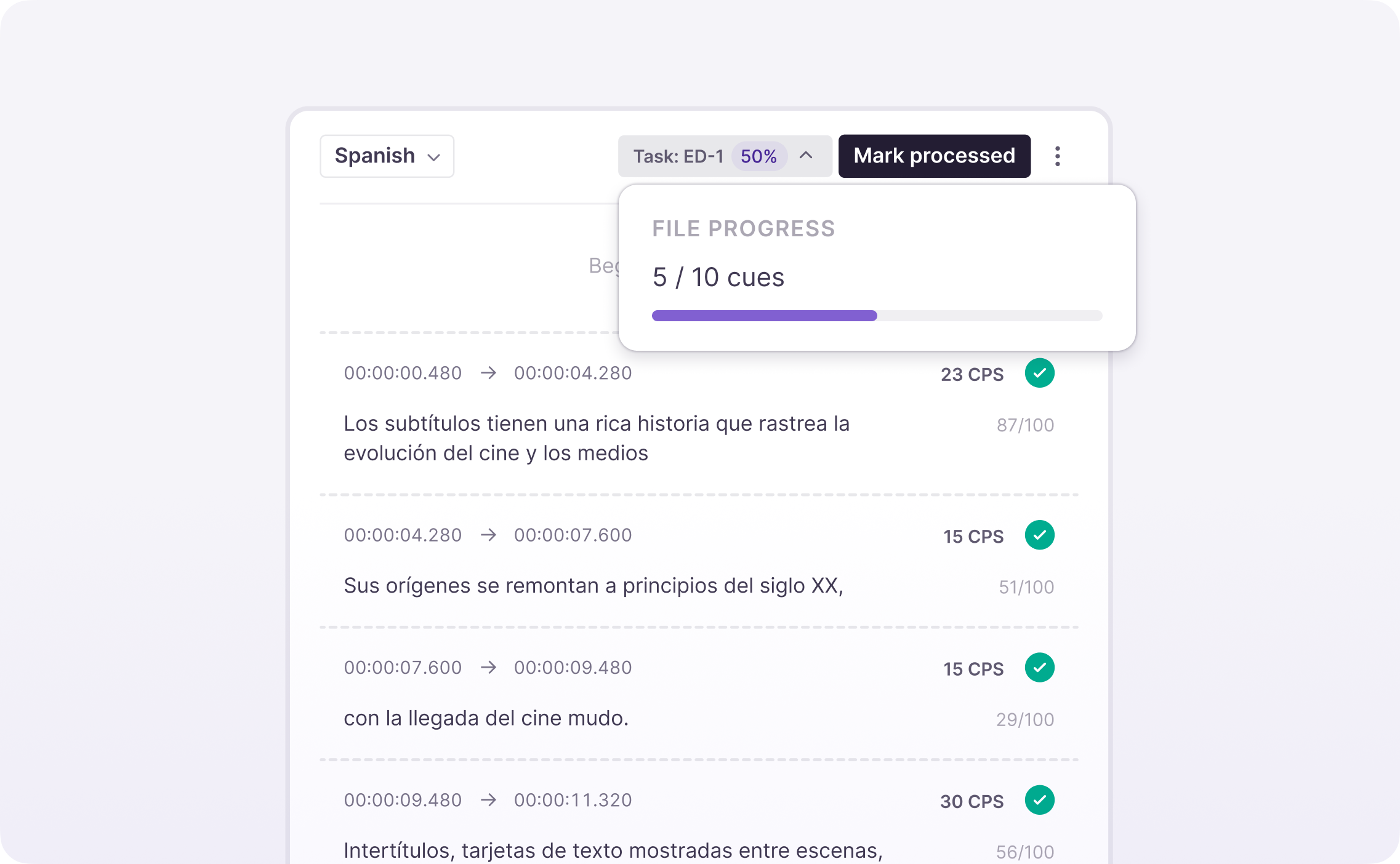
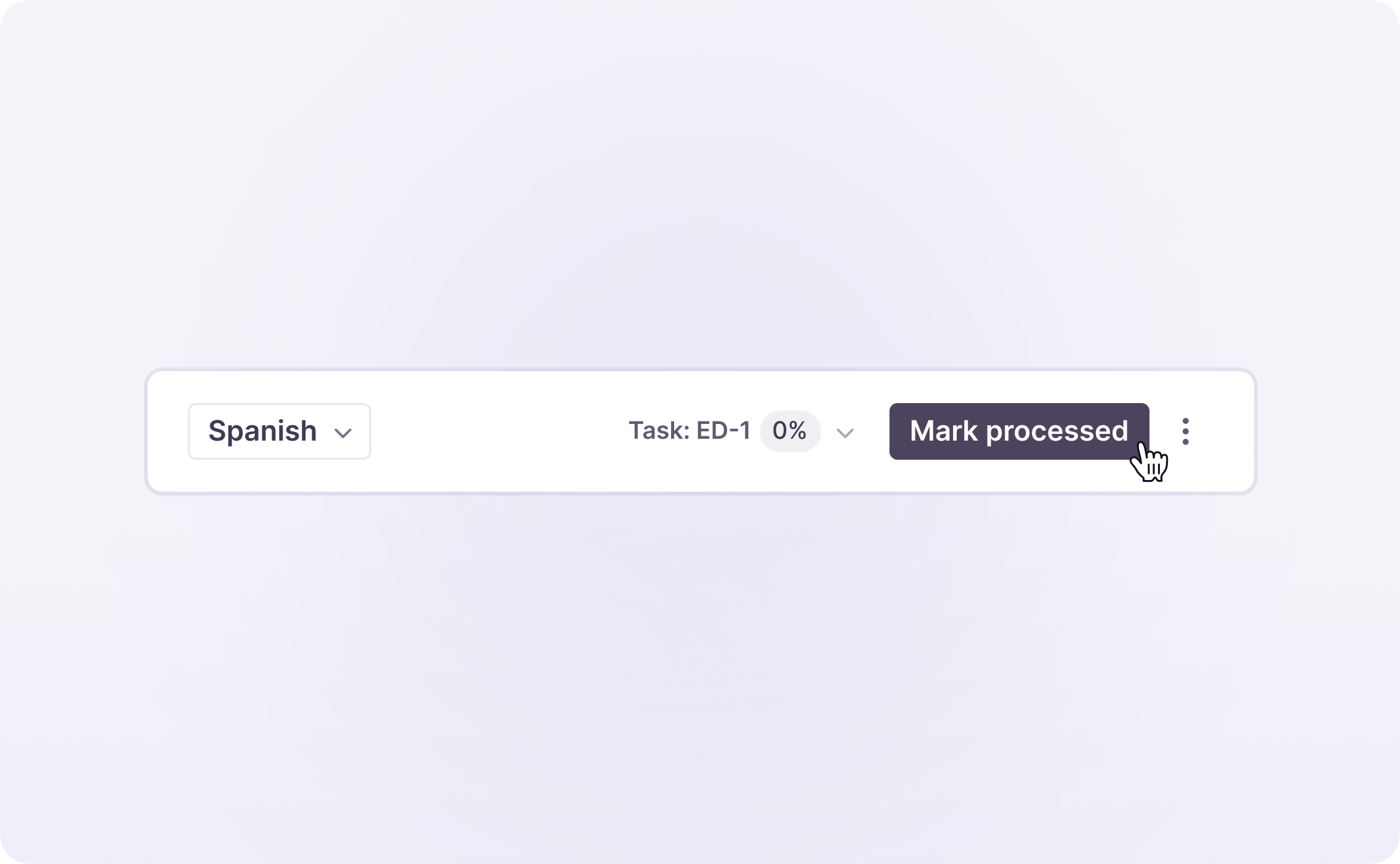
Track your progress with the Progress button, which shows how much of the file you have completed.
When the translation of the file is ready, click the Mark Processed button in the control bar to finish working on the subtitles.
📌 You can use the Mark Processed button even if no cues have been marked as processed.
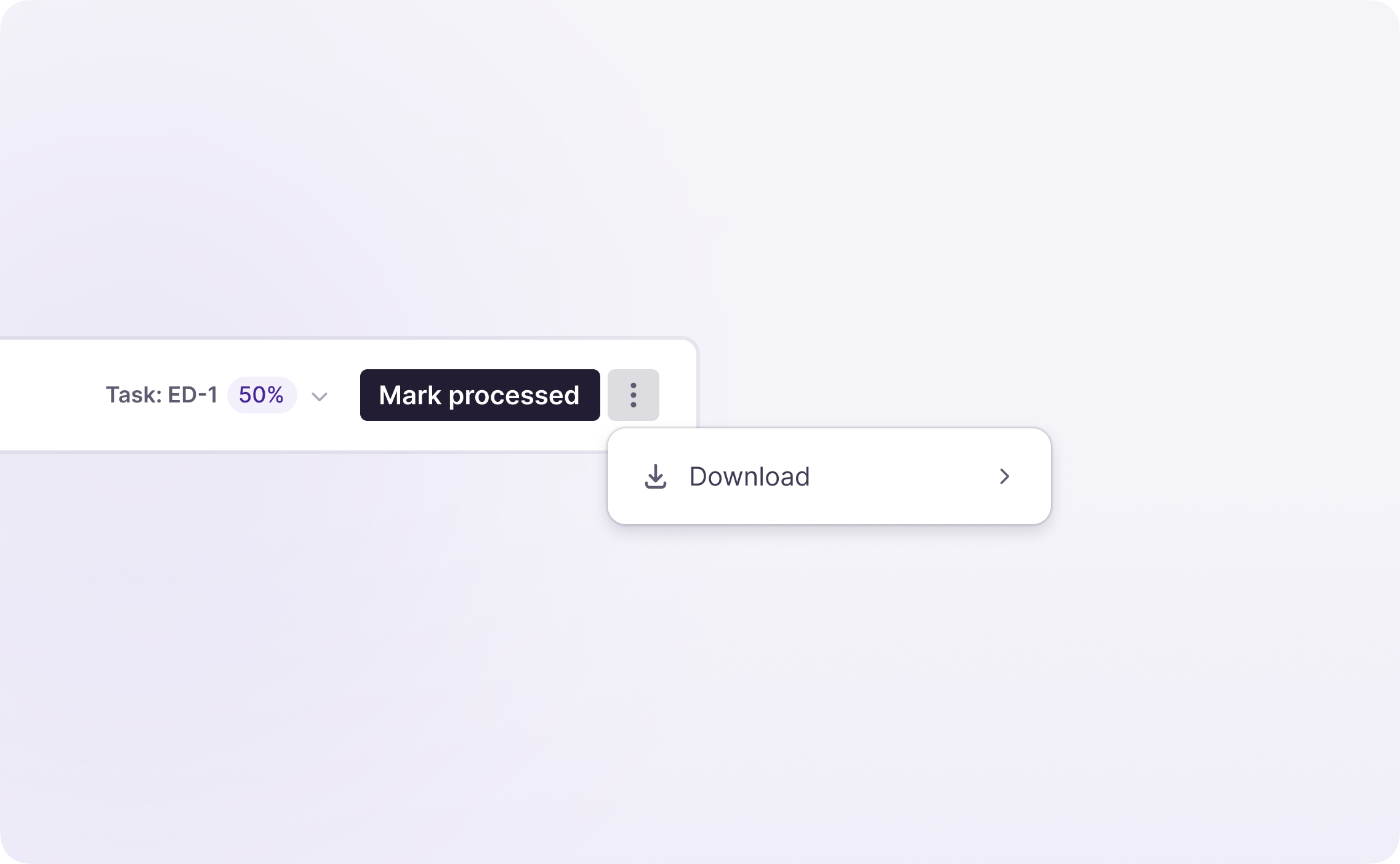
If you are not ready to finish the task, you can download the subtitle file (SRT or VTT format) for additional review.
Generate videos with AI dubbing (optional)
You can switch between languages and add an AI voice for AI dubbing to your video.
-
Select the desired language in the selector under the Preview section
-
Preview the AI voices and select the appropriate one
- You can select another AI voice and preview your video with it at any time
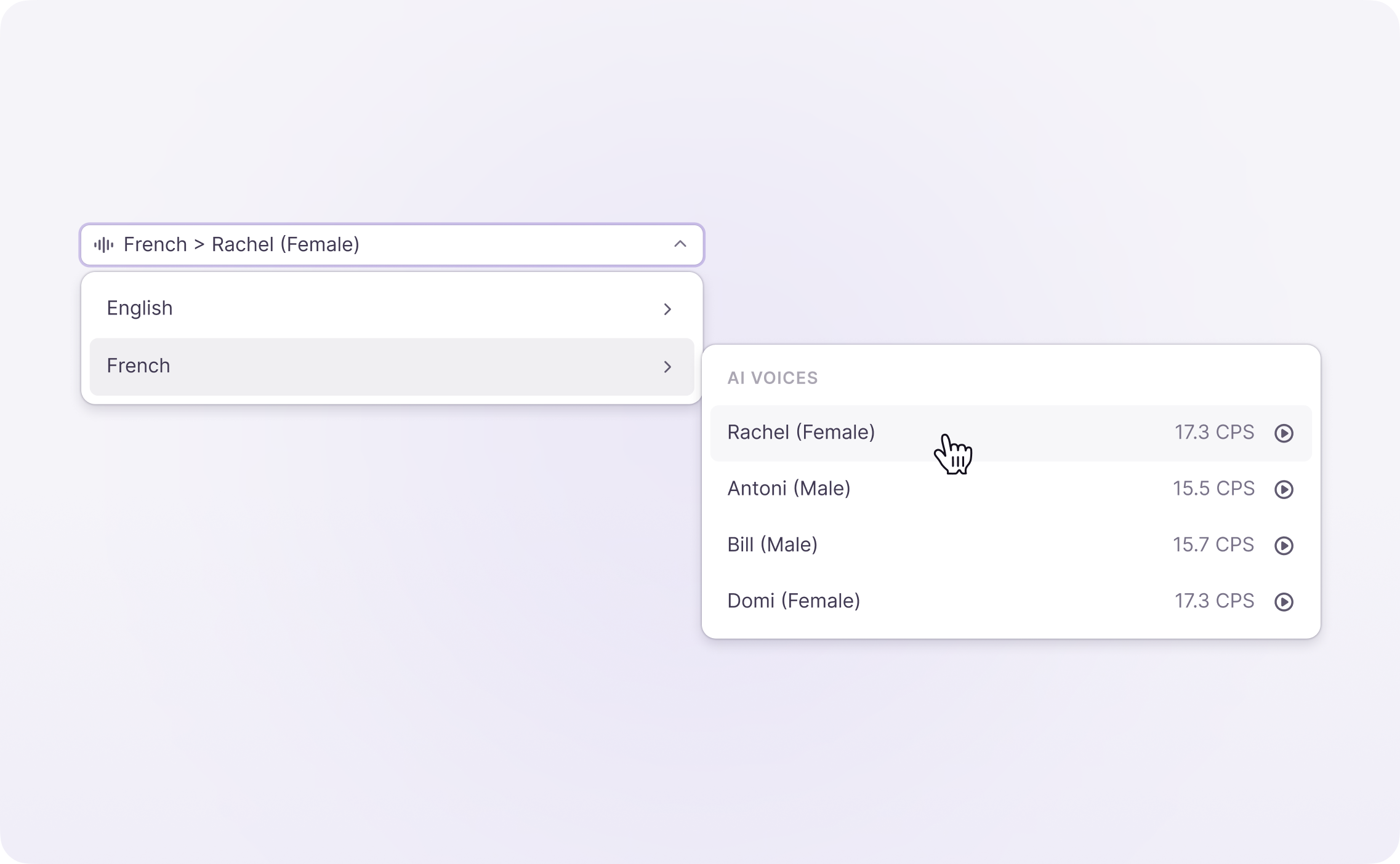
You can review the AI voice within the editor. Once you are happy with the result, click the Download button above the video preview, and Smartcat generates the new language version of your video with AI dubbing.
FAQs
What does the CPS value shown next to a subtitle cue mean?
CPS stands for characters per second and indicates the reading speed of that cue — it helps you judge whether a subtitle line gives viewers enough time to read it comfortably.
Can I split or merge subtitle cues if the AI translation doesn't break lines the way I want?
Yes — use the "Split by Lines" or "Dots" options in the cue menu to split a cue, or merge cues together, and press Enter within a cue to create multiple lines.
Can I adjust when a subtitle appears and disappears relative to the video?
Yes — you can adjust each cue's start and end times directly in the editor to better align with the video's spoken audio.
How do I know how much of the subtitle file I've completed?
The Progress button tracks and displays your completion percentage as you confirm cues.
What formats can I download the finished subtitles in?
SRT or VTT.
Is AI dubbing part of this same workflow?
Yes — optionally, from the Preview section you can select a language, preview and choose an AI voice, and download a new version of the video with AI dubbing applied.
Want to learn more?
See how Smartcat can transform your localization workflow.
Still need help?
Our support team responds within one business day.