Set up a Salsify integration
Overview
Learn how to set up the Smartcat Salsify plugin and how to use it for high-quality product AI translations in seconds with this step-by-step guide. The Salsify integration lets you connect Smartcat to your PIM account and automate the translation of your product descriptions.
Setting up the integration
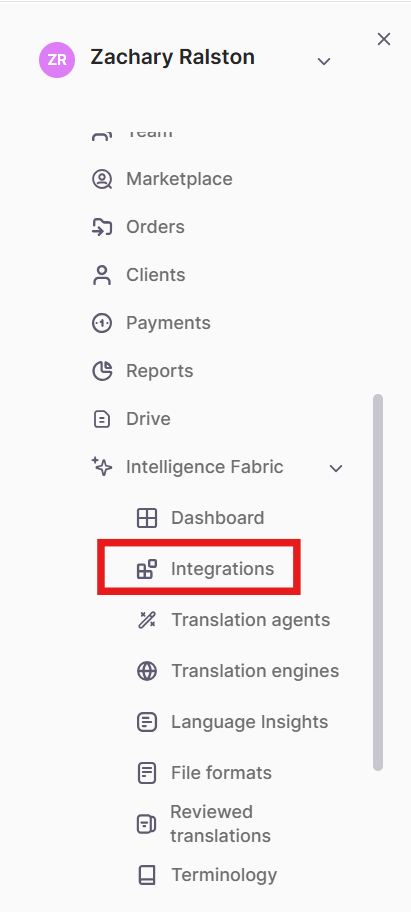
- Open your Workspace. In the left navigation sidebar, click Intelligence Fabric → Integrations.
-
Select the Salsify integration from the list and click Set up integration.
-
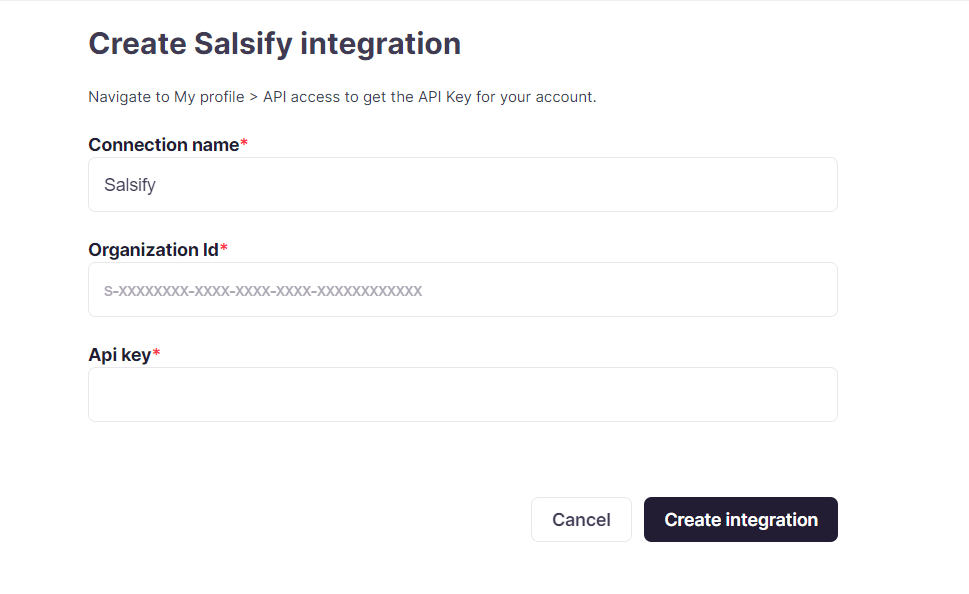
Enter the API key and Organization ID.
-
Find your organization ID in the URL address bar of your browser on any Salsify page. It's located between /orgs.. and ../record. Copy the ID.
-
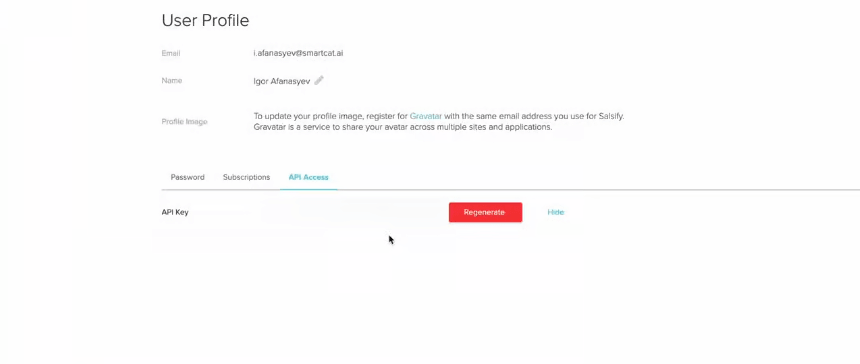
To receive an API key, go to Salsify and open your profile. Select the API access tab and then click into the Show API key. Copy the API key.
- Go back to Smartcat and paste the Organization ID and API key. Click Create integration.
Using the Salsify integration
After you connect Salsify to your Smartcat account, you see your product list.
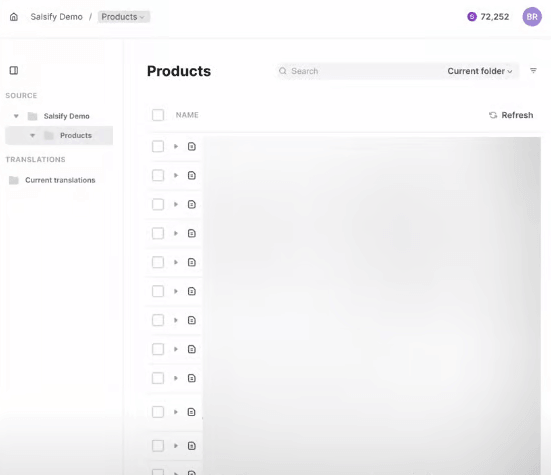
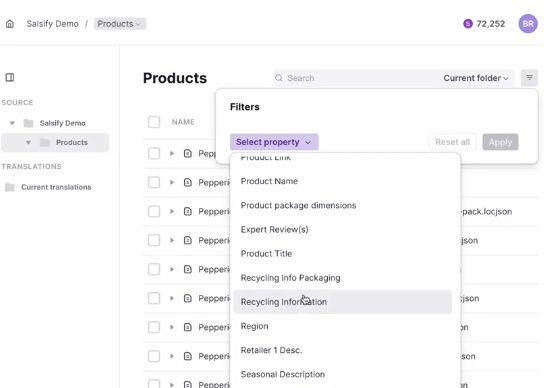
- Select the product details that you want to translate. Use the search filter if needed.
-
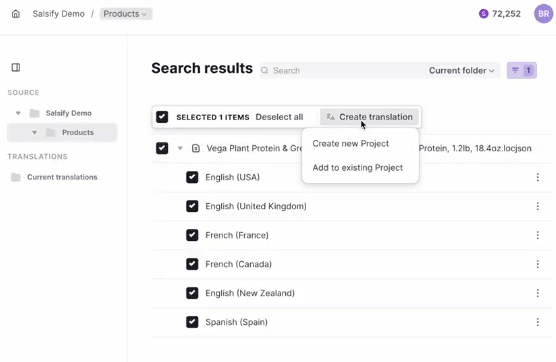
Click on the checkbox for your project. If your product already contains more than one language, select only one source language that you want to translate from.
-
Hit the Create translation button on the toolbar above the product list.
-
Create a new project for your translation or use the existing project.
-
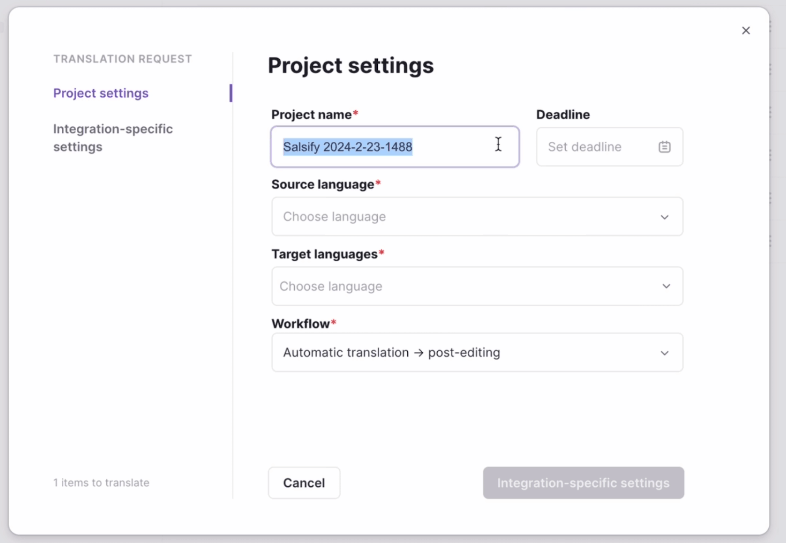
If you choose Create a new project, the dialog window that opens will display the Project Settings. Specify the name, deadline and the source language. Select the target language. You can add as many as you need.
-
Select a workflow for your project. By default it's automatic-translation with post-editing combined.
-
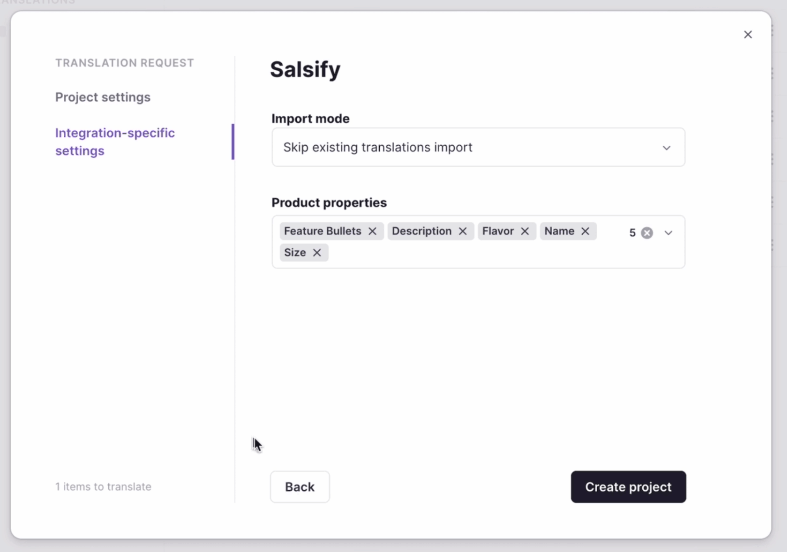
Click on the Integration specific settings. Select the properties of your product that you want to translate. Hit the Create project button.
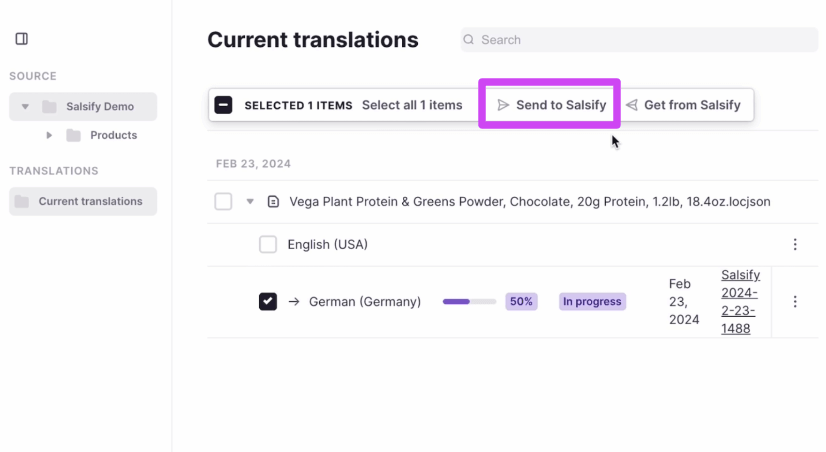
- Open Current translation folder. You will see that the translation progress bar displays 50% progress. This means that the AI translation workflow stage is done. Select your translation(s) and click the Send to Salsify button.
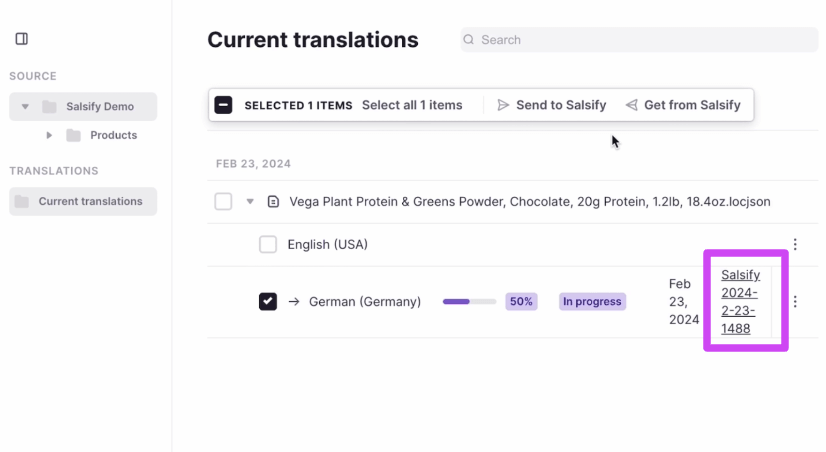
- To review your translation, open the Smartcat project by clicking the project's name.
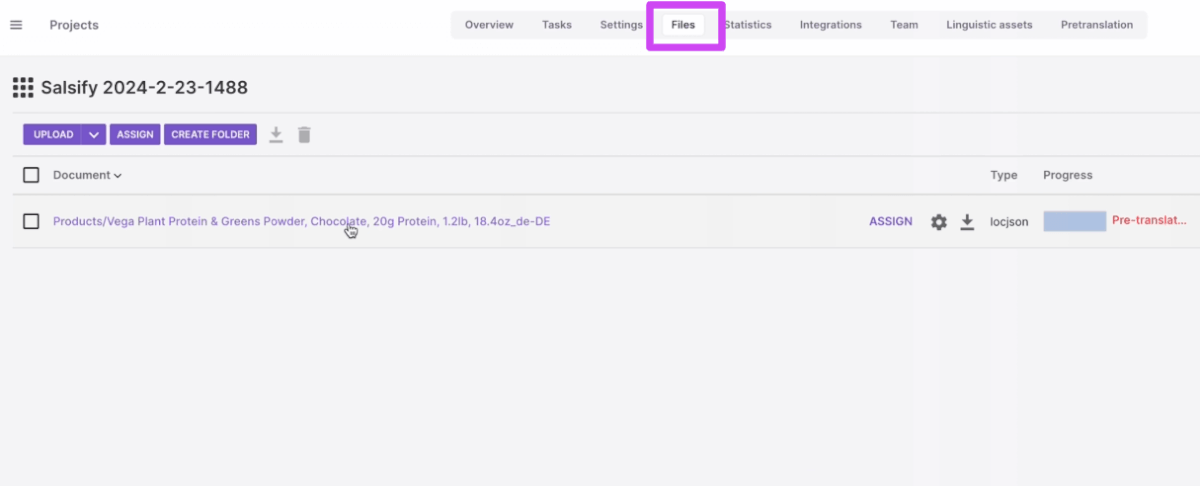
- Go to the Files tab and open your file.
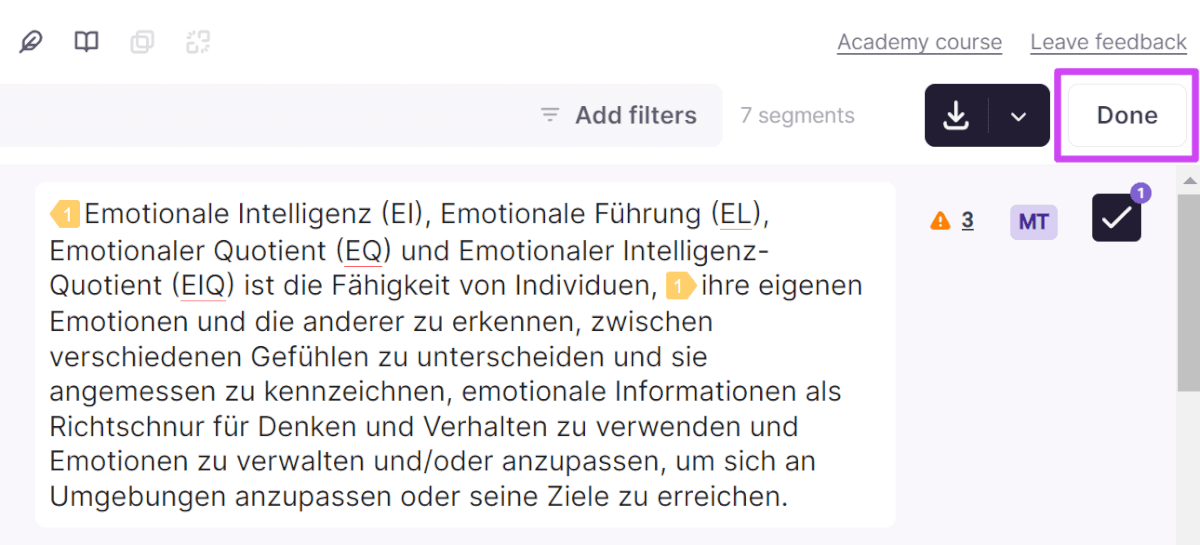
- Review your translation, which is split automatically into segments. Here, you can make edits. Confirm each segment translation before moving to the next.
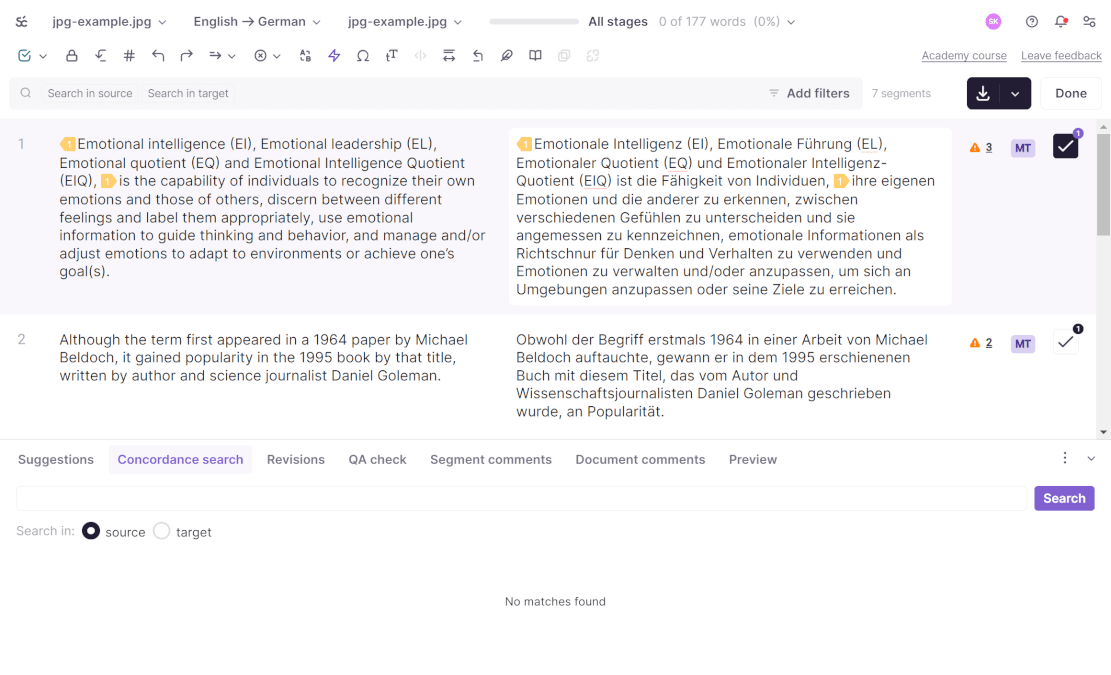
- After you have finished reviewing and editing your translation, click Done.
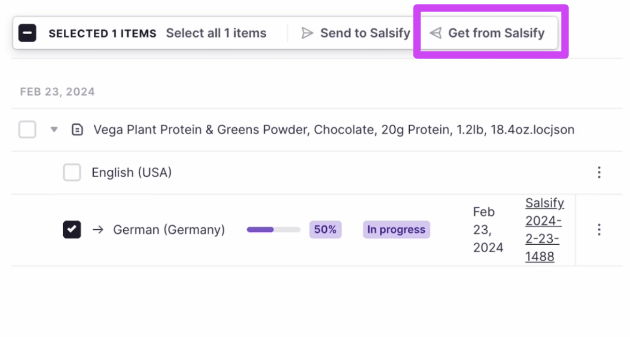
- Go back to your workspace and click on the Salsify shortcut. Find your project, select it, and click Send to Salsify in the toolbar above. If the changes were made within Salsify, you can use the Get from Salsify button to synchronize changes.
- Open your product in Salsify. Check the translated properties within the Salsify platform.
Completion Levels when Sending to Salsify
When you click Send to Salsify, the push is scoped by project and target language — not by individual project tasks or workflow stages. You can't select a specific task (for example, just the Translation stage's output for one assignee) to push on its own. Each push sends the content for the project you're pushing from, and the target language(s) you select, using whichever product properties were chosen in Integration specific settings when the project was created. Before sending, you choose a Completion level, which controls how finished a segment's translation must be before it's included in the push:
-
Draft can include text no reviewer or editor has signed off on. Useful for an early look, not safe to treat as finished.
-
Intermediate filters out completely unconfirmed output, but doesn't guarantee the content passed your whole pipeline — a segment confirmed at Translation but still pending Review, LQA, or Proofreading is still included.
-
Final is the strict option: nothing is sent to Salsify unless every stage configured in the project's workflow (Translation, Editing, Review, LQA Review, Proofreading, or whatever your template defines) has confirmed that segment.
Best practices
There are two actions it is best to avoid on a connector-managed project:
-
Deleting a synced file or its project. The link to that specific content is lost, so the next sync brings it back in as a brand-new file, and any translation/review progress or assignments on the old file do not carry over (though your translation memory retains the actual translations, so nothing needs retranslating from scratch)
-
Pointing a Salsify list that has already synced once at a different Smartcat project. The content-to-project link is made on first sync, so previously-synced products tend to keep updating in their original project, which can leave a newly targeted project empty or only partially filled. Normal project-management actions — renaming files, reassigning linguists, changing deadlines, adding comments — do not affect the Salsify link. Every file that comes in through the Salsify connector carries its Salsify product ID embedded within it, and that ID (not the file name) is what Smartcat uses both to send translations back and to match the file on every subsequent sync. The file name is purely a display label
FAQs
What do I need from Salsify to set up the integration?
An API key (from your Salsify profile's API access tab) and your Organization ID (found in the URL address bar between "/orgs.." and "../record").
Can I choose which product properties get translated?
Yes — when creating the project, you open Integration-specific settings and select exactly which properties of your product should be translated.
What if my product already has content in more than one language?
You should select only one source language to translate from when choosing your project's checkbox/source, even if the product record contains multiple languages.
How do I get the finished translation back into Salsify?
Open your project in the Salsify integration view in Smartcat, select the translation(s), and click "Send to Salsify"; you can also click "Get from Salsify" later to sync any changes made directly in Salsify.
Where do I access the Salsify integration inside Smartcat?
Through Intelligence Fabric → Integrations in your workspace's left navigation sidebar.
Want to learn more?
See how Smartcat can transform your localization workflow.
Still need help?
Our support team responds within one business day.