Connect Shopify with Smartcat
Overview
📌 This article is for clients who manage a Shopify store.
The Smartcat app for Shopify connects your Shopify store to your Smartcat workspace. The app:
-
Sends your store content to Smartcat projects: products and their options, collections, pages, blog posts, navigation menus, metafields and metaobjects, shop policies and theme texts
-
Sends only the content that changed in your store since the last sync
-
Writes finished translations back to your store's languages
The app reads your store content and writes translations. It does not read customer or order data. To learn how Smartcat handles data, see the Smartcat Privacy Policy.
When to use it
-
You sell in several languages and want to translate your Shopify store content in Smartcat
-
You want translated store content without manual export and import
How to use it
Connect your store
-
In the Shopify App Store, find Smartcat and click Install
-
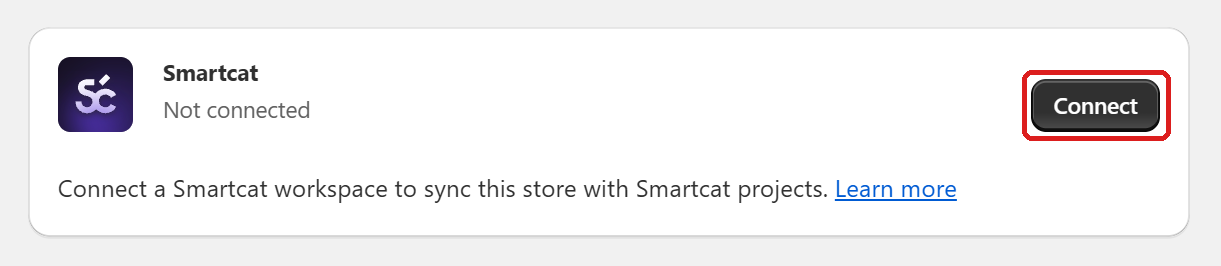
In the Shopify admin, go to Apps → Smartcat and click Connect. A Smartcat tab opens
-
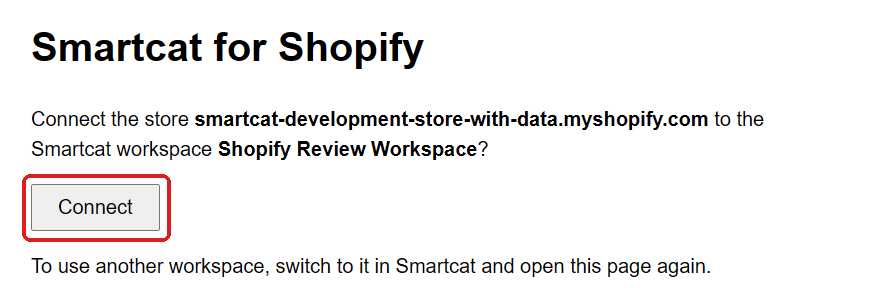
In the Smartcat tab, sign in and choose the workspace to connect. Smartcat asks you to confirm the connection
-
Click Connect to confirm. Smartcat shows that the store is connected to your workspace
-
Go back to the Shopify admin tab. The app shows the connection to Smartcat
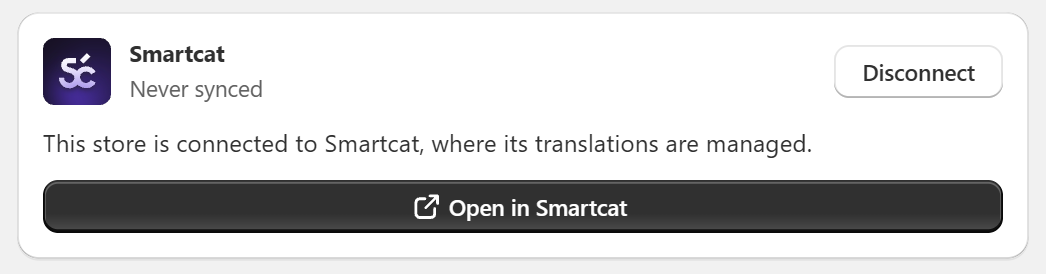
Your store is connected to your Smartcat workspace.
Translate your content
-
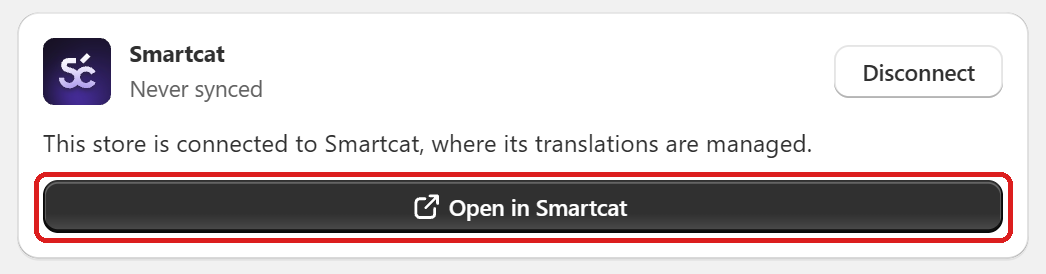
In the Smartcat app in the Shopify admin, click Open in Smartcat. Smartcat opens your store's content
-
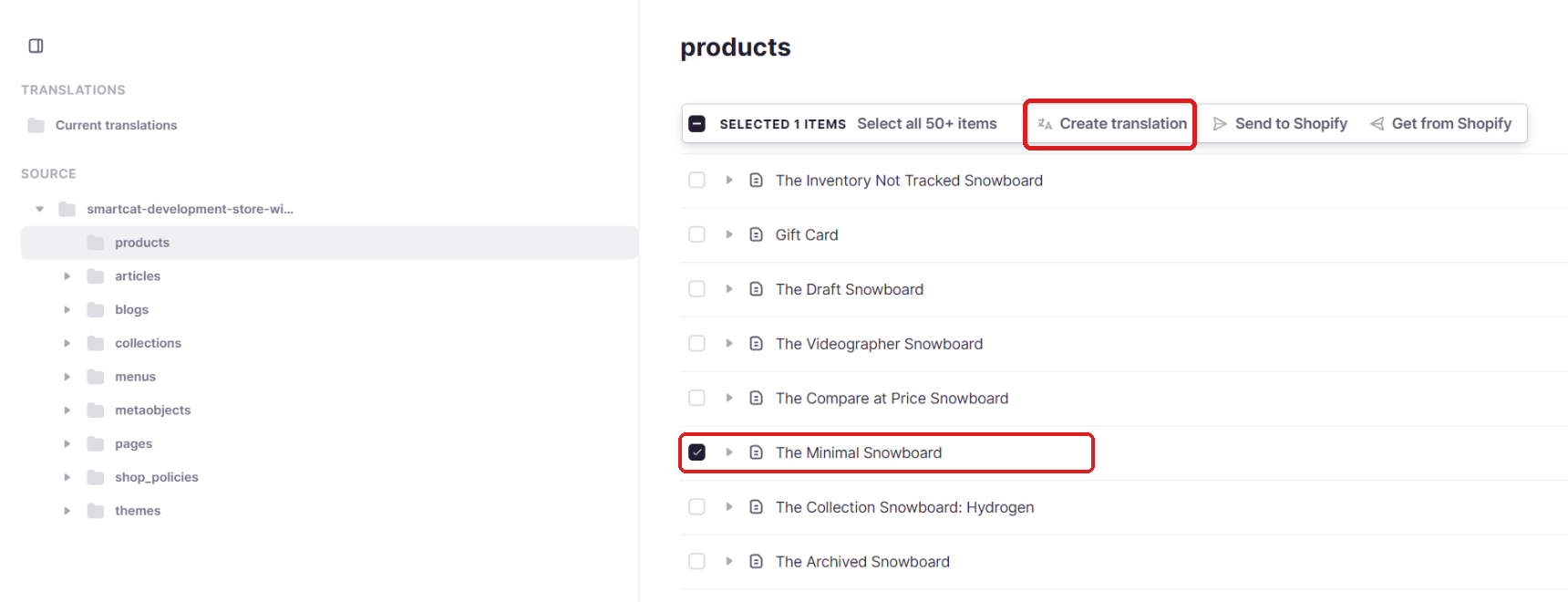
Select the items to translate and click Create translation. A translation request opens
-
In Project settings, choose the Source language and Target languages, then click Create project
-
Translate the content in the Smartcat project
-
On the project page, click Send to Shopify, choose the target languages and click Send translations
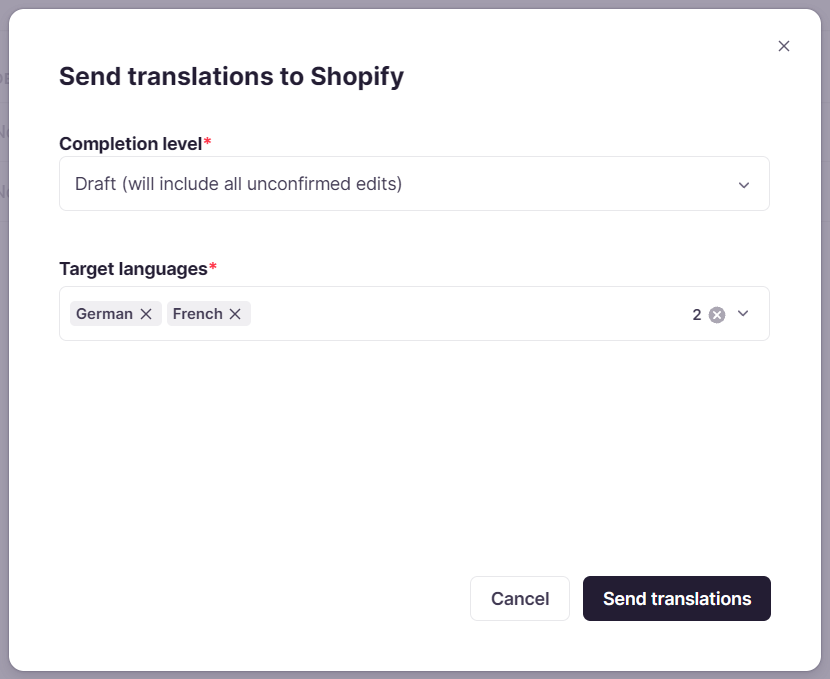
Smartcat writes the translations to your store's languages.
Disconnect your store
⚠️ Disconnecting deletes the store's connection and its sync settings from your Smartcat workspace. Projects and translations that are already in Smartcat stay.
-
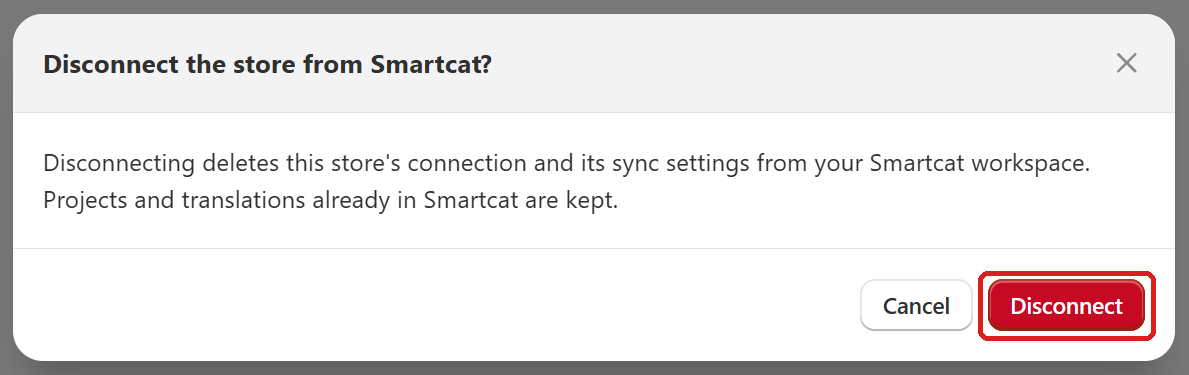
In the Smartcat app in the Shopify admin, click Disconnect. A confirmation dialog opens
-
Click Disconnect to confirm
When you uninstall the app, Smartcat can no longer access your store. Shopify then sends a data-erasure request 48 hours after the uninstall, and Smartcat deletes the store's connection at that point, unless the app has been reinstalled and you reconnect your store.
Requirements and limitations
-
A Smartcat workspace. A personal space can't be connected
-
Any Smartcat plan. The app has no paid features and works the same after the trial ends. Some Smartcat services are paid, such as AI translation and professional translation. See Smartcat pricing
-
The target languages are added in the Shopify admin under Settings → Languages. They don't have to be published
Want to learn more?
See how Smartcat can transform your localization workflow.
Still need help?
Our support team responds within one business day.