Translate marketing images with AI (Image Translation 2.0)
Overview
Image Translation 2.0 uses generative AI to create commercial-quality, translated images that require zero design adjustments. Instead of the traditional OCR-based workflow that requires manual editing of fonts, positioning, and layout, this new pipeline automatically preserves your original style, fonts, and visual identity.
The generative pipeline processes images through three stages:
-
Text extraction: AI analyzes the image and extracts text blocks
-
Translation: Text is translated using your glossaries and Translation Memory
-
Image generation: AI generates the final image while preserving the original brand style
This approach eliminates the need for manual in-painting, font matching, and positioning adjustments that were previously required.
When to use it
Use the generative image translation pipeline when you need to:
-
Translate marketing banners and ad creatives for international campaigns
-
Localize social media graphics for Instagram, Facebook, or LinkedIn
-
Translate images embedded in e-learning courses and training materials
-
Process product packaging graphics and labels
-
Translate infographics and visual content while maintaining brand consistency
💡 This pipeline works best for marketing and visual content where preserving the original design style is important. For document scans and screenshots, use the traditional OCR pipeline instead.
How to use it
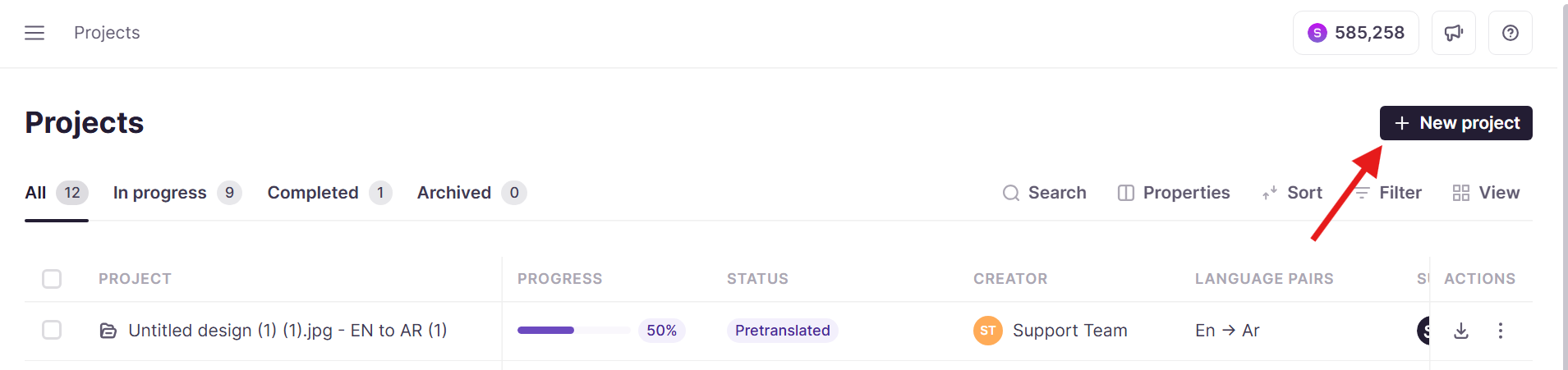
Select the generative pipeline during project creation
- Create a new project in your Smartcat workspace
-
Navigate to the image upload wizard
-
In the What kind of images to translate? dropdown, select Marketing & Visuals. This activates the generative AI pipeline
⚠️Selecting Documents & Scans uses the traditional OCR pipeline -
Upload your images (banners, graphics, marketing materials)
-
Configure your translation settings, including target languages, glossaries, and Translation Memory
-
Submit the project for processing
The system processes your images using generative AI to extract, translate, and regenerate the content.
Review and edit translations
-
Open the translated image in the CAT editor
-
The image preview displays the original image initially
-
Review the translated text in the segment grid
⚠️ Layer editing tools (Move, Resize, Font Select) are not available with the generative pipeline -
Edit text directly in the segment grid if needed. The system displays a soft warning if translated text is significantly longer than the original
-
Once all segments are confirmed, click Update to regenerate the preview with your changes
The preview updates to show the AI-generated translated image.
Download the final image
-
Confirm all segments are complete
-
Click Done and Download to generate the final image
⚠️ Final generation may take up to 30 seconds -
If the AI output contains errors, click Regenerate to create a new version
Your translated image downloads with the original style, fonts, and layout preserved.
Requirements
-
Project must use the Marketing & Visuals image type selection
-
Glossaries and Translation Memory are recommended for consistent terminology
-
All segments must be confirmed before generating the final image
FAQs
What's the difference between Marketing & Visuals and Documents & Scans?
Marketing & Visuals uses the new generative AI pipeline that creates complete translated images preserving your brand style. Documents & Scans uses the traditional OCR pipeline with manual layer editing tools, which is better suited for document screenshots and scanned content.
Can I edit the font, position, or size of text in the generative pipeline?
No. The generative pipeline does not support manual layer editing. The AI automatically handles font matching, positioning, and sizing to match the original image style. If you need manual control over these elements, use the Documents & Scans pipeline instead.
What happens if the translated text is too long?
The system displays a soft warning when translated text is significantly longer than the source. The AI attempts to fit the text appropriately, but you may need to shorten the translation or use the Regenerate button if the result is not satisfactory.
How long does final image generation take?
Final image generation typically takes up to 30 seconds. The Done and Download button triggers the AI to create the final high-quality output.
Can I use glossaries and Translation Memory with this feature?
Yes. Glossaries and Translation Memory are applied during the translation stage to ensure consistent terminology across your images.
Why does my translated image contain strange or hallucinated text?
Occasionally the generative pipeline inserts unexpected characters that do not appear in the source image. This is a known issue with the underlying AI model that can surface on any image, including those used in third-party integrations such as Salesforce or SCORM courses. Use this workaround to force a clean regeneration of the image and text:
-
Edit the translation in any segment. Adding a space at the end of a segment works well.
-
Confirm the segment
-
Confirm all remaining segments
-
Click Update
The image regenerates without the hallucinated text.
Want to learn more?
See how Smartcat can transform your localization workflow.
Still need help?
Our support team responds within one business day.