Downloading a video file from a microlearning course
Overview
When you create a microlearning course in Smartcat that includes video content (such as AI-generated video slides with voiceover), you may want to download the video files separately from the full course package. This article explains how video content is packaged within microlearning courses and the available options for accessing video files.
Requirements and Limitations
-
You must have access to a workspace with Course Editor enabled
-
The microlearning course must be in a state where export is available
-
Limitation: Video files created within the Course Editor are embedded in the course structure and exported as part of the SCORM package—there is no direct "Download Video" button for individual video slides
⚠️ If you need standalone video files (MP4) for use outside of an LMS, consider using the Video Translation workflow instead of the Course Editor, which provides direct video download options.
How it works
Understanding video content in microlearning courses
Video content in microlearning courses created through the Course Editor is designed to be delivered through a Learning Management System (LMS). The videos are embedded within the course structure and packaged together when you export the course.
Exporting your course (including video content)
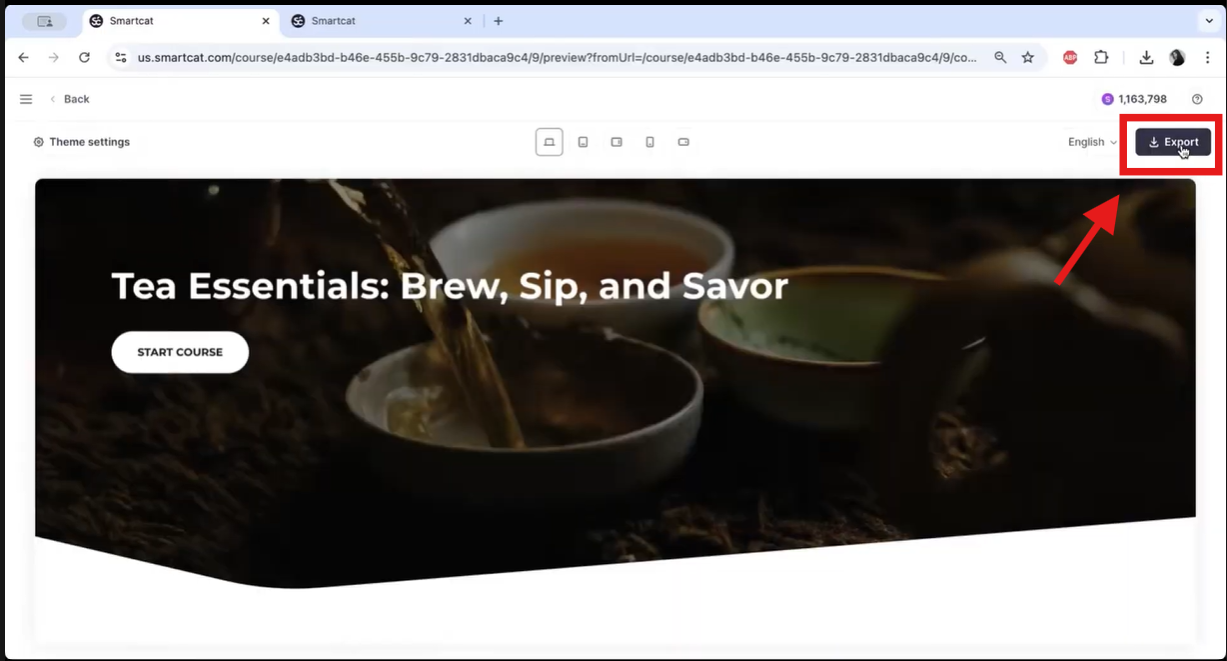
Step 1 — Navigate to the Export page
-
Open your microlearning course in the Course Editor
-
Click Export in the top navigation or course menu
Step 2 — Configure export settings
-
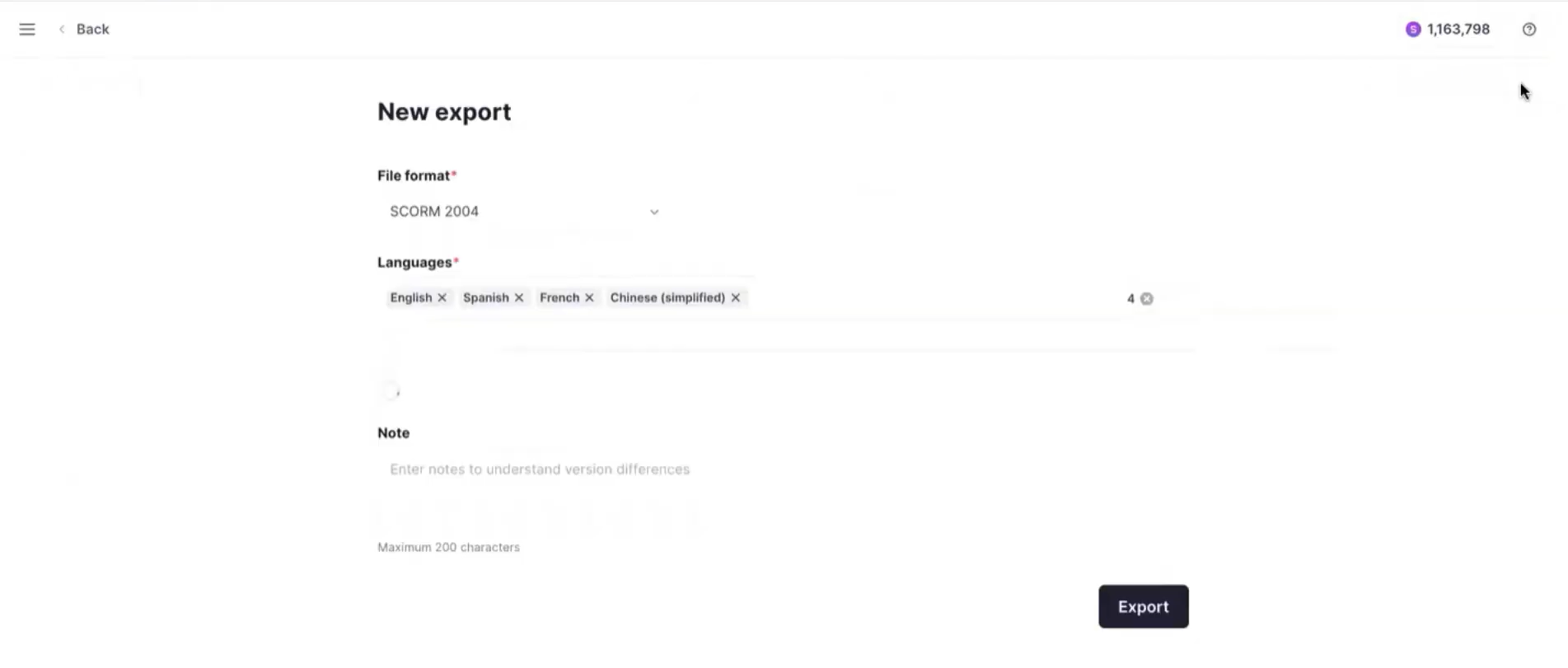
Select your file format from the dropdown:
-
SCORM 2004 — Recommended for most modern LMS platforms
-
SCORM 1.2 — For older LMS platforms requiring legacy compatibility
-
-
Choose your language(s) for export
-
Optionally configure completion threshold settings
-
Add a note to identify this export version (optional)
Step 3 — Export and download
-
Click Export to generate the package
-
The export appears in the Export History table
-
Once the status shows complete, click the Download button to download the SCORM package
The downloaded SCORM package (.zip file) contains all course content including any video slides with their audio/video components.
Extracting video files from a SCORM package
If you need to access the video files directly:
-
Download the SCORM package as described above
-
Extract the .zip file to a folder on your computer
-
Navigate through the extracted folder structure to locate video files (typically in a media or assets subfolder)
-
Video files may be in formats such as MP4 or WebM depending on how the course was generated
⚠️ Extracted video files are intended for the SCORM player context. Quality, format, and playback behavior may differ when used outside the course structure.
Troubleshooting
Problem: I need a standalone MP4 video file, not a SCORM package
Solution: For standalone video files with translation/dubbing capabilities, use the Video Translation workflow instead of Course Editor. Upload your video file directly to a project and use the video editor, which provides direct download options for translated videos, audio, and subtitles.
Problem: I can't find video files in the extracted SCORM package
Solution: The folder structure varies by export settings. Look for folders named "media," "assets," "content," or similar. Video files may also be embedded in HTML5 content, depending on how the course was generated.
FAQs
Is there a direct "Download Video" button for a single video slide in my course?
No. Video files created in the Course Editor are embedded in the course structure and are only available as part of the exported SCORM package — there's no way to download an individual video slide on its own.
How do I get the video files out of my exported course?
Export the course as a SCORM package (SCORM 2004 or SCORM 1.2), download the .zip once export completes, then extract it and look in a "media," "assets," or "content" subfolder for the video files (typically MP4 or WebM).
What if I just need a standalone MP4, not a SCORM package?
Use the Video Translation workflow instead of the Course Editor — upload your video directly to a project and use the video editor, which provides direct download options for translated video, audio, and subtitles.
Will an extracted video file play normally outside the course?
Not necessarily — extracted video files are intended for the SCORM player context, so quality, format, and playback behavior may differ when played outside the course structure.
Which SCORM version should I choose when exporting?
Choose SCORM 2004 for most modern LMS platforms, or SCORM 1.2 if your LMS requires legacy compatibility.
Want to learn more?
See how Smartcat can transform your localization workflow.
Still need help?
Our support team responds within one business day.