Translator assignment templates
Overview
Assignment templates let you save a set of linguist assignments — including who handles each workflow stage and language pair — so you can apply them to new projects without manually assigning suppliers every time.
How it works
-
You create a template that defines which supplier or group of suppliers handles each workflow stage (translation, review, proofreading) for each language pair
-
When you create a new project, you apply the template instead of making individual assignments
-
You can shortlist suppliers, add them to a project template, and choose to send invitations automatically. If you assign a template to a project manually, you must send the invitation from within the project.
-
Templates can include in-house linguists, Marketplace freelancers, or both
Benefits
-
Eliminate repetitive manual assignment for recurring project types
-
Ensure the right linguist is always assigned to the right language pair without remembering who handles what
-
Use Cascade Assignments to define priority groups and fallback logic so projects stay on schedule even if a preferred supplier is unavailable
-
Combine with Auto-launch to trigger assignments automatically when new content is added to a project
When to use it
Use assignment templates when you need to:
-
Assign the same linguists to recurring projects with the same language pairs
-
Stop manually selecting suppliers for every new project or task
-
Build fallback logic so projects don’t stall if a preferred supplier is slow to accept or unavailable
-
Prioritise internal linguists over Marketplace suppliers and fall back automatically if internal staff don’t accept in time
-
Control assignment costs by routing work to lower-cost suppliers first, with automatic escalation
-
Apply a consistent assignment pattern across a team without relying on individual project managers to remember the configuration
How to use it
Create an assignment template
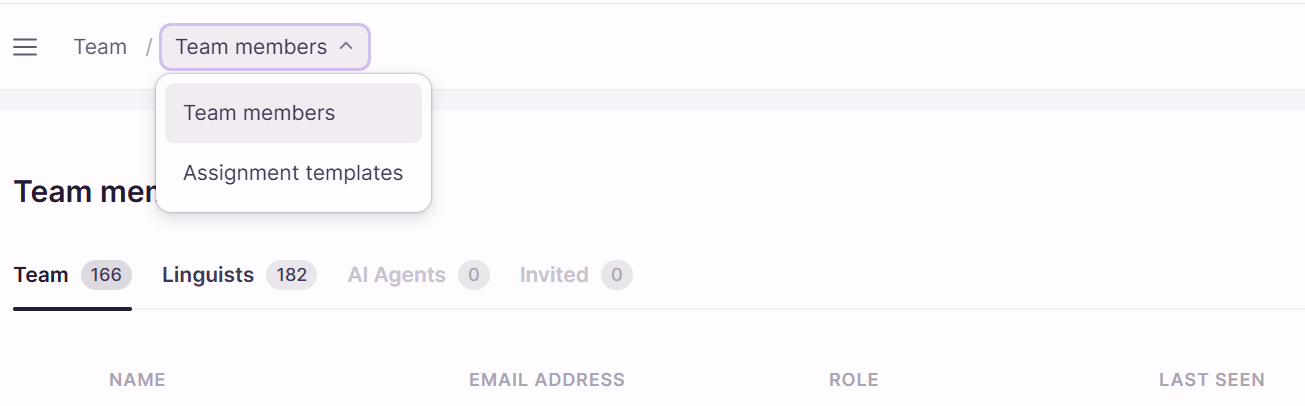
- Go to the left sidebar → Manage → Team → Assignment templates
-
Click + New template
-
Enter a template name
- (Optional) Add a client, project tag, and subject
-
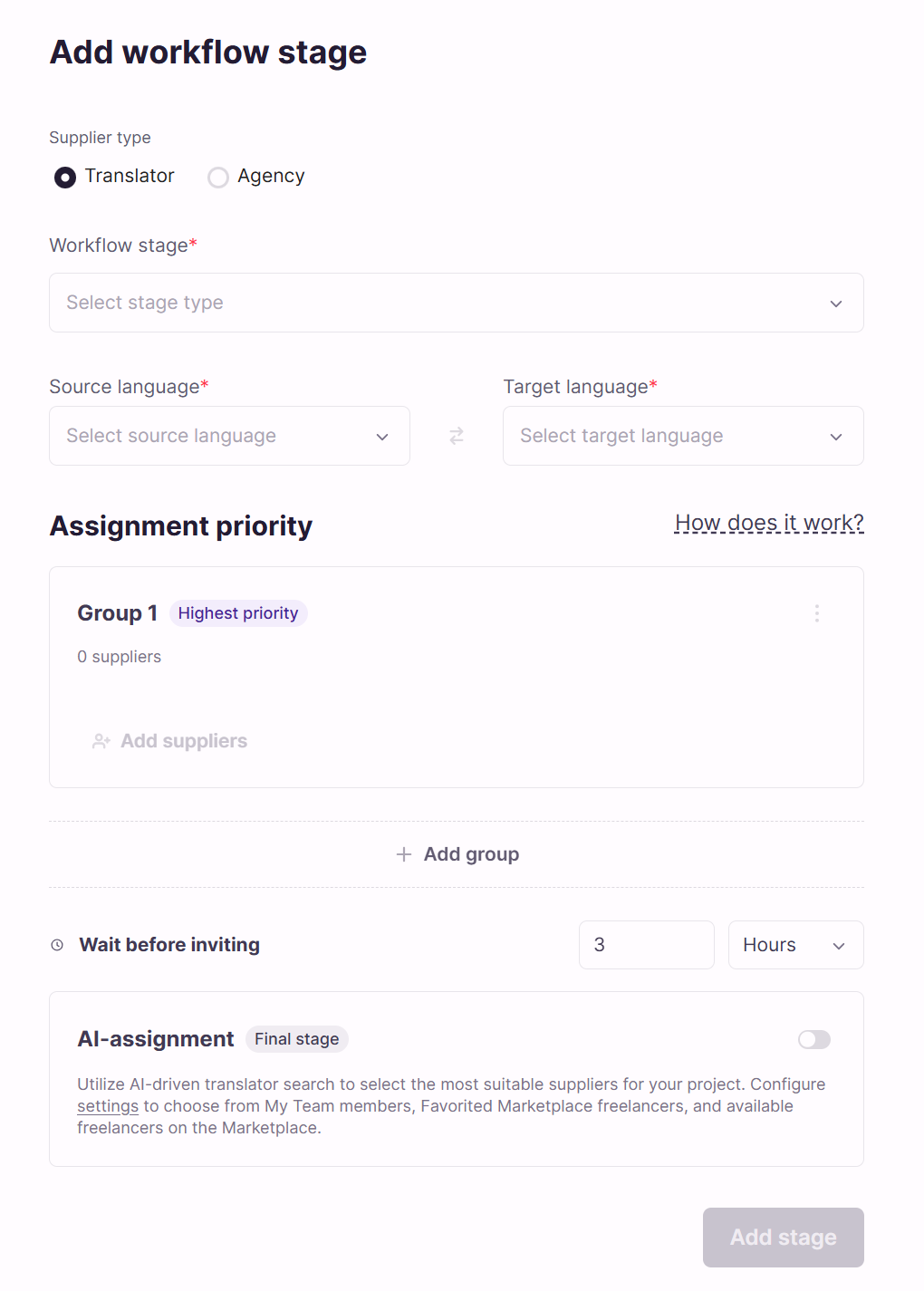
Click + Add workflow stage
-
Select the workflow stage (e.g. Translation, Review, Proofreading)
-
Select the source language and target language for this stage
-
Search for and select the linguists or agencies you want to add to this stage
-
Click Add stage to return to the template view
-
(Optional) Click + Add suppliers again to add another workflow stage or language pair
-
Click Create template to save
Result: The template is saved and available to apply to any future project.
Add cascade groups to a workflow stage
Cascade Assignments let you define multiple priority groups within a single workflow stage. The system invites Group 1 first, then automatically invites Group 2 after a set wait time if no one from Group 1 has accepted, and so on.
-
Inside a workflow stage in your template, locate the Assignment Priority section
-
Group 1 is created automatically — click Add suppliers and add your first-priority suppliers
-
Click Add group to create Group 2
-
Set the Wait before inviting time for Group 2 (how long to wait after inviting Group 1 before inviting Group 2)
-
Add suppliers to Group 2
-
Repeat to create up to 5 groups total
-
(Optional) Enable the AI-assignment (Final stage) toggle to have Smartcat automatically recommend and invite additional suppliers after all manual groups have been exhausted
💡 Invitations to earlier groups are never cancelled when a later group is invited. If a supplier from Group 1 accepts after Group 2 has already been invited, Group 1 still gets the assignment.
⚠️ The cascade stops as soon as any supplier accepts the task. Once accepted, no further groups are invited regardless of remaining wait times.
Your template contains tiered assignment logic that runs automatically without manual intervention.
Apply a template to a project
-
Create a new project or open an existing project
-
Go to the Tasks page
-
Click Assignment configuration
-
Click Template assignments
-
Select the template you want to apply
-
Review the shortlisted suppliers from the template
-
Click Invite suppliers to send invitations to all shortlisted linguists
💡 Click Manage suppliers to view or adjust the shortlisted linguists before sending invitations.
Suppliers from your template are shortlisted and invited to the project tasks.
Enable Auto-launch
Auto-launch triggers assignment automatically whenever new scope is added to a project, without requiring you to manually click Invite suppliers each time.
-
Open a project and go to Project Tasks → Assignment Configuration
-
Select your assignment template as the source
-
Toggle on Automatic invitation after adding or updating a file
Assignments from your template run automatically when new files or tasks are added to the project.
Edit an existing template
-
Go to Manage → Team → Assignment templates
-
Find the template you want to update
-
Click the Edit button (pencil icon) under the template and make your changes

- Save the updated template
⚠️ Changes to a template do not retroactively affect projects that have already used the template. Only future assignments will reflect the updated configuration.
The template is updated and available for use on new projects.
Requirements / Limitations
Template structure
-
A template can include multiple workflow stages and multiple language pairs
-
A single workflow stage is defined as a combination of: workflow stage type + source language + target language
-
If multiple templates match the same project, Smartcat displays them ranked by relevance from most to least suitable
-
Meta-information (client, subject, project tags) can be added to a template to improve relevance matching
Cascade Assignments constraints
-
Maximum of 5 manual priority groups per workflow stage
-
Wait time field accepts values from 1 to 60 only for each unit (minutes, hours, or days)
-
Entering 0 automatically sets to 1 minute
-
Leaving the field empty automatically sets to 1 minute
-
Entering more than 60 automatically sets to 60
-
To set longer wait times, switch the unit to a larger denomination (e.g. switch from Minutes to Hours)
-
-
The cascade stops permanently as soon as one supplier accepts — the system does not monitor whether the accepted supplier actually begins work
⚠️ Cascade logic ends at acceptance, not at completion. If a supplier accepts but does not begin work or misses a deadline, the cascade does not automatically reassign or escalate. The project manager must intervene manually.
Auto-launch
-
Only one assignment source can be active at a time per project: either AI assignments or template assignments, not both
-
Auto-launch and manual template application are both available, but cannot be used simultaneously for the same project
Supplier availability
-
If every supplier in a workflow stage is unavailable (inactive, blocked, or missing the required language pair), the assignment cannot start
-
The template must be edited to replace or add valid suppliers before retrying
Template updates
-
Editing a template does not affect projects already using it — only new assignments reflect changes
-
If a template’s suppliers become unavailable after the template is created, the template must be manually updated
FAQs
Q: Can I save my translator assignments so I don't have to redo them every time?
A: Yes — that is exactly what assignment templates are for. Create a template with your preferred linguists per workflow stage and language pair, then apply it to each new project instead of assigning manually
Q: How do I create a template that automatically assigns the right person per language?
A: Create a template, add a workflow stage, and set the source and target language for that stage. Then add the supplier you want to handle that language pair. Repeat for each language pair you want to cover. When you apply the template to a project, Smartcat shortlists those suppliers for the matching tasks automatically
Q: What happens if my preferred translator doesn't accept the task?
A: Use Cascade Assignments inside your template. Add your preferred translator to Group 1, then add fallback suppliers to Group 2 with a wait time. If Group 1 doesn't accept in time, Smartcat automatically invites Group 2 without any manual intervention
Q: Are invitations to earlier groups cancelled when the next group is invited?
A: No — invitations from all groups remain active. If a Group 1 supplier accepts after Group 2 has already been invited, the Group 1 supplier still gets the assignment
Q: Why is the Add suppliers button greyed out?
A: The button stays disabled until you select all three required fields: workflow stage, source language, and target language. Set all three and the button becomes active
Q: Can I use a template and also manually assign additional suppliers to the same project?
A: Yes. Applying a template shortlists the template’s suppliers, but you can also click Manage suppliers to add or adjust assignments manually before sending invitations
Q: Can I embed an assignment template in a project template so it triggers on project creation?
A: Yes. When creating a project template, you can attach an assignment template and toggle on Auto-launch. When a new project is created from the project template, assignments are triggered automatically
Q: How does the AI-assignment Final Stage differ from standard AI assignment?
A: In the Final Stage context, instead of assigning 1 supplier, Smartcat invites 10 suppliers at once to maximize the chance of acceptance after all manual groups have been exhausted. If the user sets AI assignments to use only internal reviewers, they have 10 suppliers to assign and one matching team member, Smartcat assigns only one additional supplier
Want to learn more?
See how Smartcat can transform your localization workflow.
Still need help?
Our support team responds within one business day.