3 articles
Smartwords Migration FAQ
Smartwords Migration FAQ | Smartcat We have transitioned all our users to Smartwords-based accounts. If you haven't signed in to your Smartcat account for quite a while, check out the information below. Smartwords are words that are translated using Smartcat AI translation technology and translation memories. We call them so because they are based on technology that selects the best and quickest way to translate your texts. Smartwords are more flexible than old TM limits. You can spend them towards using translation memories (TM) or AI translation. The more Smartwords you use, the more you save! To learn how Smartwords work, check out this page. To learn more about using Smartwords to access Smartcat translation technology, refer to this article. To learn how you can extend your Smartwords balance, refer to this article. Recalculation of AI translation and OCR pages to Smartwords If you have additional AI translation pages bought in your account, the unused AI translation pages (including fractional amounts) will be converted to Smartwords according to this formula: 1 AI translation page = 250 Smartwords. These converted Smartwords will have the same expiration date as the AI translation pages you had. You also get unlimited access to OCR technology. You can freely use your PDF or image files and process them with OCR for as long as you have Smartwords on your balance to translate those files.
Organization Admin Role
Organization Admin Role (Enterprise) Organization Admin Role (Enterprise) The Organization Admin Role is an Enterprise-only capability that enables centralized governance of subscription access and translation consumption across multiple workspaces within a single organization.This role is designed for large organizations that need more advanced permissions and control as they scale across teams and regions. Availability and accessThe Organization Admin Role is available for Enterprise-tier organizations only and is not enabled by default.To get access:Smartcat must enable organization-level management for your organizationSmartcat must assign the Organization Admin role to designated usersIf you believe your organization would benefit from organization-level governance, contact your Smartcat Customer Success Manager to request access. Who is this for? Enterprise-tier organizations only.Users explicitly assigned the Organization Admin Role by Smartcat. What can Organization Admins do? Translation consumption management Organization Admins can:View translation consumption at the organization levelAllocate translation consumption capacity across workspacesReclaim unused capacity from workspacesAllow workspaces to consume from a shared organization-level pool(Translation consumption includes Smartwords usage.) Subscription access and control Organization Admins can:View organization-level subscription details, including plan, term, and limitsPause or resume shared subscription access for existing workspacesAllow new workspaces to receive shared subscription benefitsAll controls are scoped to a single organization and respect existing workspace permissions. Important limitations Organization Admins cannot manage Smartwords or packages purchased directly by individual workspacesOrganization-level controls are available only while the organization remains on an Enterprise planThe Organization Admin role cannot be assigned by customers and must be assigned by SmartcatThis role does not grant access to project, user, or billing data beyond existing permissions How to get access The Organization Admin Role is available for Enterprise-tier organizations only and requires Smartcat to enable it for your organization. To get access, contact your Smartcat Account Manager. Once enabled, Smartcat will assign the Organization Admin role to designated users in your organization.
Understanding Smartwords
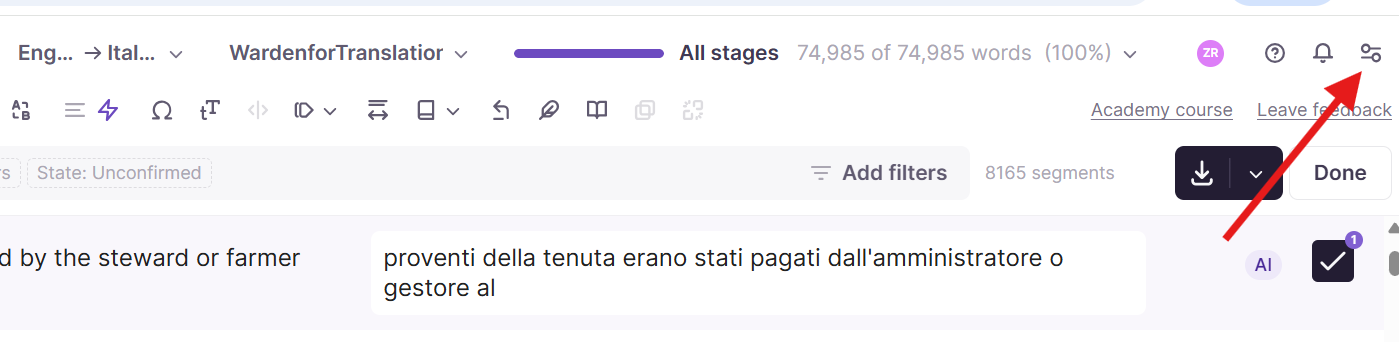
What are Smartwords? | Smartcat Help Center Overview Smartwords are the currency Smartcat uses to pay for automated actions. This includes automatic repetition insertion, TM match insertion, source-to-target insertion, and AI-powered actions, like translation, content generation, voiceovers, image processing, and more. You spend Smartwords when you use these features and acquire them through a subscription or pay-as-you-go purchase. How it works Smartwords are deducted from your workspace balance when an action runsYour balance is always visible in the top-right corner of the appWorkspace balances are shared across all users within a workspace. Organization balances can be shared across multiple workspaces and are added to a workspace balance in the Smartwords count. Benefits Pay only for the actions actually performed — no flat fees for unused capacityFull visibility into which projects, languages, and actions drove your usageBalance top-ups available mid-term so you are never blocked mid-project When to use it Smartwords are consumed automatically whenever you run an automated action. Understanding this section helps you predict costs, avoid surprises, and investigate unexpected charges.Reference this article when you need to:Understand what an action will cost before running itCheck your current balance before starting a new projectInvestigate why your balance dropped more than expectedRead your consumption report to identify which specific actions generated chargesEstimate how many Smartwords to purchase before an upcoming project How to use it Check your current balance Your Smartword balance is visible in the indicator at the top-right corner of the screen. Click the counter to expand the display. Click View report to see a breakdown of recent Smartword consumption.Click the Smartword counter → View report pace → SmartwordsSelect the time period you want to reviewReview the report. Each row represents one consumption event. You can download a CSV report for a more detailed overview. Check your consumption report Use this when you want to understand exactly which actions consumed Smartwords, or when investigating a specific project.Click the Smartword counter → View report pace → SmartwordsSelect the time period you want to reviewReview the report. Each row represents one consumption event. You can download a CSV report for a more detailed overview. The report columns in the website view are: ColumnWhat it tells youUsed ForWhen the Smartwords were consumedEarliest DateThe project associated with the consumptionMost Recent DateWhat triggered it (e.g. MT, TM insertion, voiceover, image re-embedding)AmountThe source language of the content processed The report columns in the CSV are: TimeWhen the Smartwords were consumedPackage IDUnique identifier of the Smartwords package from which units were consumed or that was created/expired. Links the operation to a specific allocation of Smartwords.TypeWhat action triggered the consumptionAmountNumber of Smartwords consumedPackage OwnerThe name or identifier of the entity that owns the Smartwords package (typically the workspace or organization name)Start DateIf a package was added, shows the start date of the package. If this is a Smartwords consumption event, this column is empty.End dateIf a package was added, the date when the package will expirePriceIf a package was added, price of the packageCurrencyIf a package was added, the currency for the package priceProject IDThe unique identifier of the Smartcat project where the Smartwords were consumed. Only populated for spending operations.Project nameName of the project that consumed the SmartwordsDocument IDThe unique identifier of the specific document within the project where Smartwords were consumed. Only populated for spending operations.Document nameName of the translated documentLanguageTarget languageExternal tagA user-defined tag passed via API integrations for tracking and attribution purposes.Internal tagSystem-generated or internally-assigned tags for categorizing consumption. Used for internal tracking such as marketplace attribution, AI translation tagging, etc. Only populated for spending operations. Top up your balance Pay-as-you-go (mid-term top-up)Go to Workspace → SmartwordsLocate the Pay-as-you-go optionSelect the amount and confirm payment⚠️ Pay-as-you-go Smartwords are available for a year, regardless of when the subscription ends.Upgrade your subscription planContact Smartcat’s Sales team to upgrade your subscription plan.💡 When you upgrade, any remaining Smartwords from your previous plan carry over and are added to your new balance.Contact Sales for bulk packagesFor large top-ups or bundle pricing, contact the Sales team through the Contact Sales option in your account dashboard.Result: Your Smartwords balance is increased and available immediately for card payments. Bank transfers may take up to 5 business days to reflect. Requirements and Limitations Smartwords cost by actionAs a general rule, 1 Smartword = 1 source word translated into 1 target language. Translating a 500-word document into 3 languages costs 1,500 Smartwords. Some actions have different rates:ActionSmartwords costAI translation (per source word, per target language)1 SWTranslation Memory (TM) automatic insertions1 SW per wordAI text generation1 SW per wordExtracting text from images or files with imagesFree (requires a sufficient Smartword balance of 250 Smartwords for every page)Re-embedding translated text into an image1,000 SW flat per imageExtracting text from video or audio filesFree (requires a positive balance)Translating subtitlesCharged at download, not during translationAI voiceovers10 SW per word Factors that increase consumptionMultiple MT engines: Each enabled engine charges separately — a project with two engines consumes twice the Smartwords for that stepPre-translation: Smartwords are charged when the file is uploaded, not when you review the outputFile re-uploads (non-unique-ID files): Word, Excel, and PowerPoint files do not have unique segment IDs — all segments are re-processed and charged again on re-uploadFile re-uploads (unique-ID files): XLIFF, LocJSON, PO, and RESX files carry unique segment IDs — only new or changed segments are charged on re-uploadFiles with code formatting: Markup and code tags count as translatable segments and can significantly increase the Smartwords cost relative to the visible word countOCR file requirements⚠️ Files requiring Optical Character Recognition (images, PDFs, PPTX) use a page-based estimate before the actual word count is known. Smartcat requires a minimum balance of pages × 250 Smartwords to start processing. Maintain a buffer above your expected usage to avoid OCR jobs being blocked.Balance types and expiryWorkspace balances are shared across all users — personal balances are unavailable when a workspace balance existsSubscription Smartwords expire at the end of the subscription term — unused Smartwords do not roll overPersonal trial balances expire 15 days after registrationPay-as-you-go availability⚠️ Pay-as-you-go is not available on all account types. Free accounts and certain account types cannot purchase Smartwords directly.Refunds⚠️ Smartwords are non-refundable once consumed. If consumption occurred due to a configuration error (e.g. multiple MT engines accidentally enabled), contact Support — but refunds are not guaranteed. FAQs Q: Does adding an LQA or review stage consume Smartwords?A: No. Only automated actions, such as TM Insertions and AI-powered actions, consume Smartwords. Human review stages, LQA stages, and Reviewer Agent usage do not consume SmartwordsQ: If I delete a translation and redo it, am I charged again?A: Yes. Smartwords are consumed when translation is performed, not when it is accepted. Re-translating content charges againQ: Why was I charged more than the word count of my file?A: The most common reasons are multiple MT engines enabled (each charges separately), OCR estimation using page-based rounding, files with heavy code formatting, or a file re-upload that re-processed all segments. Go to Workspace → Smartwords, filter by your project, and review the Action type column to identify the specific eventsQ: Can I see consumption by individual team member?A: The workspace Smartwords tab shows aggregate usage. For a per-user breakdown, contact your account team about reporting options available on your planQ: My Smartwords balance dropped overnight with no active projects. What happened?A: This can be caused by a schedule project, an integration, or a package expiring and reducing your visible balance. Go to Workspace → Smartwords, review the consumption report for events in that timeframe, and contact Support if no matching events appear
Show more