Getting Started with Smartcat for Product Information Management (PIM)
This article is a feature-by-feature overview of what Smartcat can do for product information: connecting your PIM, translating the storefront around it, and keeping listings consistent as your catalog changes.
It is written for teams working at catalog scale, where the question is not whether a description can be translated but which of ten thousand of them needs a human to look at it.
Each section links to the relevant Help Center article for full step-by-step instructions.
Getting Started
-
Set up your workspace and AI team by personalizing your Chief of Staff, adding teammates, and connecting the apps you use.
-
Build your Intelligence Fabric with existing translations, terminology, and Language Insights.
-
Connect your PIM from the supported list, or set up a custom connection through the API if yours is not listed.
-
Check your import mode and confirmation settings before the first sync, so you do not pay to re-translate fields you already have localized.
-
Create reusable workflows with Project Templates and AI Translation Profiles.
-
Run your first sync and review the output before publishing to your storefronts.
-
Decide which fields always get human review, such as product names and compliance text, and let the Translation Quality Score triage the rest.
-
Add Website Translator for the storefront pages your PIM does not own.
-
Track quality and value using Smartcat's reporting tools.
💡 Ask your Chief of Staff to set the workspace up with you. It configures your linguistic assets, including glossaries, custom prompts and translation settings, during your first session in the context of real product content, so setup happens as you work rather than before it.
Meet Your AI Team: Chief of Staff, Coworkers, and Skills
Before you connect a system or translate a single product field, it is worth understanding what is doing the work.
Watch this short Platform Tour to learn more about your Chief of Staff, AI Coworkers, your Intelligence Fabric and more.
Chief of Staff is included in every plan and is your single entry point to Smartcat. It does not translate or create content itself. It coordinates the Coworkers you have hired and holds the Skills you have personalized.
Go to Intelligence Fabric > Chief of Staff. Your profile and personal Skills are private to you and not visible to anyone else in the workspace, including your Administrator.
Coworkers are the specialists it calls on, and which ones you have depends on your plan. Adapt includes the Content Translator and Content Writer, Accelerate adds Reviewer and Marketplace Experts, and Anticipate adds Content Update and Quality Reviewer.
Go to Intelligence Fabric > Smartcat Coworkers.
Skills are repeatable procedures a Coworker follows: the steps, the inputs, the tools it uses, and how it validates its work. Skills can be personalized to your product terminology, category naming conventions, and review process.
Go to Intelligence Fabric > Skills, and open For You for your own.
💡 Your Chief of Staff is not only in Smartcat. It also works from the Microsoft Teams and Slack apps, so you can check the status of a catalog sync without switching tools.
Your Intelligence Fabric: Reviewed Translations, Terminology, and Language Insights
Connecting your PIM solves the "get it translated" problem. The harder problem is what happens after launch: a spec changes, a product gets renamed, a description is rewritten for a new season, and every market's listing has to catch up.
For a PIM-driven catalog this is where most of the saving comes from, because product copy repeats far more than it varies. The Intelligence Fabric holds three kinds of asset:
-
Reviewed Translations
-
Terminology
-
Language Insights
💡 You can have your Chief of Staff build your Terminology for you. Give it your storefront URL and your target languages and it crawls the site, proposes candidate terms, and lets you review them before importing or save them straight into a glossary.
Reviewed Translations are your approved translations, stored and reused. You may know these as translation memories. Once your product terminology is approved it is reused automatically instead of re-translated every time a similar product is added.
Go to Intelligence Fabric > Assets > Reviewed Translations.
Matches at 100% and above do not consume Smartwords, which is what makes a catalog of thousands of SKUs affordable to keep current.
Terminology is your approved terms and how they must be translated. Terms are highlighted inline for the linguist, who can accept, edit, or reject the suggestion. This is how an attribute name, a category label, or a compliance claim stays identical in every market.
Go to Intelligence Fabric > Terminology.
How to pull terminology from third party pages like Notion
Language Insights are short pieces of guidance on tone of voice, audience, and style, which keeps one brand in your portfolio from inheriting another's voice.
Build it from content you already own.
Two tools extract assets from what you have:
-
Upload Files converts existing source-and-target pairs into reusable Translation Memory, which is how you rescue previously localized catalog exports.
-
Scan Website points it at your live storefront, so new product descriptions sound consistent with the catalog you have already published.
Go to Intelligence Fabric > Smartcat Coworkers > Translator, where both sit at the bottom of the dashboard.
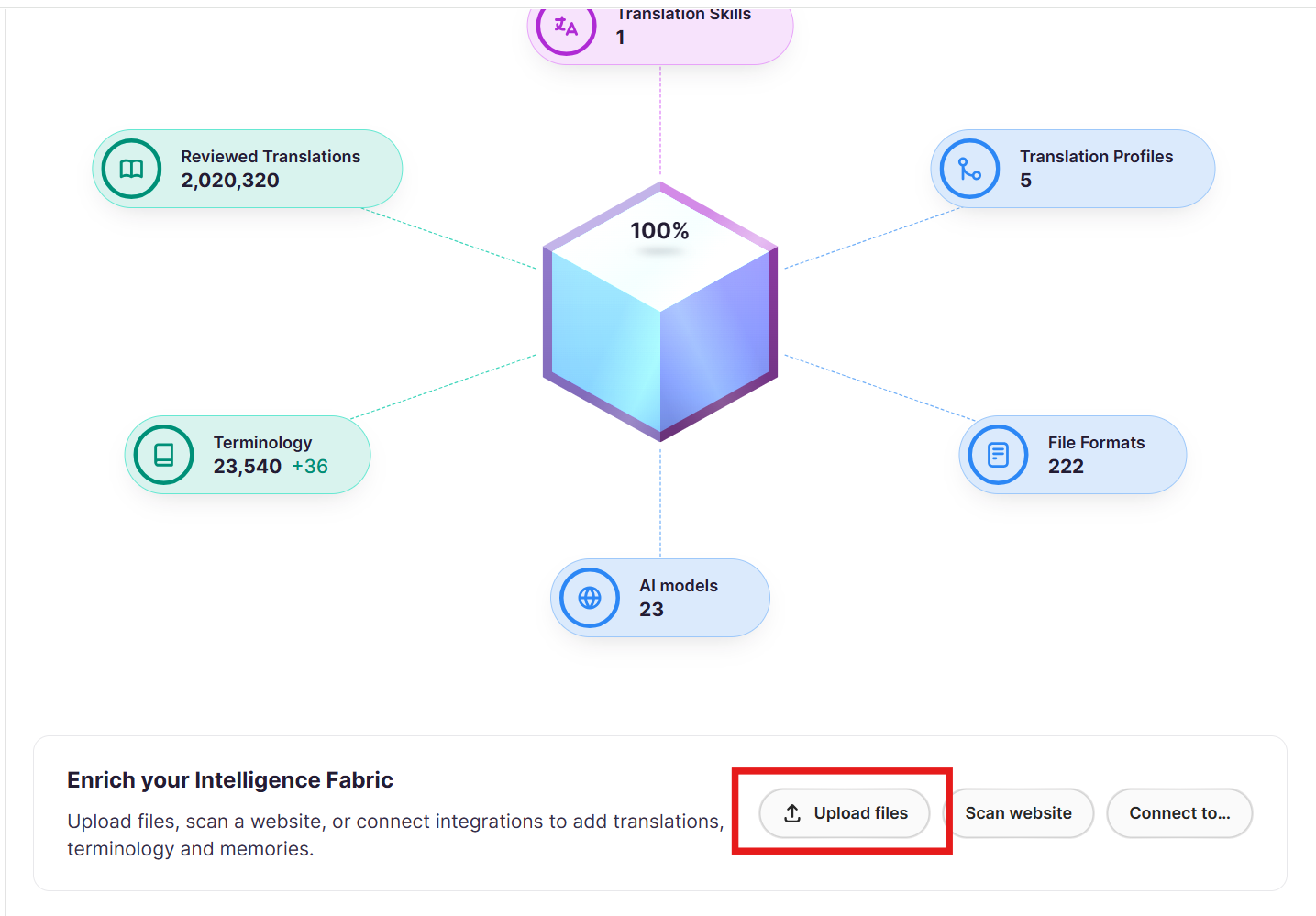
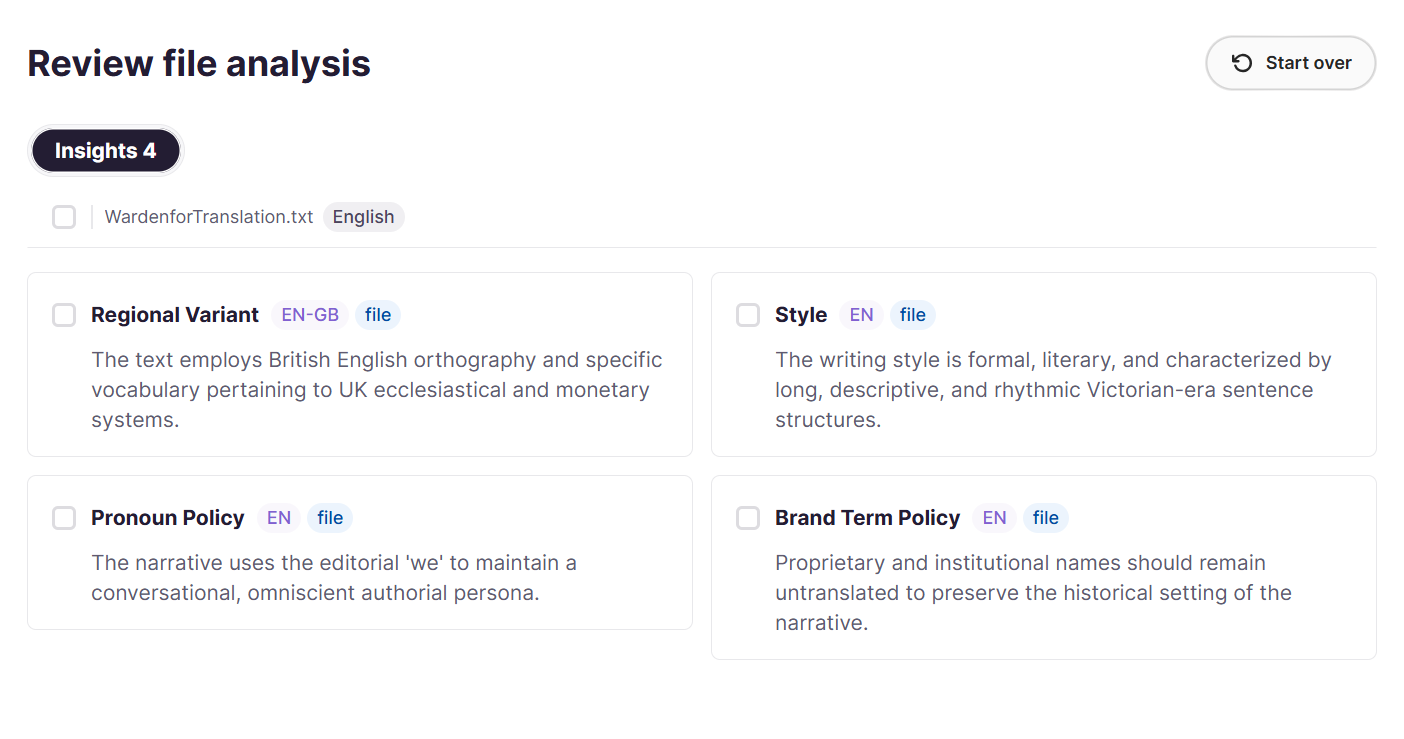
Above: Upload files and Scan website sit at the bottom of the Intelligence Fabric dashboard, and extracted assets arrive in the Reviewed Translations, Terminology, and Insights tabs, where you choose what to import.
How it gets applied
Together, AI Translation Profiles, RAG, and custom prompts make sure every sync draws on your own approved wording rather than a generic rendering.
Bring In Your Reviewers and Marketplace Linguists
AI gets you a strong draft, but a native speaker catches the product claim that reads oddly or the size description that does not match local convention. Plan for two kinds of reviewer.
Your own team
Invite colleagues from the workspace dashboard and give each the role that matches their job, then assign reviewers from the project's Team tab. A reviewer who only works in the editor usually needs Linguist access, which scopes them to the work assigned to them.
Go to Team in the left sidebar.
Outside help, when you have no one for a language
Hire from the Smartcat Marketplace and add linguists straight to a project, filtering by language, specialization, native speaker, availability, and rate, with AI matching to narrow the shortlist. Use specialization here, since a linguist who knows your product category handles regulated or technical attributes far better than a generalist.
Go to Find Freelancers in the left sidebar.
Marketplace Experts is a Coworker in its own right, which means bringing in outside help is a conversation rather than a search.
💡 Tell your Chief of Staff what you need, for example a French reviewer for a seasonal catalog drop, and it brings the right expert into the workflow. It can also write the instructions for those linguists, so a freelancer knows which attributes must stay exactly as written.
Connect Your PIM
Your PIM is the single source of truth for product data, and it usually feeds dozens of downstream channels in every market you sell in. Instead of exporting to a spreadsheet, translating, and re-importing, Smartcat connects to it directly.
💡 Ask your Chief of Staff which connectors your plan includes before you plan a rollout. Every PIM and commerce connector sits on Anticipate and above, and it can tell you what a higher plan would add.
Choose your scope
Pick which product fields, attributes, or categories should be translated, and into which target languages.
Content flows automatically
Product data moves into Smartcat on your schedule, or on demand, with no manual export and import.
AI first, humans where it matters
AI translation runs first, with human review layered on for the customer-facing fields that need it, such as product names, key selling points, and safety or compliance text.
Translations go home
Translated content flows back into your PIM automatically, ready to publish to every storefront and market it feeds. A content update then only needs to happen once, in the PIM, to reach every language downstream.
The Settings That Decide What a Sync Costs
Before your first sync, check how existing translations are handled during import and at which workflow stage imported translations are marked complete.
💡 If you are unsure which import mode fits your catalog, describe what is already localized in your PIM to your Chief of Staff and let it walk you through the choice before you connect.
Import mode controls whether Smartcat reuses the existing translations already in your PIM or translates everything fresh.
Confirmation settings determine at which workflow stage imported translations count as complete.
On a catalog with thousands of SKUs and existing localized fields, this is the single most expensive setting to get wrong, because the default choice can mean paying to re-translate fields you already own.
Translating the Storefront, Not Just the Product Data
Smartcat's integrations fall into two technically different systems, and for a commerce team both usually apply.
💡 Drop your storefront URL into a chat with your Chief of Staff to get a translated preview started, then take the review pass in the editor before you publish the snippet.
iHub connectors link Smartcat to a content backend, pull source content in, translate it, and write translations back. Your PIM connector is one of these.
Website Translator translates a published website on the fly through a JavaScript snippet, with no backend connection. It does not pull content into a Smartcat project.
The PIM connector localizes the structured product data, and Website Translator localizes the storefront pages around it: category pages, editorial content, checkout copy, and anything else your PIM does not own. WooCommerce and BigCommerce storefronts are translated this way, into up to 280 languages, with a preview and a review pass before you publish.
Go to Projects in the left sidebar, or drop your storefront URL into a chat with your Chief of Staff.
-
Connect and translate your WooCommerce website with Smartcat
-
Connect and translate your BigCommerce website with Smartcat
Set Up Once, Reuse Every Catalog Sync
Catalog work is the most repetitive localization there is: the same markets, the same attribute set, the same review rule, every season. Two reusable objects save you that setup.
💡 Not sure whether you need a template or a profile? Describe the catalog drop to your Chief of Staff and let it apply the right setup. It holds the translation profiles that decide which engine to use and how to treat each file format.
Project Templates save the structure of the work: workflow stages, source and target languages, deadlines, assignees, custom fields, and a project naming pattern. Because the terminology and the review stage are locked in, a product batch is far less likely to publish without them.
Apply a template when you create the project: Projects > + New project.
AI Translation Profiles control the quality and behavior of the AI: which Reviewed Translations and Terminology apply, which engine handles each language pair, whether a fallback engine kicks in, and whether AI translation runs at all for a stage.
Profiles can be scoped per brand or per category, which matters when one brand in your portfolio has a different voice from another.
Go to Intelligence Fabric > Smartcat Coworkers > Translator > Translation Profiles.
A project can have a Project Template or an AI Translation Profile, not both. If you use a template, you configure the equivalent linguistic behavior inside it, through its own Translation Memory Rules and AI Translation Rules.
Tuning the AI to Your Catalog
Reviewed Translations and Terminology set the baseline. Two further mechanisms close the gap between a generic translation and one that matches your catalog conventions.
💡 Your Chief of Staff can set up a custom prompt with you rather than leaving you to write one from scratch, since it configures custom prompts and translation settings as part of workspace setup.
RAG
Retrieval-Augmented Generation pulls relevant segments from your own Reviewed Translations into the prompt, steering the model toward your established attribute wording.
Custom prompts
These let you enforce catalog conventions directly: hold a consistent attribute format, keep brand and product names untranslated, or respect a character limit for a marketplace field. They run either as AI Actions on selected segments or as a custom AI engine applied to every document in your projects.
Go to your project, open the Linguistic assets tab, then the AI translation section.
Quality at Catalog Scale
Nobody reviews ten thousand product descriptions, so the useful question is which ones need a human.
💡 Your Chief of Staff runs quality checks on every pass, with before-and-after quality scoring, and can iterate to improve a translation before a human ever opens it.
1. Translation Quality Score (TQS)
Shows which AI translations meet your quality bar and which do not, as a widget on the Project Overview page. High-scoring segments can be confirmed without review, so you concentrate human attention on the fields that carry risk and let the long tail of attribute values through on score.
2. Automated quality checks
The editor catches number mismatches and inconsistent terminology, which on a product catalog are the errors that actually cost money.
3. LQA profiles
Based on the MQM scoring model, these return an auditable score from 0 to 100 when you need a formal quality number for a market or a supplier.
4. Reviewer Coworkers
The AI Coworker can run an automated first pass across large volumes before a human signs off.
Reference Files attach context for the humans working on a batch, such as a brand style guide, a category taxonomy, or last season's approved copy, and are never processed, translated, or billed as translation work.
Multilingual Excel files, the localization kits with one column per language that most catalog teams already live in, are supported with automatic column detection.
Keeping Listings Current (Content Update Coworker)
The Content Update Coworker takes a change described in plain language, finds every affected file, proposes a plan, and applies nothing until you approve, keeping both accepted and rejected changes in version history.
A note on scope. It works on courses and documents already imported into your Smartcat Drive, so it is not a catalog-wide field updater. For structured product data the update happens in your PIM and flows through the connector, and the consistency comes from Reviewed Translations and Terminology. The Content Update Coworker is the right tool for the documents around the catalog, such as product manuals, spec sheets, and compliance documentation.
💡 The feature is in beta, must be enabled per workspace by a Smartcat team member, and requires Canvas editor access.
Track Your ROI and Quality: Reporting
Two reports help you prove value and keep quality on track. Both live under Workspace > Apps and are available to workspace Administrators.
Go to Apps in the left sidebar, and Reports for Enterprise Reports.
💡 Ask your Chief of Staff about your usage analytics in the same conversation as the work itself, rather than opening a report to answer a single question.
ROI Report compares what you are spending with Smartcat against what an outside vendor would cost, using your real catalog translation data, groupable by subscription cycle, quarter, or month, with project-level cost breakdowns.
Translation Review Report shows how much of your AI-translated product content needed human edits versus how much was approved as-is, broken down by language and reviewer.
The Apps section appears only once one or more custom apps are enabled in your workspace, and custom apps are currently in beta. Administrators can also access account-wide Enterprise Reports.
Your PIM and Commerce Integrations
Integrations are gated by plan, and every PIM and commerce connector sits on Anticipate and above. Adapt covers Google Drive, Google Sheets, the Chrome Extension, and OneDrive, Accelerate adds Figma and Canva, and Autonomous adds bespoke connectors built for your systems.
💡 Once a connector is set up, your Chief of Staff can pull product content from it and push translations back, so routine catalog syncs do not need anyone to open Smartcat.
PIM and structured product content
-
Salsify needs an API key and Organization ID from your Salsify profile.
-
Akeneo connects via API URL, client ID, and client secret.
-
inriver connects via base URL and REST API key, with admin access required.
-
Paligo is a CCMS connector for structured product and technical content.
Commerce platforms
Available as connectors and documented in the integrations overview rather than in dedicated setup articles: Shopify (store URL and access token, with an optional GraphQL endpoint), Salesforce Commerce Cloud (base URL, client ID, and client secret, supporting content assets, catalogs, products, and libraries), Centra (GraphQL endpoint URL and API key), plus Salesforce Marketing Cloud and Emarsys for product and campaign content used in customer communications.
Storefront translation
WooCommerce · BigCommerce · Wix · Squarespace · Webflow
If your system is not listed
The Remote API connector lets you register a remote API endpoint and build your own iHub connector without code, including custom locale mapping. Or use the Smartcat REST API directly for a fully custom connection.
Some connectors are behind feature flags, partner-specific, or not listed publicly, so confirm availability for a specific connector before promising it to a customer.
Want to learn more?
See how Smartcat can transform your localization workflow.
Still need help?
Our support team responds within one business day.