Getting Started with Smartcat for Marketing Teams
Smartcat helps global marketing teams achieve market adaptation: keeping every campaign asset, across every channel and language, consistently localized and up to date as market conditions change.
This article gives marketers an overview of what Smartcat can do for a global marketing campaign, from your website to your podcast, and how the platform's AI Coworkers keep all of it moving together instead of as six disconnected projects. Each section links to the relevant Help Center article for full step-by-step instructions.
Getting Started Summary for Marketers
-
Set up your workspace and invite your team so people can collaborate the moment your first project starts (Inviting team members and assigning roles).
-
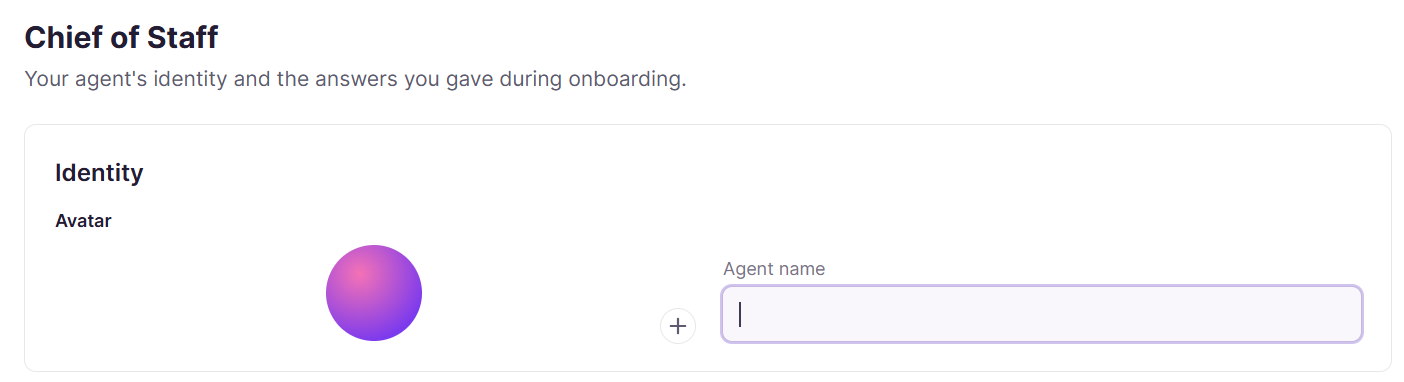
Personalize your Chief of Staff with your name and role, then connect the apps you already use so it can save its work there directly (Configuring your Chief of Staff).
-
Build your Intelligence Fabric first by running Scan Website on your site and Upload Files on documents you have already had translated, so everything downstream sounds like you from day one (Extracting Linguistic Assets).
-
Pick the asset you need most urgently from the sections below and run your first project, rather than trying to set up every content type at once.
-
Translate your website or a campaign landing page to get a full market live quickly, and turn on the SEO settings so the translated pages can actually be found (Website Translation in Smartcat).
-
Save the setup as a Project Template once you are translating the same kind of content repeatedly, so you are not reconfiguring it every campaign (Project Templates in Smartcat).
-
Add an AI Translation Profile if different brands or markets need different AI behavior (AI Translation Profiles).
-
Connect the tool your content already lives in, choosing an iHub connector to sync a CMS or PIM, or the Website Translator snippet to translate a published site (Integrations: Overview and Full List).
-
Route anything customer-facing through human review and confirm the segments, since that is what feeds your Reviewed Translations for next time.
-
Check the ROI and Translation Review reports under Apps once campaigns are running, so you can show leadership what the programme is saving (Using the ROI Report).
Meet Your AI Team: Chief of Staff, Coworkers, and Skills
Before you touch a single asset, it is worth understanding what is actually doing the work in Smartcat.
Watch this short Platform Tour to learn more about your Chief of Staff, AI Coworkers, your Intelligence Fabric and more.
Chief of Staff is the foundation of every Smartcat account, and every user gets one. It does not translate or create content itself.
It coordinates the Coworkers you want to work with and runs the Skills you have personalized, so your marketing workflows run as one connected system rather than one-off projects.
Go to Intelligence Fabric > Chief of Staff.
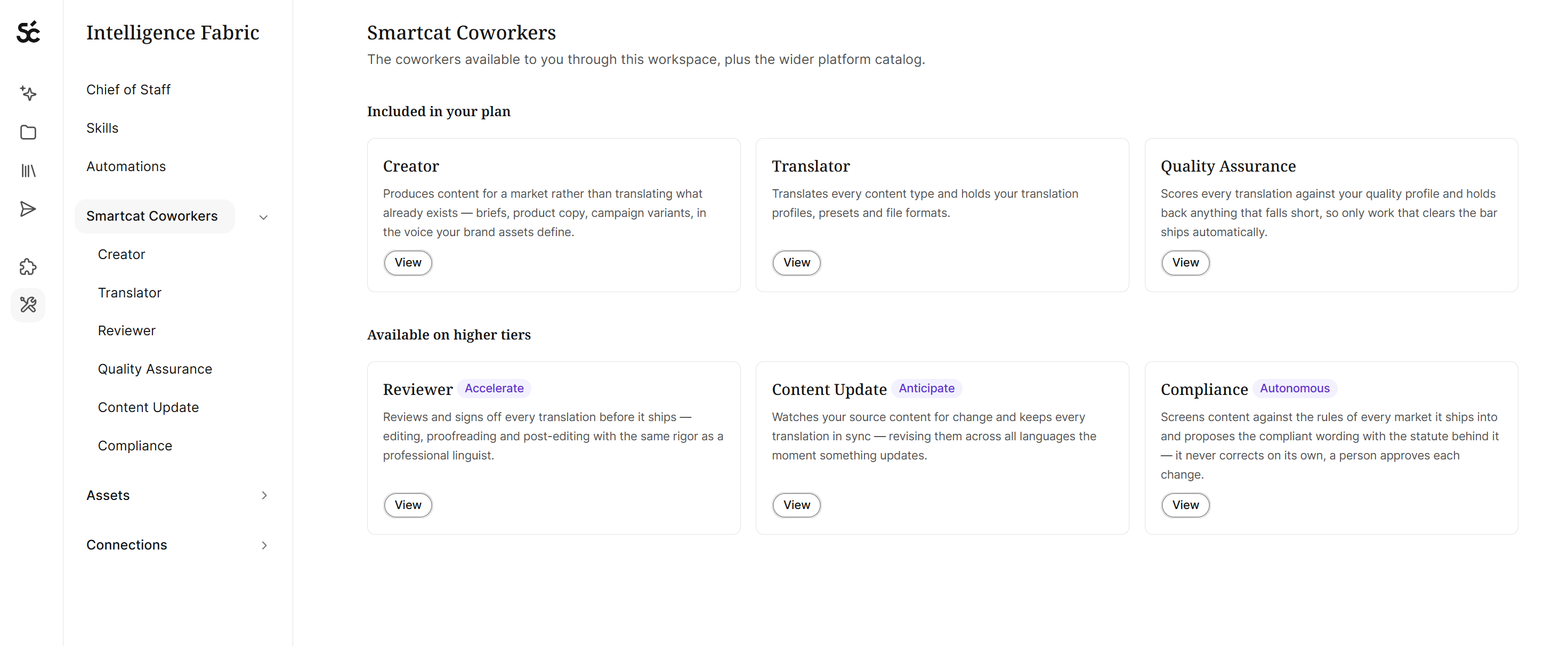
Coworkers are the AI teammates that do the content work: translating, reviewing, updating, and quality-checking across every format below (website, images, video, documents, and more).
Go to Intelligence Fabric > Smartcat Coworkers.
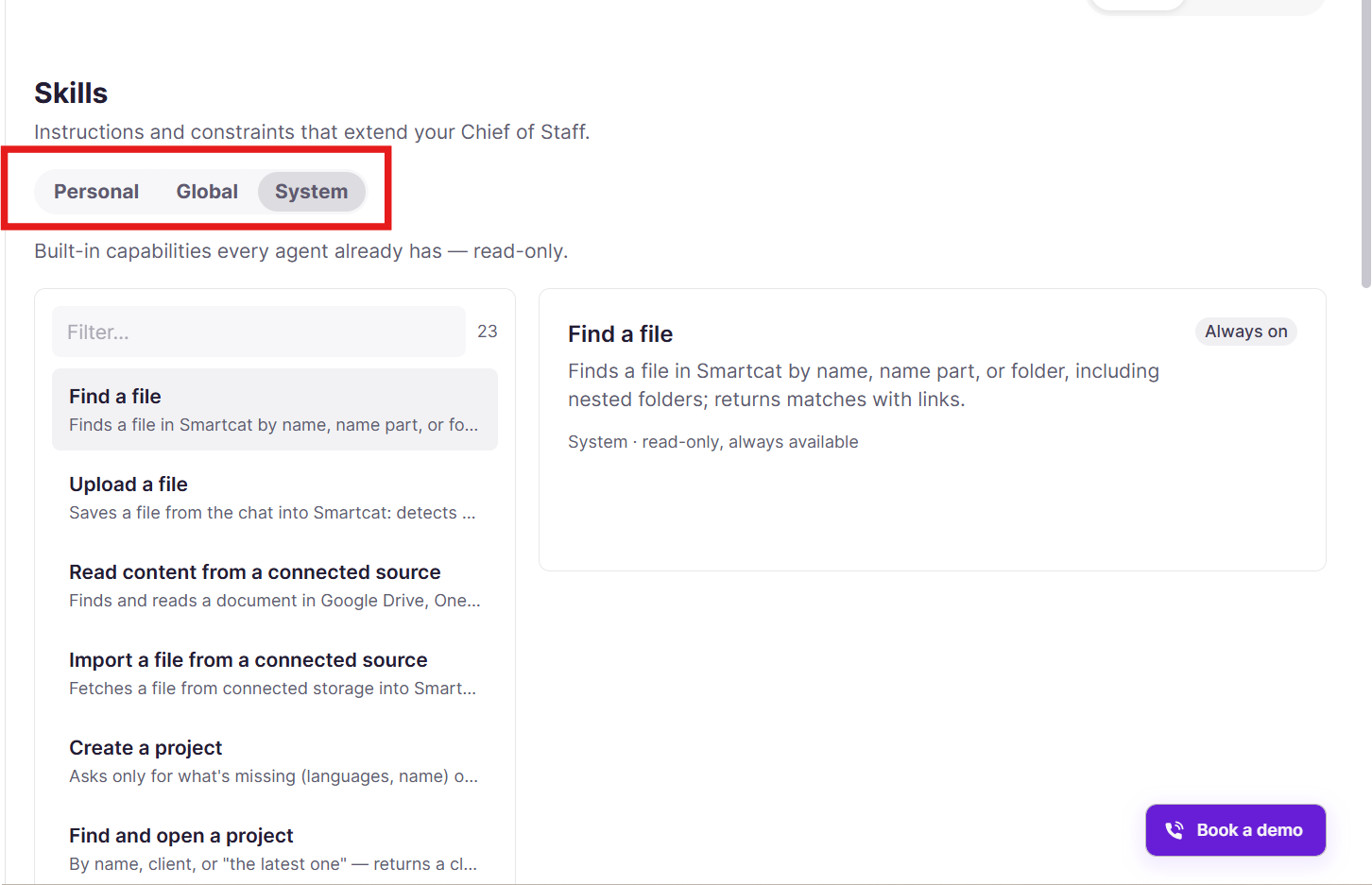
Skills are repeatable procedures your Coworker follows: the steps, the inputs it needs, the tools it uses, and how it validates its work. Skills can be personalized to your brand voice, your campaign terminology, and your review process.
Go to Intelligence Fabric > Skills, and open For You for your own.
Three things worth doing on day one:
-
Personalize it. Give your Chief of Staff your name and a bit of context about your role. It remembers this across sessions, so the more you use it, the less you have to repeat yourself.
-
Talk to it like a person. Ask things like "what's the status of my Q3 campaign?" or "translate this landing page into German," and it takes care of the rest.
-
Connect the apps you already use. Link tools like Notion or Google Drive so your Chief of Staff can save its work there directly instead of you copying and pasting.
Every Skill is validated with your Chief of Staff in a chat before it saves. It checks that the instructions make sense, confirms the tools exist, and test-runs the tool call, so you do not end up with a Skill that looks right but does nothing.
Skills you personalize stay private to you by default. If you want your whole team to use one, your Smartcat Support can publish it as a Global Skill. Only its owner can then edit the shared version, and their updates reach everyone using it automatically. You can always copy a Global Skill into a personal version and adjust your own copy.
💡 Your Chief of Staff is not only in Smartcat. It also works from the Microsoft Teams and Slack apps, so you can start a translation or check a project from the conversation where the request usually arrives.
Bring In Your Reviewers and Marketplace Linguists
AI gets you a strong draft, but a native speaker in-market is what catches the claim that reads oddly or the idiom that does not travel. Plan for two kinds of reviewer.
Your own team
Invite colleagues from the workspace dashboard and give each the role that matches their job.
Go to Team in the left sidebar.
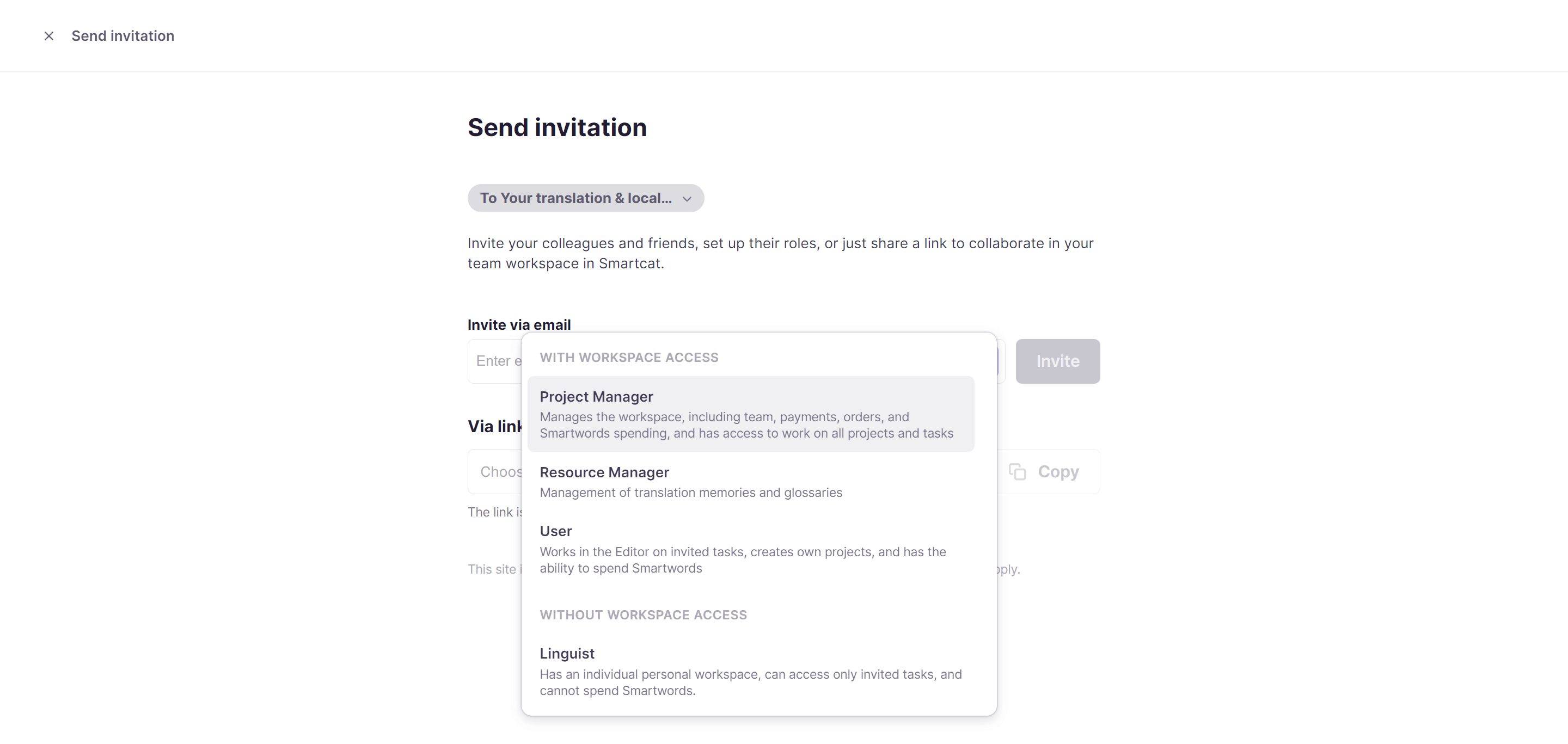
Assign reviewers from the project's Team tab. When they confirm a translation in Smartcat Editor, it is saved into your Reviewed Translations, so their work compounds and is used in future translations.
Outside help, when you have no one for a language
Hire from the Smartcat Marketplace and add linguists straight to a project. You can filter by language, service type, specialization, native speaker, availability, and rate, and AI-powered matching narrows the shortlist for you. It is worth inviting more than one linguist to a task so a deadline does not depend on a single person accepting.
Go to your Workspace icon > Team > Find Freelancers in the left sidebar.
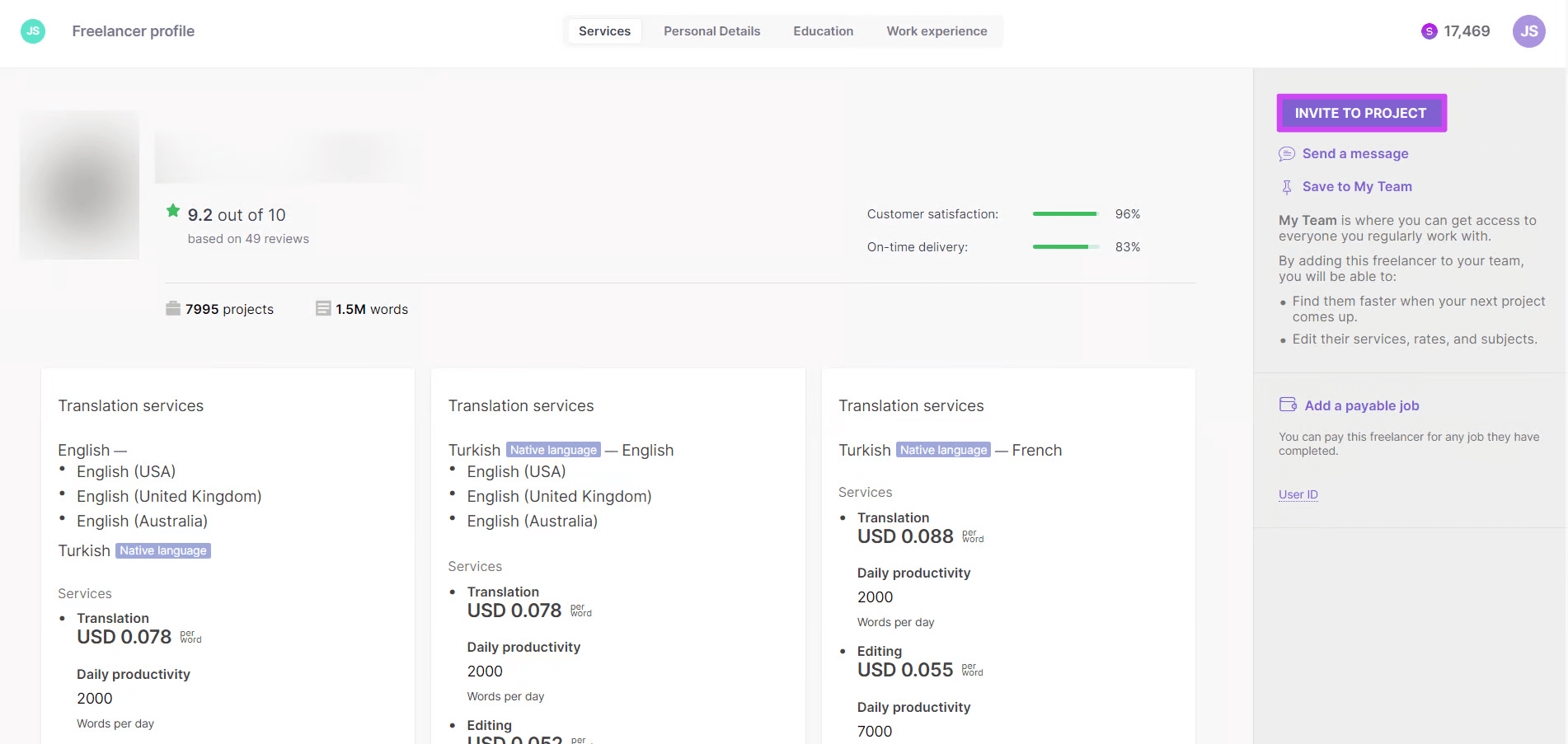
Marketplace Experts is a Coworker in its own right, which means bringing in outside help is a conversation rather than a search.
💡 Tell your Chief of Staff what you need, for example a German reviewer for a landing page, and it brings the right expert into the workflow. Your Chief of Staff can also write the instructions for those linguists, which matters more than it sounds: a freelancer who has never seen your brand does far better work with a clear brief and your Terminology attached than without.
Your Intelligence Fabric: Reviewed Translations, Terminology, and Language Insights
Every workflow above solves the "translate it" problem. The harder one is what happens after launch: pricing changes, a product gets renamed, a regulation shifts, and every asset in every language has to catch up. That gap is the Market Adaptation Gap, and closing it is less about translating faster than about not translating the same wording twice.
You can solve the adaptation gap by setting up your Intelligence Fabric, which is your brand's linguistic knowledge in one place.
It holds three kinds of asset:
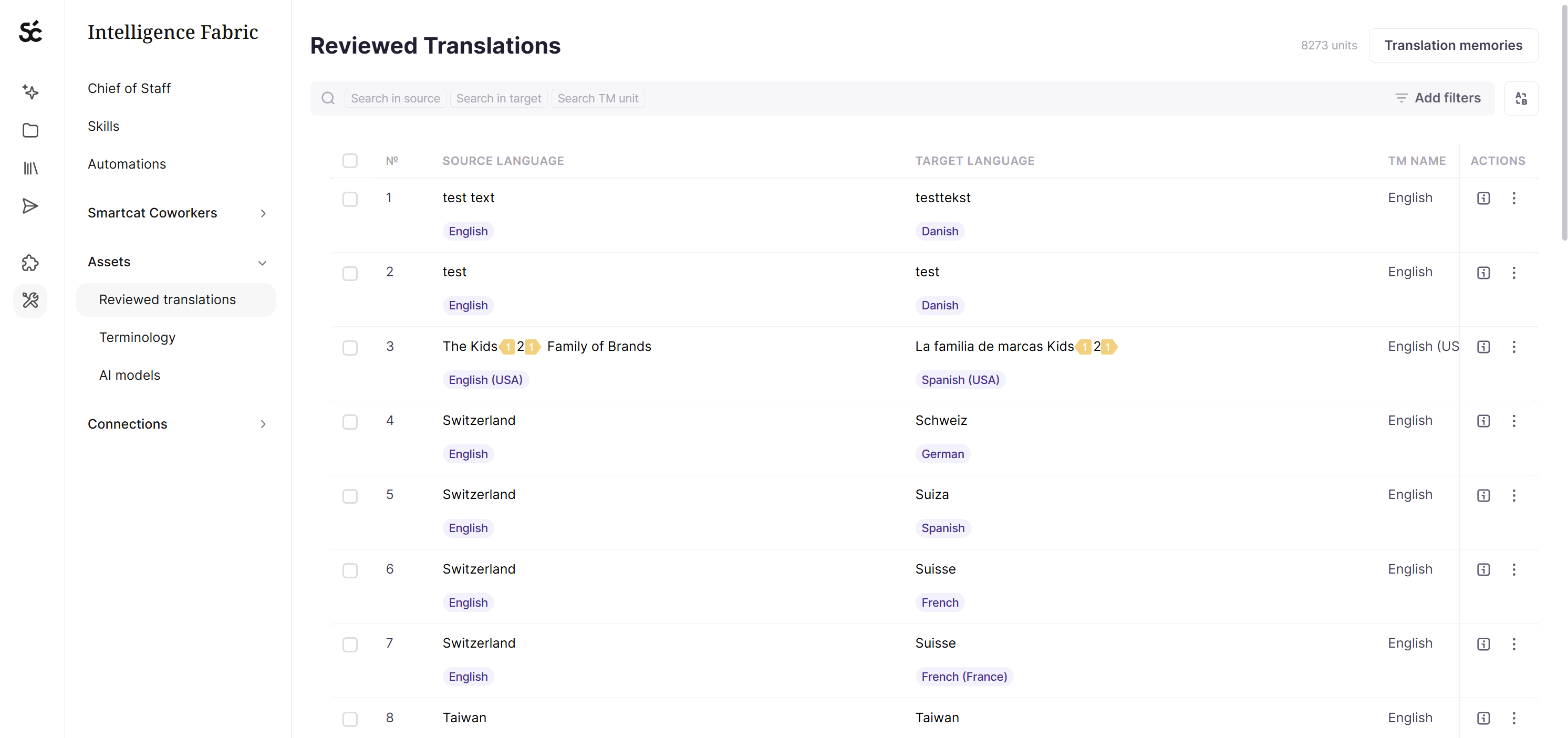
Reviewed Translations are your approved translations, saved automatically whenever a reviewer confirms a segment. You may know these as translation memories, and matches at 100% and above do not consume Smartwords, so the more of your back catalogue is approved, the less each new campaign costs.
Go to Intelligence Fabric > Assets > Reviewed Translations.
Terminology is your approved terms and how they must be translated. Terms are highlighted inline for the linguist, which is what keeps a product name, a tagline, or a regulated claim identical across every market instead of drifting per translator.
Go to Intelligence Fabric > Assets > Terminology.
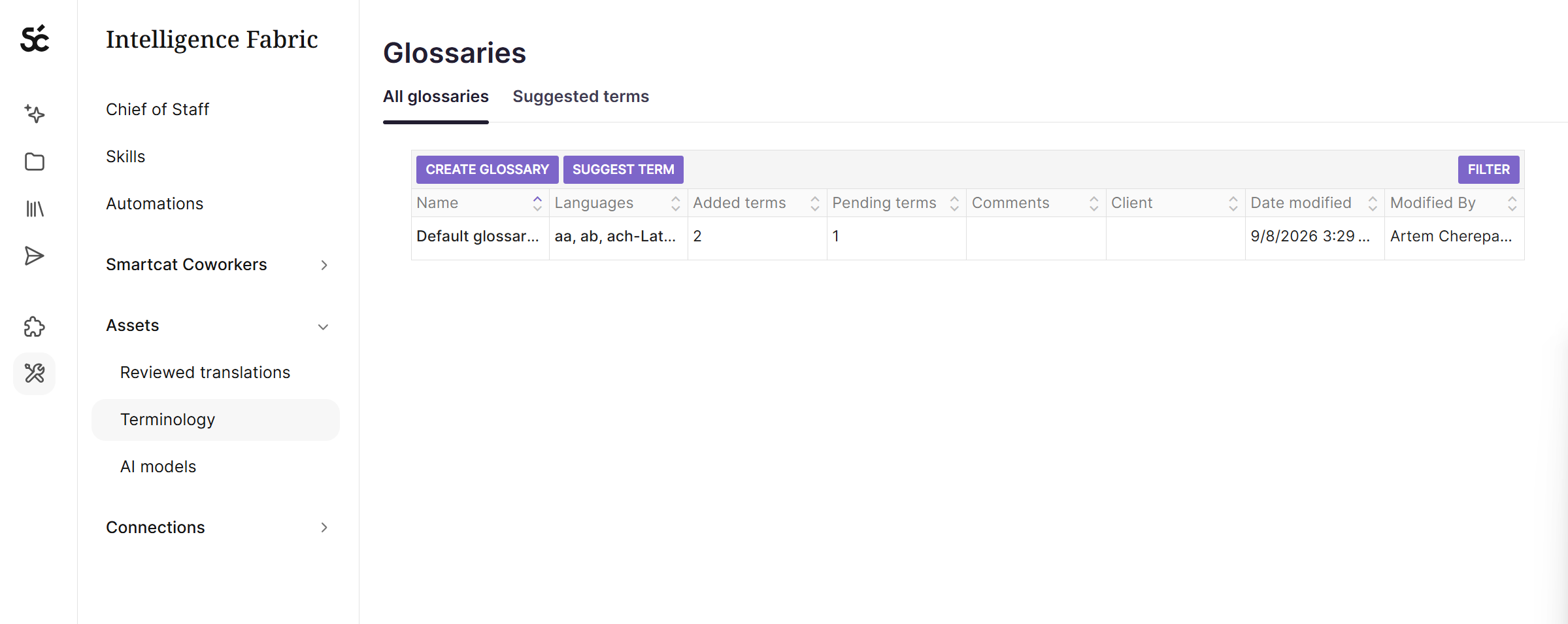
How to pull terminology from third party pages like Notion:
Language Insights are short pieces of guidance on tone of voice, audience, and style. They keep social copy sounding like social copy and a regulated landing page sounding careful, without anyone rewriting the AI's register each time.
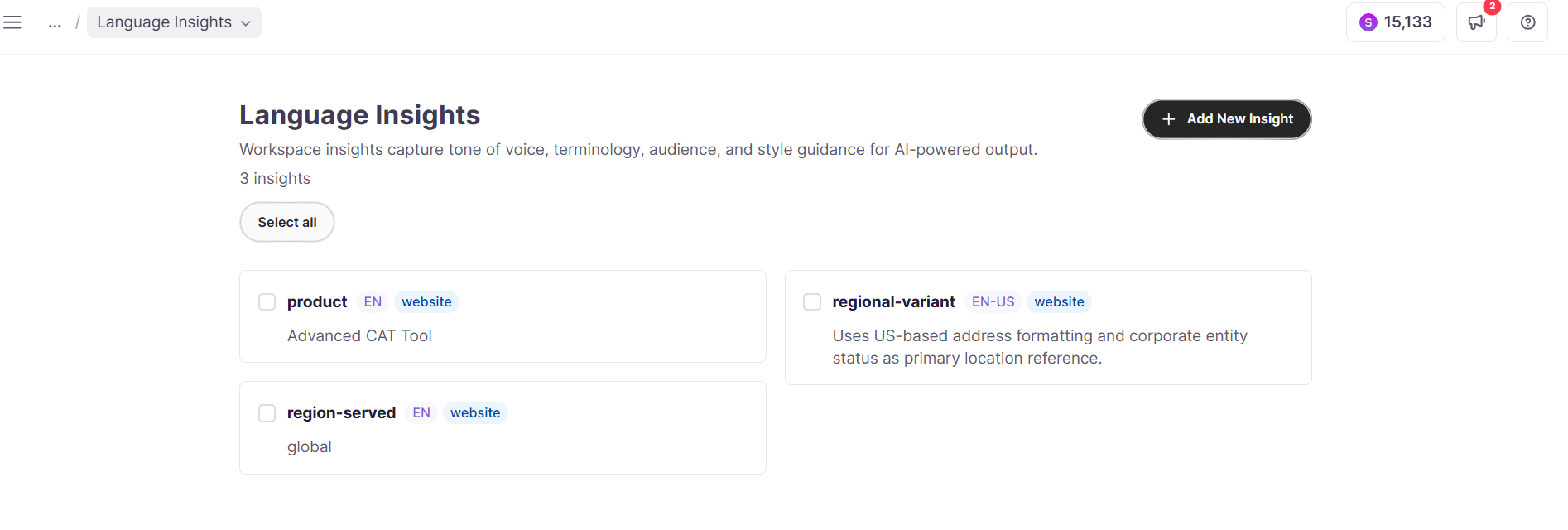
Build your Intelligence Fabric from content you already own.
Scan Website points Smartcat at your site and pulls out terminology, past translations, and tone of voice
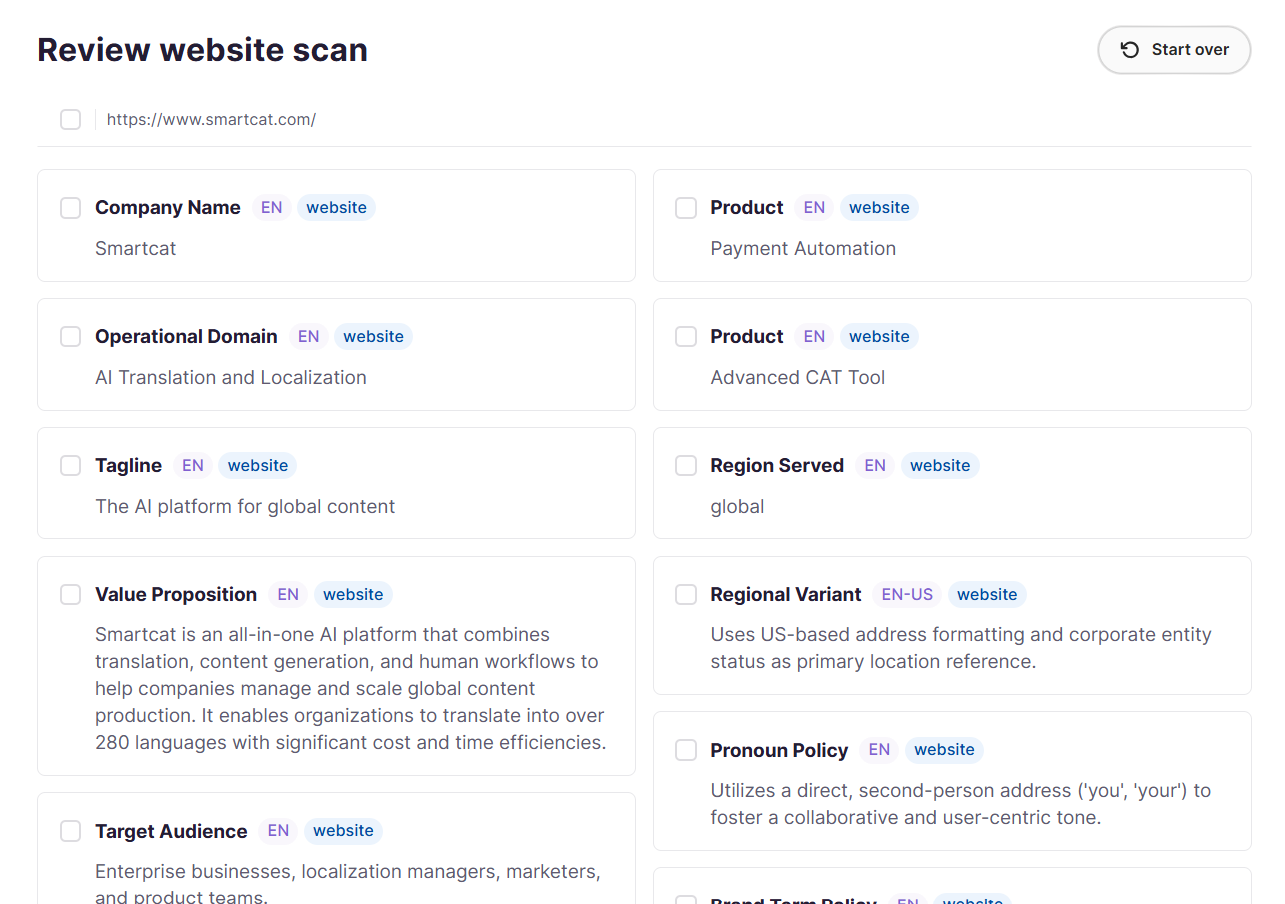
Upload Files converts existing source-and-target document pairs into reusable Translation Memory. Both feed the same output, so translations sound like you from day one and keep getting sharper as your team approves more content.
Go to Intelligence Fabric > Smartcat Coworkers > Translator, where both sit at the bottom of the dashboard.
💡 You do not have to build the Fabric before you start. Your Chief of Staff automatically uses the translation memories, glossaries and style assets you already have, and it can help you set the tone of voice for your translations, so nothing you have already built goes to waste.
Website Translation
Your website is usually the first thing a new market sees, and it is the asset most likely to go stale fastest. Smartcat lets you translate and maintain a multilingual site without a dev project.
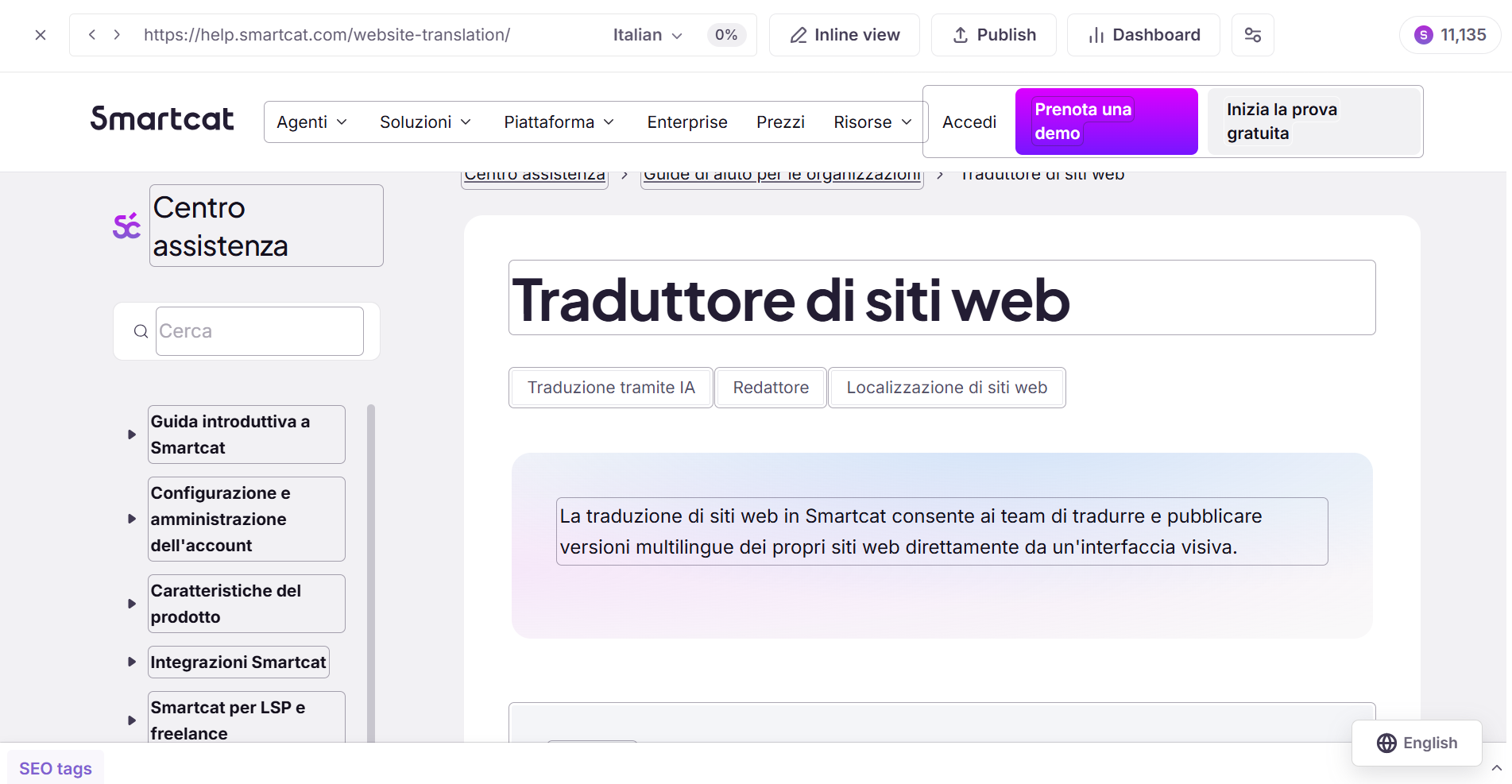
💡 To start a website project, drop the URL into a chat with your Chief of Staff and it takes the work from there.
-
Enter your site URL and choose source and target languages. No connector is required, and the site is translated with AI immediately
-
Review the translation in a visual editor that shows how each page will actually render before it goes live in production
-
Publish with a lightweight JavaScript snippet. Visitors get a language selector widget, and Smartcat serves the translated version of each page
-
SEO settings let search engines access the localized versions of your site, so translated pages can be indexed and found rather than just displayed
-
The same approach works for landing pages built for a specific campaign or region
Translations draw on Intelligence Fabric, so your Reviewed Translations and Terminology apply to your website the same way they apply to everything else.
Go to Projects in the left sidebar, or drop the URL into a chat with your Chief of Staff.
Marketing Creative Asset Translation
Banner ads, social graphics, product images with embedded text, infographics. Smartcat translates the text inside image files, and there are now two pipelines. For marketing creative, you almost always want the newer one.
💡 To translate a banner or a social graphic, drop the image into a chat with your Chief of Staff and ask. It hands image work to the Translator Coworker that handles it, so you manage the outcome rather than the individual steps. The Coworker produces commercial-quality translated images that need zero design adjustments. It runs in three stages:
-
Text extraction. AI analyzes the image and extracts the text blocks
-
Translation. The text is translated using your Terminology and Reviewed Translations
-
Image generation. AI generates the final image while preserving your original style, fonts, and visual identity
The Coworker removes the manual in-painting, font matching, and repositioning that the older workflow required, which is the step that used to send every translated banner back to a designer.
Go to Projects in the left sidebar, or drop the image into a chat with your Chief of Staff.
Marketing Videos and Audio (including Podcasts)
Product videos, event recordings, webinars, and podcasts all localize through the same workflow: upload, translate, review, export.
💡 You can start a video or podcast the same way, by dropping the file into a chat with your Chief of Staff. It routes the file to the Coworker that handles video and audio.
Alternately, you can create a project manually by following the steps below:
-
Create a project and select the Translate video, audio, subtitles template, then choose your source and target languages
-
Set segmentation rules. This is worth doing up front, because it controls how the transcript is broken into subtitle cues
-
Smartcat transcribes the audio automatically, then AI-translates the transcript into your target languages
-
Review and edit the translated transcript in context, with the video playing alongside the text
-
Generate AI dubbing with natural-sounding voices, or export subtitle files (SRT or VTT) for platforms that require them
-
Download the finished asset with subtitles or dubbing burned in, or as separate subtitle files
Supported formats. Video: 3GP, 3G2, AVI, FLV, M2V, M4V, MKV, MOV, MP4, MPEG, MPG, OGV, QT, WMV. Audio: WAV, WMA, AAC, FLAC, M2A, M4A, MP2, OGG, MP3. WebM is not supported, which is worth knowing before you plan a web-video workflow around it.
Go to Projects > + New project and pick the Translate video, audio, subtitles template.
Social Media Content
Social copy, captions, and short-form creative go through the same workflows as any other short text or image asset.
Because social content is high-volume and fast-moving, it is a strong candidate for a Project Template rather than configuring each batch by hand. Set the target languages and the review stage once, then apply the template to each new batch.
💡 For social batches you run every week, ask your Chief of Staff to build you a Skill. Describe what you want it to do, it proposes a ready Skill body for you to review, and once you confirm it is saved to your personal Skills library and runs the same way every time.
Upload the copy as a document or the graphic as an image, apply your campaign terminology so wording and brand voice stay consistent, and route it through review before it goes live in-market.
Go to Projects > + New project.
Downloadable Content (Whitepapers, Guides, One-Pagers, PDFs and Documents)
Gated content and sales collateral are often the most design-heavy assets marketers translate, and the most likely to break formatting in a bad tool. Smartcat's document translation preserves layout while translating the text:
-
Upload PDFs, Word documents, PowerPoint or Google Slides decks, or Excel-based content kits directly into a project
-
AI translation runs first, preserving your original formatting, layout, and design, with no rebuild required
-
Add human review for anything customer-facing or high-stakes. A whitepaper going to a prospect reads differently from an internal one-pager
-
Multilingual Excel files (localization kits with one column per language) are supported, with automatic column detection
Set Up Once, Reuse Every Campaign
A single campaign is rarely one file. It is a website page, an ad set, a one-pager, a video, and a set of social posts, all needing to launch together in every market. Rather than configuring each of those from scratch every quarter, Smartcat gives you two reusable objects: Project Templates and AI Translation Profiles. They do different jobs, and the distinction matters.
💡 Not sure whether you need a template or a profile? Describe the campaign to your Chief of Staff and let it apply the right setup. It holds the translation profiles that decide which engine to use, how to handle length control, and how to treat each file format, so you do not have to choose one per project.
Project Templates: the structure of the work
A Project Template saves the shape of a project so you can apply it to a new one with a single click: workflow stages, source and target languages, deadlines, assignees, custom fields, and a project naming pattern. Smartcat's own documentation calls out weekly marketing updates as an ideal case for this.
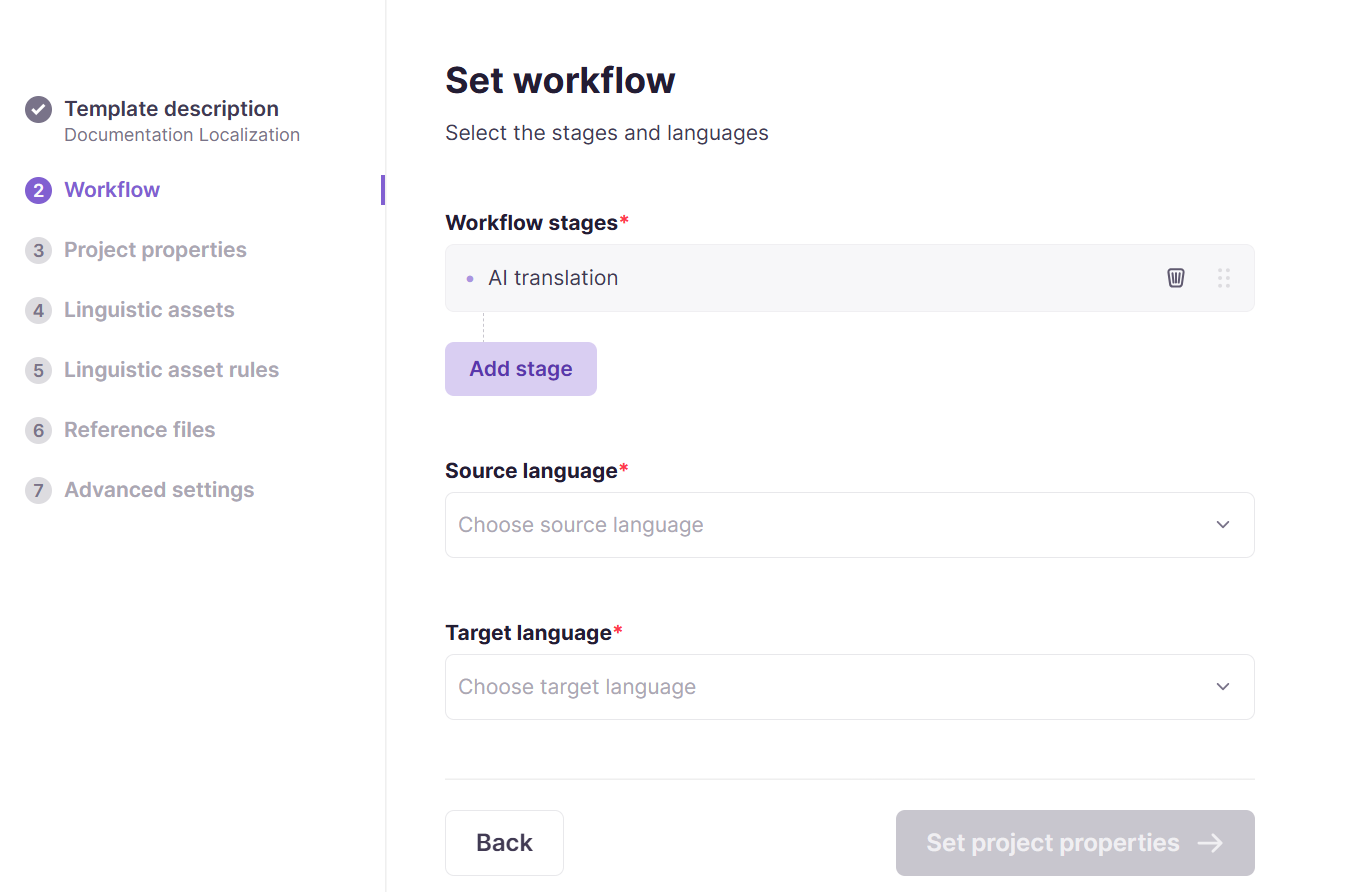
What it buys you:
-
Consistency. Every project created from the same template uses the same languages, stages, and linguistic assets, so quality and process do not vary from one campaign to the next.
-
Governance. Your Administrator defines the correct way to run a given type of project once, and everyone who uses that template inherits that configuration.
-
Fewer errors. Because the terminology and the review stage are locked into the template, a campaign is far less likely to ship without them.
Note on languages: target languages are predefined on the template. If one campaign needs an extra market, you can still add that language to that specific project afterwards from its project settings.
Apply a template when you create the project: Projects > + New project.
AI Translation Profiles: the quality and behavior of the AI
An AI Translation Profile controls how the translation is produced: which Reviewed Translations and Terminology are applied, which AI engine is used for each language pair, whether a fallback engine kicks in if the primary one fails, and whether AI translation is used at all for a given workflow stage.
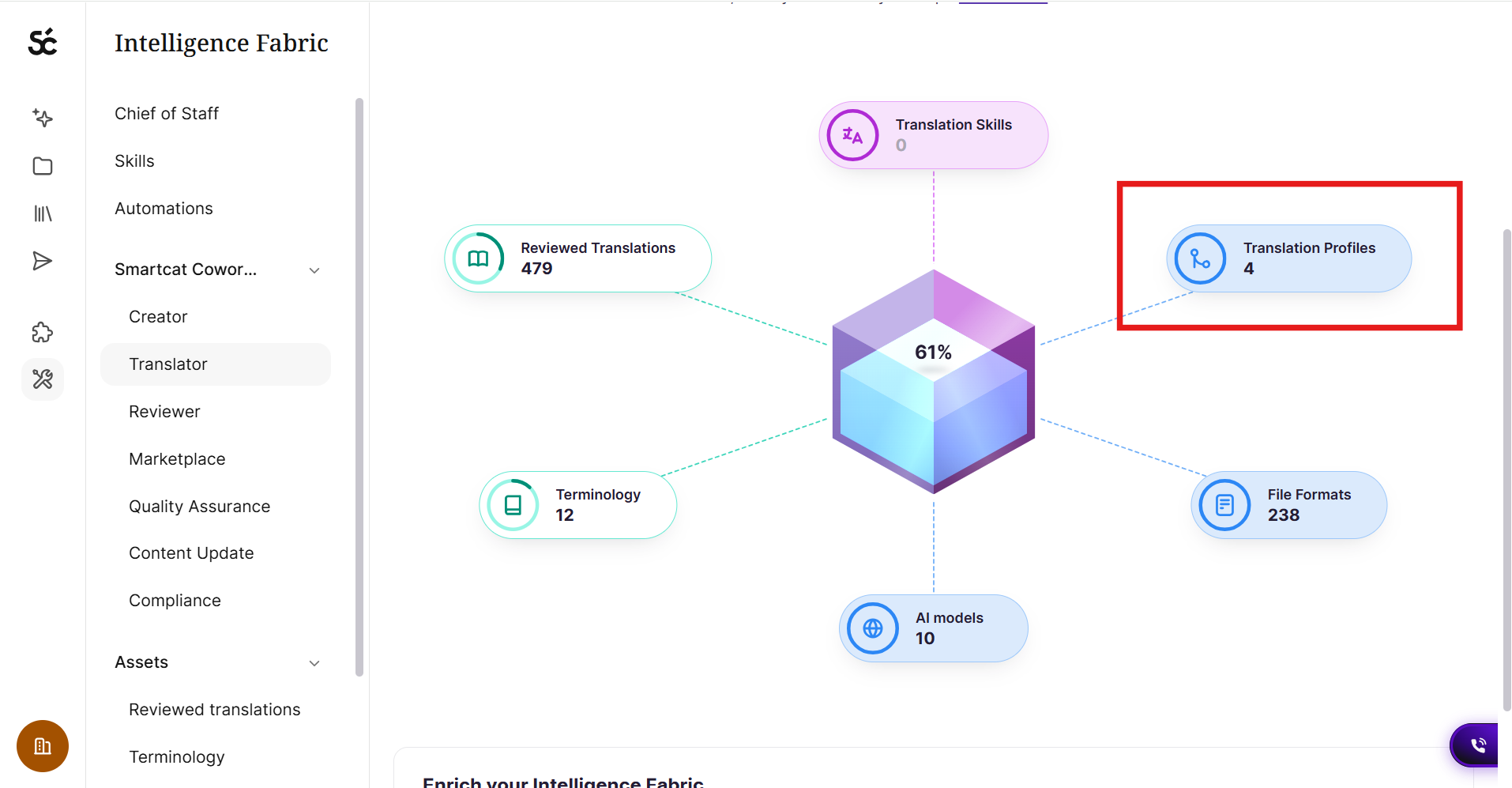
Profiles can be created per client, per department, per brand, or per use case, which maps well onto how most marketing teams are organized. A profile for your regulated-market content can behave differently from the one for social copy.
One important constraint: a Project Template and an AI Translation Profile cannot both be assigned to the same project at the same time. You choose one or the other. If you go with a template, you configure the equivalent linguistic behavior inside the template itself, using its own Translation Memory Rules and AI Translation Rules, rather than pointing at a shared profile.
Go to Intelligence Fabric > Smartcat Coworkers > Translator > Translation Profiles.
Managing Projects and Tasks
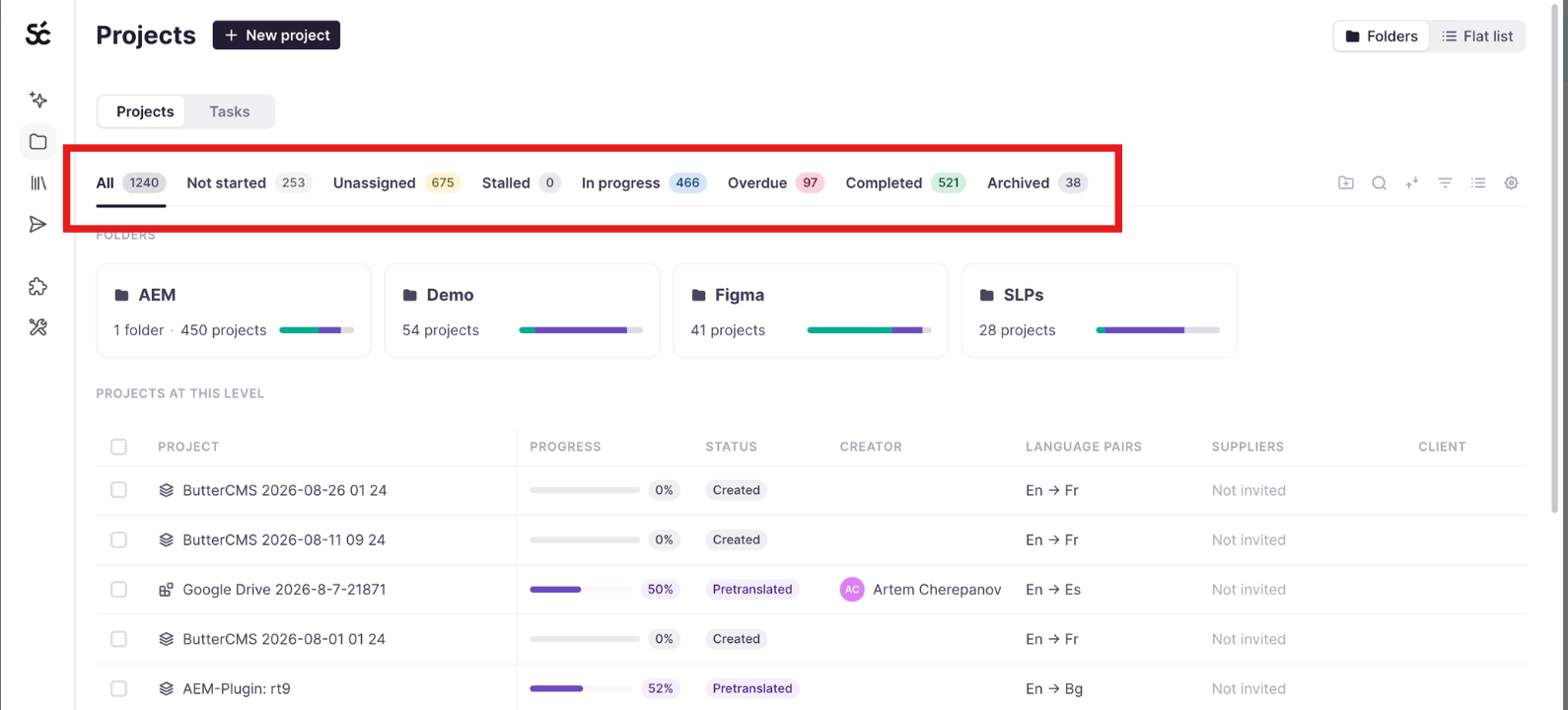
The Project Manager Dashboard is where you keep track of your projects. It gives you folders to organize projects, status tabs for filtering, and bulk actions so you can move several projects or tasks at a time.
The Projects and Tasks toggle switches between two views of the same workspace:
-
Projects lists your campaigns and folders
-
Tasks shows every individual task with its workflow stage on its own row, so you can see what is waiting on review without opening each project.
💡 You can also just ask your Chief of Staff, for example "which of my Q3 projects are behind schedule?", which is often faster than filtering by hand.
Track Your ROI and Quality: Reporting
Once campaigns are running through Smartcat, two built-in reports help you prove value to leadership and keep quality on track. Both are available to workspace Administrators, and both live under Apps in the left navigation.
💡 You can also set a skill in place for your Chief of Staff to let you know the results of your reports on a daily, weekly, monthly, or quarterly basis. The report data can be wrapped up into any skill your Chief of Staff executes.
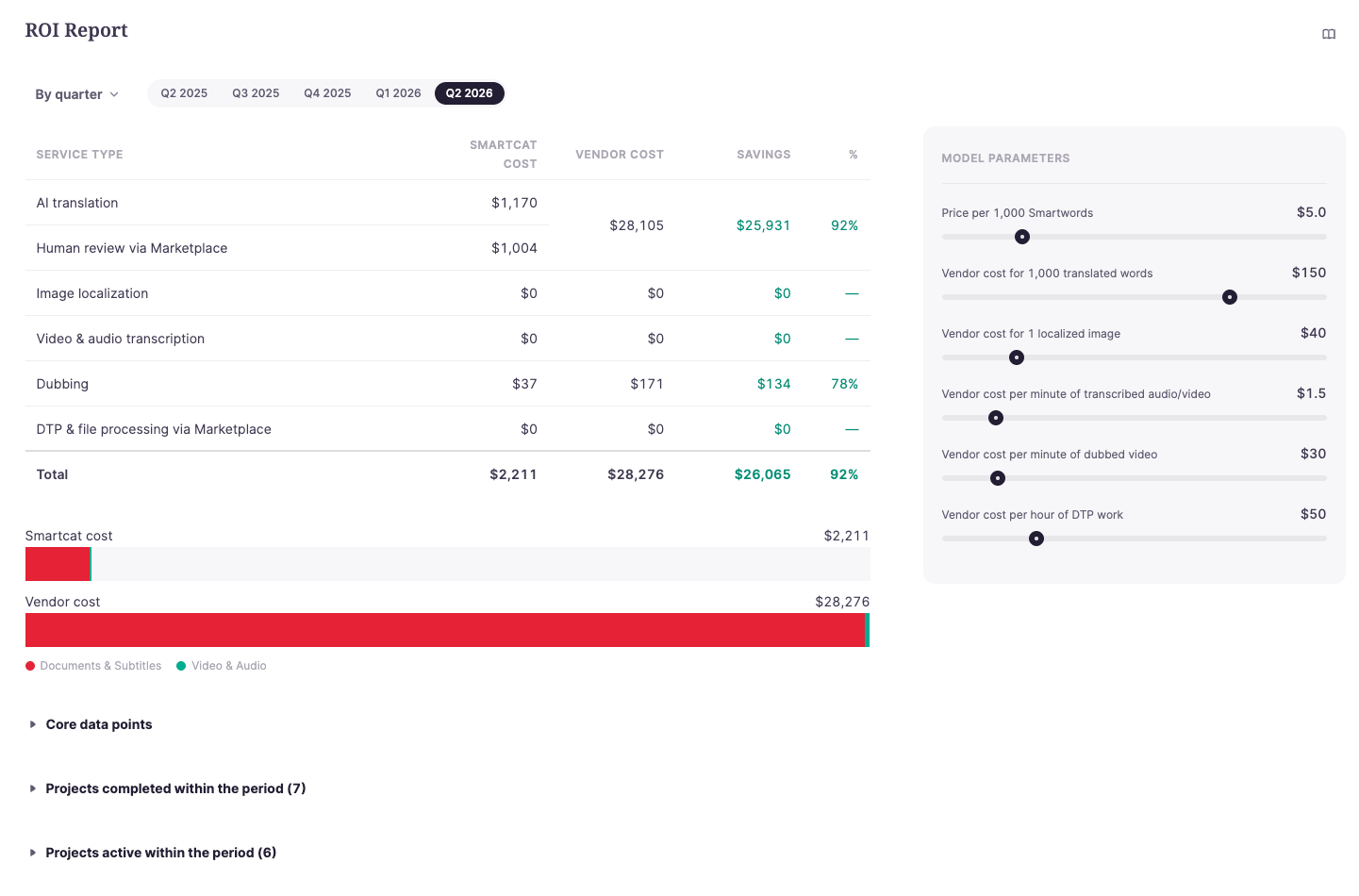
ROI Report
It compares what you are spending with Smartcat against what traditional vendors would have cost, using your real campaign data. You can group the view by subscription cycle, quarter, or month, which makes it straightforward to drop into a quarterly business review or a renewal discussion. It also gives project-level cost breakdowns.
Translation Review Report
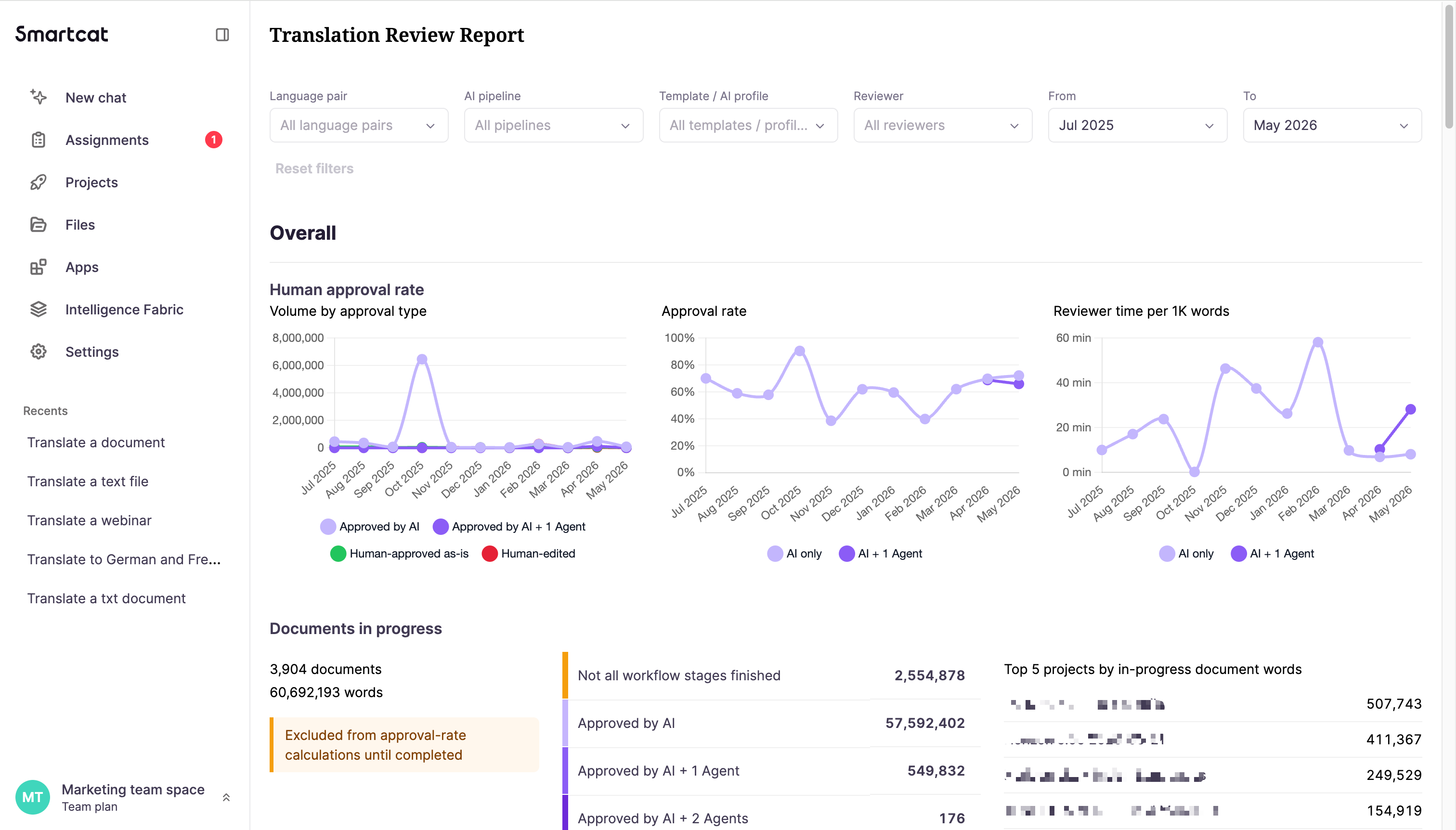
It shows how much of your AI-translated content was approved as-is versus edited, broken down by language and reviewer. A simple way to show how much manual review your team is actually saving. You will also get a Document Edit Report shows exactly what changed between two revisions in a single document. The Project Report that drills into a single project's review results.
The Apps section appears only once one or more custom apps are enabled in your workspace. Custom apps are currently in beta, so if you do not see Apps, that is why. Administrators can also access account-wide Enterprise Reports for translation activity and progress across all projects.
Your Marketing Integrations
Smartcat connects to the tools your marketing team already uses. Before you pick one, it helps to know that integrations come in two technically different systems, because the choice changes what you get.
💡 Once a tool is connected, your Chief of Staff can pull content from it and push translations back, so you are not uploading and downloading files by hand. Ask it what it can reach before you connect anything new; it knows what you have access to on your plan.
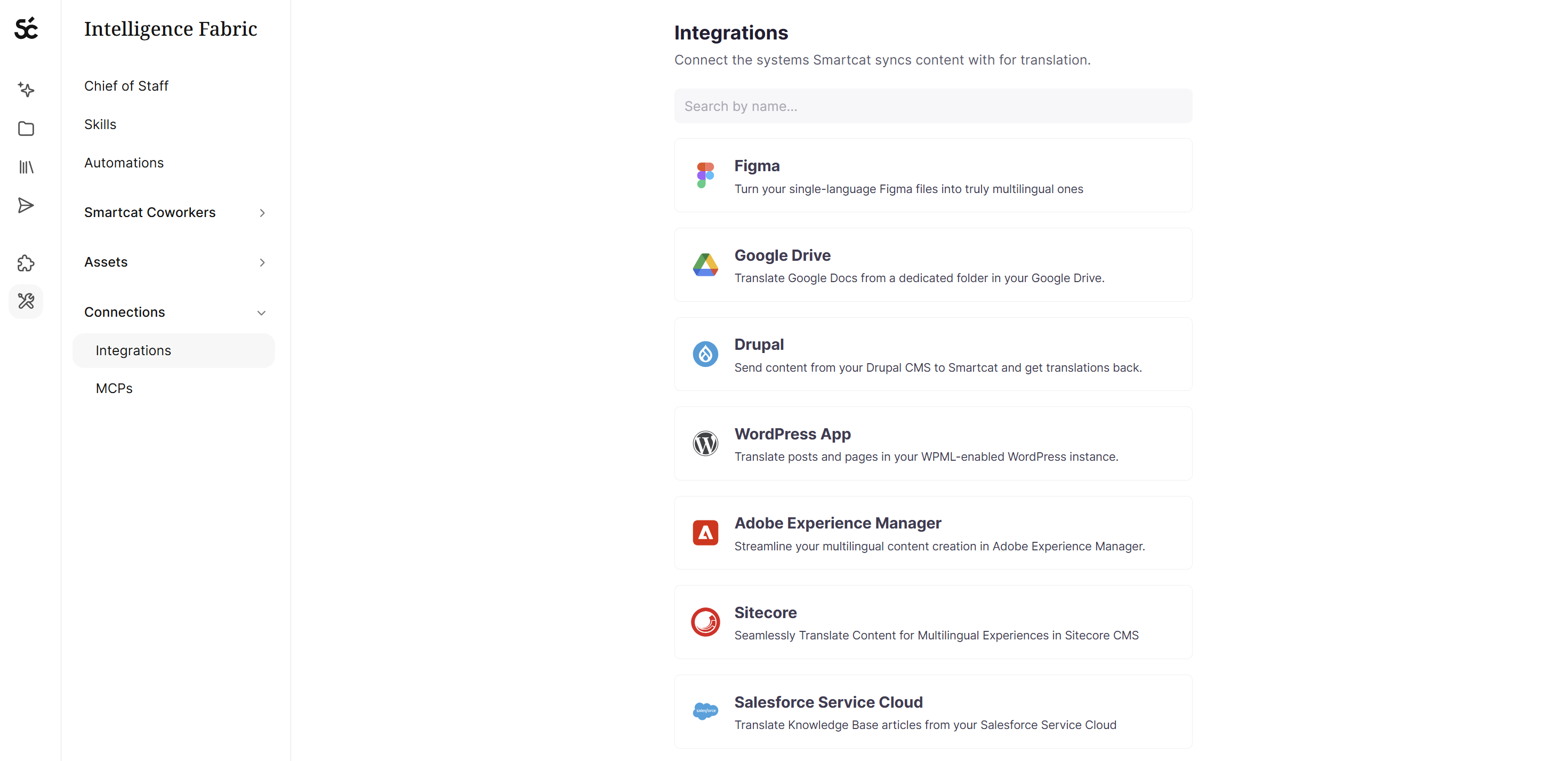
iHub connectors connect Smartcat to a content backend (CMS, PIM, eCommerce, file storage, support tool). Smartcat pulls source content in, translates it, and pushes translations back into the system. These support auto-import and auto-export rules, scheduled syncs, and manual sync on demand.
Website Translator translates a published website on the fly using a JavaScript snippet, with no backend connection at all. It does not pull content into a Smartcat project. It translates the rendered site and publishes localized versions through the snippet. This is the right choice for marketing sites and no-code or low-code website builders.
Website Translator platforms
These translate your published site via the snippet. Most relevant if your marketing site or landing pages run on a website builder.
Landing page platforms:
Joomla is also supported via the snippet, without a dedicated setup article yet.
CMS and DXP (iHub connectors)
-
Contentful (also available as a Contentful app)
Also available as connectors, without dedicated setup articles yet: Optimizely, Amplience, Craft CMS, Sanity, and Kontent.ai.
A WordPress decision worth making deliberately. WordPress can be translated two ways. Use the WPML plugin (an iHub connector) if you need to manage translations inside WordPress. Use the Website Translator snippet if you only need to serve translated pages.
Commerce, PIM, and marketing automation
Also available as connectors, without dedicated setup articles yet: Shopify, Salesforce Commerce Cloud, Salesforce Marketing Cloud, Emarsys, and Centra.
Workflow, storage, and support
Also available: OneDrive, SharePoint Documents, SharePoint Pages, Salesforce Service Cloud, and ServiceNow.
If your system is not listed
Two options. The Remote API connector lets you register a remote API endpoint and build your own iHub connector without code, including custom locale mapping. Or use the Smartcat REST API directly for a fully custom integration: project creation, status tracking, file upload and download, and callback notifications.
Want to learn more?
See how Smartcat can transform your localization workflow.
Still need help?
Our support team responds within one business day.