Getting Started with Smartcat for Learning & Development, Sales and Commercial Enablement
This article is a feature-by-feature overview of what Smartcat can do for your training and enablement content: getting it in, translating it, creating it, keeping it current, and reviewing it.
That includes formal courses (SCORM, Rise, Storyline) and the material that travels alongside them, from facilitator guides and PDFs to sales decks and battlecards.
Each section links to the relevant Help Center article for full step-by-step instructions.
Getting Started
-
Set up your workspace and AI team by personalizing your Chief of Staff, adding teammates, and connecting the apps you use.
-
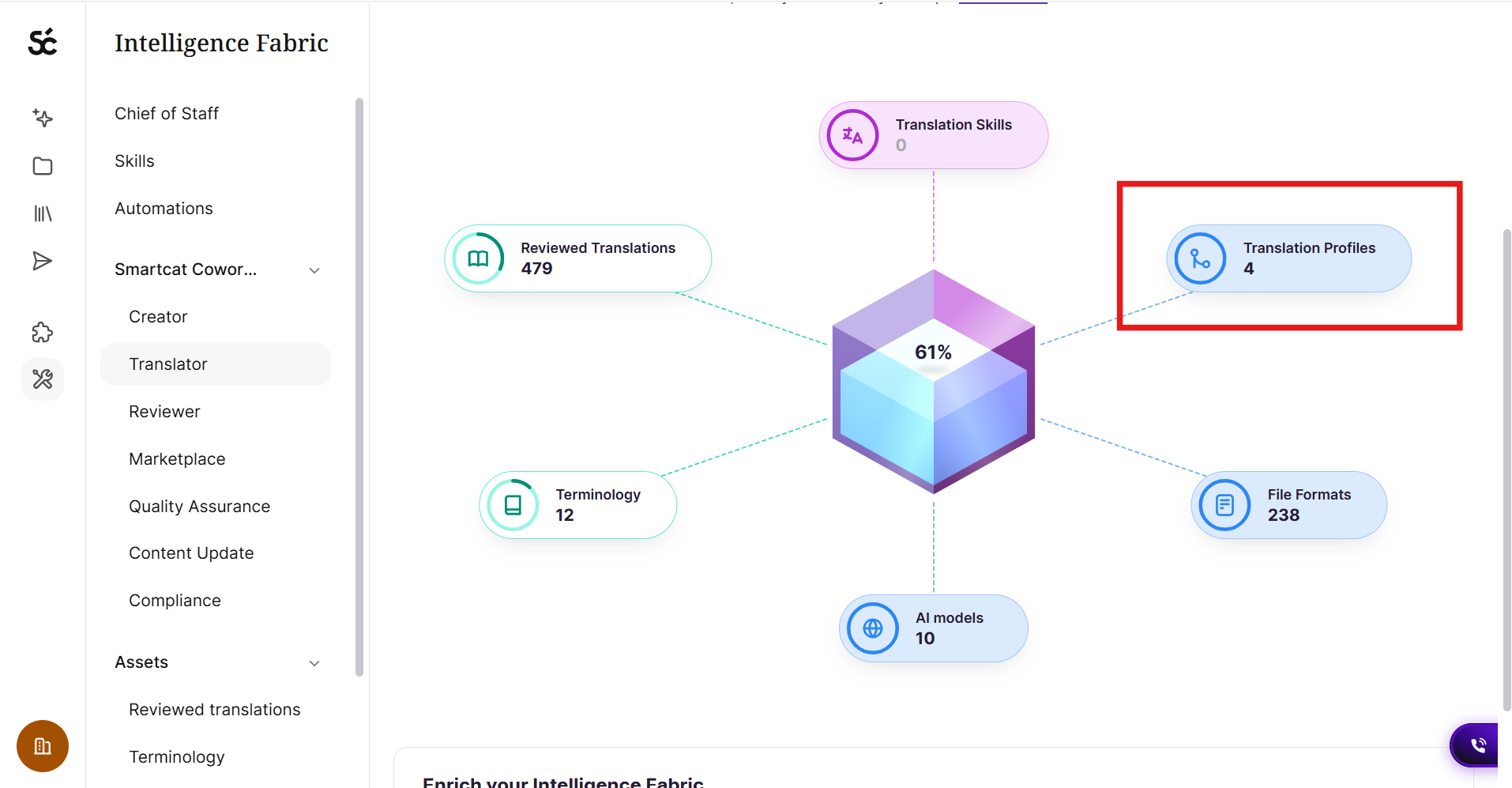
Build your Intelligence Fabric with existing translations, terminology, and Language Insights.
-
Choose how to bring your course into Smartcat using SCORM Studio, the Canvas / Course Editor, or a supported native course format.
-
Create reusable workflows with Project Templates and AI Translation Profiles.
-
Create or translate your first course using the appropriate Coworker and configure any video or audio localization needs.
-
Translate supporting content such as PDFs, presentations, spreadsheets, images, and facilitator materials.
-
Review, confirm, and export your translations so approved content can be reused in future projects.
-
Keep content current with the Content Update Coworker when course content changes.
-
Track quality and value using Smartcat’s reporting tools.
💡 Ask your Chief of Staff to set the workspace up with you. It configures your linguistic assets, including glossaries, custom prompts and translation settings, during your first session in the context of a real course, so setup happens as you work rather than before it.
Meet Your AI Team: Chief of Staff, Coworkers, and Skills
Watch this short Platform Tour to learn more about your Chief of Staff, AI Coworkers, your Intelligence Fabric and more.
Before you touch a course, it is worth understanding what is actually doing the work in Smartcat.
Chief of Staff is the foundation of every Smartcat account, every user gets one, and it is your single entry point to everything else. It does not translate or update content itself. It coordinates your Coworkers and runs the Skills you have personalized, so your course translation runs as one connected system instead of one-off projects.
Go to Intelligence Fabric > Chief of Staff.
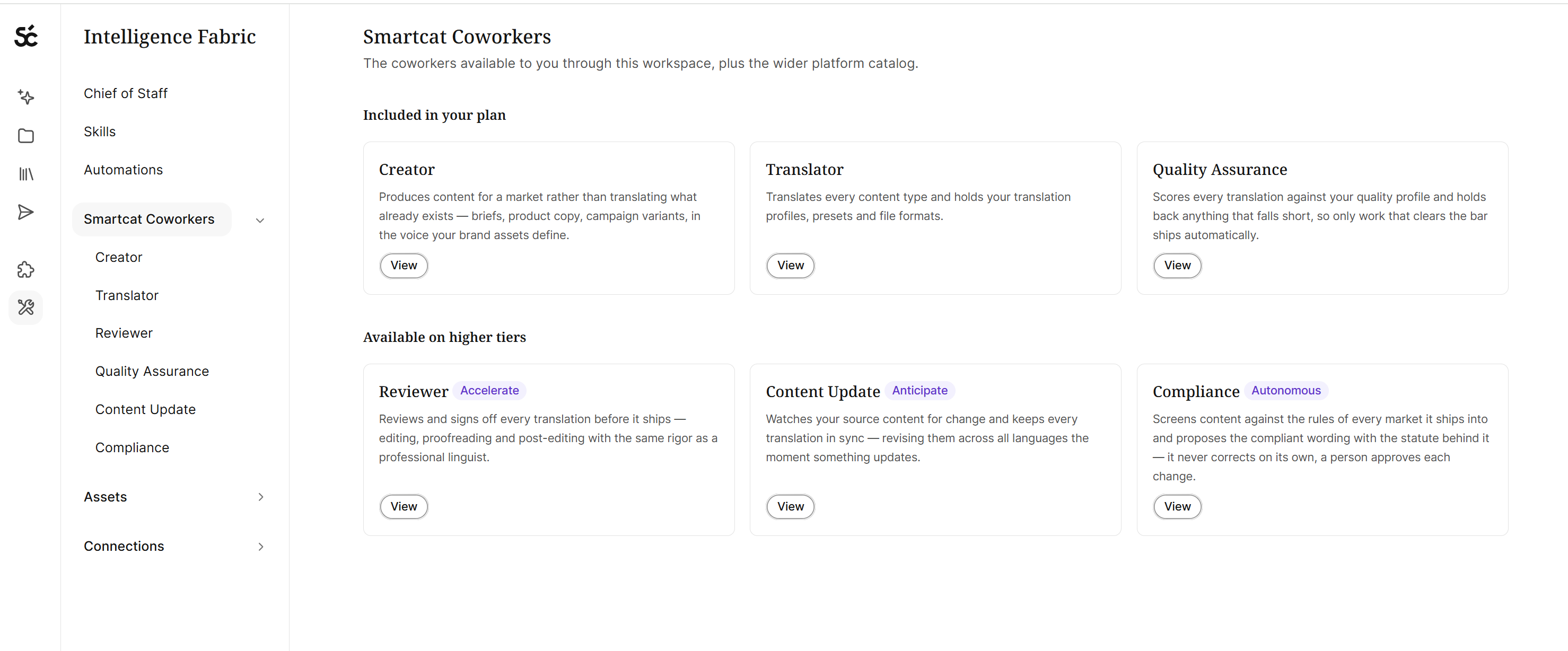
All of your Coworkers are listed in the Intelligence Fabric section of your workspace, and the list you see depends on your plan.
Go to Intelligence Fabric > Smartcat Coworkers.
Coworkers are the AI teammates that do the content work. For learning content that is most often the Content Translation Coworker for course translation and the Content Update Coworker for keeping translated courses current, alongside a Reviewer Coworker for quality checks.
Skills are repeatable procedures your Coworker follows: the steps, the inputs it needs, the tools it uses, and how it validates its work. Skills can be personalized to your course terminology, your compliance language, and your review process.
Go to Intelligence Fabric > Skills, and open For You for your own.
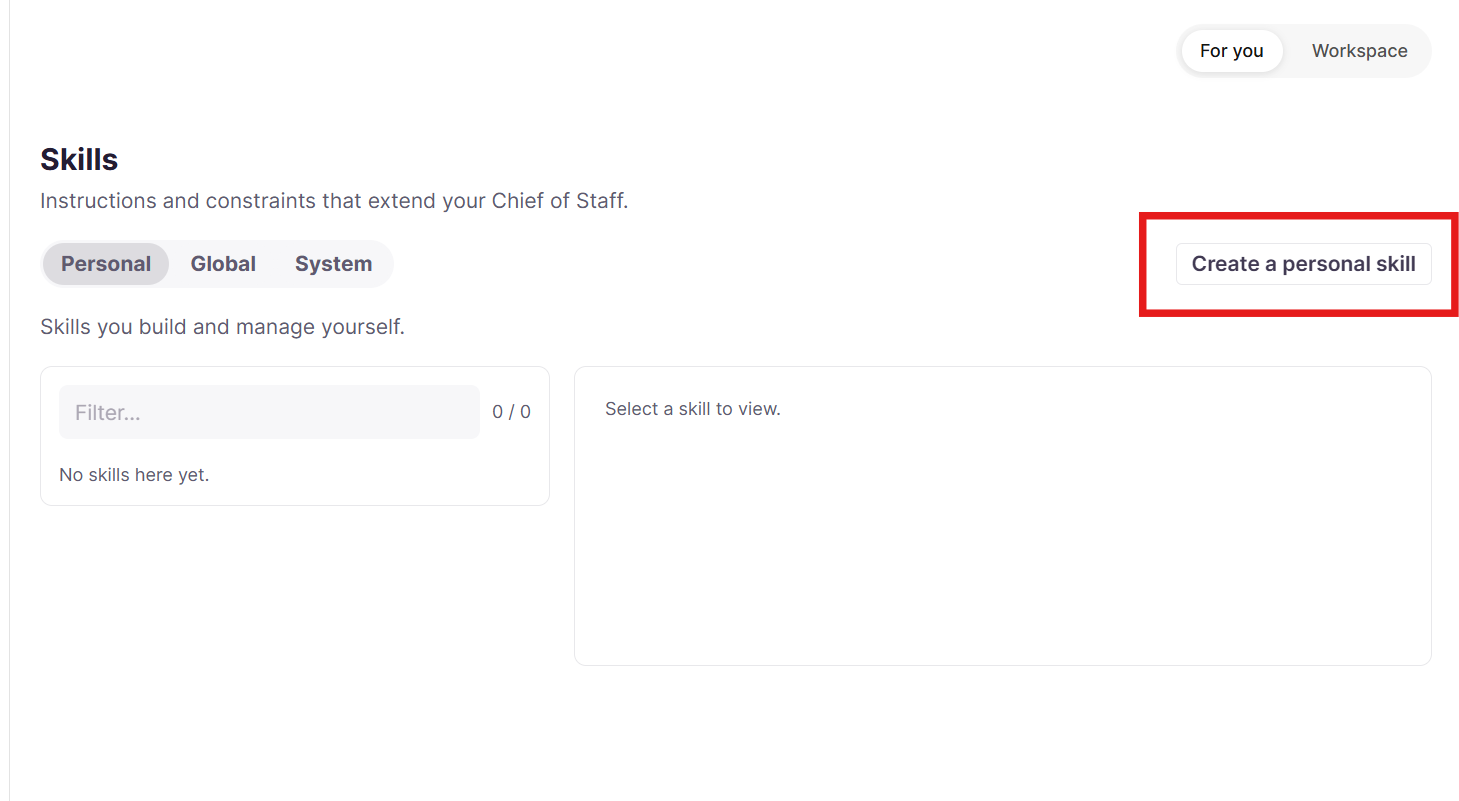
Every Skill is validated with your Chief of Staff in a chat before it saves, so you do not end up with one that looks right but does nothing.
-
Personal Skills: stay private to you.
-
Your Administrator can publish one as a Global Skill for the whole workspace, and only its owner can then edit the shared version, with updates reaching everyone automatically.
-
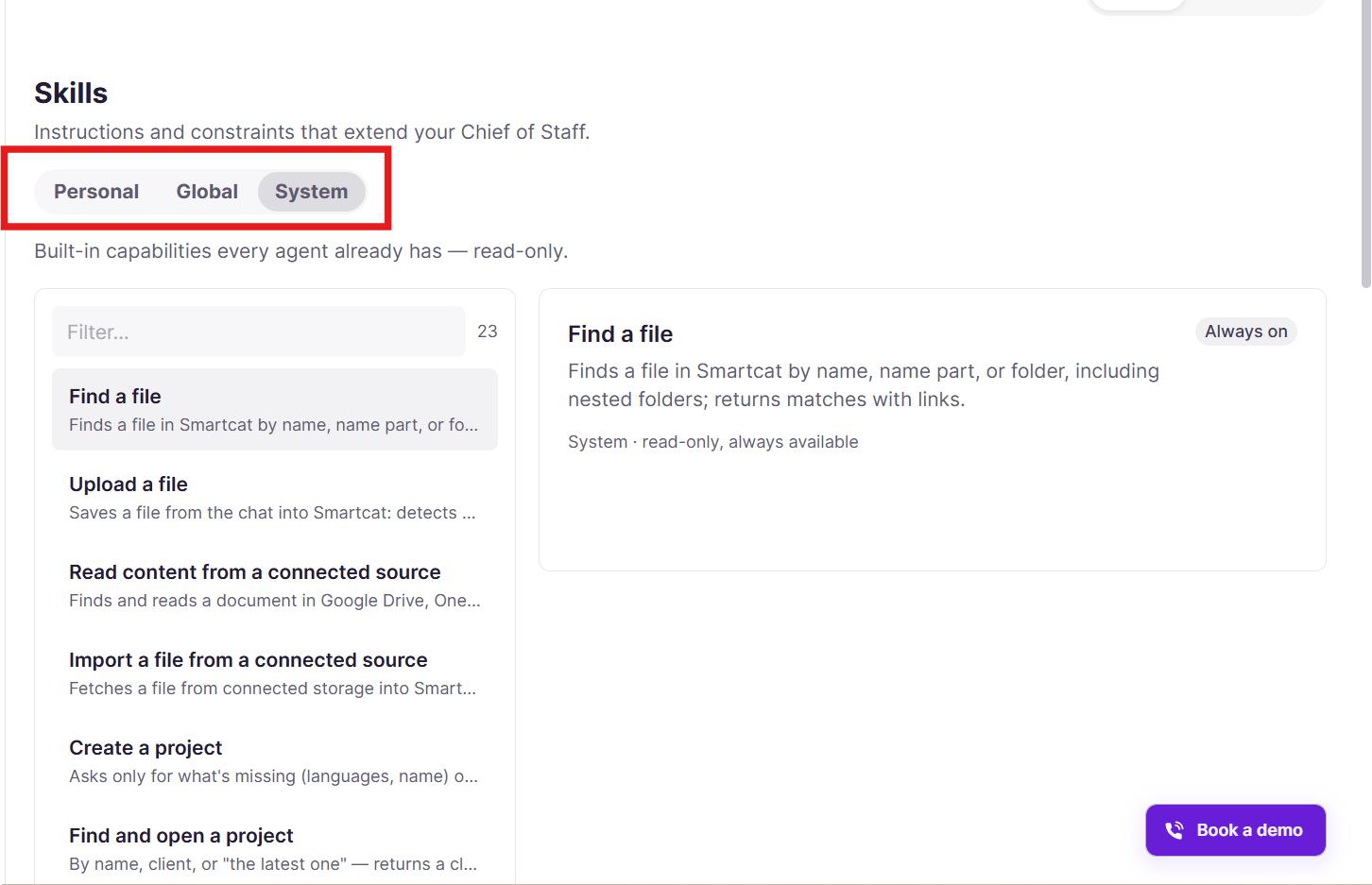
Smarcat System Skills, like Find a file, Upload a file, Create a project, etc, help most people work more efficiently.
Worth doing early:
-
Personalize your Chief of Staff. Give it a name and a bit of context about your role, for example "I manage SCORM course localization for our compliance training team." You can also rename your Coworker and choose the style it uses to talk to you. It remembers this across sessions, so each conversation asks less of you than the last.
-
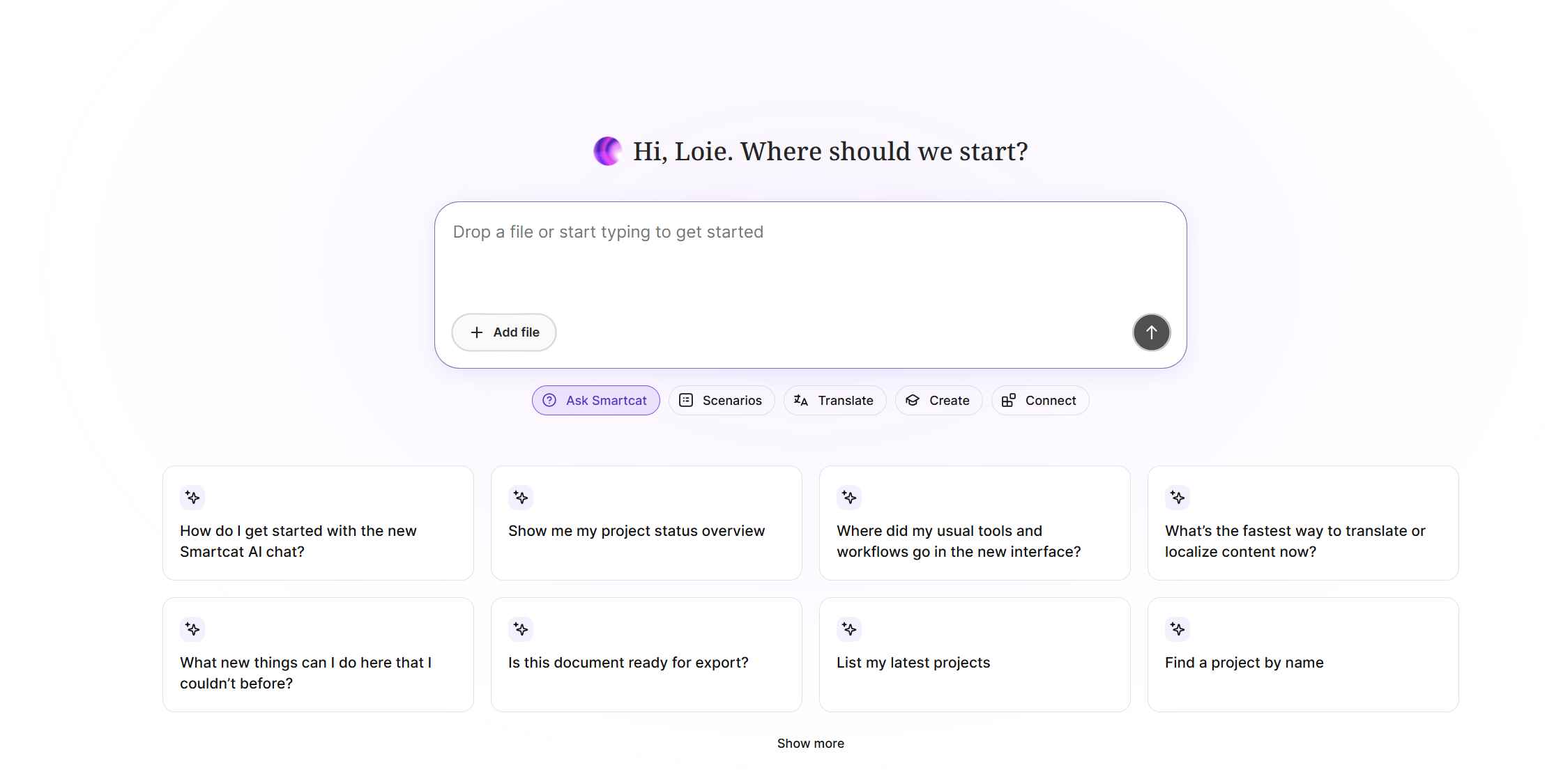
Discover the homepage scenarios. The tiles on your home page are scenarios and workflows. A folder icon launches a guided wizard that covers a content type end to end. A conversation-only icon means no translation happens, it is question-and-answer only. An icon tied to a connected tool means that scenario needs the tool linked first. The full list beyond your home page is available from "view all".
-
Ask about your projects in plain language. "What's the status of my course projects?" gets you which are on track and which are at risk, and you can ask what to do about a specific risk. You can also ask for that as a recurring check, and each run arrives in its own new chat.
-
Connect the apps you already use so your Chief of Staff can save its work there directly.
💡 Your Chief of Staff is not only in Smartcat. It also works from the Microsoft Teams and Slack apps, so you can kick off a course translation or check progress without leaving the conversation where the request came in.
Your Intelligence Fabric: Reviewed Translations, Terminology, and Language Insights
Translating a course once solves the "launch it" problem. The harder problem is what happens after: a compliance requirement changes, a product gets renamed, a policy is updated mid-quarter, and every localized version has to catch up before the next training cycle. That gap is the Market Adaptation Gap, and closing it is less about translating faster than about not translating the same thing twice.
The Intelligence Fabric is what makes that possible. It holds three kinds of asset:
-
Reviewed Translations
-
Terminology
-
Language Insights
💡 You do not have to build the Fabric before your first course. Your Chief of Staff automatically uses the translation memories, glossaries and style assets you already have, and it can help you set the tone of voice, so years of approved compliance wording carries straight over.
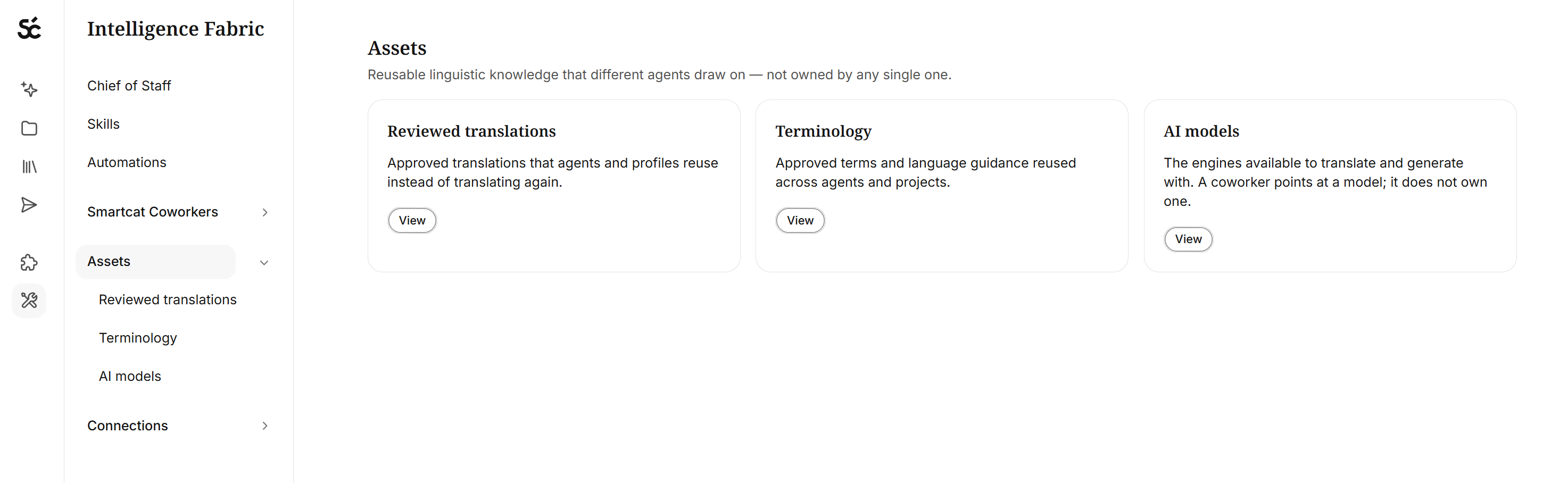
Reviewed Translations are your approved translations, stored and reused. You may know these as translation memories. They build themselves: when a reviewer confirms a segment it is saved automatically, so the asset grows every time someone signs off on a course.
Go to Intelligence Fabric > Assets > Reviewed Translations.
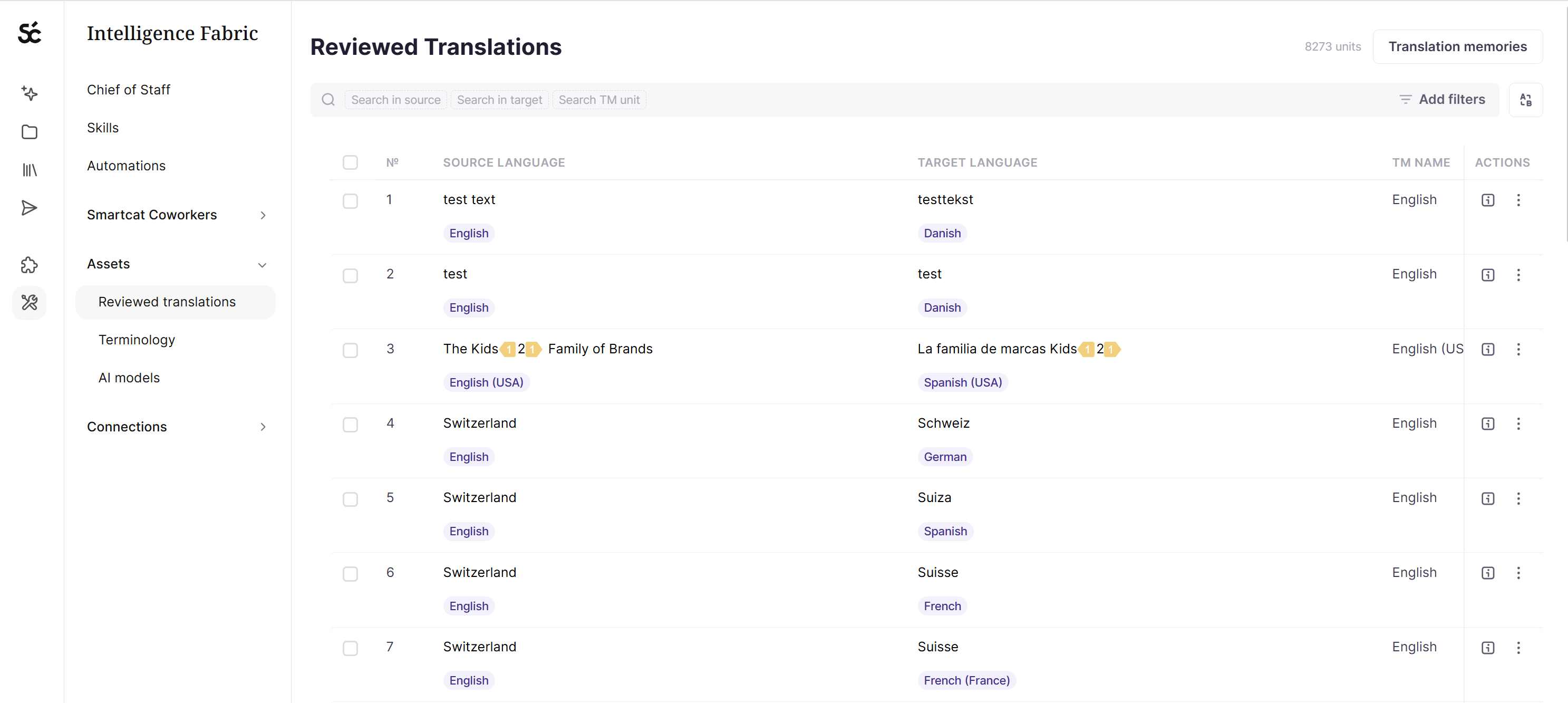
Two things follow. Matches at 100% and above do not consume Smartwords, so the more of your library is approved, the less each new course costs.
And when you re-export after a change, unchanged segments are confirmed automatically and only new or edited text is translated again. A tweak in module 3 does not mean paying for modules 1 through 12.
Terminology is your approved terms and how they must be translated. You may know these as glossaries. Terms are highlighted inline in the source and the approved translation is offered to the linguist, who can accept, edit, or reject it. For training content this is where compliance language gets enforced rather than hoped for.
Go to Intelligence Fabric > Assets > Terminology.
How to pull terminology from third party pages like Notion
Language Insights are short pieces of guidance on tone of voice, audience, and style. This is what keeps an onboarding course welcoming and a compliance module precise without anyone rewriting the AI's register each time.
Build it from content you already own.
Two tools extract assets from what you have:
- Upload Files converts existing source-and-target document pairs into reusable Translation Memory, which is how you rescue years of translated training material Smartcat cannot otherwise reuse
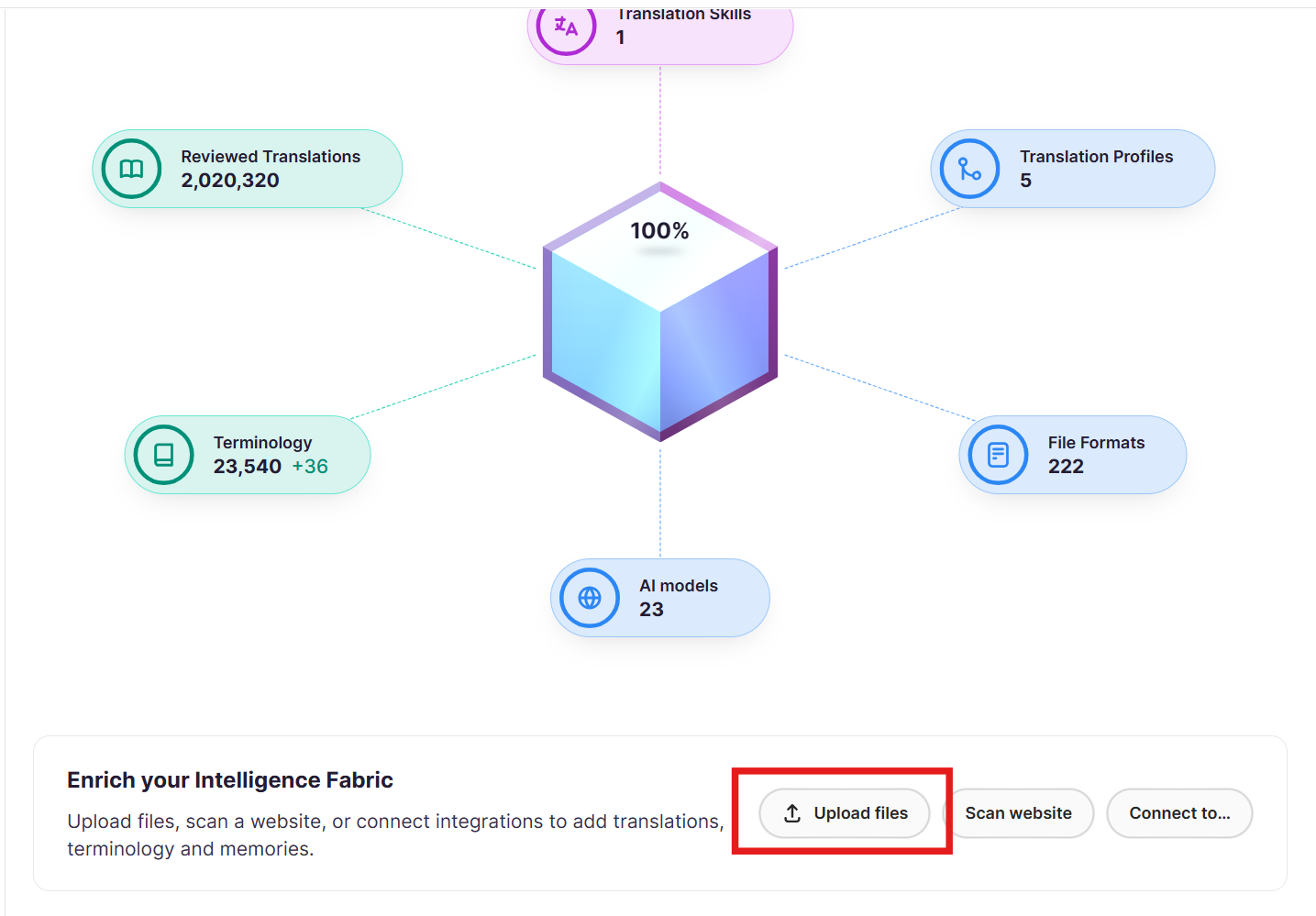
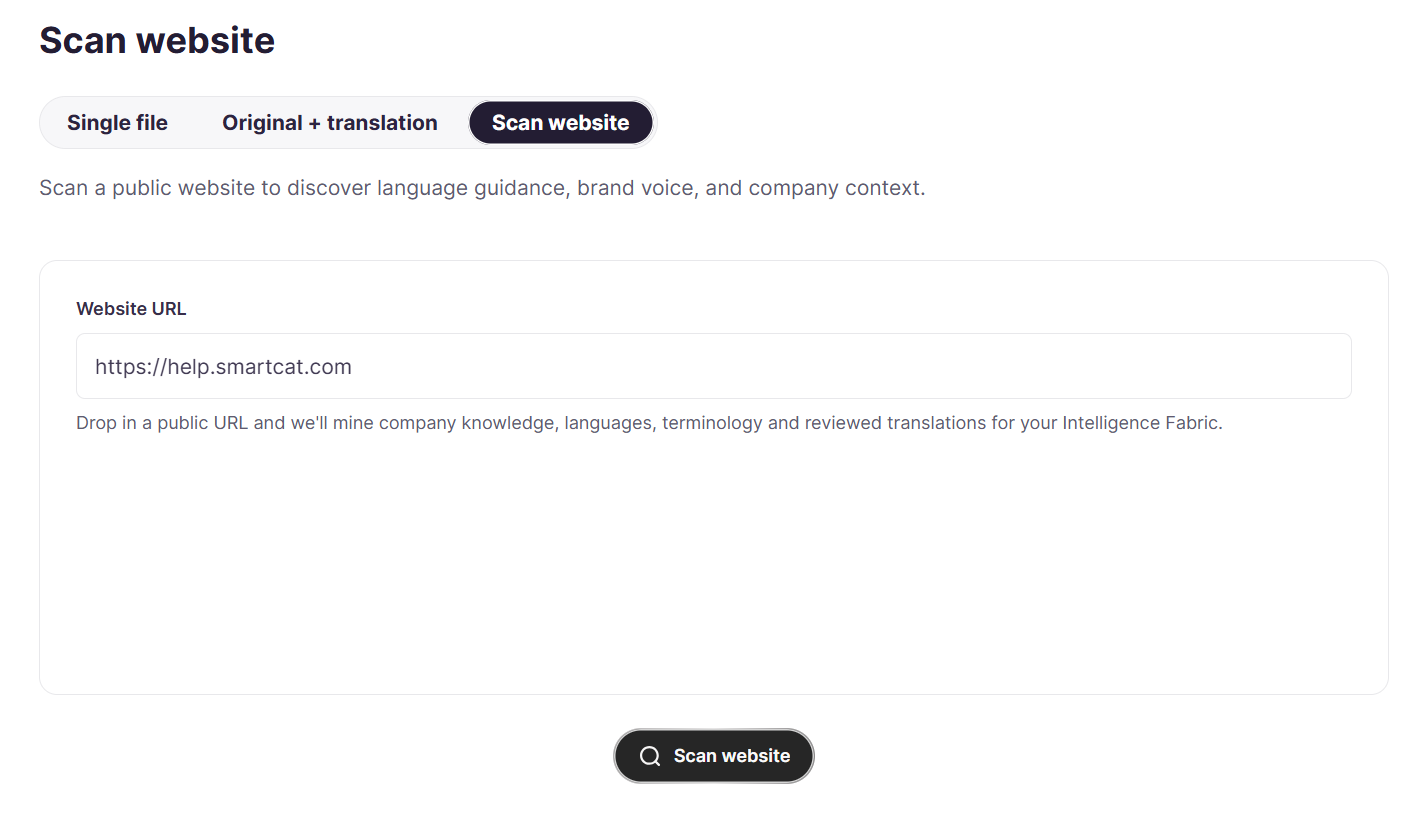
- Scan Website points it at your site to pull out terminology, past translations, and tone of voice. If you are migrating from another tool, start here. You can also connect memories and glossaries you already have, and organize them per brand or subject so a compliance glossary never bleeds into product training.
Go to Intelligence Fabric > Smartcat Coworkers > Translator, where Upload Files and Scan Website sit at the bottom of the dashboard.
How it gets applied
Together, AI Translation Profiles, RAG, and the Content Update Coworker make sure every project draws on your own approved terminology and that a change only costs you the content it actually touches.
Bring In Your Reviewers and Marketplace Linguists
AI gets you a strong draft, but a native speaker in-market catches the phrasing that reads oddly or the example that does not travel. With training content someone also has to be accountable for the accuracy of what you are teaching, especially in compliance modules.
Your own team
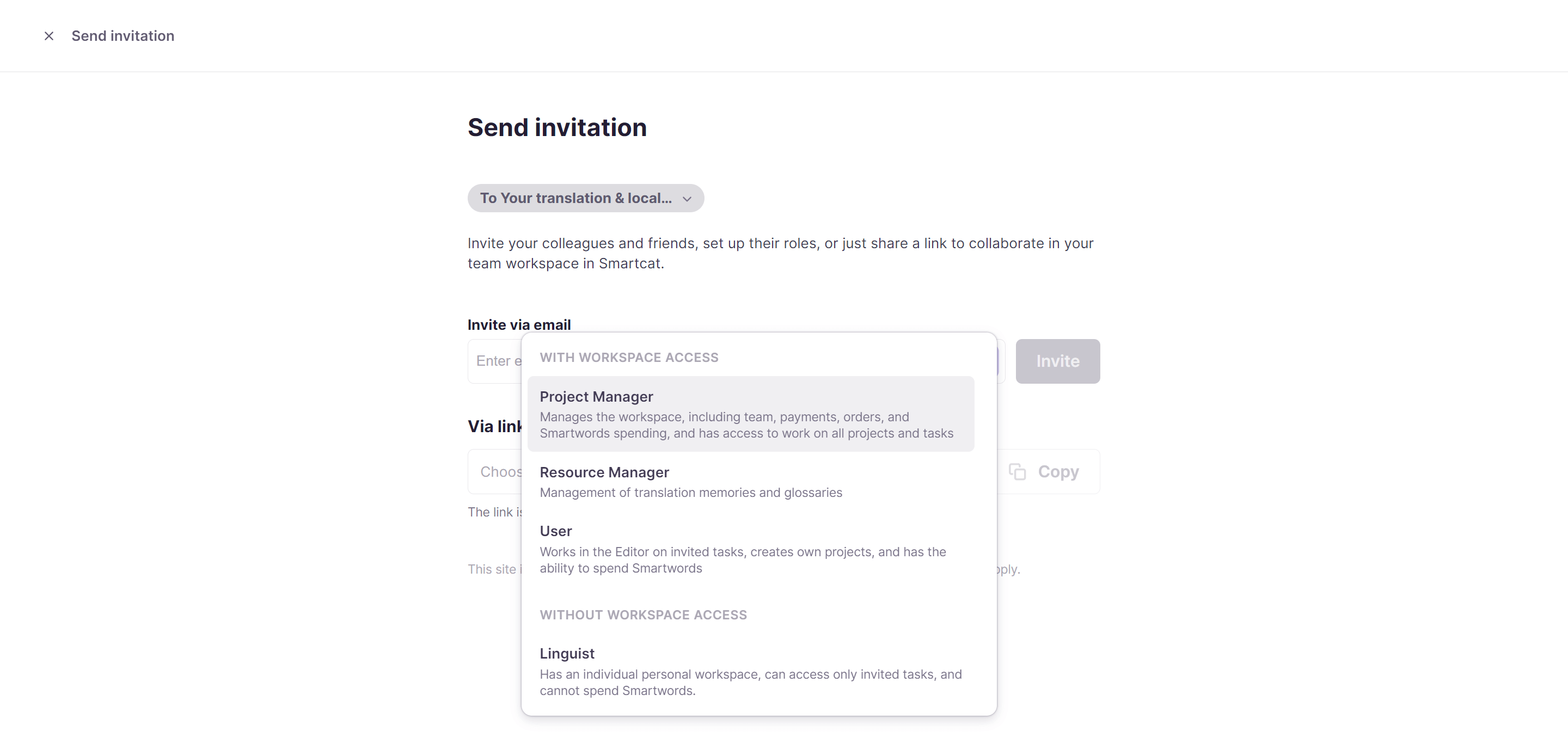
Invite colleagues from the workspace dashboard and give each the role that matches their job, assigning reviewers from the project's Team tab. Training usually needs two per language: a subject-matter expert for accuracy and a language reviewer for how it reads.
Go to Team in the left sidebar.
Outside help, when you have no one for a language
Hire from the Smartcat Marketplace and add linguists straight to a project, filtering by language, specialization, native speaker, availability, and rate, with AI matching to narrow the shortlist. Invite more than one so a training deadline does not rest on a single person accepting.
Go to Find Freelancers in the left sidebar.
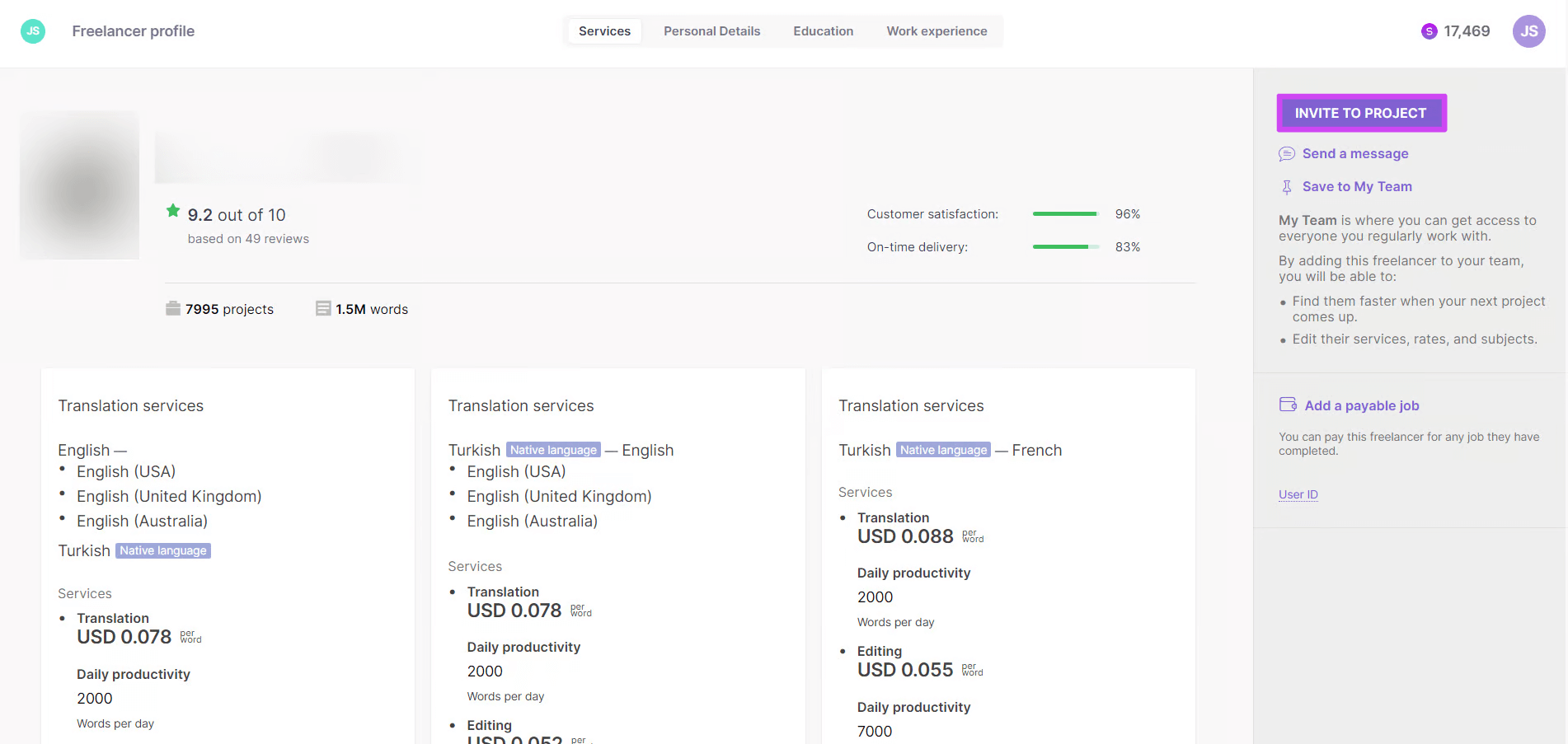
Marketplace Experts is a Coworker in its own right, which means bringing in outside help is a conversation rather than a search.
💡 Tell your Chief of Staff what you need, for example a German reviewer for a compliance module, and it brings the right expert into the workflow. It can also write the instructions for those linguists, which matters more than it sounds: a freelancer who has never seen your training does far better work with a clear brief and your Terminology attached.
Three Ways to Bring a Course In, and How to Choose
This is the decision that trips up most teams, because the three routes look similar and behave very differently.
💡 Not sure which route your course needs? Describe it to your Chief of Staff, including whether the content itself has to change or only the language, and it will point you to SCORM Studio or the Canvas Editor before you commit to the one-way conversion.
SCORM Studio: translate a legacy course without rebuilding it
SCORM Studio modernizes and localizes legacy e-learning courses without requiring you to rebuild them.
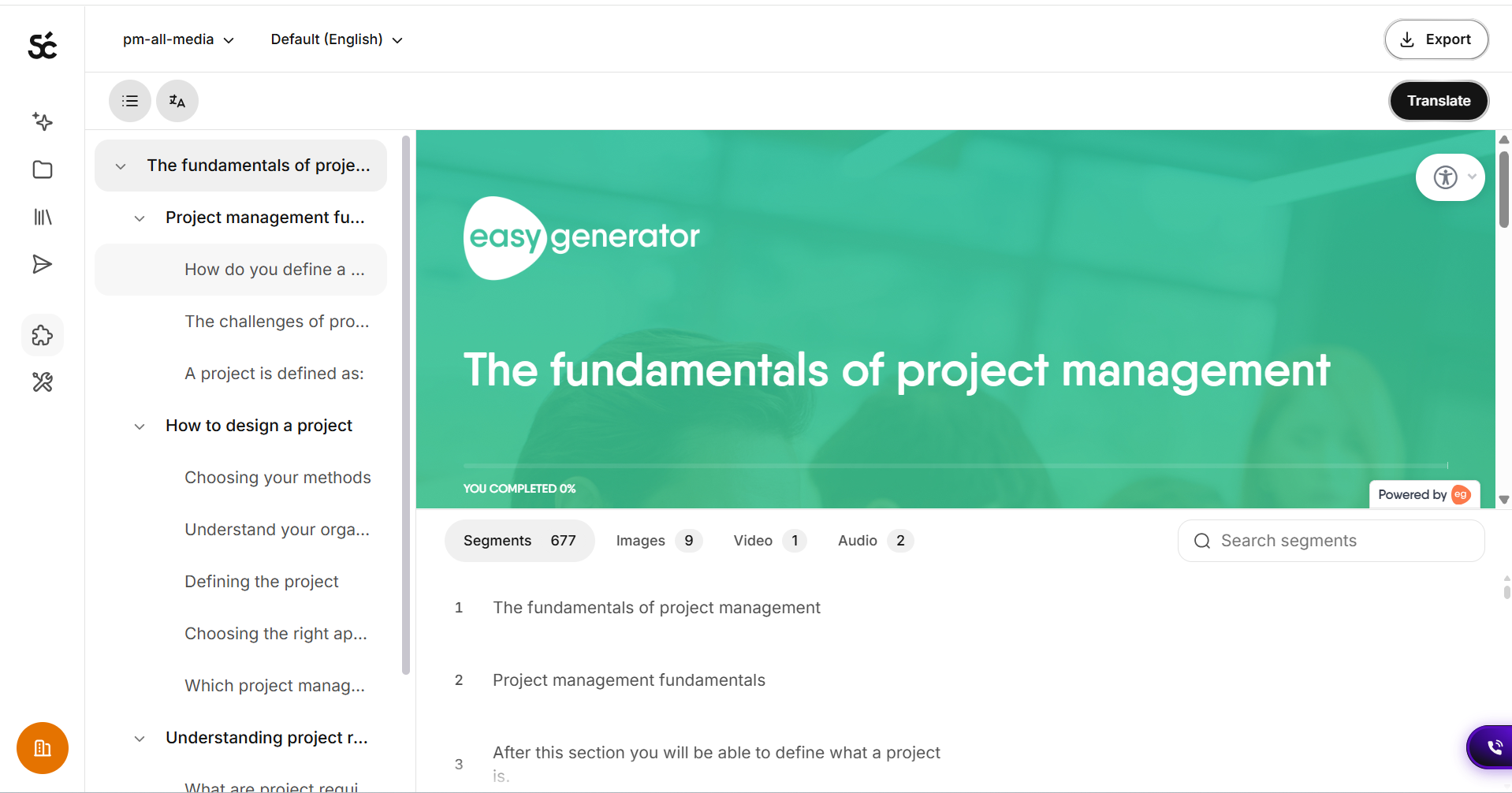
Upload a course package in the format it was published in, preview it as a learner would see it, and translate it into one or more target languages.
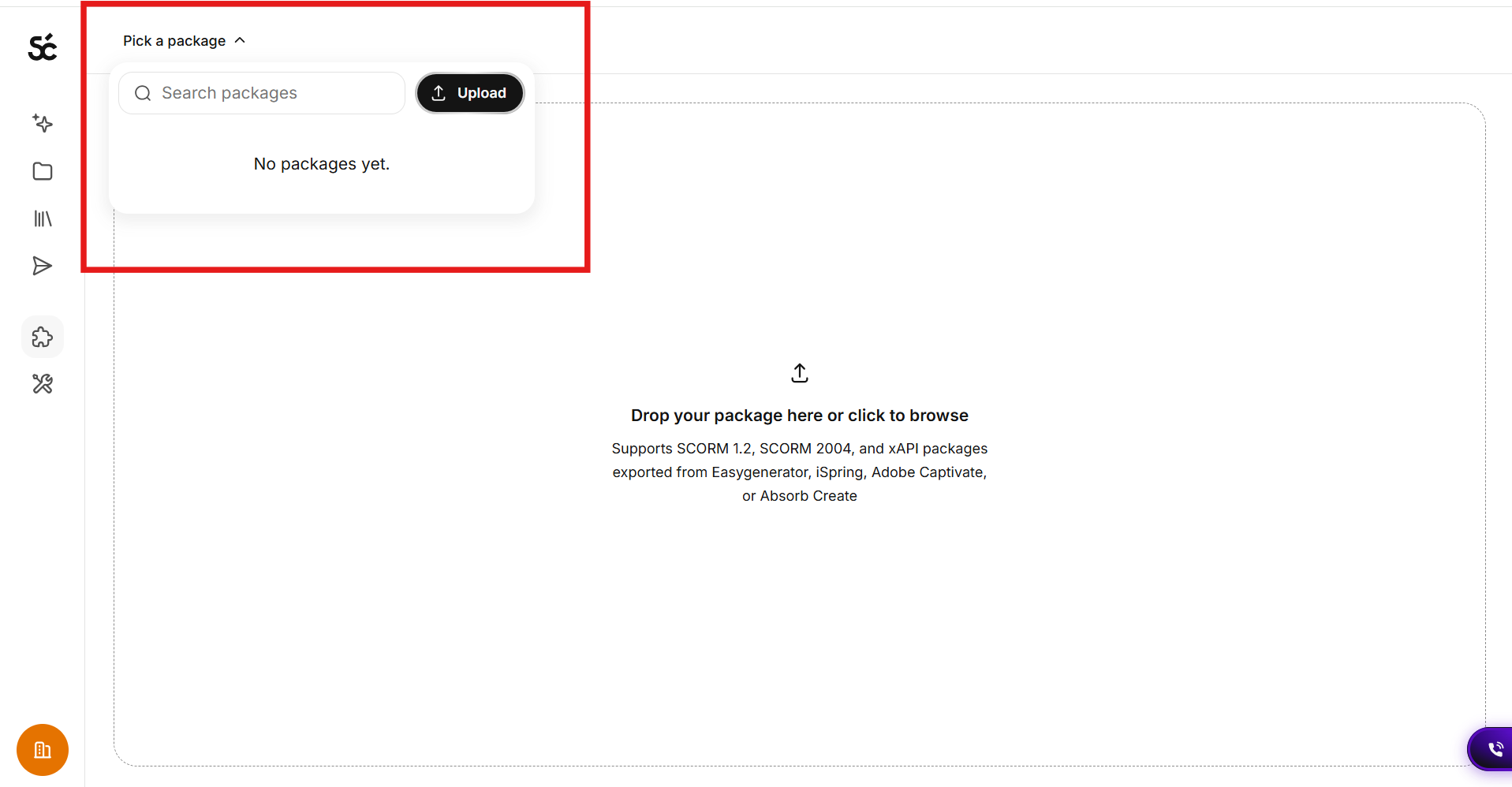
Review and correct the translation in the Smartcat project SCORM Studio creates for you, then export a package that loads in your LMS.
SCORM Studio is available in every Smartcat workspace, in the Apps section.
Go to Apps > SCORM Studio. This is the right route when the course is fine as it is and only the language needs to change, which is the majority of legacy library work.
Direct file and authoring-tool support
Smartcat also reads course files natively: Articulate Rise SCORM packages (ZIP), Articulate Storyline courses (ZIP), Storyline native .STORY files, and XLIFF exports from Rise 360, Storyline, and Easygenerator. Storyline no longer requires exporting to XLIFF first.
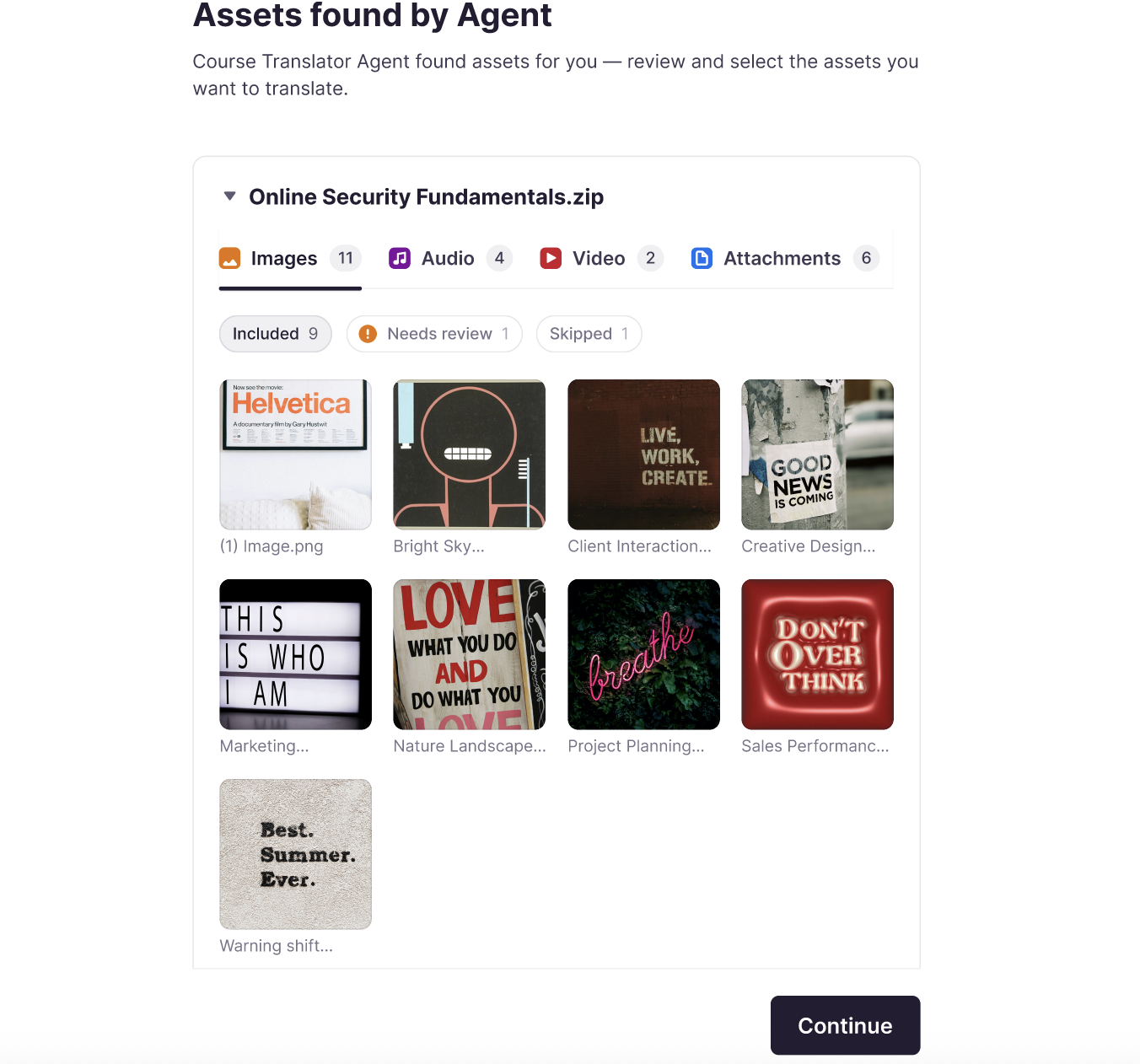
The Content Translation Coworker pulls every asset out of a package, including text, images, video, subtitles, voiceovers, and embedded PDFs, so nothing gets missed.
You then preview and edit inside a live preview that mirrors what a learner sees, and export a multilingual, LMS-ready package with your original structure and style intact.
Canvas / Course Editor: change the course, not just the language
If you want to change the layout or the content of a course rather than only translate it, use the Canvas Editor instead. It converts the course one-way into the Smartcat course format, which is what then unlocks inline editing, version history, and the Content Update Coworker.
The one-way conversion is the part to plan for. Once a course is in Smartcat's course format, that is where it lives.
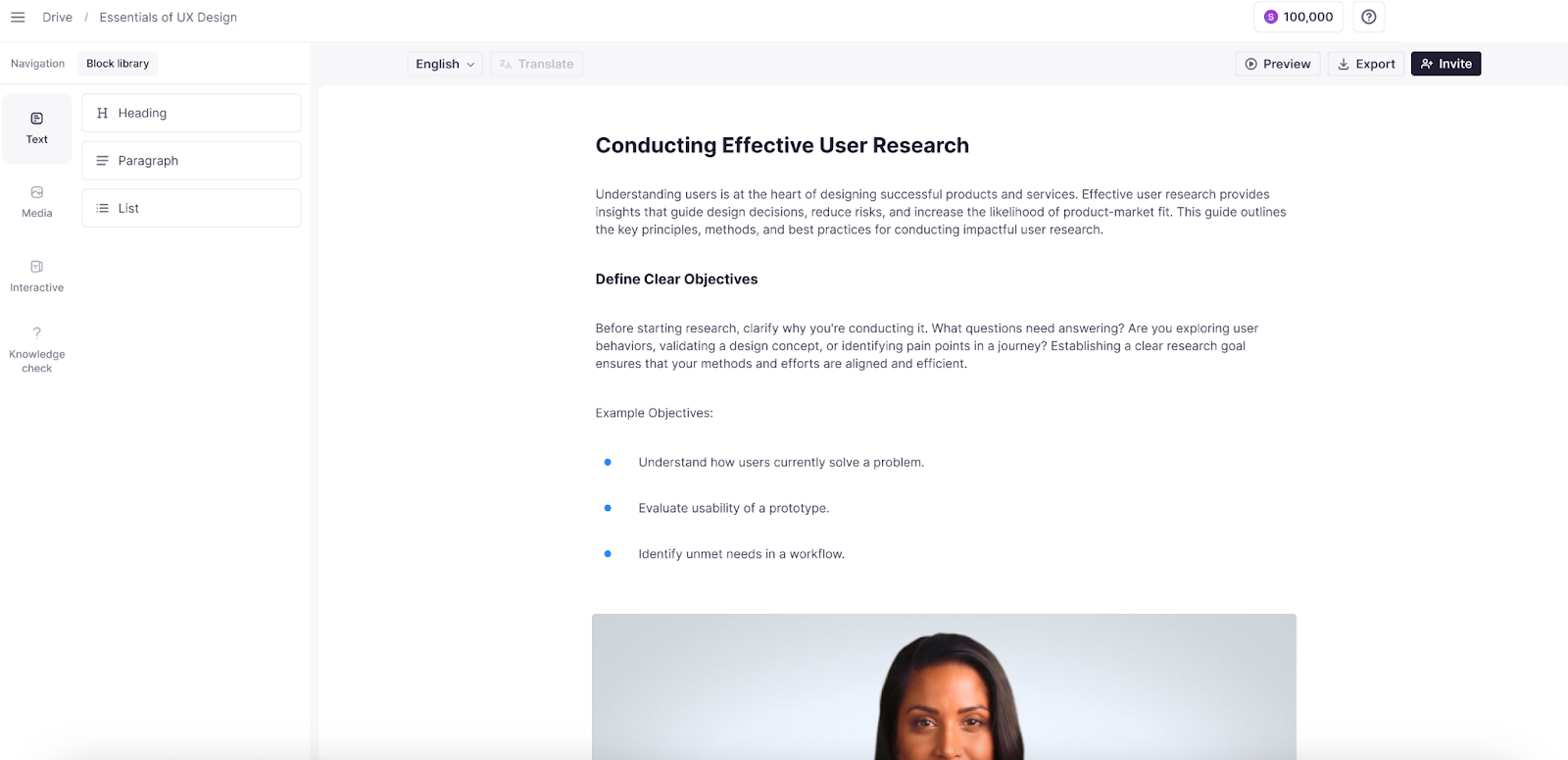
Supported course formats and authoring tools
Smartcat supports several ways to bring learning content in, depending on how the course was created.
💡 Your Chief of Staff can tell you which format to export from your authoring tool for the best result, which saves a round trip when a course comes back with broken structure.
SCORM Studio accepts published SCORM 1.2 and SCORM 2004 packages from supported authoring tools:
-
Easygenerator, iSpring Suite, and Adobe Captivate Classic — fully supported and tested on real customer courses.
-
Adobe Captivate, CEGID / Talentsoft, and Absorb Create — supported, but with more limited testing. If you are planning a large project, ask your Smartcat contact to test a sample course first.
-
xAPI (Tin Can) — accepted and tested with Adobe Captivate Classic courses.
-
cmi5 and AICC — not currently accepted.
Upload the published course package, not the authoring project file. If SCORM Studio does not yet recognize a package from another authoring tool, you can share it with Smartcat so support for the format can be evaluated.
Articulate Rise 360 and Storyline use a different workflow and are not processed through SCORM Studio. Smartcat supports Rise through SCORM ZIP and XLIFF exports, and Storyline through course ZIP packages, native .STORY files, or XLIFF. These courses can be handled in the Canvas Editor without requiring an XLIFF round trip.
For other authoring tools or LMS platforms, SCORM or XLIFF is usually the best route. XLIFF 1.2 is recommended where available because it preserves structure, metadata, and formatting through translation and re-import.
LMS and content integrations
Smartcat does not currently document dedicated integrations for LMS platforms such as Docebo, Cornerstone, Litmos, or Moodle, but courses from these systems can typically be brought into Smartcat using SCORM or XLIFF exports.
For the wider content workflow, Smartcat also integrates with platforms such as Google Drive, Google Sheets, OneDrive, SharePoint, Figma, Zendesk, and the Chrome Extension, alongside other CMS, PIM, commerce, and support connectors.
Video and Audio in Courses
Training video is where most of the localization budget goes, and where the quality controls have moved fastest.
Video and audio inside your SCORM or Storyline package are translated as part of the package, so you do not need to upload them separately. Only use the steps below for standalone video or audio files: go to Projects > + New project and pick the Translate video, audio, subtitles template.
💡 Drop a training video into a chat with your Chief of Staff and it routes the file to the Coworker that handles video and audio, then hands back subtitles or dubbing depending on what you asked for.
Generate and review AI transcription & translation
Smartcat transcribes and translates your content into target languages, allowing you to review and refine the translated text alongside synchronized video playback.
Configure voice selection and Pronunciation Control
Choose target-language recommended voices for consistent AI voiceovers, and configure Pronunciation Control to ensure brand names, acronyms, and specialized terms are spoken correctly without altering visual subtitles.
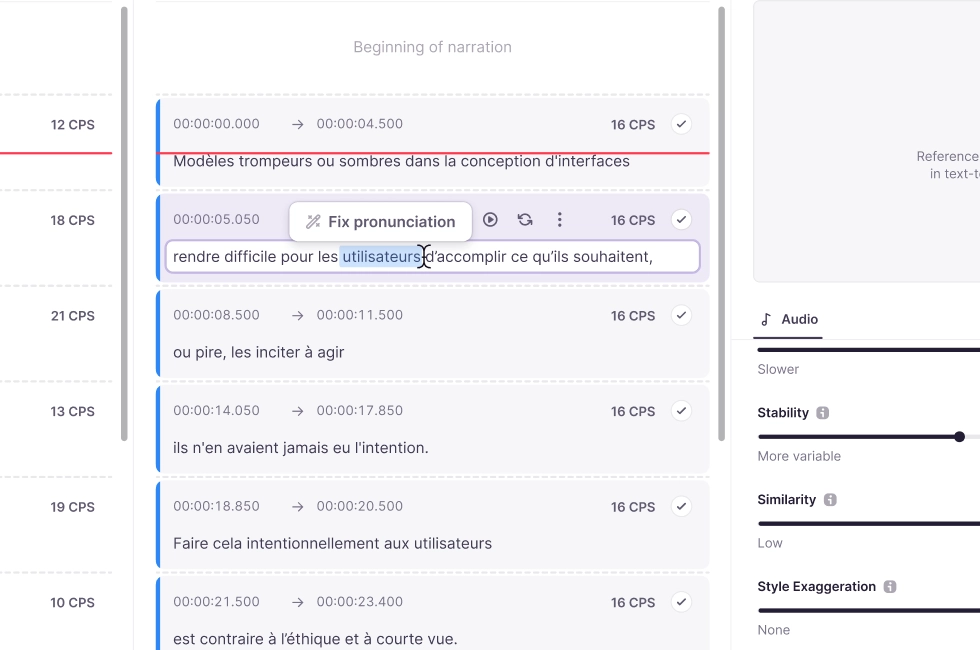
Preserve background sound and dub video
Smartcat isolates original background tracks during AI dubbing and blends synthesized voices back in to keep music and ambient audio intact.
Export localized media assets
Download your completed standalone videos, burned-in subtitle files, or separate SRT/VTT subtitle tracks in source or target languages.
(Note: Video generated within the Course Editor exports directly as part of the overall SCORM package rather than as standalone files.)
Set Up Translation Workflow Once, Reuse Every Course
Course localization is repetitive by nature: the same languages, the same review stage, the same terminology, quarter after quarter. Two reusable objects save you that setup, and they do different jobs: Project Templates and AI Translation Profiles.
💡 Not sure whether you need a template or a profile? Describe the course to your Chief of Staff and let it apply the right setup. It holds the translation profiles that decide which engine to use, how to handle length control, and how to treat each file format.
Project Templates save the structure of the work: workflow stages, source and target languages, deadlines, assignees, custom fields, and a project naming pattern. Apply one to a new course with a single click.
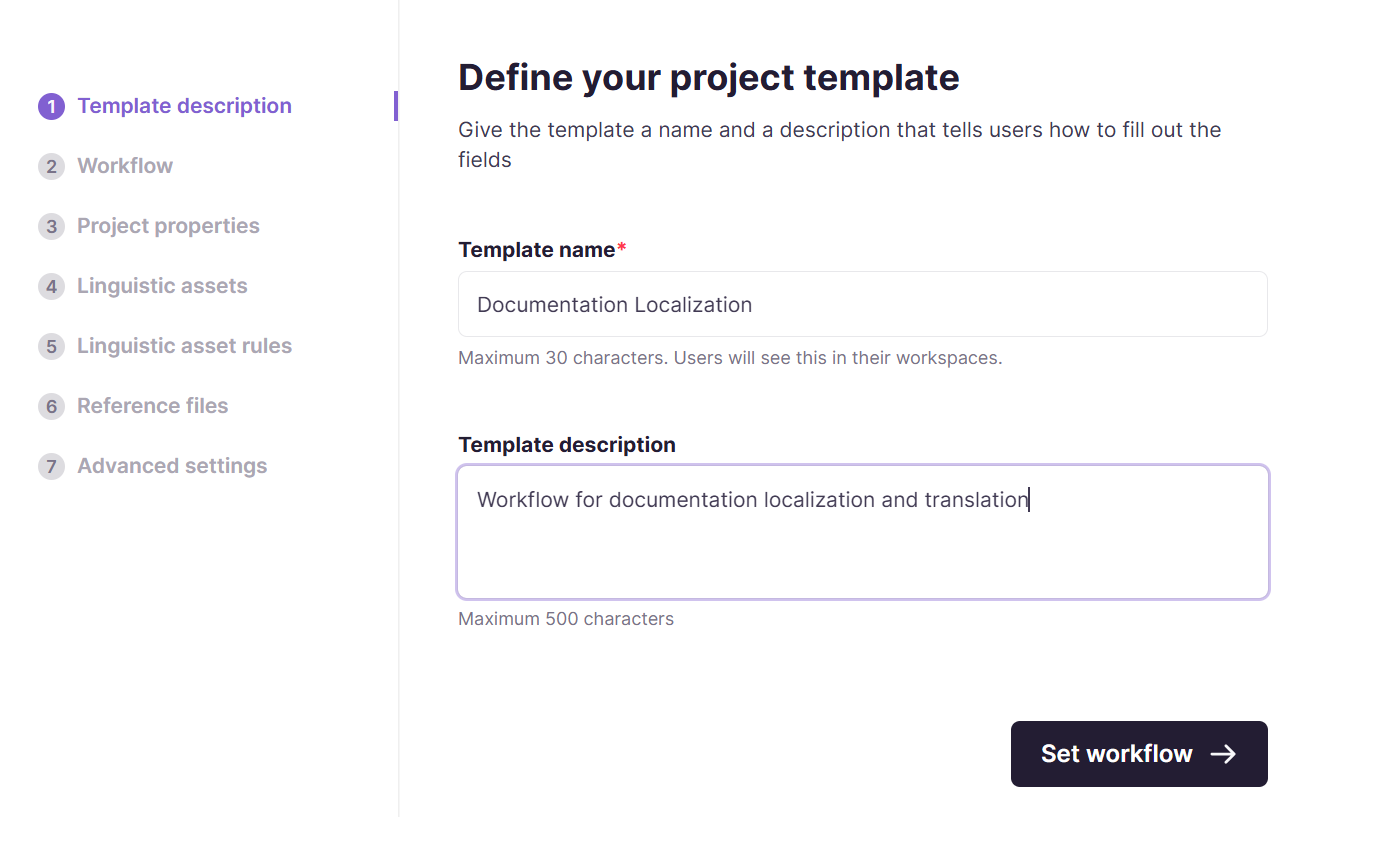
Because the terminology and the review stage are locked into the template, a course is far less likely to ship without them, which matters most for compliance content.
AI Translation Profiles control the quality and behavior of the AI: which Reviewed Translations and Terminology are applied, which engine is used per language pair, whether a fallback engine kicks in, and whether AI translation is used at all for a given stage.
Profiles can be scoped per client, department, brand, or use case, so your regulated compliance training can behave differently from your onboarding content.
Go to Intelligence Fabric > Smartcat Coworkers > Translator > Translation Profiles.
Target languages are predefined on a template. If one course needs an extra market, you can still add that language to that specific project afterwards from its project settings.
Apply a template when you create the project: Projects > + New project.
Creating Course Content with AI
Smartcat is no longer only a translation route for courses you have already built. Two features create the content itself.
AI Learning content with Creator Coworker
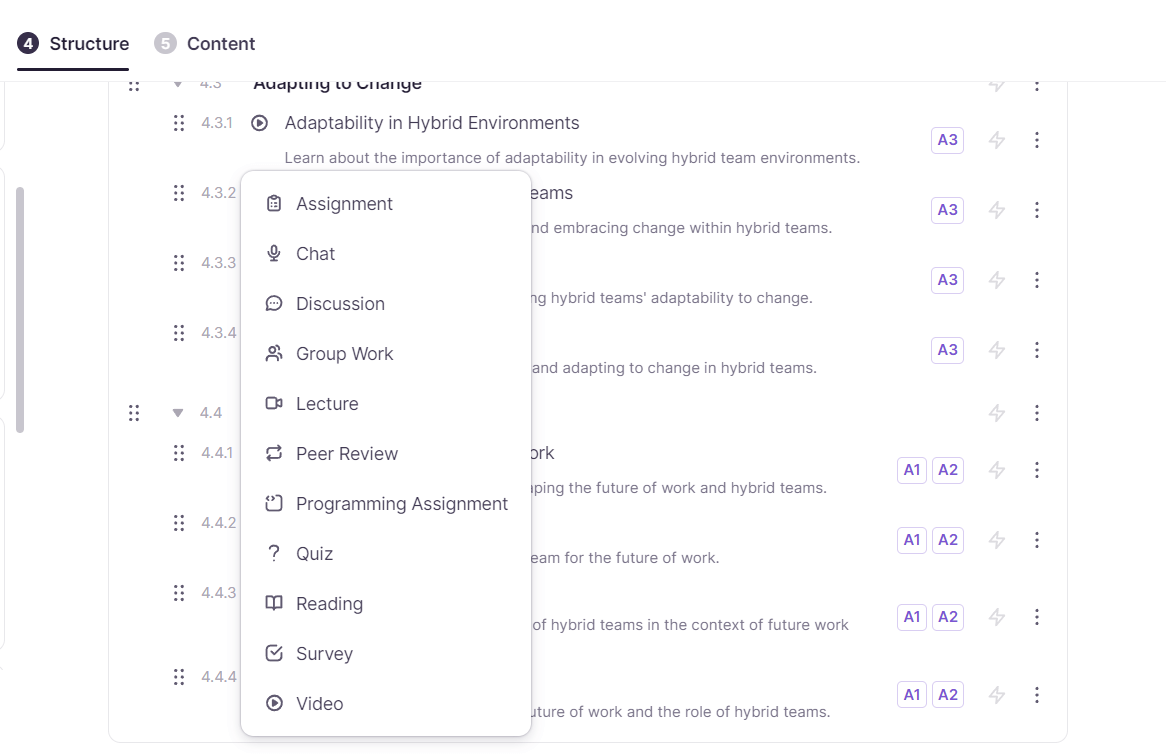
You can create a full course from content already in Drive, or from scratch: a course description, learning outcomes, a course structure, and the content itself, including videos, flashcards, quizzes, and written material.
Open the Create tab.
Avatar Studio
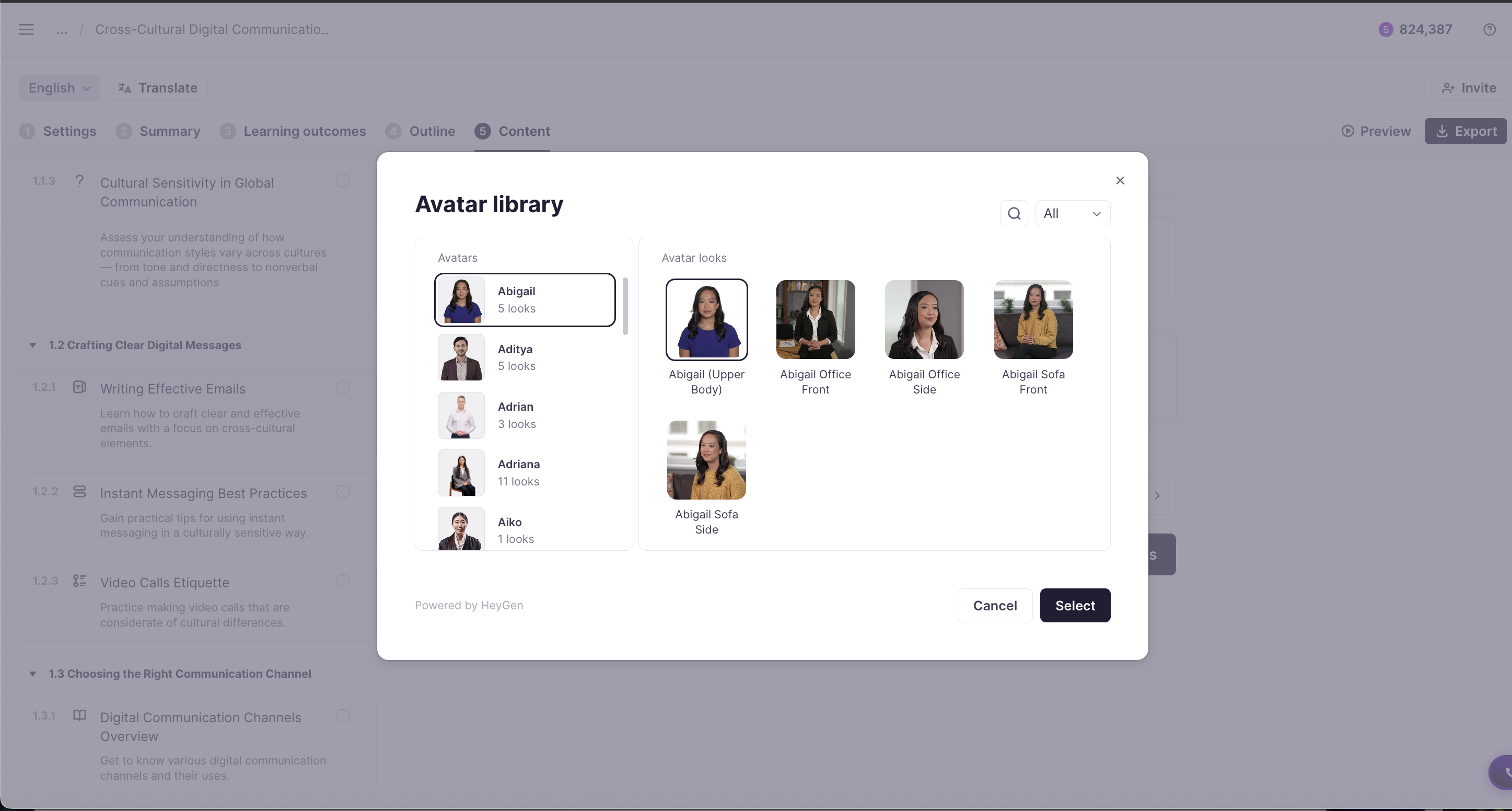
Generate course videos using customizable AI avatars, voices, and branded backgrounds, directly inside the Course Editor. Instead of recording presenters, you generate consistent presenter-style video while keeping control of voice tone, visual identity, and branding.
Avatar-generated video also works with the translation workflows, so you can scale a course across languages without re-recording.
Translating Other Course Content Types: Image, PDF, Spreadsheets, PowerPoints and more
You can translate facilitator guides, workbooks, handouts, certificates, scripts, and other Word, PowerPoint, Excel, or PDF files in the same Content Translation Coworker while preserving formatting and layout.
Editable text is translated, but text inside images is not—use Image Translation separately for diagrams, screenshots, and charts.
If you need multilingual accessibility, enable alt text translation for Word and PowerPoint files so image descriptions are translated too.
Sales and Commercial Enablement Content
Smartcat helps sales and commercial teams localize high-volume enablement content—such as pitch decks, battlecards, one-pagers, Word documents, and recorded training—while preserving layout, terminology, and sales context.
Decks, battlecards, and one-pagers
Translate PowerPoint and Word files directly to preserve formatting. For charts, screenshots, and other visuals with embedded text, use Image Translation separately.
Recorded enablement sessions
Use the video workflow for launch briefings, pitch walkthroughs, and training recordings, with AI dubbing or automated subtitles.
Keep sales content consistent
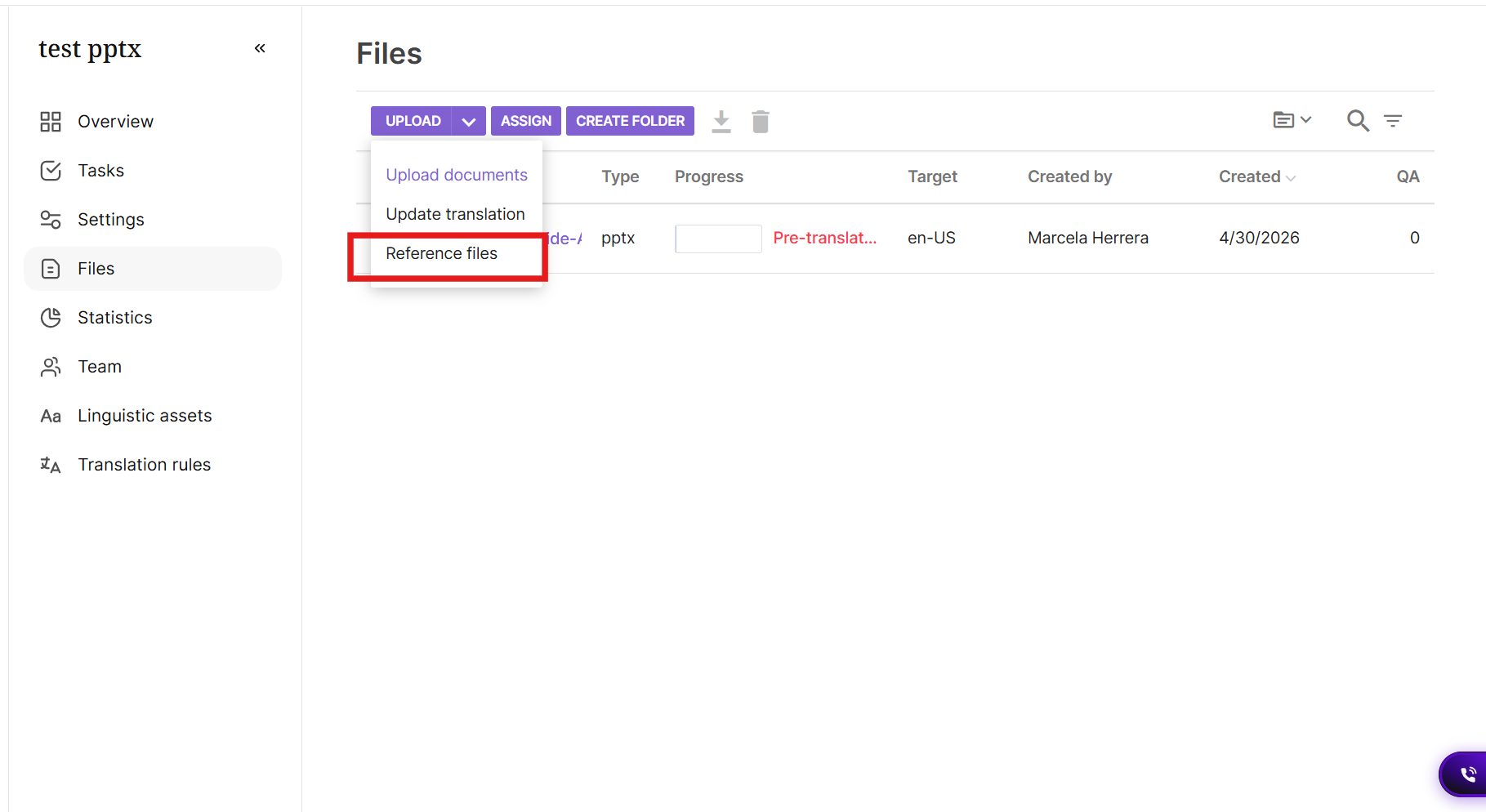
Reviewed Translations and terminology help keep product names, positioning, and competitor claims consistent across markets and future content. You can also add Reference Files, such as brand guides, previous decks, or source videos, to give linguists more context without adding them to the translation scope.
Preserve feedback in Word files
For native .docx files, enable the relevant parsing options to retain tracked changes and inline comments during translation.
Keeping Courses Current (Content Update Coworker)
When a policy or product changes, the Content Update Coworker finds and updates affected content for you. Describe the change in chat or use Update with AI in Canvas, then review and approve the proposed edits.
After approval, export for translation—Smartcat reuses existing translations so only changed content uses Smartwords. Later updates can be pushed to all language versions with Publish to LMS.
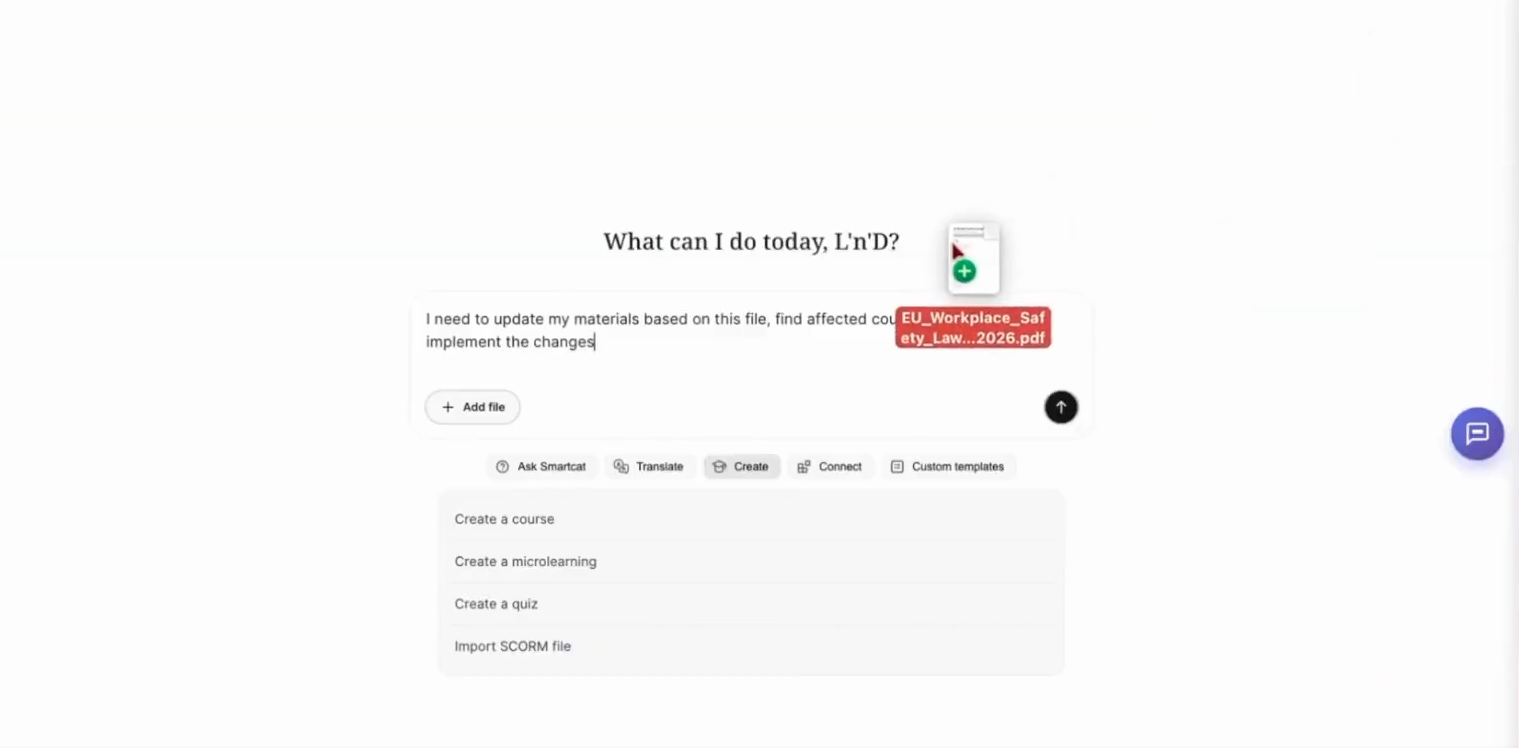
💡 The feature is in beta, must be enabled per workspace by a Smartcat team member, and requires Canvas editor access; PDF support is still evolving, and courses with 500+ slides may take longer to plan.
Training Content Review and Quality
For training content, and especially for compliance training, "who checked this and how do we prove it" matters as much as the translation itself. Smartcat gives you four layers:
1. Human review
Assign a subject-matter expert to verify technical and training accuracy, and a language reviewer per target language, either from your own team or from the Smartcat Marketplace.
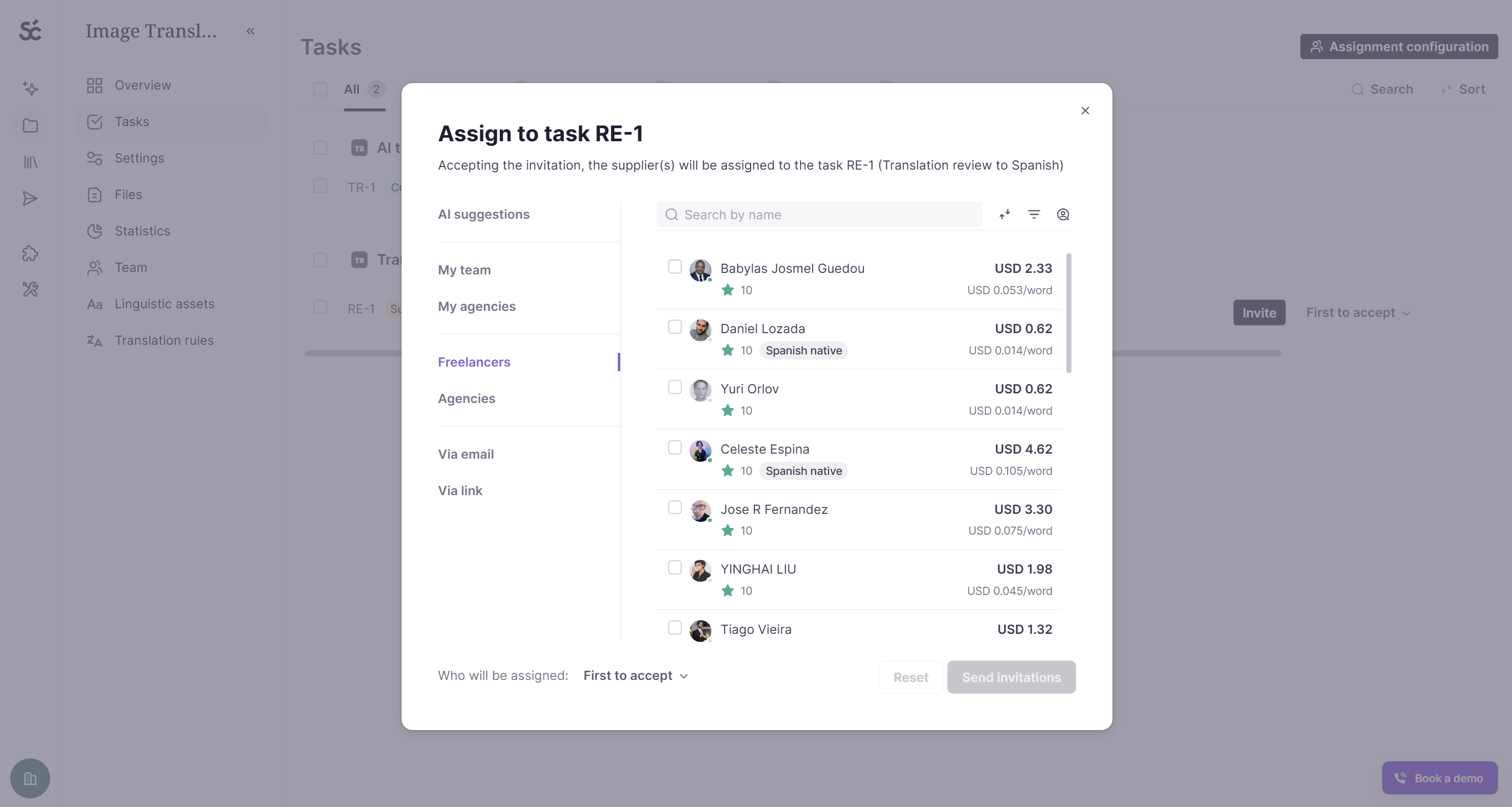
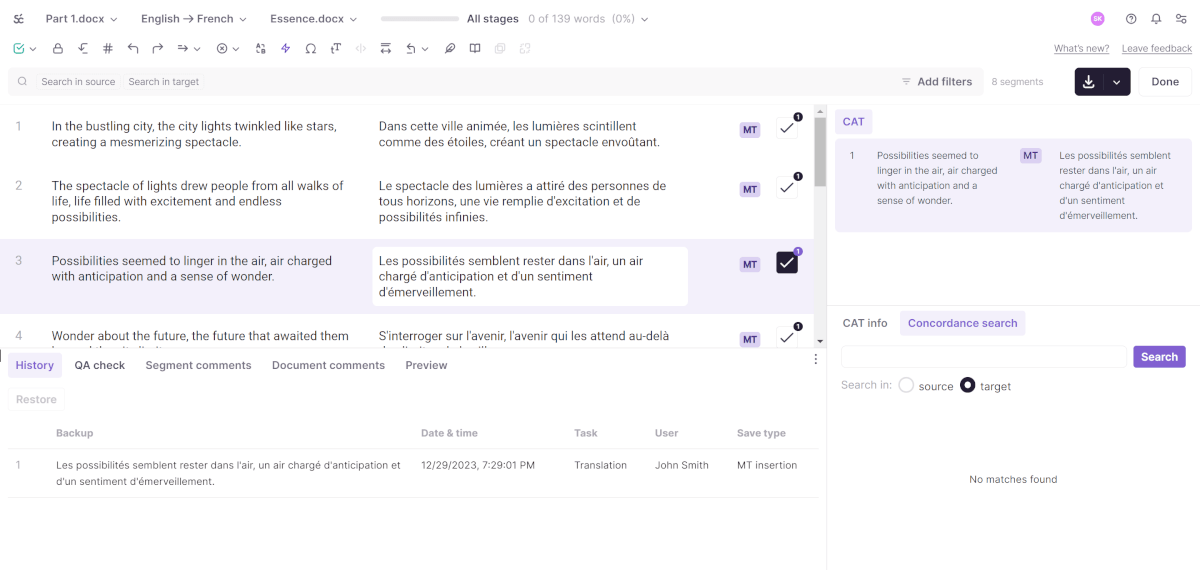
Reviewers work in the Smartcat Editor, or in the live course preview for anything layout- or context-sensitive. Confirm each reviewed segment once approved: that locks it in and saves it into your Reviewed Translations, so a future Content Update Coworker pass does not re-translate it.
If you assign SCORM review work to linguists, there is a dedicated walkthrough for them covering how to accept the task, review across asset types (text, images, PDFs), and navigate between files in a SCORM project. Video assets have separate instructions.
2. Translation Quality Score (TQS)
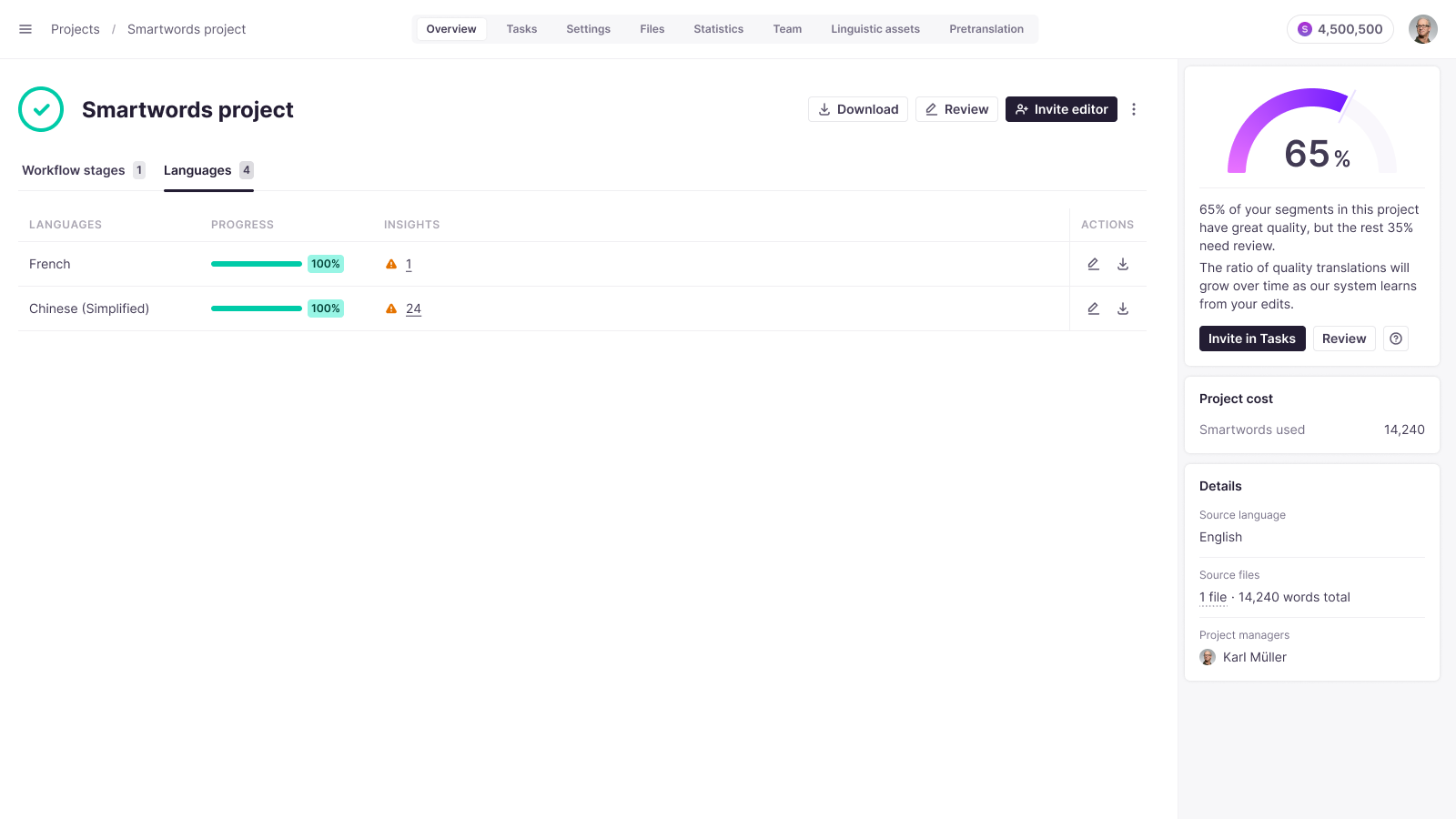
A built-in measurement that shows which AI translations meet your quality bar and which need a human look. It appears as a widget on the Project Overview page, showing how many segments scored well.
High-scoring segments can be confirmed without review, which is how you keep a large course library moving without reviewing every line.
3. LQA profiles
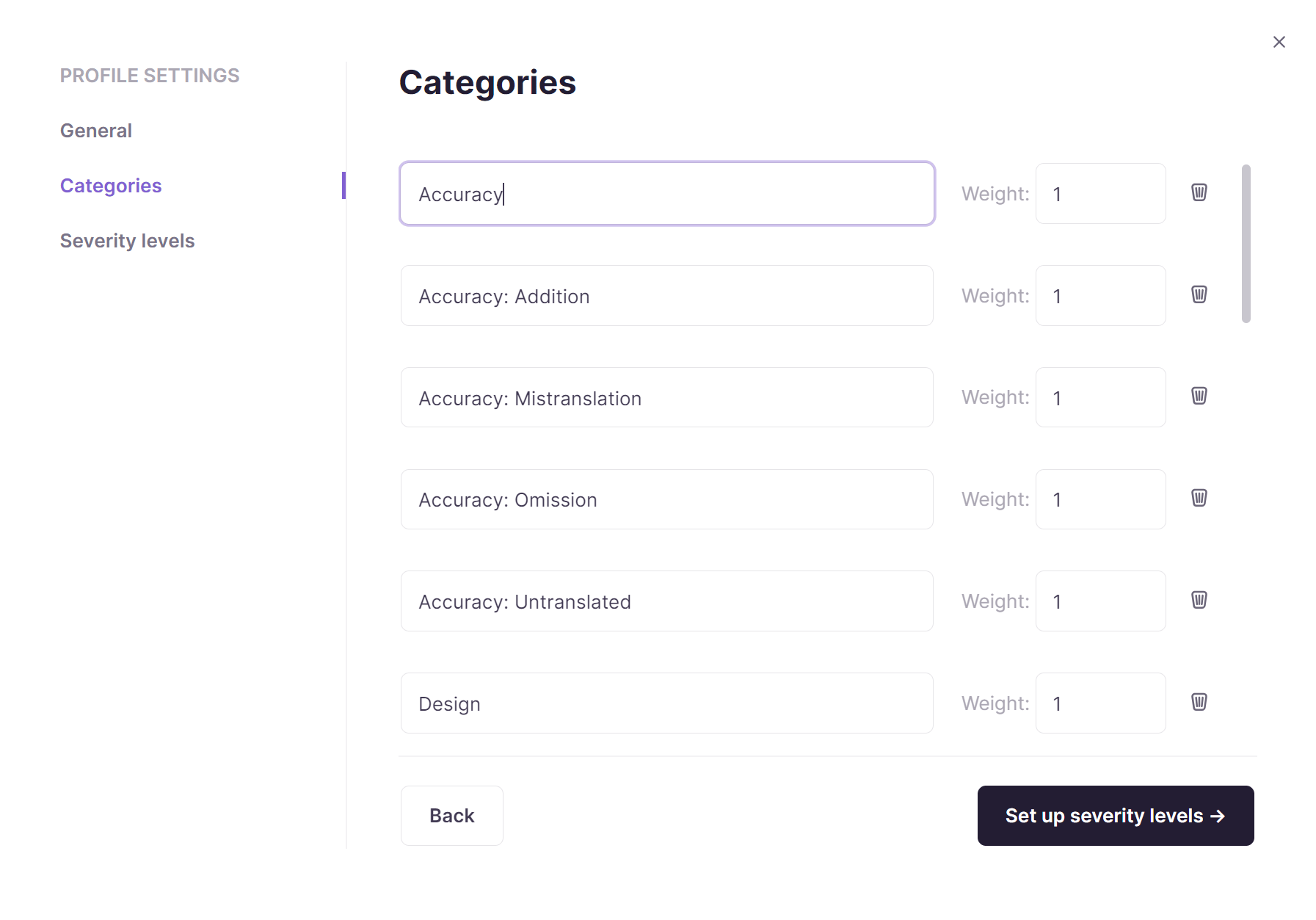
For formal quality assessment, LQA profiles are based on the MQM scoring model. Each error gets a category (spelling, grammar, punctuation, and so on), a weight, and a severity (Critical = 25, Major = 5, Minor = 1, Neutral = 0).
The algorithm combines that with text length and returns a score from 0 to 100 for the project. This is the mechanism to reach for when you need an auditable quality number rather than an impression.
4. Reviewer Coworkers
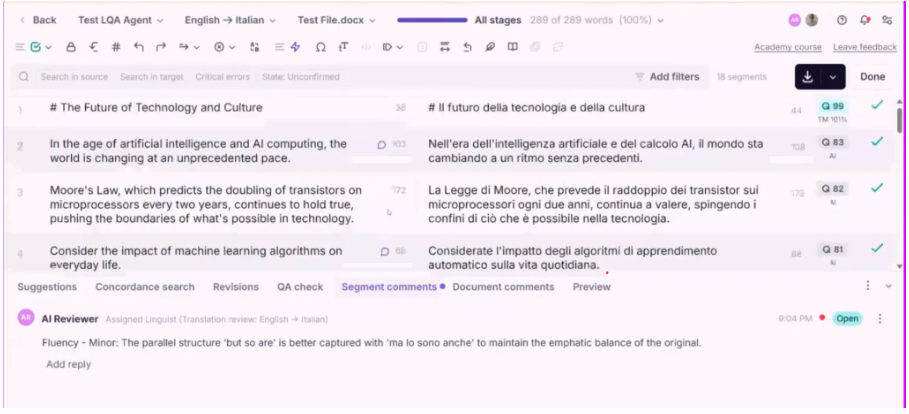
The AI Coworker can run as an automated first pass across large volumes before a human signs off.
Track Your Course Quality and Impact: Reporting
Three reports. All are available to workspace Administrators, and the two under Apps appear only once one or more custom apps are enabled in your workspace. Custom apps are currently in beta, so if you do not see Apps, that is why. Reach out to your Account Manager or via Customer Support to get Apps set up.
Go to Apps in the left sidebar, and Reports for Enterprise Reports.
💡 Ask your Chief of Staff for the state of your course projects in plain language, for example which are at risk of missing the next training cycle, which is usually faster than opening a report.
Enterprise Reports give workspace-level reporting on translation activity and progress across all of your course projects.
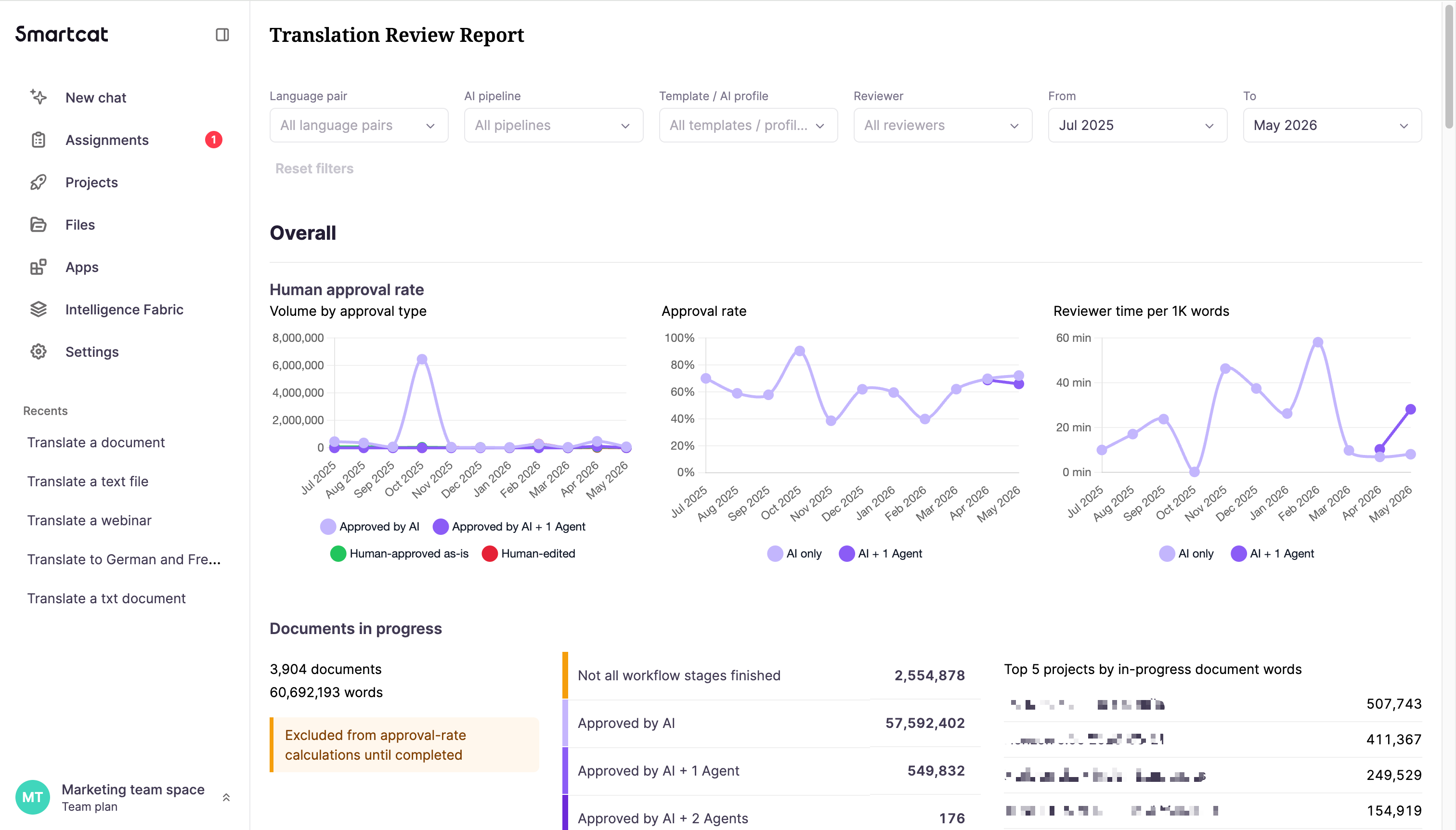
Translation Review Report shows how much AI-translated content was approved as-is versus edited, by language pair and reviewer. This is the number that demonstrates how much review effort you are actually saving. You can also access Project Reports and Document Reports.
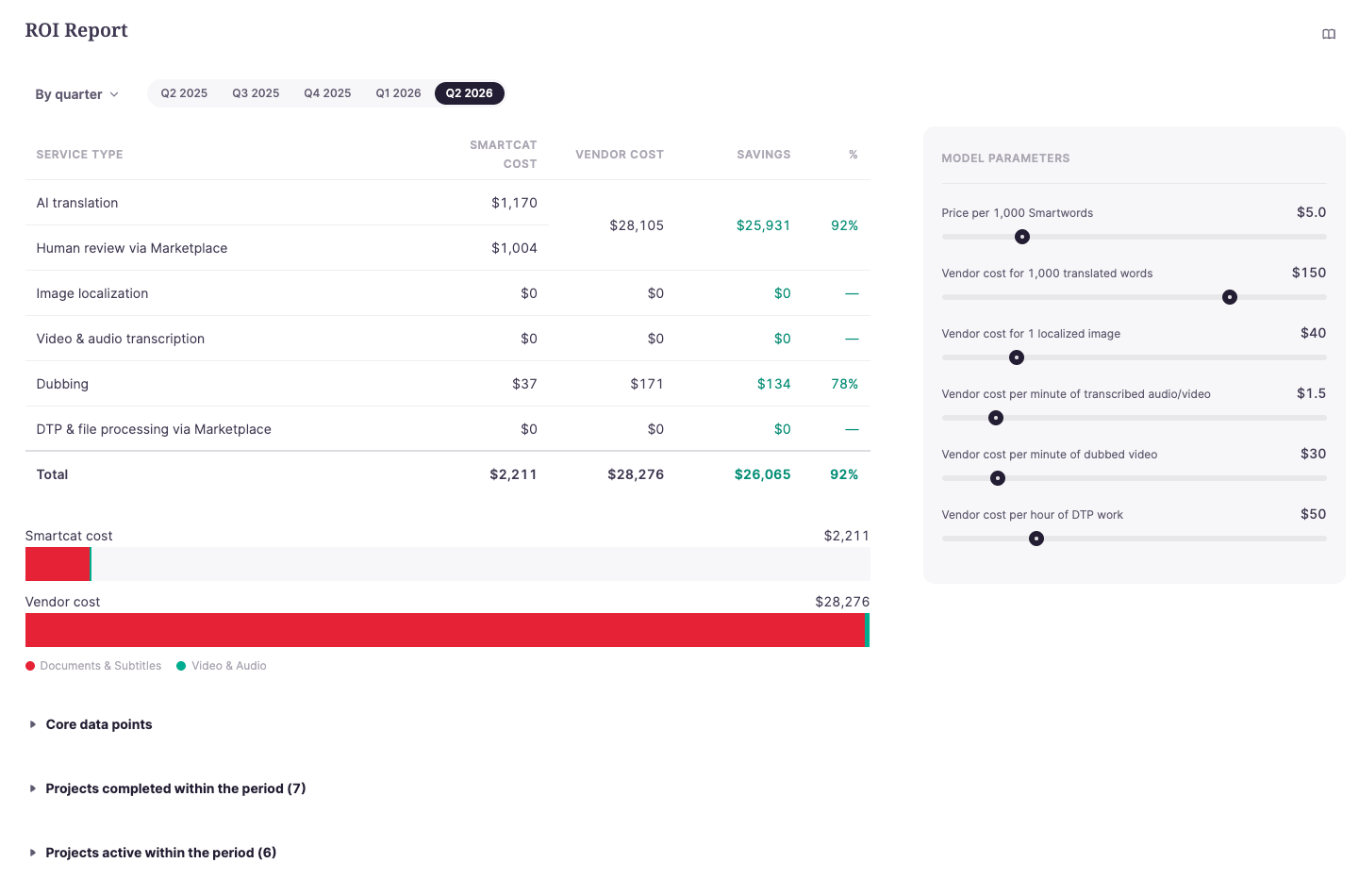
ROI Report compares Smartcat spend against what the same work would have cost through an outside vendor, groupable by subscription cycle, quarter, or month, with project-level breakdowns.
Want to learn more?
See how Smartcat can transform your localization workflow.
Still need help?
Our support team responds within one business day.