Getting Started as In-House Reviewer
This guide walks you through everything you need to know as an In-House Reviewer in Smartcat, from receiving your first task to reviewing every content type you'll work with in context.
Each step includes a brief how-to and why it matters, plus a link to the full Help Center article for step-by-step detail.
Follow the Getting Started Demo here:
What is an In-House Reviewer?
An In-House Reviewer is a member of the organization whose content is being translated. You know your company's products, terminology and voice, which a freelance linguist from the Smartcat Marketplace may not, and that is why your review matters.
You were most likely given the Linguist role in your workspace, so your access is limited to the review tasks assigned to you by a Project Manager or Administrator.
Everything you need to translate, review, and QA content is covered below.
1. Working in Smartcat Editor
Find your assigned tasks
Open your Smartcat dashboard and go to My Tasks — every project and file assigned to you by a PM or Admin appears here, with due dates and status.
You only see what's relevant to you, instead of the entire account's project list, so you always know exactly what's next.
If you haven't accepted a task yet, accept it first. The project link from your PM won't open until you do.
Go to My Tasks in the left sidebar.
Navigate the Editor basics
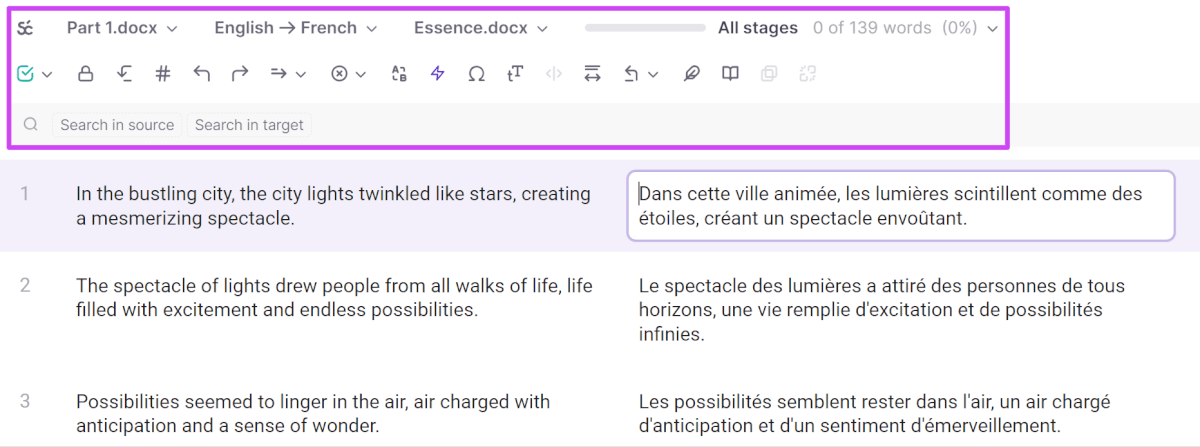
Open a task from My Tasks to launch the Editor — source text on the left, target on the right, with matches from Reviewed Translations, Terminology entries, and AI suggestions in side panels.
The Editor is where all translation and review work happens; knowing the layout up front saves time on every task afterward.
Review and edit AI-generated translations
AI-translated segments are pre-populated in the target column — read each one against the source and edit directly in the target field before confirming.
AI gives you a strong starting draft, but human review catches nuance, tone, and context the AI may miss — this is central to your role.
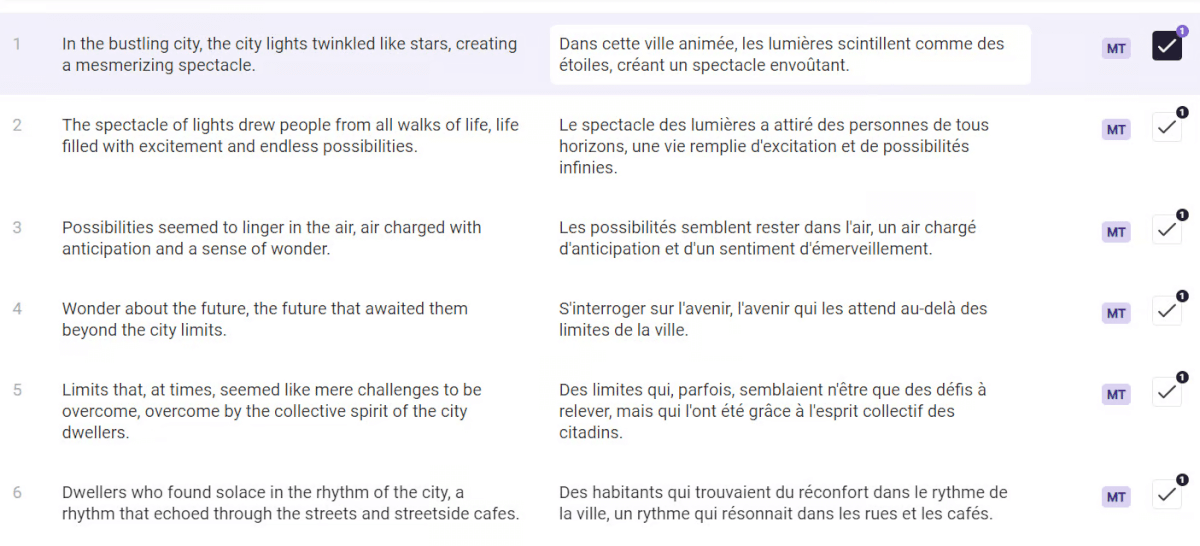
Note: as a reviewer, you won't see the numbers next to the check mark shown in this screenshot.
Resolve QA issues and leave comments
Resolve the issues flagged by the QA checker (such as missing tags, inconsistent terminology, or number mismatches) before confirming a segment, and use the comment feature to flag anything for the PM or a fellow reviewer.
QA checks catch errors before delivery, and comments keep the whole team aligned without needing a separate conversation thread.
Check feedback from your AI Coworker
If your PM or Admin has set up the Content Reviewer Coworker, it provides edits to the segments and leaves feedback directly in the Editor for you to see. You don't need to configure anything yourself.
You get AI assistance tailored to your project's workflow without needing setup access you don't have.
2. Understanding Reviewed Translations and Terminology
You may know these as translation memories and glossaries. In Smartcat they're now called Reviewed Translations (Translation Memory) and Terminology (Glossary), and they live together in your workspace's Intelligence Fabric.
You don't manage them — a PM or Admin does — but they shape what you see in the Editor.
Recognize matches as you work
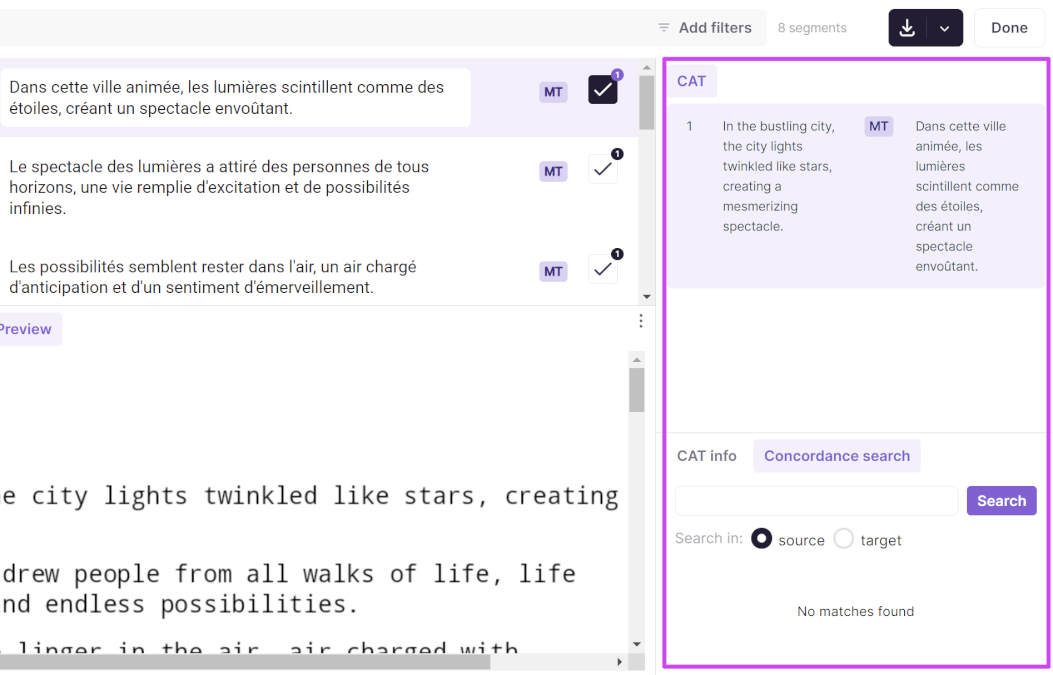
As you move through segments, previously approved matches from Reviewed Translations appear automatically in a side panel, color-coded by match percentage.
Matches save time and keep your translations consistent with what's already been approved for this account.
Your workspace's assets sit in Intelligence Fabric > Terminology and Intelligence Fabric > Assets > Reviewed Translations, where a PM or Admin manages them.
Use Terminology entries
Approved terminology is highlighted inline in the source text — hover or click to see the required target-language term.
Terminology enforces consistent wording across the whole account, so your translation matches what every other linguist and reviewer is using.
How to pull terminology from third party pages like Notion
Flag suspect suggestions instead of overriding silently
If a match or term looks wrong for the context, leave a comment rather than just changing it outright.
You can work in context, but you don't own the underlying resources — flagging keeps the PM in the loop to fix the source of the issue, not just the one instance.
3. Working in Context: Video Translation
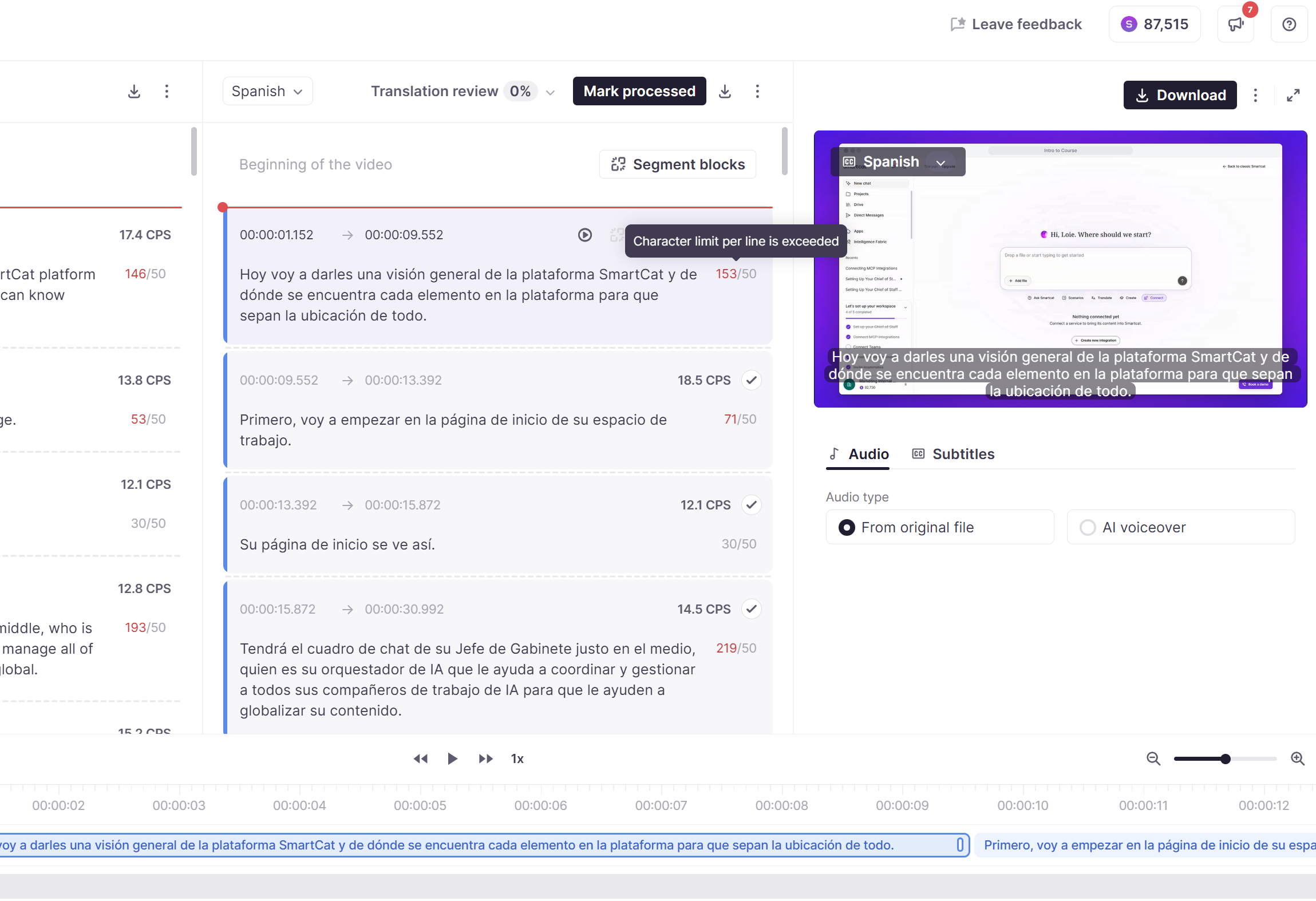
Preview video while you translate subtitles
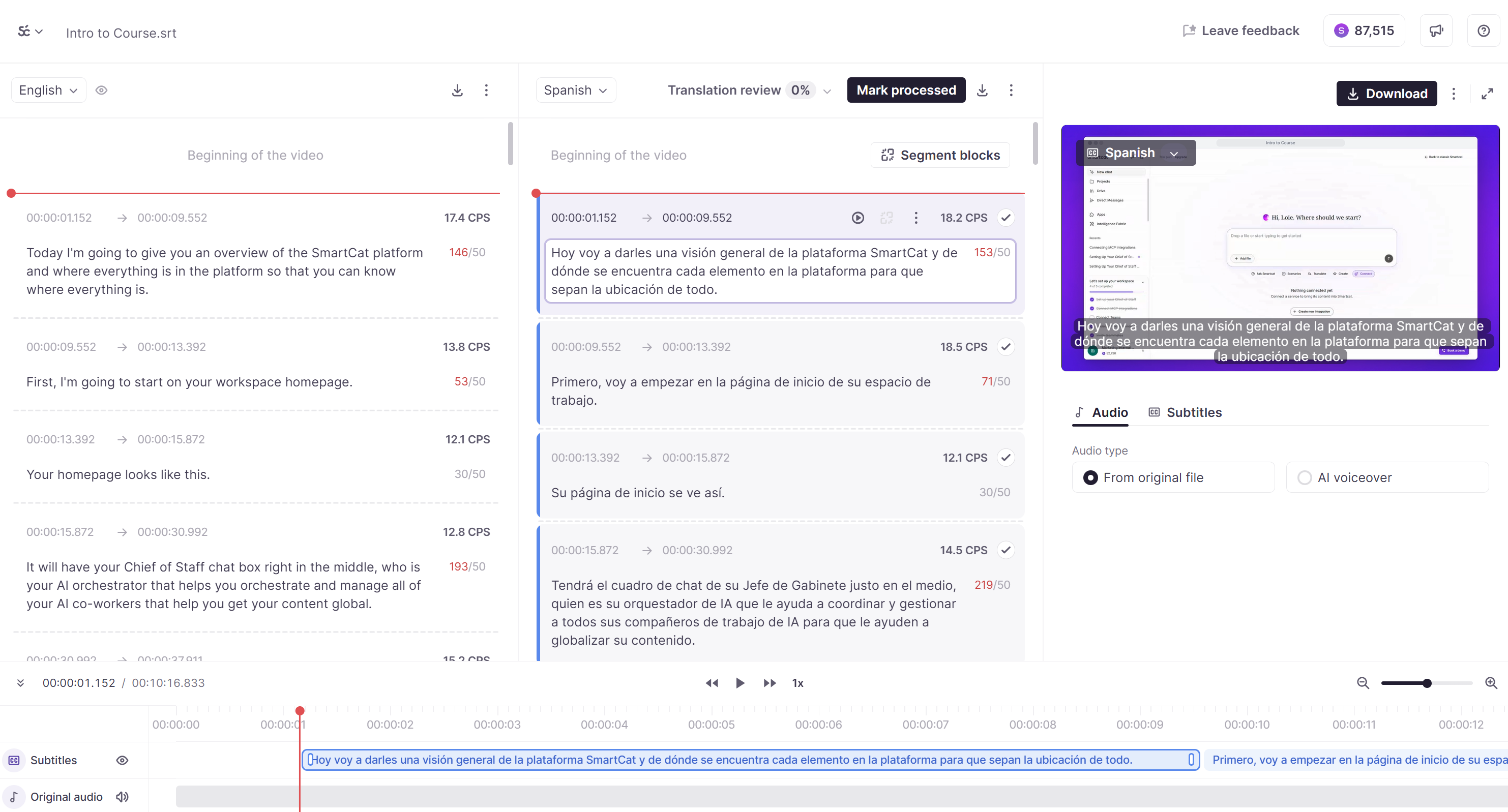
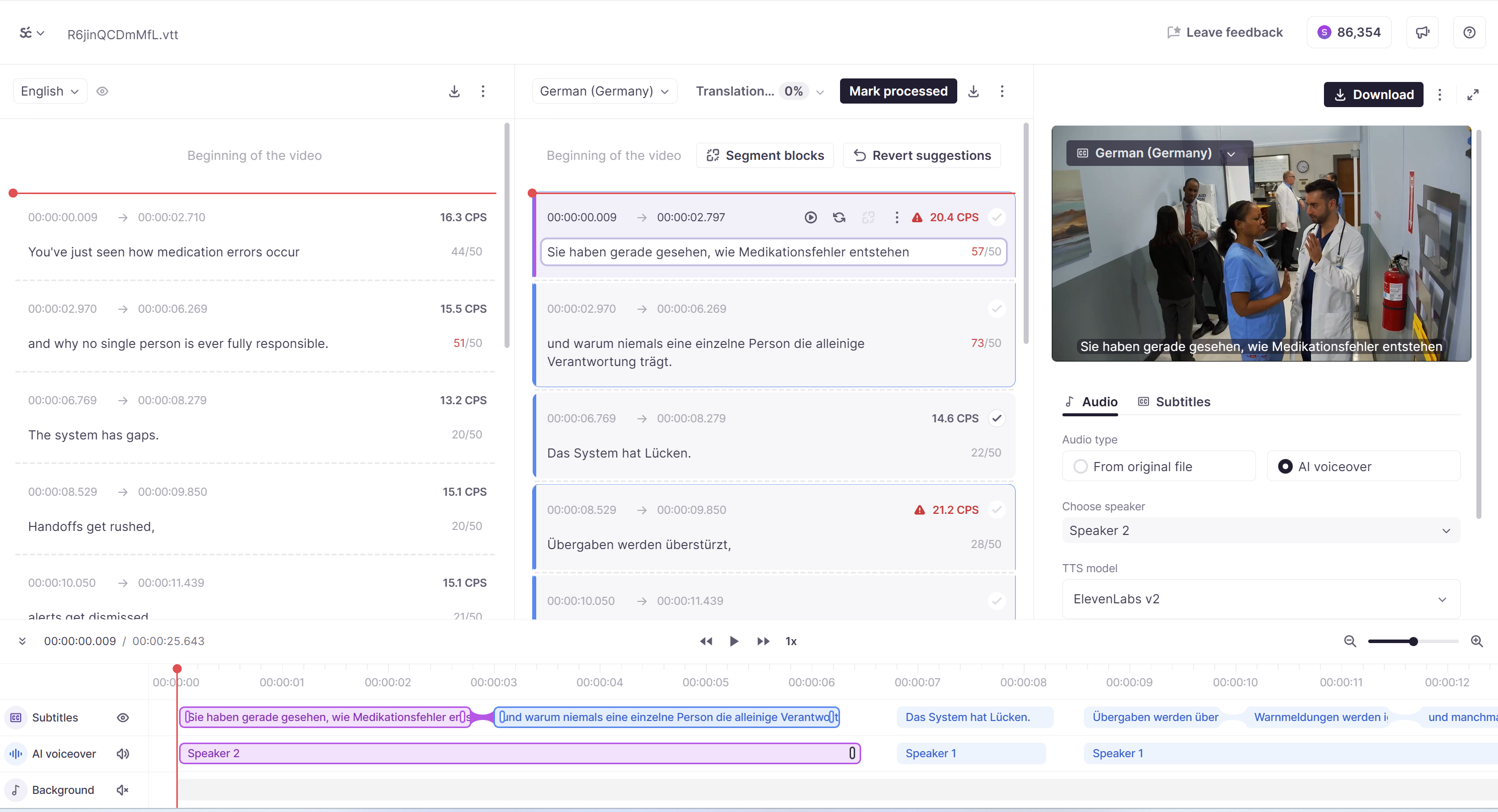
Open a video task to launch the Subtitle Editor — the video plays alongside your subtitle cues so you can see exactly what's on screen as you translate or review.
Subtitles need to match timing, pacing, and what's visually happening — translating blind from a text list alone risks mistimed or out-of-context lines.
Edit cues for readability and sync
Adjust cue text directly in the Subtitle Editor while checking the timeline to make sure your edit still fits the display window.
A technically correct translation that runs too long for its cue is still a quality issue — the in-context view lets you catch this immediately.
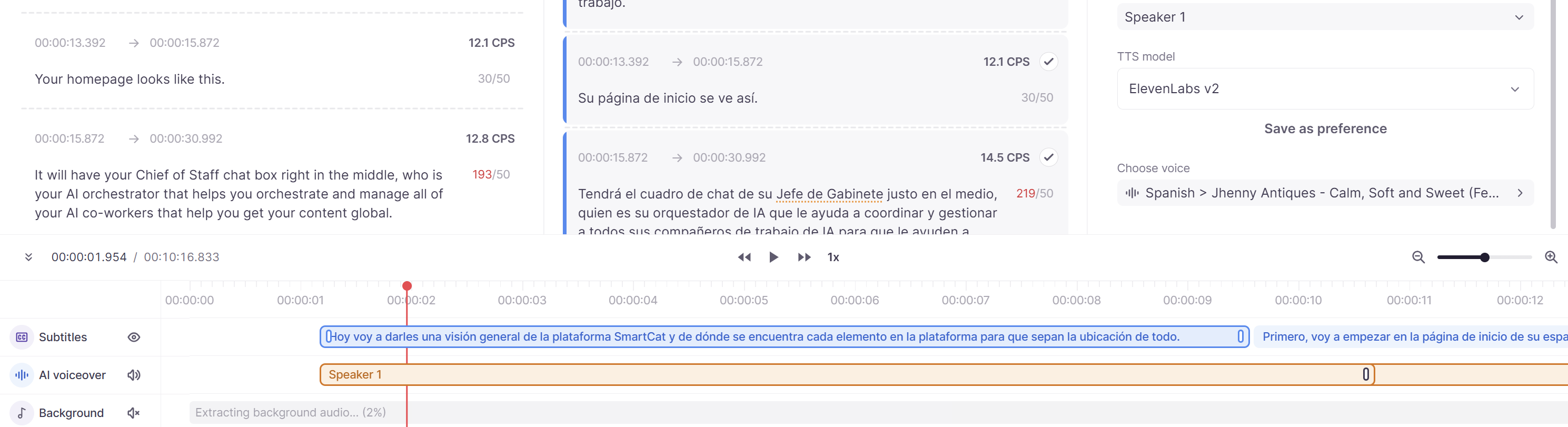
Review AI dubbing previews (where applicable)
If the project includes AI dubbing, preview the generated audio against the video before confirming.
Catching mismatched tone or mispronunciation before delivery is far easier than after the client has already received the file.
4. Working in Context: Documents & PDFs
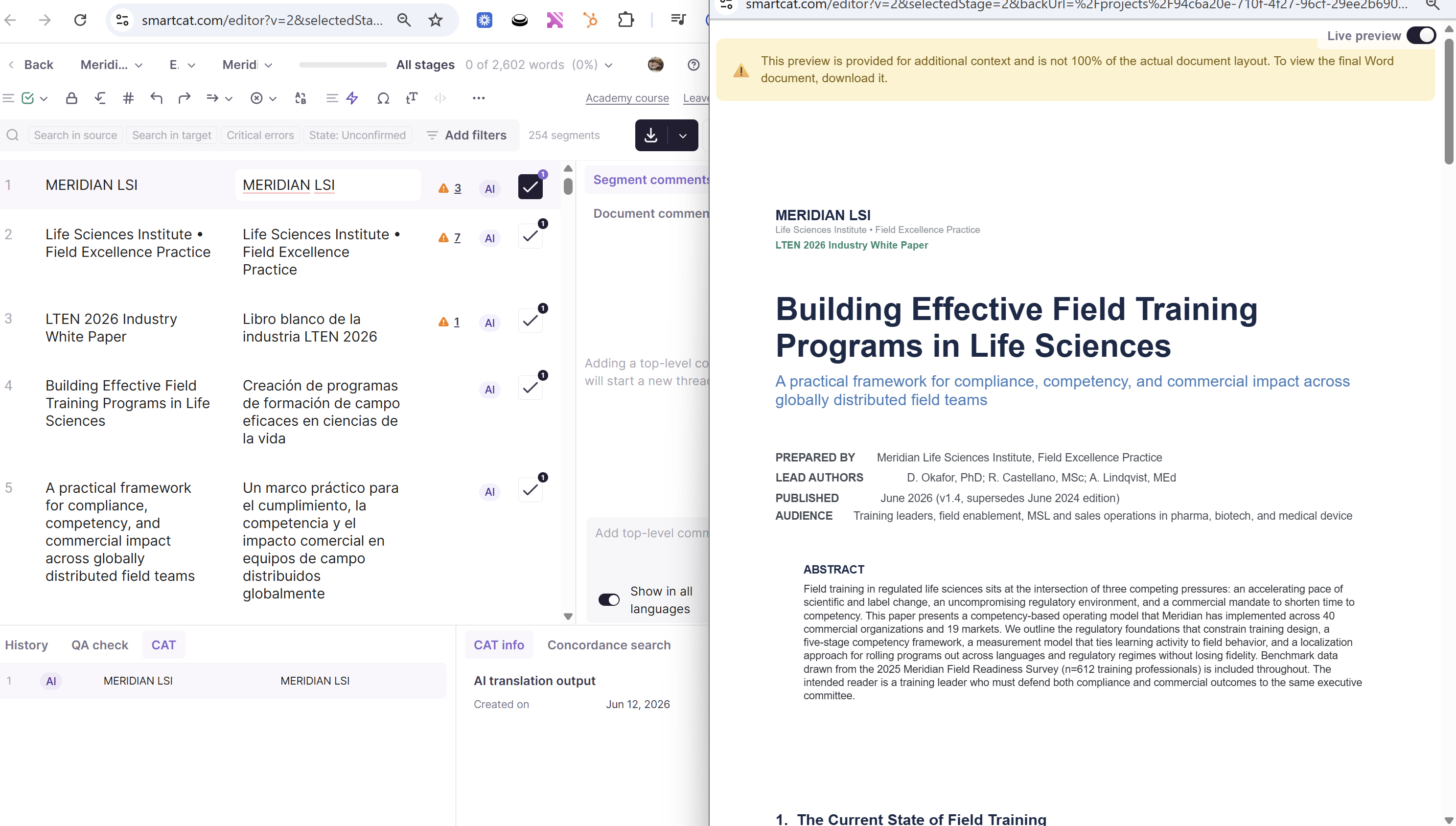
Use the Preview tab for layout-true review
Open the Preview panel alongside the Editor to see how your translation will actually appear in the final document layout.
Text that fits perfectly in the segment list can overflow a text box, break a table, or shift a layout in the real document — Preview catches this before it becomes a client-facing issue.
Open the file, then click Preview next to the Editor.
Watch for layout-sensitive content
Pay particular attention to line breaks, tables, and image captions in the Preview view, since these often behave differently than plain text. These are the areas most likely to look fine in the segment editor but break visually once exported.
5. Working in Context: Website Translation
Preview the live website as you translate
Open a website task to see a rendered preview of the actual page, not just a list of extracted strings.
Website copy is highly context-dependent — button labels, navigation items, and short strings often only make sense once you see where they appear on the page.
Open the website task from My Tasks to get the page preview.
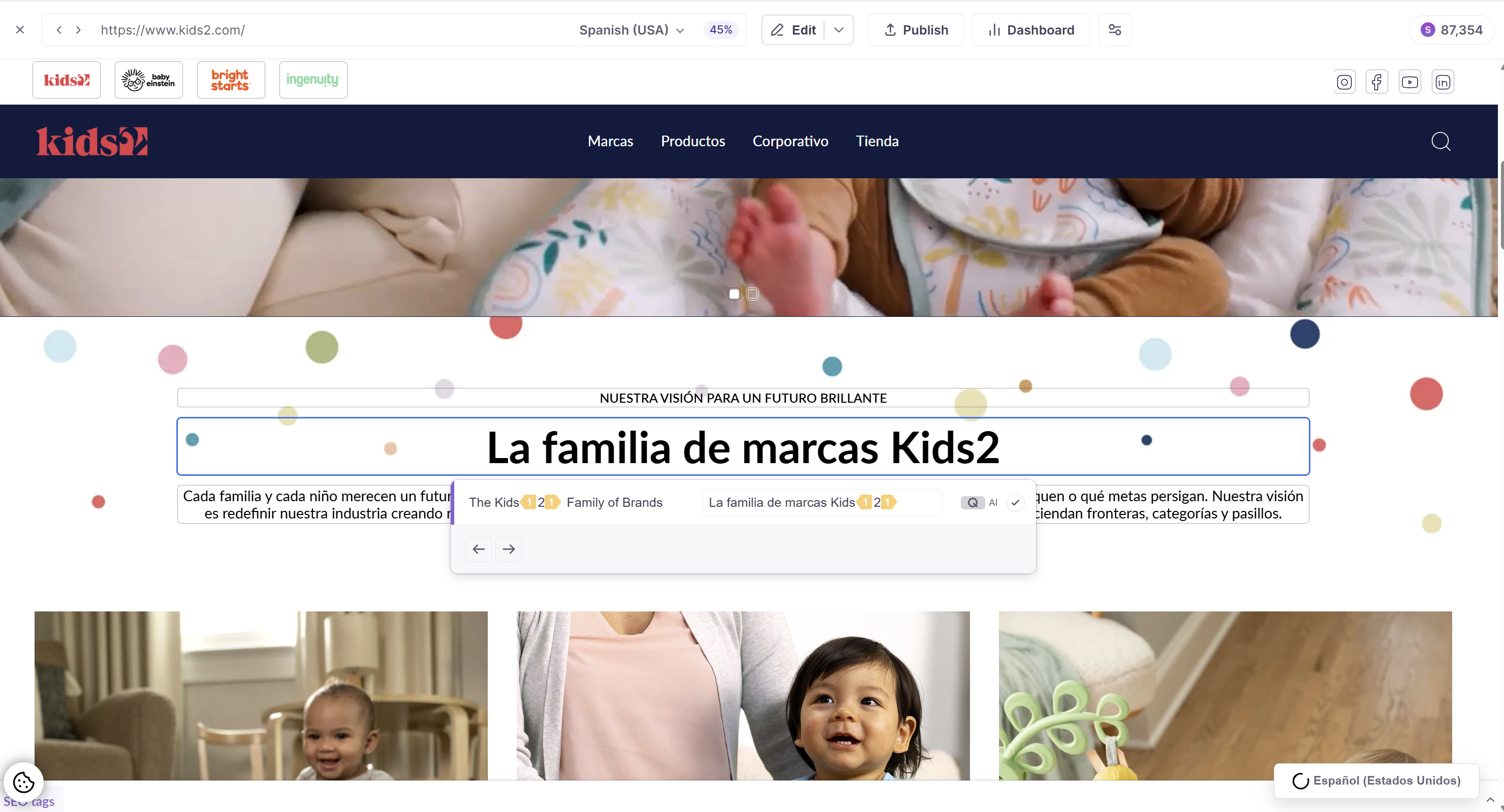
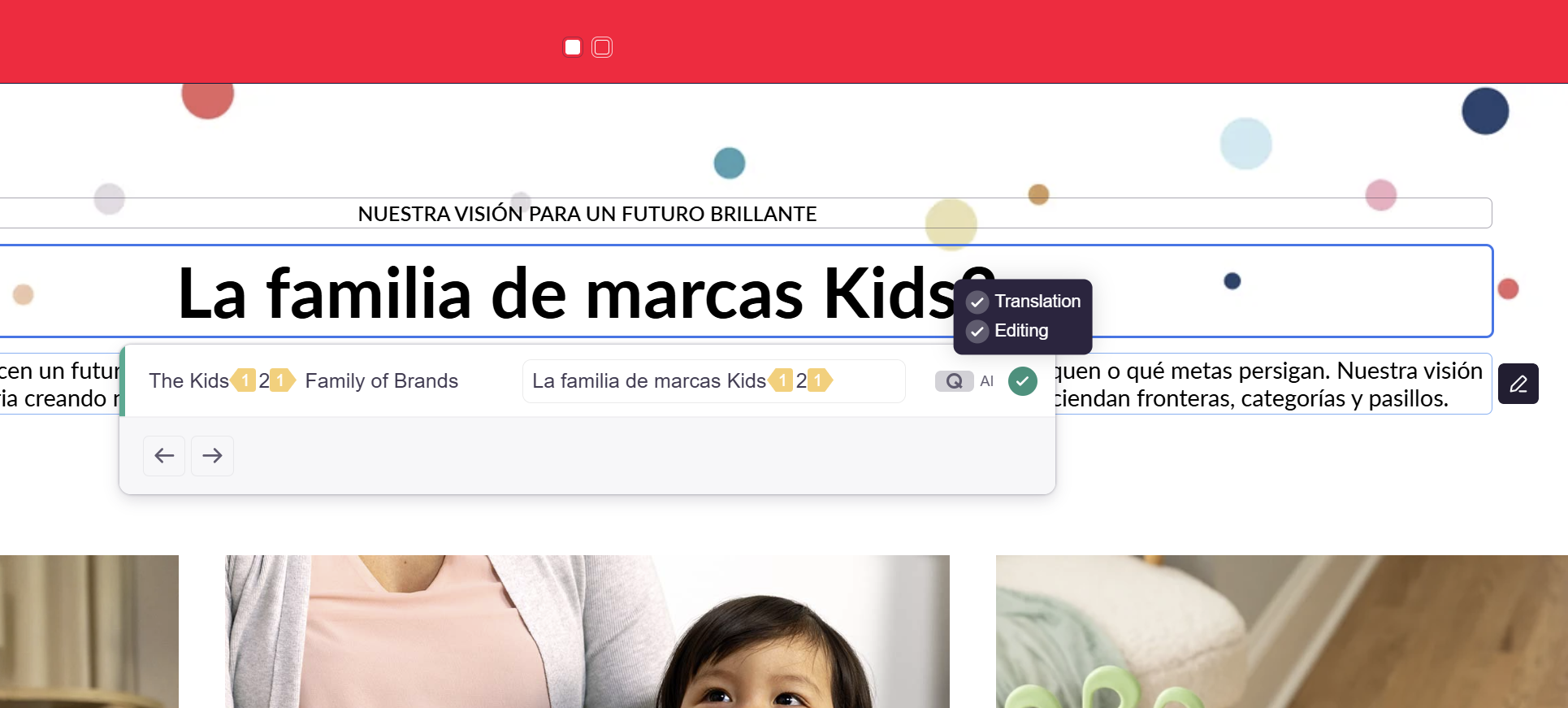
Confirm segments in context
Use the segment checkbox directly within the page preview to confirm your translation once you've verified it looks correct on the live layout.
Confirming in the visual context, rather than a flat list, catches truncation and overflow issues specific to web design (e.g., a translated label that's too long for a button).
6. Working in Context: Image Translation
Use the attached-image feature for visual context
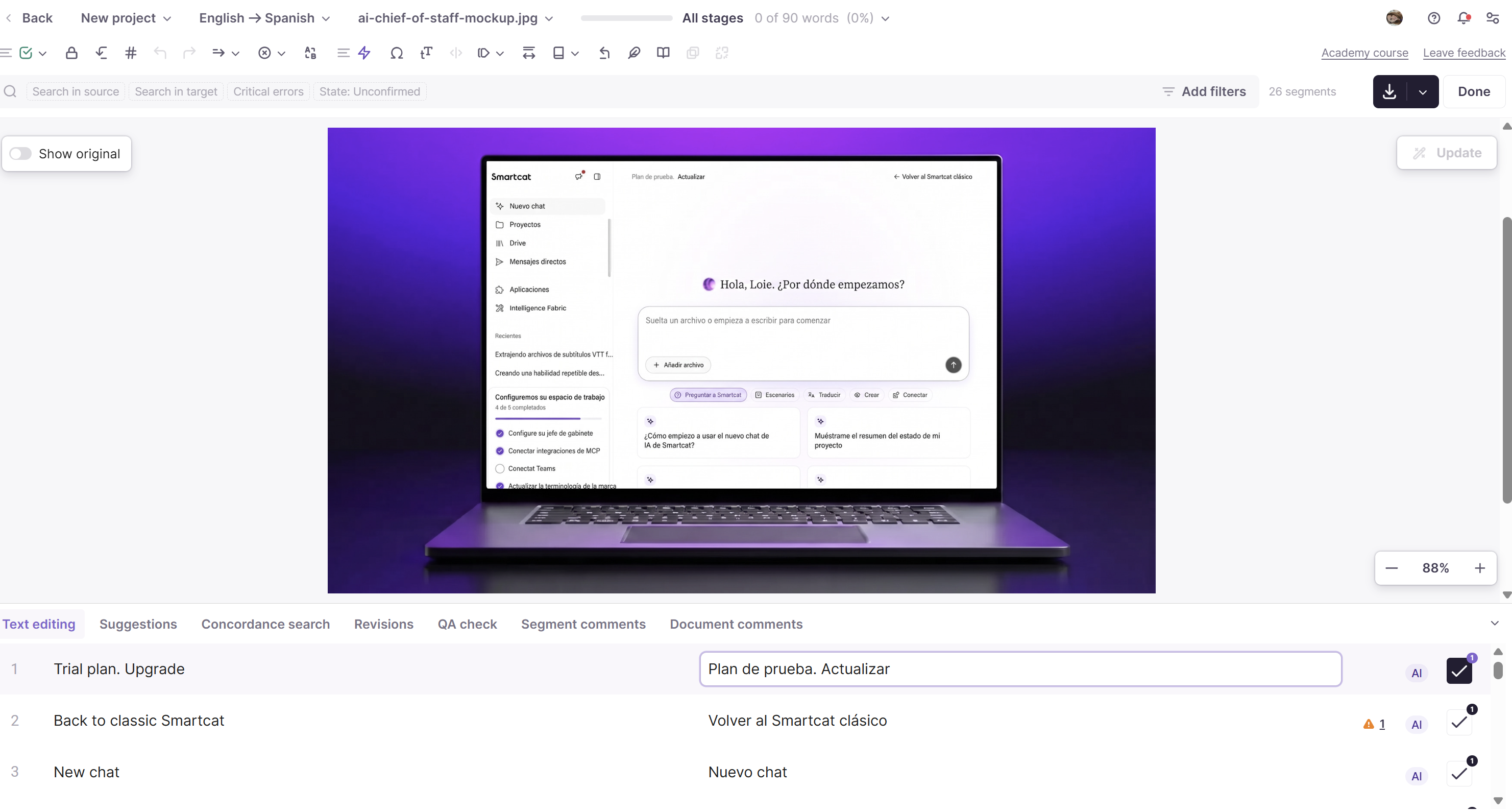
Click the camera/image icon next to a segment (when available) to see the image the text belongs to — common in UI strings, game text, and app copy.
Short or ambiguous strings (like a single word button label) are nearly impossible to translate accurately without seeing where and how they're used.
Click the image icon next to the segment in the Editor.
Recognize embedded-image file formats
Formats like .resx, .po, and .strings often carry UI text with attached image context — look for the image icon whenever you're working in one of these file types.
Knowing which formats typically include visual context helps you know when to check for it rather than translating blind.
7. Working in Context: Course Package Translation
Understand asset classification
Course package tasks (SCORM, Storyline, Rise 360) sort content into categories like Translate, Needs Review, and Skipped — check each category so nothing is missed.
Course packages bundle many asset types together (text, quizzes, embedded media); classification tells you exactly what needs your attention and what doesn't.
Use slide preview for text and images
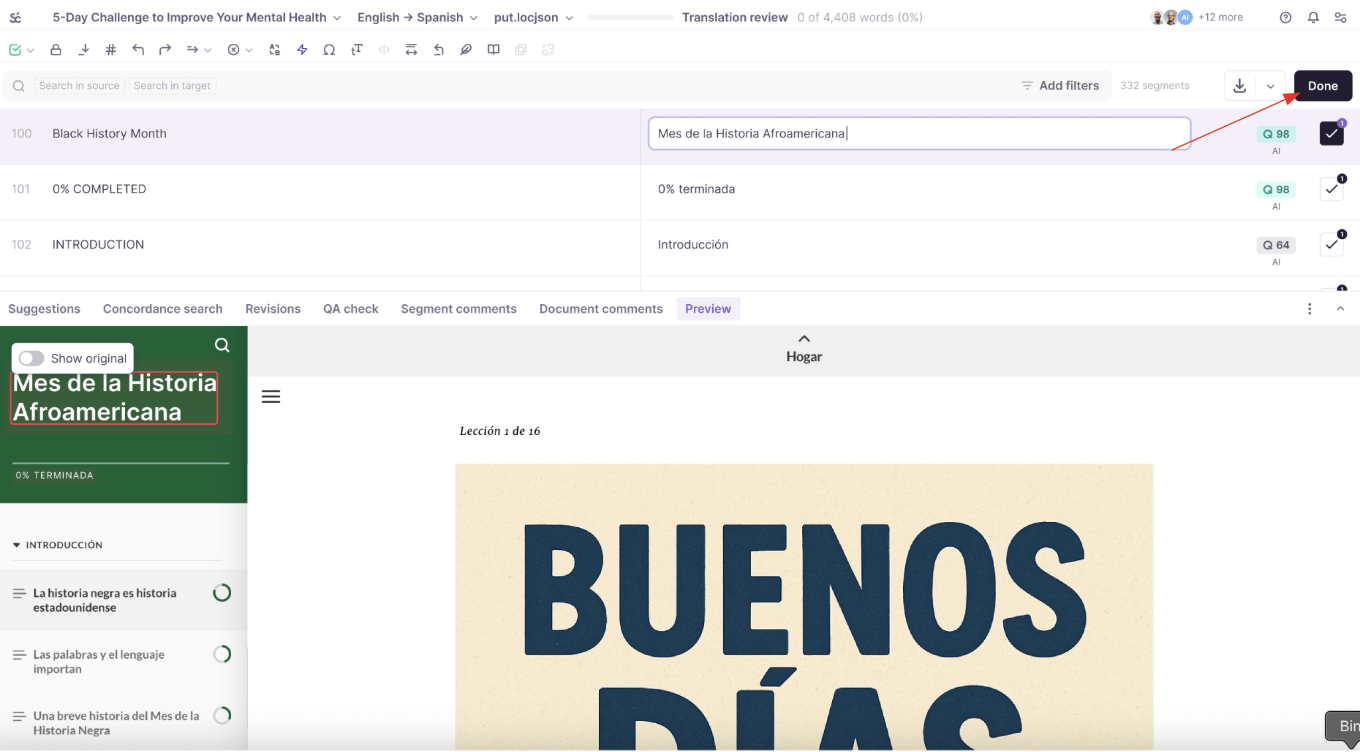
Open the slide preview alongside the segment list to see how your translated text and any accompanying images appear together.
Course slides are visually dense — confirming layout and image-text alignment in preview prevents translated text from clashing with slide design.
Open the course task from My Tasks, then use the slide preview.
Apply video/context skills to embedded media
When a course package includes embedded video (e.g., a training clip), use the same in-context review approach from section 3 (video/subtitle preview).
Course packages often combine every content type you've learned in this guide — this section ties those skills together.
Need Help?
Regardless of your role, you always have access to the Smartcat Support Portal for any question that comes up during your work.
Want to learn more?
See how Smartcat can transform your localization workflow.
Still need help?
Our support team responds within one business day.