Glossary properties and structure
Overview
This article explains glossary properties and structure in Smartcat. Glossary properties are settings such as languages, labels, and comments. Glossary structure is made up of fields you can add or remove.
How to change glossary properties
-
In the left navigation sidebar, click Intelligence Fabric → Terminology
-
Click the gear icon
-
Select Glossary properties
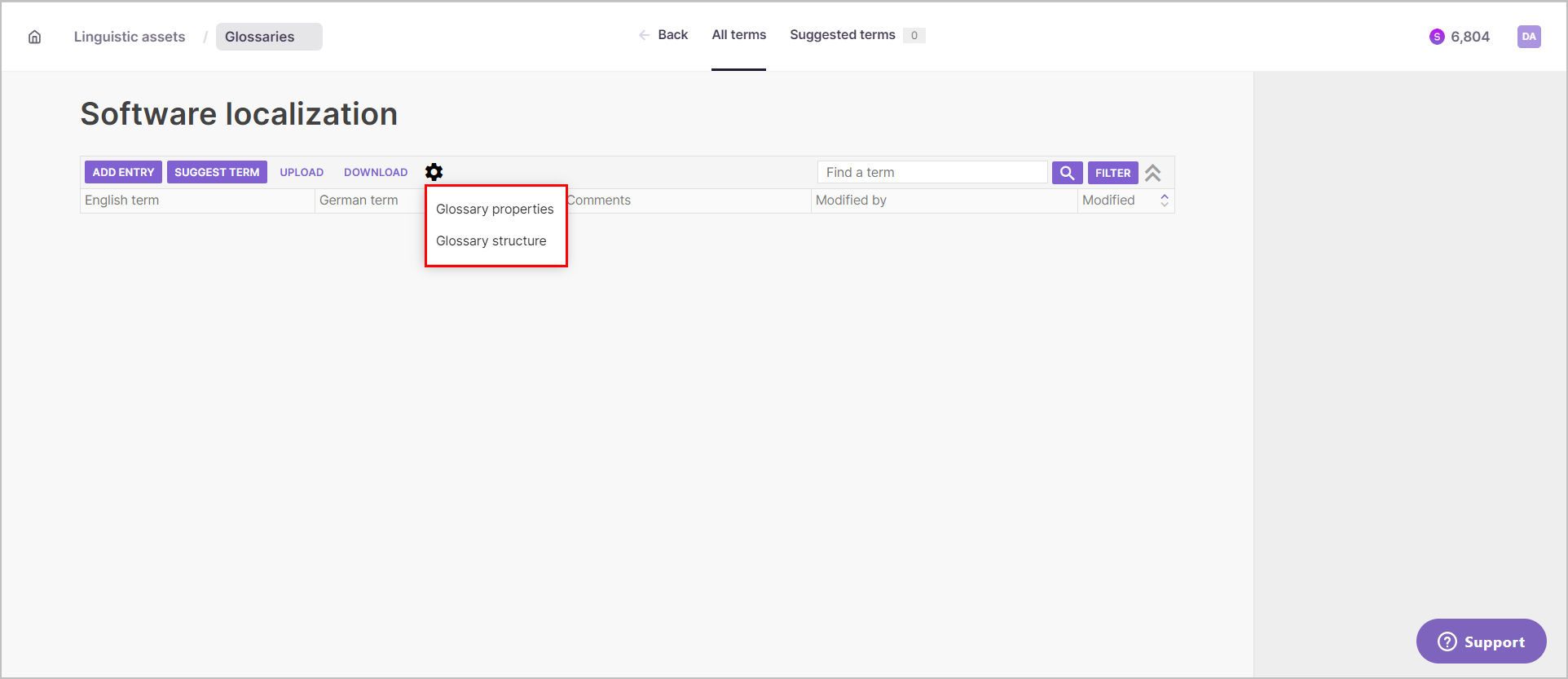
-
Make your changes and click Save
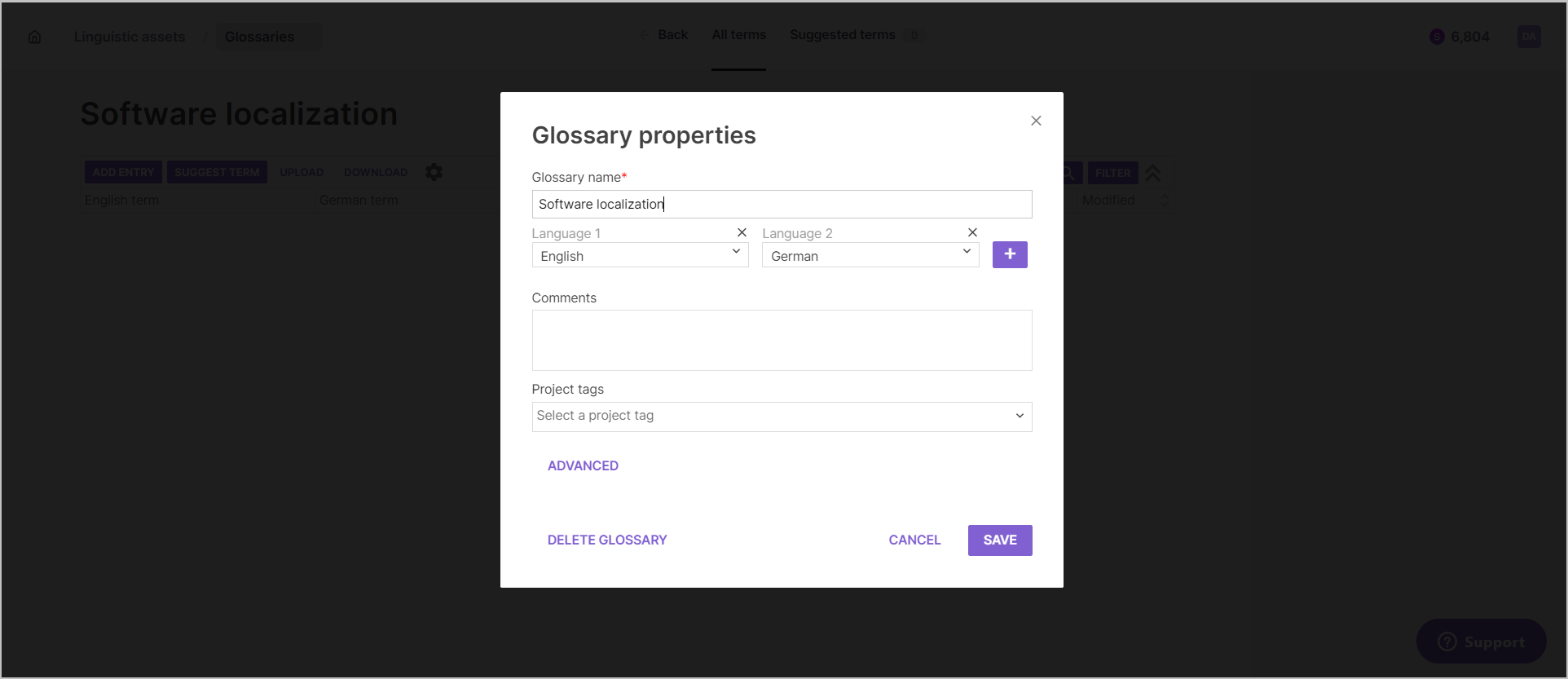
Your glossary properties are updated.
How to change glossary structure
-
In the left navigation sidebar, click Intelligence Fabric → Terminology
-
Click the gear icon
-
Select Glossary structure
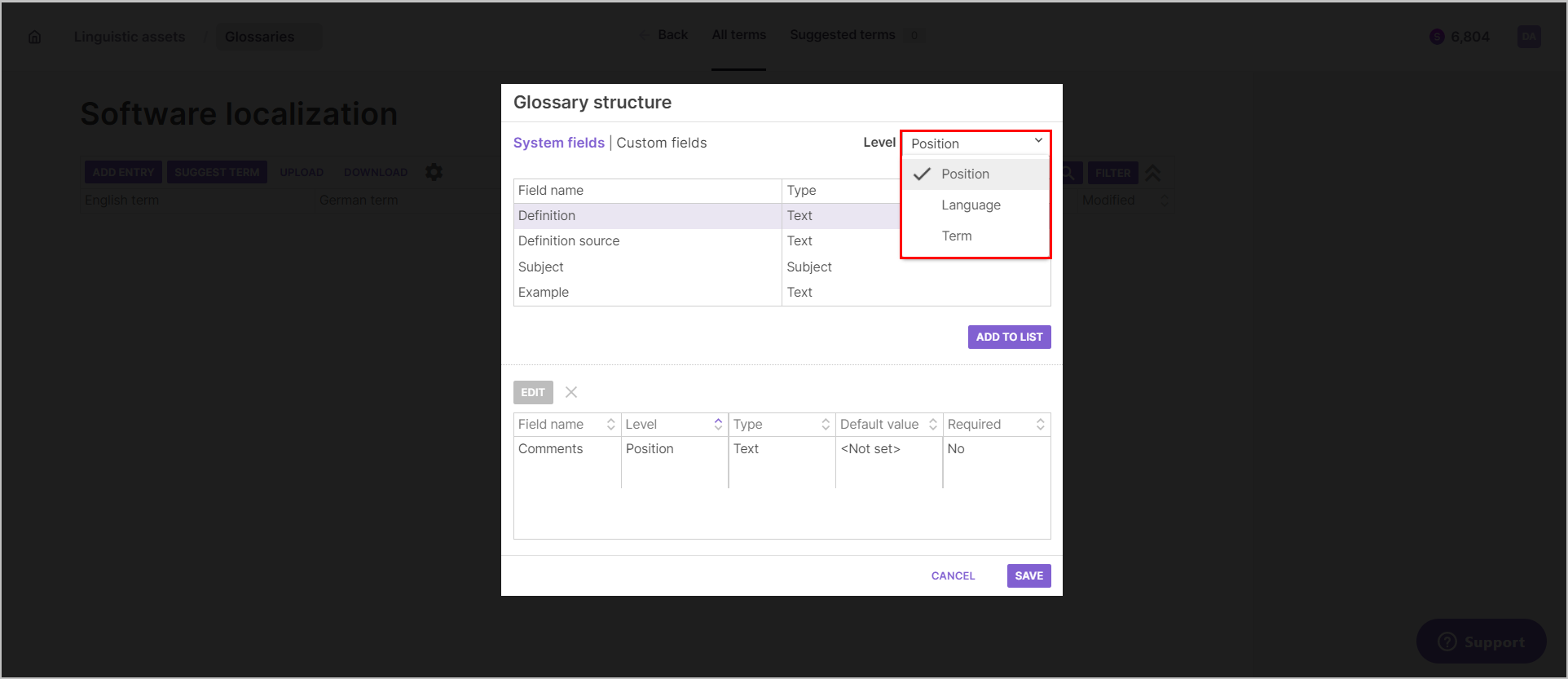
The glossary structure settings use System fields organized into three levels: Position, Language, and Term.
Glossary structure levels
-
Position level defines the properties of a whole glossary entry
-
Language level relates to the properties of a glossary term's language — click a language to open it
-
Term level determines the properties of a term itself, and there can be more than one term per language — click a term to open it
Term-level fields help when, for example, you want a translated definition for each language, or you have multiple translations for an entry and want to add information at the term level.
Add fields
-
Use the level dropdown to choose a level — each level offers its own fields, and some repeat between levels
-
Choose a field and click Add to List — the selected fields appear in the list
-
Click Save
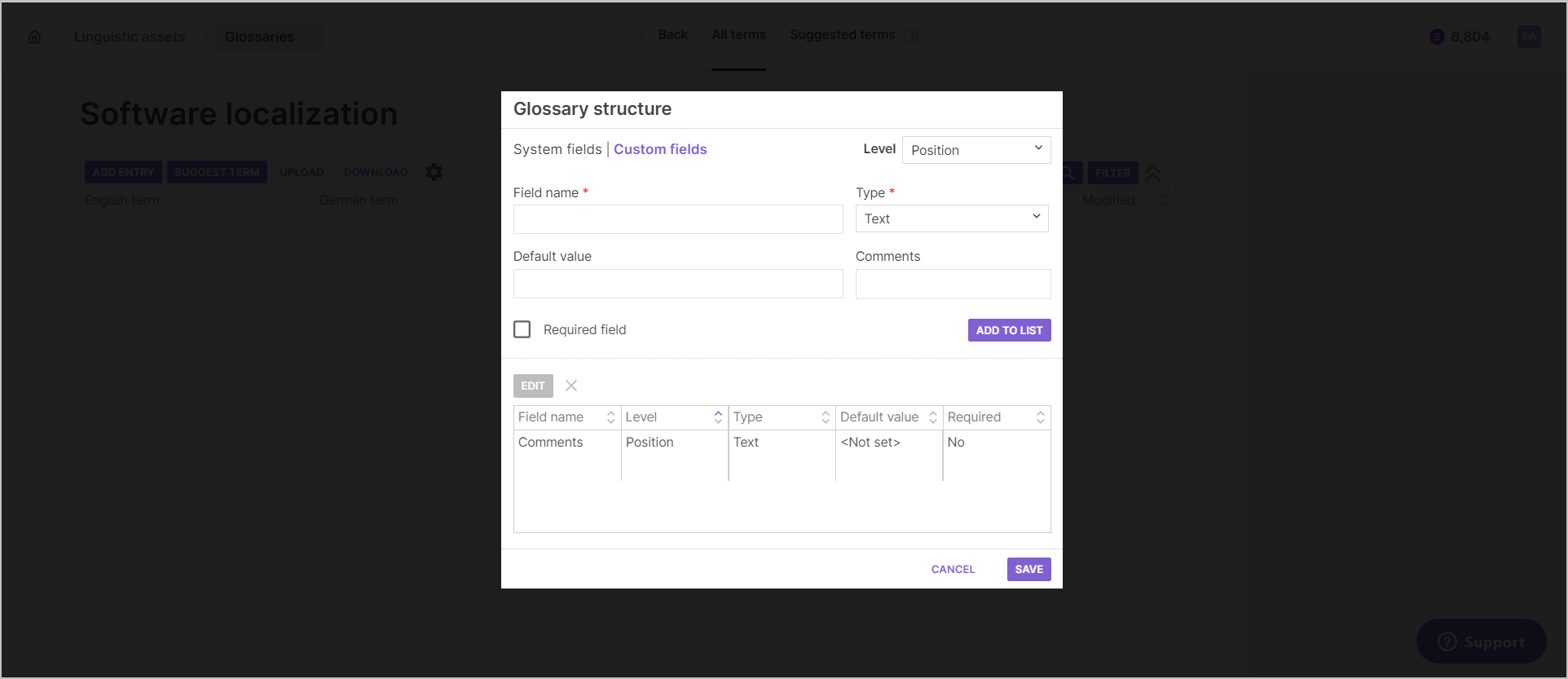
You can also create a Custom Field for each level, choosing a unique field name, the data type (text, number, Y/N, and more), an optional default value, a comment, and whether the field is required.
Your glossary structure now includes the fields you added.
How glossary fields affect QA checks
The automated quality checks in the CAT editor read specific glossary fields directly. Setting up the right field values is what makes each check fire as expected.
Status field controls forbidden terms and allowed variants
The Status field (Term level) drives two QA checks:
-
Set Status to Not recommended or Obsolete to mark a term as forbidden. Smartcat flags it with the Forbidden term in target QA error if a linguist uses it in the translation
-
Set Status to Preferred or Allowed for terms you want treated as valid — Smartcat uses these to flag the No translation term in target error when a preferred term from the source is missing from the translation
💡 A term with no Status value set is not checked by either of these rules
Case sensitivity must be set on both source and target terms
To trigger the Initial letters in source and target have different capitalization QA error, tick Case sensitivity on the Term-level field for both the source term and its corresponding target term.
⚠️ If Case sensitivity is ticked on only one side of the pair — source or target — the check does not fire. Both terms must have it enabled
Do Not Translate keeps a term untranslated — it is not a QA check
Do Not Translate (Position/Concept level) is a translation-prevention setting, not a quality check. When enabled, Smartcat keeps the source term as-is in the target and excludes it from AI/automatic translation. Because it works upstream of translation rather than checking a finished translation, it does not produce a QA warning — the term simply appears untranslated in the output.
Subject is a fixed field — use a custom field for your own categories
Subject (Position level) is a built-in field with a fixed set of values — you cannot add your own categories to it from Add Entry.
To categorize entries by your own domain or topic labels, create a Custom Field at the Position level instead (see "Add fields" above).
Adding synonyms to a glossary entry
A glossary entry can hold more than one term per language. This lets you group synonyms, like "consumer" and "customer,” under a single concept so they share the same translation, definition, and other term-level properties.
One term per language is the preferred term. Any additional terms you add to that language are synonyms of it, and Smartcat treats all of them as belonging to the same entry.
How to add a synonym term
-
Go to Intelligence Fabric → Terminology and open the glossary
-
Open the entry you want to edit
-
Find the language you want to add a synonym to
-
Click the Add (+) icon next to the existing term. A new term field appears for that language
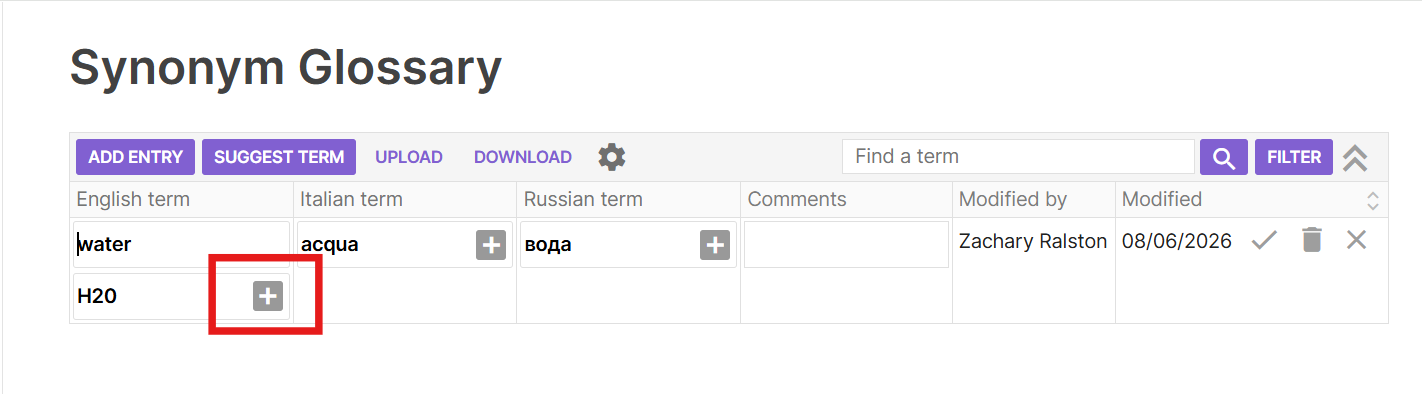
- Enter the synonym term and click the checkmark to save
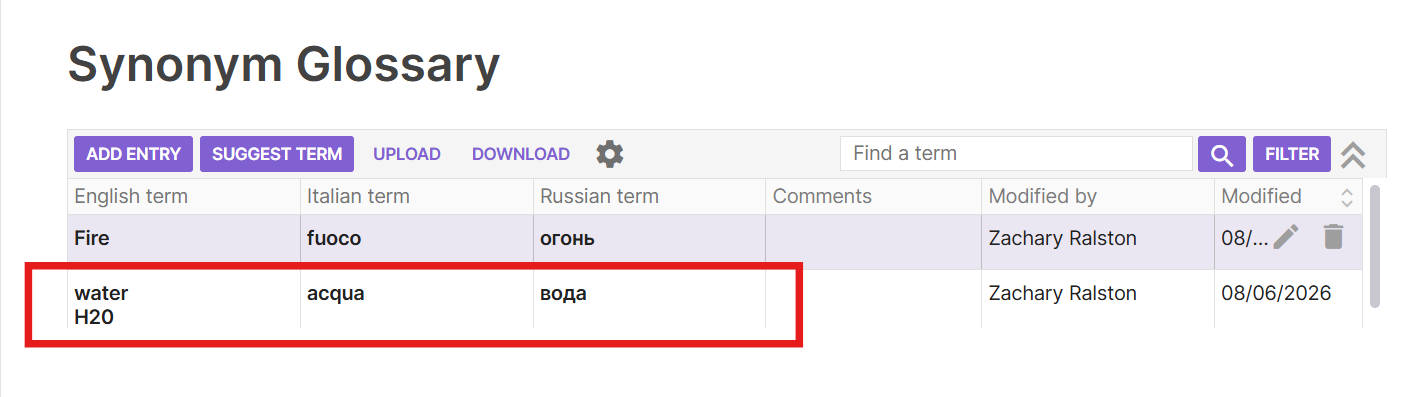
The entry now includes both terms for that language, and Smartcat matches either one during translation.
FAQs
What's the difference between glossary properties and glossary structure?
Glossary properties are workspace-level settings like languages, labels, and comments for the glossary as a whole. Glossary structure is the set of fields (System or Custom) available at the Position, Language, and Term levels of each entry.
What are the three levels in glossary structure, and what does each control?
Position level covers properties of the whole entry; Language level covers properties of a term's language (click a language to open it); Term level covers properties of an individual term, since an entry can have more than one term per language.
Can I add my own custom fields instead of just the built-in System fields?
Yes — at any level you can create a Custom Field with a unique name, a data type (text, number, Y/N, and more), an optional default value, a comment, and whether it's required.
How do I add a synonym to an existing glossary entry?
Open the entry, find the language you want, click the Add (+) icon next to the existing term, type the synonym, and click the checkmark to save — Smartcat treats it as belonging to the same entry as the preferred term.
If I add a synonym, does it get its own separate translation and definition?
Not necessarily — synonyms share the same translation, definition, and other term-level properties as the preferred term for that language, since they're grouped under the same concept.
Want to learn more?
See how Smartcat can transform your localization workflow.
Still need help?
Our support team responds within one business day.