Navigate the Smartcat home screen
Overview
When you log into Smartcat, you land on the home screen — the central hub for your entire translation and localization workflow. The home screen is built around three key areas: the chat interface, the shortcuts and the sidebar.
This article describes each area and explains how to use them to navigate Smartcat and get work done.
How to use it
Using the chat interface
The chat interface sits at the center of the home screen and is your primary way to interact with Smartcat.
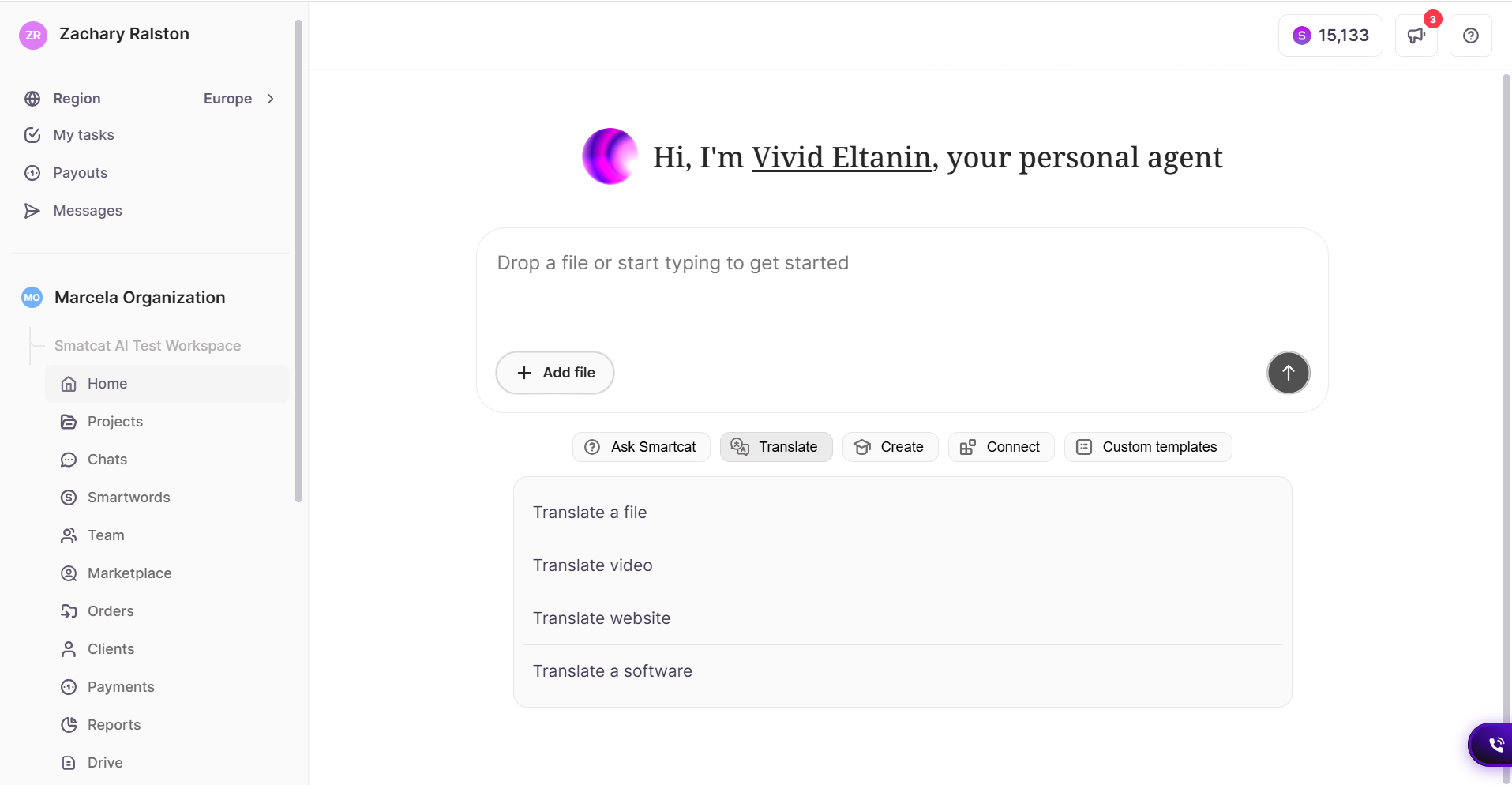
Type a request or command in plain language to:
-
AI-translate a file
-
Create a new project
-
Start content generation
-
Work with code
-
Update glossaries
-
Ask product-related questions
Smartcat interprets your message and handles the action — no need to navigate to a specific menu first.
Navigating with the sidebar
The sidebar on the left side of the screen is your main way to move around Smartcat. It stays in place as you work, so every core area of your workspace is one click away.
At the top of the sidebar is the workspace switcher, which shows your organization and current workspace. Click it to switch between workspaces or organizations you have access to.
Below the switcher, the sidebar gives you access to:
-
Home — return to the home screen and chat interface
-
Projects — view and manage all your translation and localization projects
-
Chats — access your conversations with Smartcat AI
-
Smartwords — view your Smartwords balance and usage
-
Team — view team members and invite new collaborators
-
Marketplace — hire professional human linguists to work on your projects
-
Orders — view and manage your orders
-
Clients — invite and manage your clients
-
Payments — manage payments to Smartcat Marketplace linguists
-
Reports — access data and insights on your translation activity
-
Drive — store and manage your files
-
Intelligence Fabric — expand this item to access Smartcat's language AI capabilities
-
Settings — adjust personal and workspace preferences
📌 The sidebar persists across Smartcat, so navigation is always one click away regardless of which page you are on.
FAQs
Do I have to navigate to a specific menu to start a task from the home screen?
No — you can type a request in plain language in the chat interface (e.g., "AI-translate this file," "update glossaries") and Smartcat interprets it and handles the action directly.
What's always available in the sidebar no matter what page I'm on?
Home, Projects, Chats, Smartwords, Team, Marketplace, Orders, Clients, Payments, Reports, Drive, Intelligence Fabric, and Settings — the sidebar persists across every page.
Where do I go to check my Smartwords balance?
Click Smartwords in the sidebar to view your balance and usage directly.
What's the difference between "Clients" and "Team" in the sidebar?
Team is for viewing and inviting your internal collaborators; Clients is for inviting and managing the external clients you do translation work for.
Where do I manage payments to linguists I've hired through the Marketplace?
Click Payments in the sidebar to manage payments to Smartcat Marketplace linguists.
Want to learn more?
See how Smartcat can transform your localization workflow.
Still need help?
Our support team responds within one business day.