Smartcat Support Portal
Overview
At Smartcat, it's important for us to provide great customer service to you, and that starts with an easy way to submit your questions to us in the form of tickets and a transparent overview of your ticket status. In our Smartcat Support Portal, you can do just that.
What can you do on the Smartcat Support Portal:
-
View your submitted requests and their status
-
Create new requests
Getting Started
If you're new to the portal, follow these steps:
-
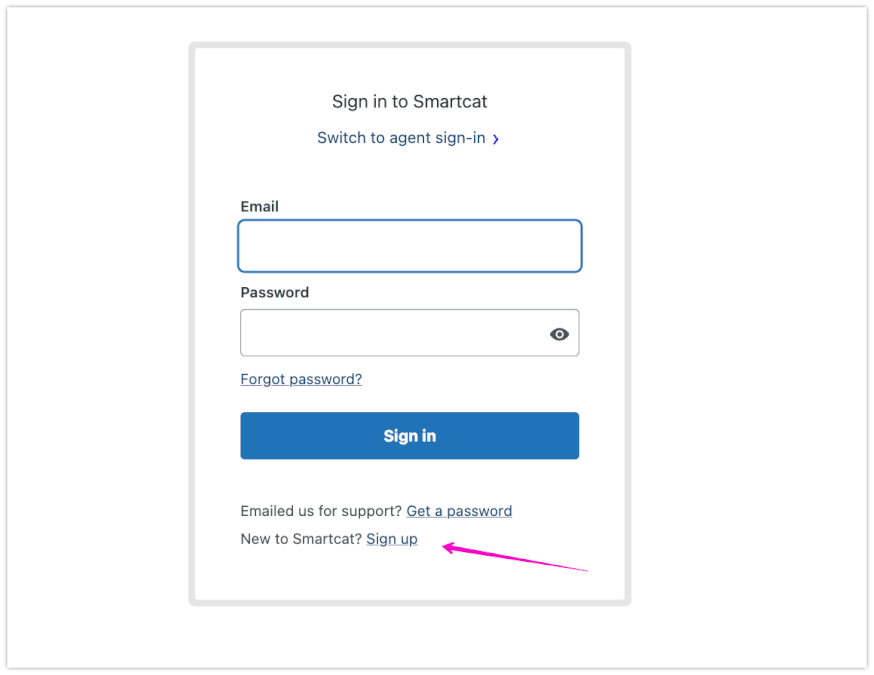
Go to the Smartcat Support Portal to sign up or log in.
-
Click Sign up next to New to Smartcat?
-
Enter the email address you use to contact our team (the email address used for your Smartcat account) and follow the instructions provided.
-
After creating a password, log in to your account on the Support Portal. You will see the following screen:
Submit a New Request
To create a new request, return to the main page and click the Submit a request button.
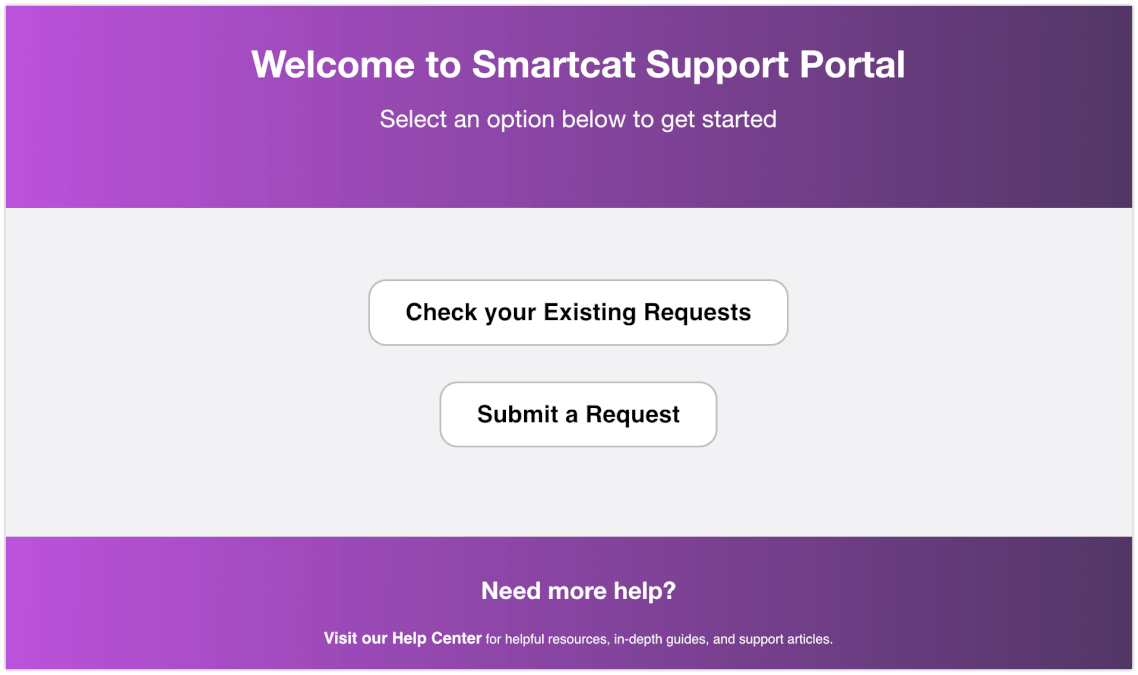
This will redirect you to our web contact form. You can also reach us through the Help and Support section in your Smartcat account.
All tickets created using your registered email address will be accessible in the portal.
View Your Ticket History
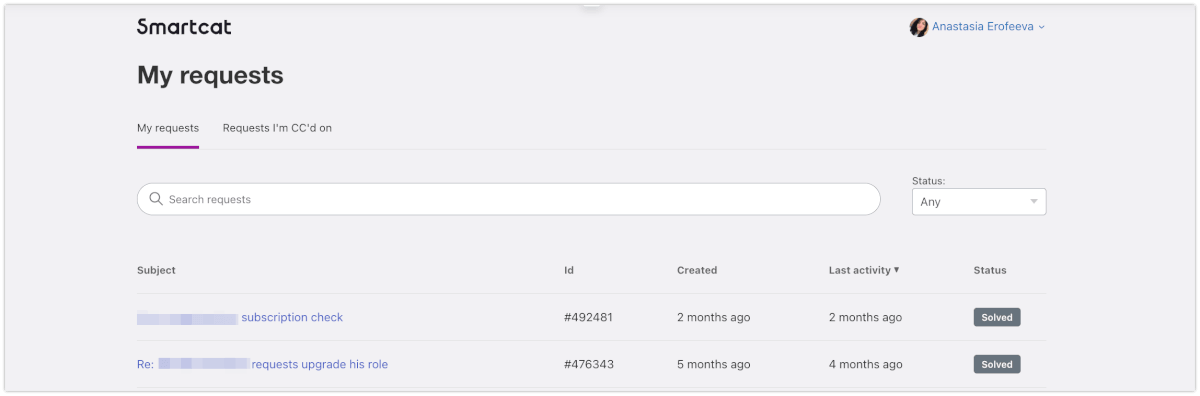
To see your support requests, click the "Check your existing requests" button.
-
The "My requests" tab displays all tickets submitted from your email address.
-
"Requests I'm CC'd on" shows tickets where you are copied.
You can filter tickets by status and sort by last activity for your convenience.
FAQs
What can I do on the Smartcat Support Portal?
You can view your submitted support requests and their current status, and create new requests directly from the portal.
Which email address should I use to sign up?
Use the same email address you use for your Smartcat account — all tickets created from your registered email are what appear in the portal.
What's the difference between "My requests" and "Requests I'm CC'd on"?
"My requests" shows all tickets you personally submitted from your email address, while "Requests I'm CC'd on" shows tickets where you were copied but didn't submit them yourself.
Can I filter or sort my ticket history?
Yes — you can filter tickets by status and sort them by last activity.
Is there another way to submit a request besides the portal?
Yes — you can also reach support through the Help and Support section inside your Smartcat account, which redirects to the same web contact form.
Want to learn more?
See how Smartcat can transform your localization workflow.
Still need help?
Our support team responds within one business day.