Glossary and Terminology: Overview, Setup, and Management
Overview
Glossaries, located in your Intelligence Fabric under Terminology, are organized collections of approved translations for specific terms, including technical terms, industry-specific jargon, or frequently used words in your content. Unlike Reviewed Translations (translation memories) that store full sentence translations, glossaries provide a structured interface for managing individual term translations, making them easier to use and maintain.
When you enable a glossary on a project, Smartcat automatically suggests the glossary-saved translation terms during AI translation. You can create separate glossaries for different subjects and clients, with each glossary supporting unlimited languages.
Purpose
Even high-quality translation can miss the mark on the specific vocabulary that matters most to your business — a product name translated too literally, a legal or technical term rendered inconsistently, or a brand phrase altered in a way that changes its meaning. A glossary ensures the AI is always aware of your preferred terminology and applies it correctly, regardless of how a term is used in a sentence. Benefits include:
-
Precision — your product names, brand terms, and technical vocabulary are translated exactly as you define them, every time.
-
Protection — terms you never want translated (e.g. trademarks, proper nouns, internal product codes) stay untouched across all languages.
-
Flexibility — unlike a Translation Memory (which stores whole segments), a glossary works at the term level, so the correct term is applied no matter how it's used grammatically or which segment it appears in.
-
Faster reviewer QA — reviewers spend less time flagging and correcting terminology inconsistencies.
What is a translation glossary?
A glossary is an indexed list of terminology specific to the content that you translate. It typically includes terms – specific words and phrases – that your organization uses repeatedly.
By including these terms in a preloaded index list, you are able to optimize consistency of language and stylistic preferences. Both automatic AI translation engines and human translators can use glossaries to clarify use of the correct, on-brand term.
How glossaries work in Smartcat
If you enable a glossary on a project, Smartcat automatically suggests the glossary-saved translation term during Smartcat automatic AI translations.
Translation Memory is checked first. If an approved TM match exists for a segment, it's inserted as-is and the glossary is not applied to that segment. Glossary enforcement applies specifically when AI translation generates the text. Keeping your TM entries clean and consistent with your glossary avoids this kind of mismatch.
Glossary matches are also visible to linguists and reviewers directly in the CAT editor, so human reviewers can see and apply the correct terminology even when editing manually — not just during AI translation.
There's no limit on term length: glossary entries can be single words or multi-word phrases, with no performance impact.
You can create and keep separate glossaries for different subjects and clients, and add terms with translations into other languages.
Click to learn how to create a glossary here (https://help.smartcat.com/1539454-setting-up-glossaries/)
Each time you create a project, don't forget to enable a necessary glossary in the settings of the project. You should do this before uploading the documents for AI translation. Note that you can add files even after creating the project.
When to use it
-
Maintain consistent terminology across projects for specific clients or domains
-
Ensure technical terms are translated consistently across your organization
-
Provide translators with approved term translations before they begin work
-
Automatically improve AI translation quality by providing preferred term translations
-
Organize terminology by client, department, or subject matter
-
Import an existing client or vendor glossary (MultiTerm XML or Excel) into Smartcat
-
Export a Smartcat glossary to share or back up terminology
Supported file formats
Smartcat can import and export glossaries using two file formats:
-
Excel (.xlsx): Supports both language terms and other attribute types. Fields in the spreadsheet must match your glossary structure for a fully successful import. Smartcat exports glossaries to Excel by default.
-
MultiTerm XML (.xml): Smartcat can import language terms only from MultiTerm XML files. These files are created by exporting data from SDL Studio. Non-language attributes are not imported.
How to use it
Create a new glossary
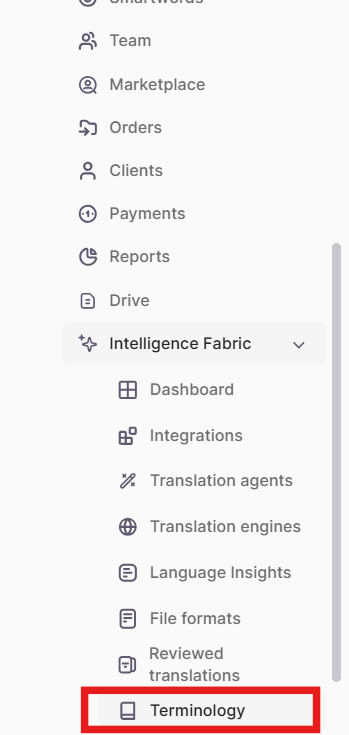
- In the left navigation sidebar, click Intelligence Fabric → Terminology
- Click Create Glossary

- In the dialog, enter: a unique name for your glossary, the languages you want to include (click + to add more languages), and optional client and project tags. The tags associate your glossary with that client or project type.
-
Click Advanced if you want to customize the glossary structure and properties. Clicking Advanced creates the new glossary and opens the Glossary Structure dialog.
-
Click Save
Your new glossary appears in the Glossaries list and is ready for term management.
Export a glossary
-
In the left navigation sidebar, click Intelligence Fabric → Terminology
-
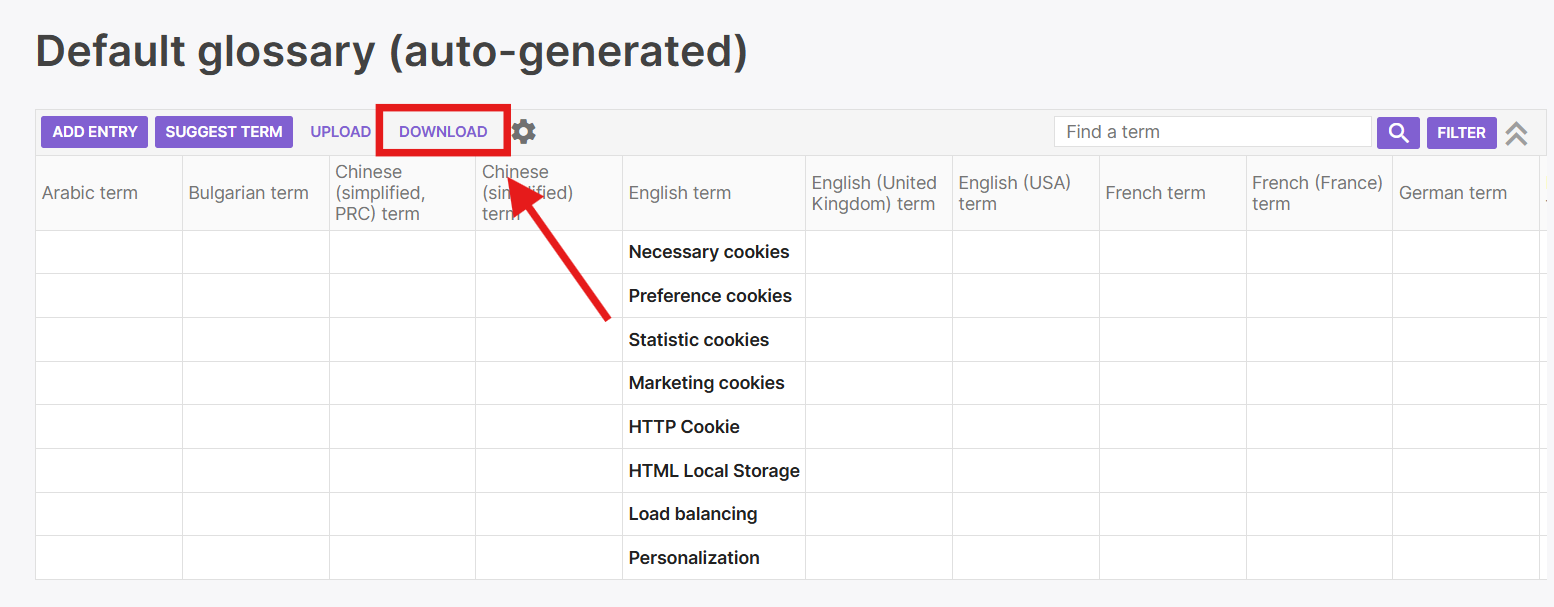
Open the glossary you want to export. On the glossary page, click Download to save the glossary as an XLSX file. Smartcat exports the glossary and notifies you in a pop-up when it is ready.
Import an existing glossary
The easiest way to import a glossary is to create a glossary template in Smartcat first, then export it. This ensures your file's column structure matches the glossary fields exactly.
-
Set up a glossary with all the required fields as described above.
-
Add sample data to it.
-
Export the glossary. Smartcat generates an Excel spreadsheet with columns matching your glossary fields.
-
Copy and paste data from your existing documents into the appropriate columns of the downloaded file.
-
In the left navigation sidebar, click Intelligence Fabric → Terminology.
-
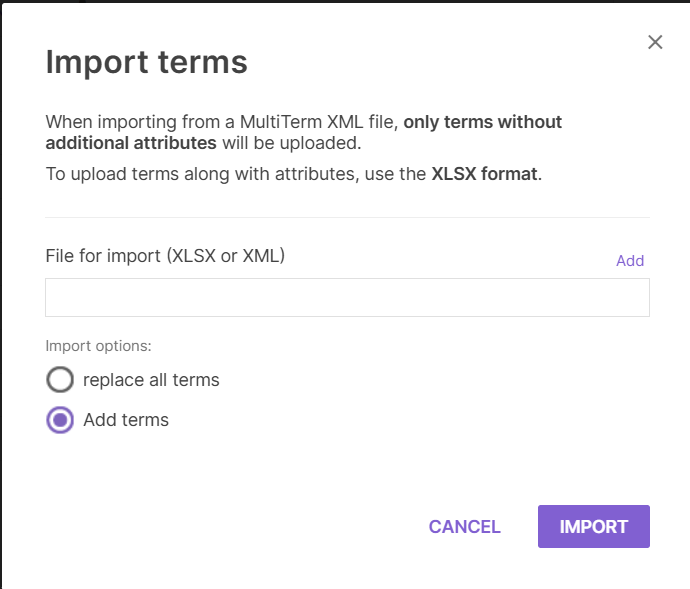
Open the existing glossary you want to import into. On the glossary page, click Upload to upload an XML or XLSX file.
-
Select the import option. Replace all terms overwrites all data currently in your glossary with the contents of the file. Add terms adds new terms from the file to the existing glossary without removing existing terms.

- Click Import.
Associate glossaries with projects
When you create a project, Smartcat can automatically enable relevant glossaries:
-
During project creation, specify a client or department
-
Smartcat automatically enables glossaries from your list that match this client or department
-
Alternatively, manually select specific glossaries in the project by clicking Linguistic Assets in the left navigation sidebar for the project.

Once associated, the glossary terms automatically appear as suggestions during translation.
Review and expand over time
As new products, features, or terminology emerge, add them to the glossary so future translations stay current. This is typically an ongoing, lightweight maintenance task rather than a one-time setup. Keeping your glossary free of duplicates or conflicting terms increases your translation quality.
Requirements / Limitations
-
Client and project tags help with automatic glossary association
-
Advanced structure configuration requires understanding of glossary attributes and properties
-
MultiTerm XML imports carry language terms only — non-language attributes are not imported
-
Excel imports require columns to match your glossary field structure; exporting a template first is recommended
FAQs
Can I have multiple glossaries for the same client?
Yes, you can create separate glossaries for different subjects, domains, or projects, all tagged with the same client.
What happens when I suggest a term?
Term suggestions don't appear in the active glossary immediately. They go to the Suggested Terms tab where administrators can review and approve them before they become active.
Does the glossary do a literal find-and-replace on my text?
No. The AI uses your glossary as guidance during translation, producing a natural, grammatically correct sentence that still includes your required term — not a robotic substitution. This preserves fluency while keeping terminology accurate.
What if I need a term to never be translated at all (e.g. a trademark)?
You can flag specific glossary terms as "do not translate," and they will be preserved exactly as written across every target language. However, if there is a conflict for that term in a Translation Memory, the Translation Memory overrides the glossary entry — see the precedence rule above.
Is there a limit to how many terms I can add, or how long a term can be?
No practical limit — add as many terms as you need, and multi-word phrases are fully supported with no performance impact.
Does using a glossary affect translation speed or cost?
No. Glossary lookups don't add processing latency or cost — Smartwords consumption is based on translated words only, not glossary usage. Using a glossary also helps reduce rework by catching terminology issues before they reach final review.
Want to learn more?
See how Smartcat can transform your localization workflow.
Still need help?
Our support team responds within one business day.