Set up your Smartcat account
Overview
Setting up your account on Smartcat is fast. Whether you are a company that needs translations, a language service provider (LSP), or a freelance translator, you can get set up and start translating right away.
This article shows you how to create your account so you can start using Smartcat for your multilingual content and get straight to translating.
Get started in three steps
Follow these steps to get started.
1. Begin from the Smartcat home page
-
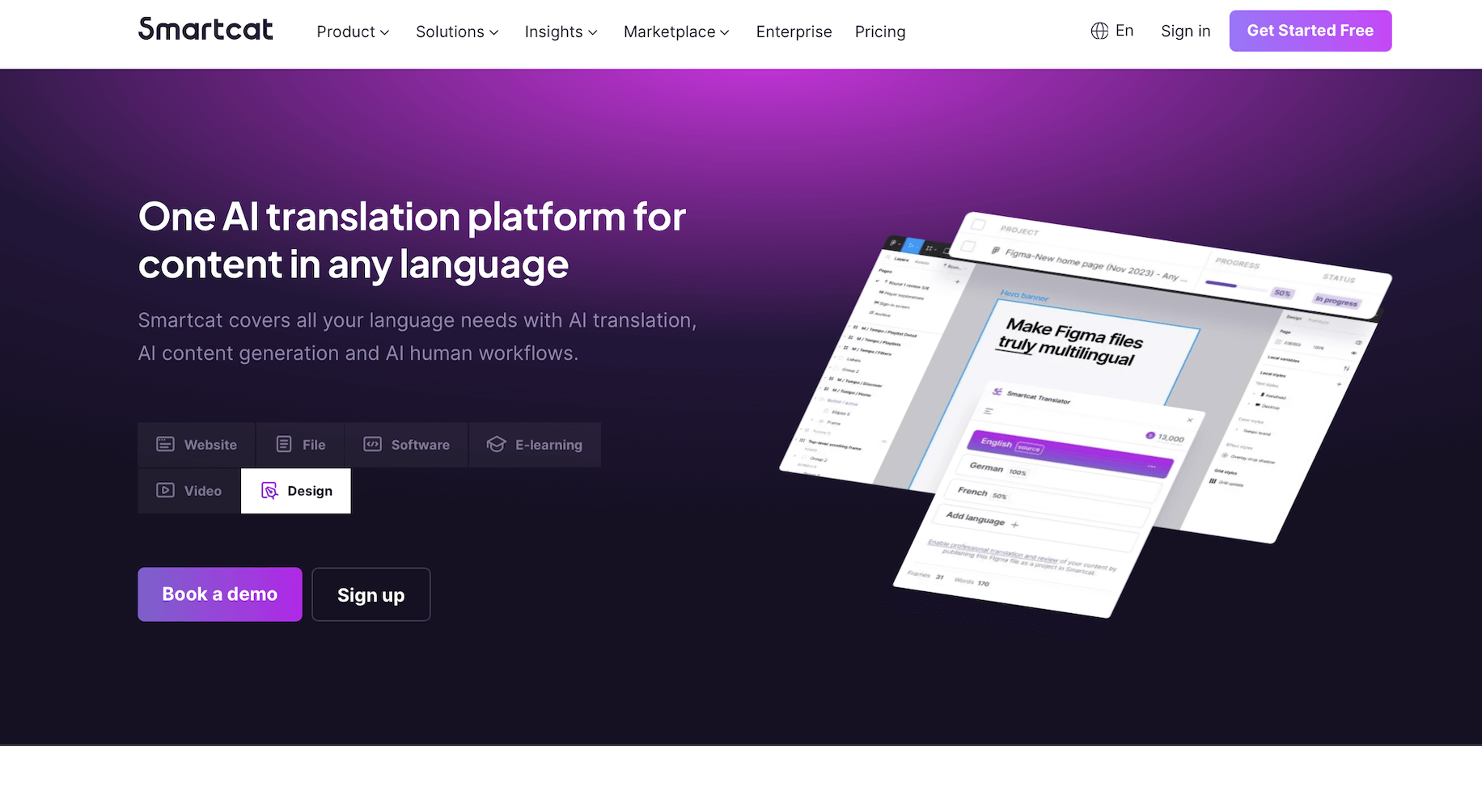
Go to Smartcat.com
-
Click Get Started Free in the top-right of the home screen
2. Enter your email or use a social account
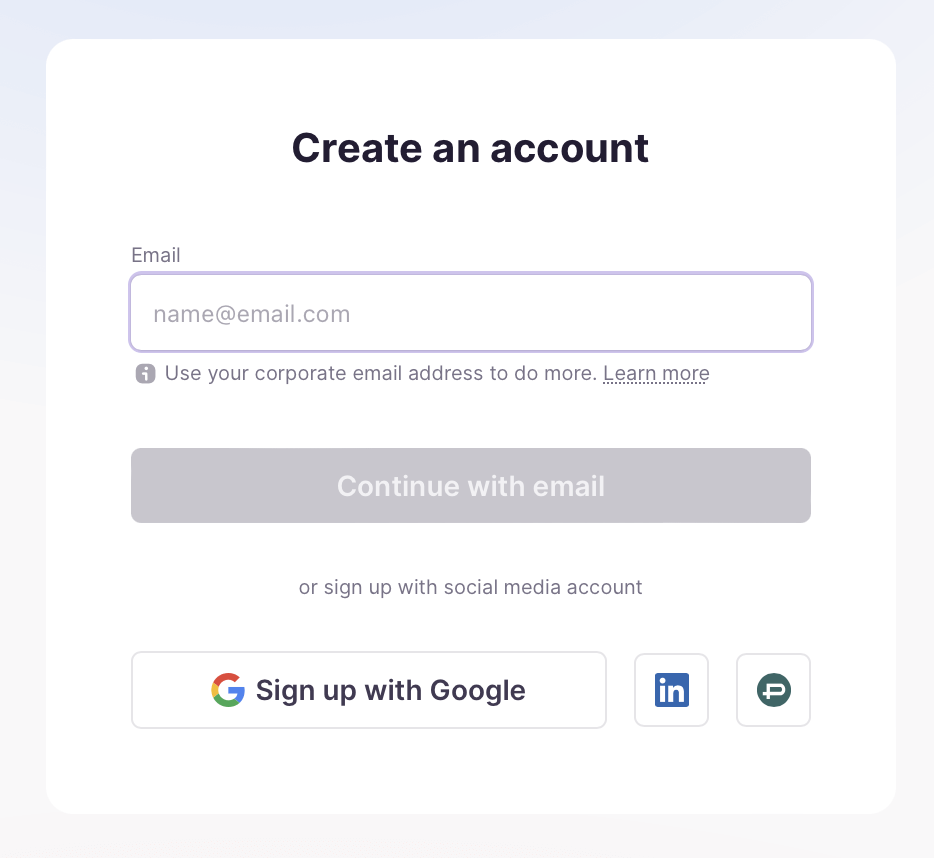
Sign up with your work email, or use your Google, LinkedIn, or ProZ account.
3. Specify the type of account for you
Choose from business / individual, translation agency (LSP), or freelance translator. Click Describe organization to proceed.
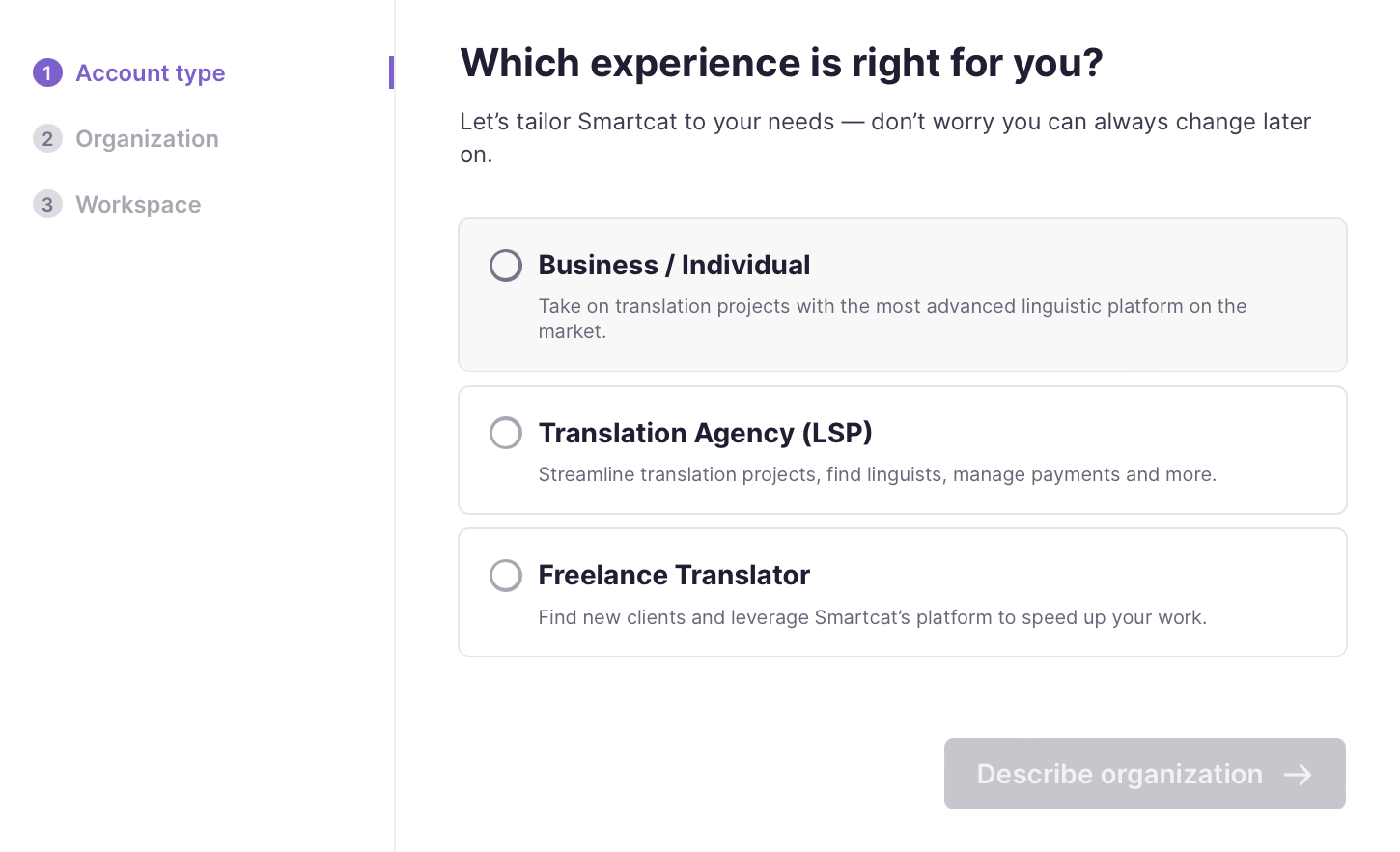
You now have an account and can complete setup for your account type.
Set up as an incorporated business or sole trader
Setting up as an enterprise, SME, or sole trader? Business / Individual is the option for you.
1. Choose "Business / Individual" as the account type
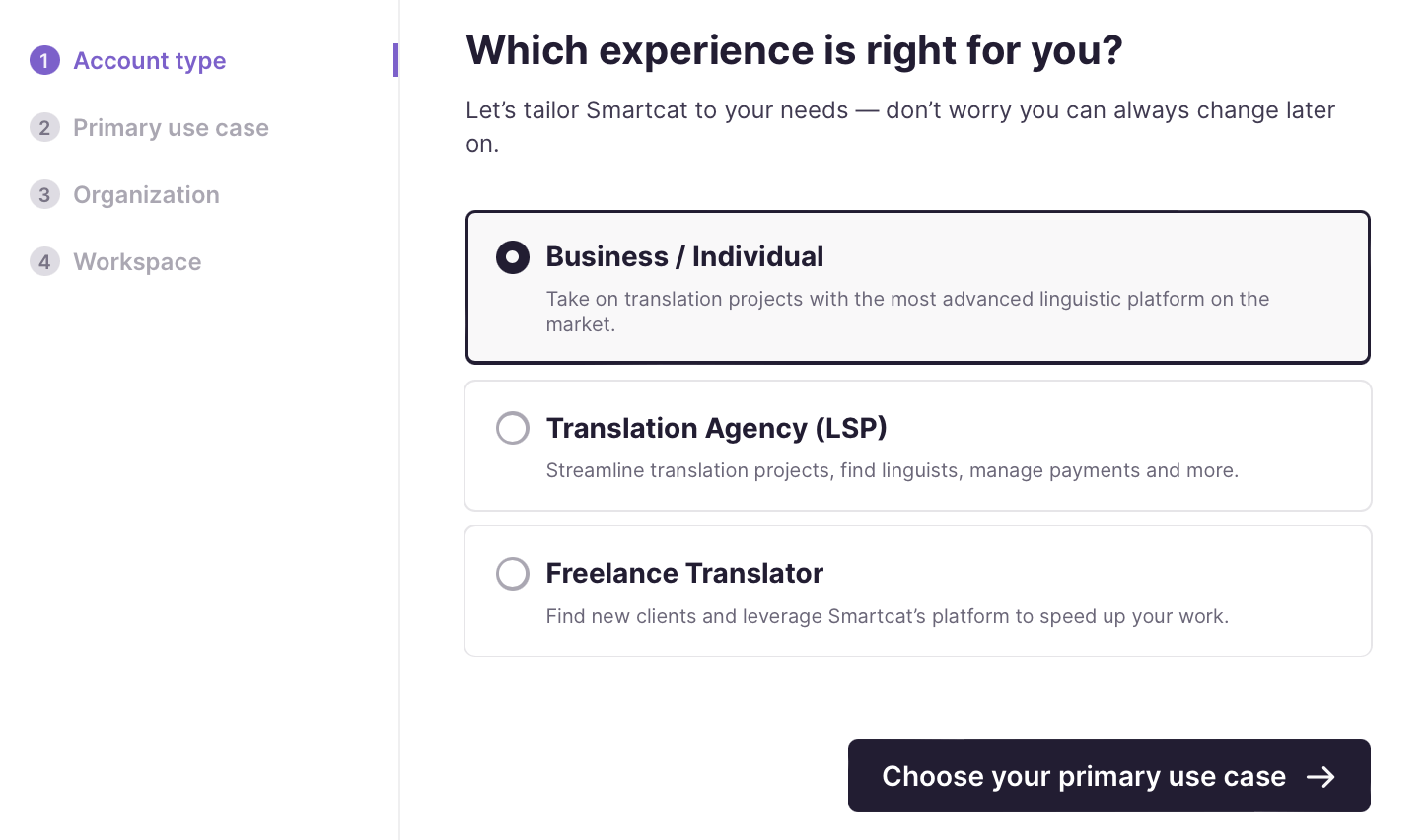
Select Business / Individual and click Choose your primary use case.
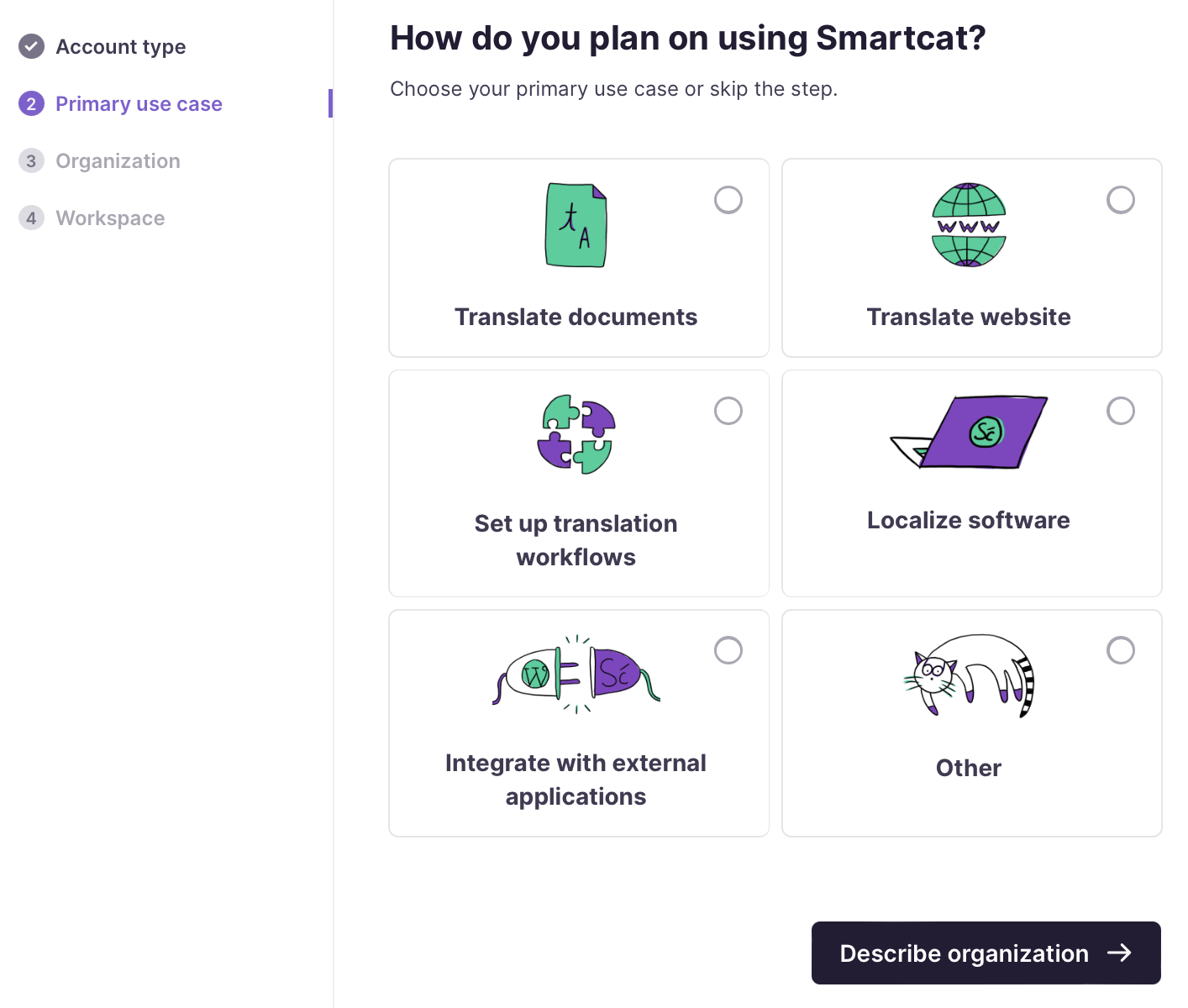
2. Choose your primary use case
Select the main reason you are signing up. You might have several reasons, of course.
📌 Smartcat asks for your primary use case to make your experience more streamlined and tailored to your needs. You can still use your account for all of the listed use cases, and many more.
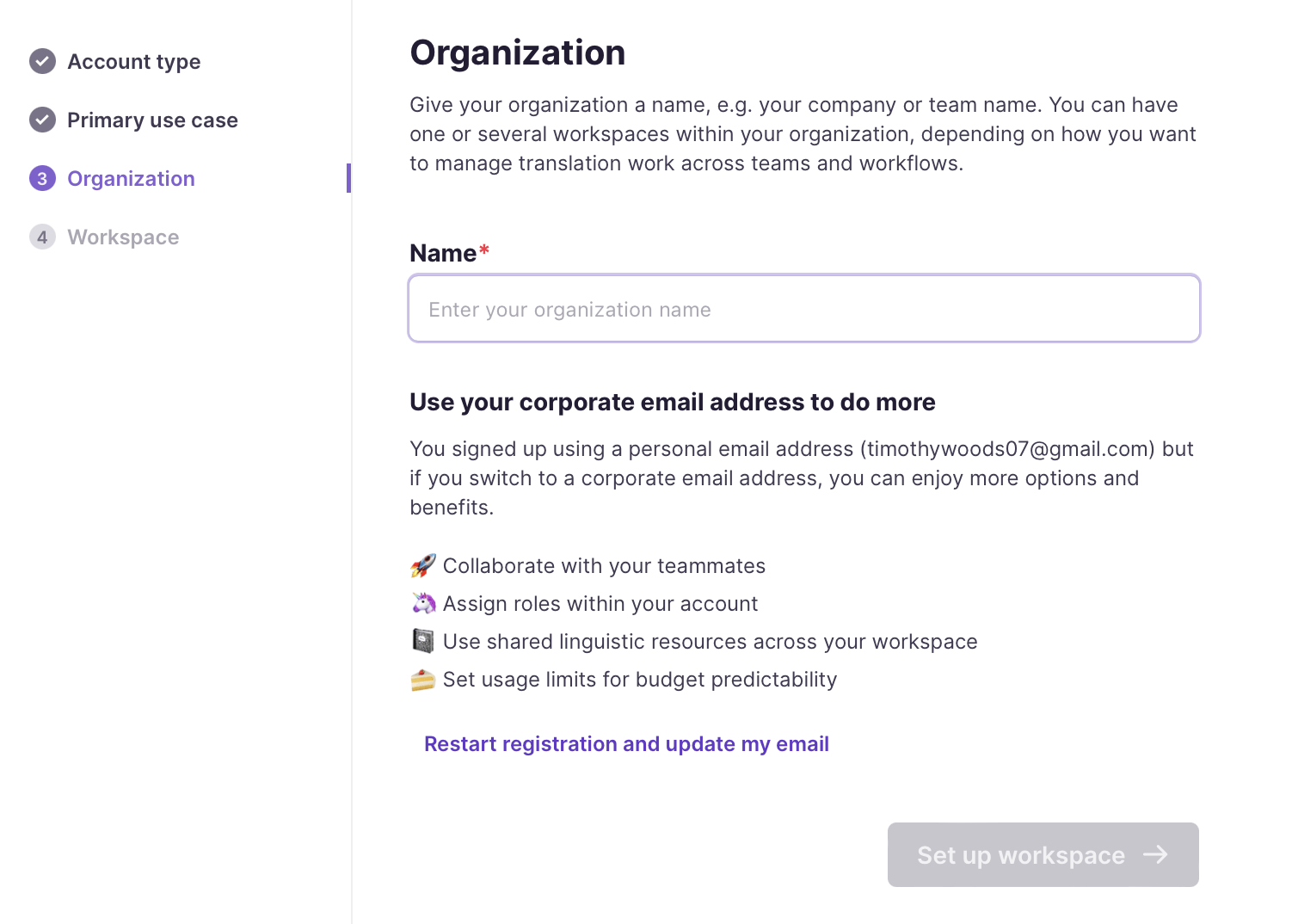
3. Name your organization
Enter the name of your organization for your Smartcat account and click Set up workspace.
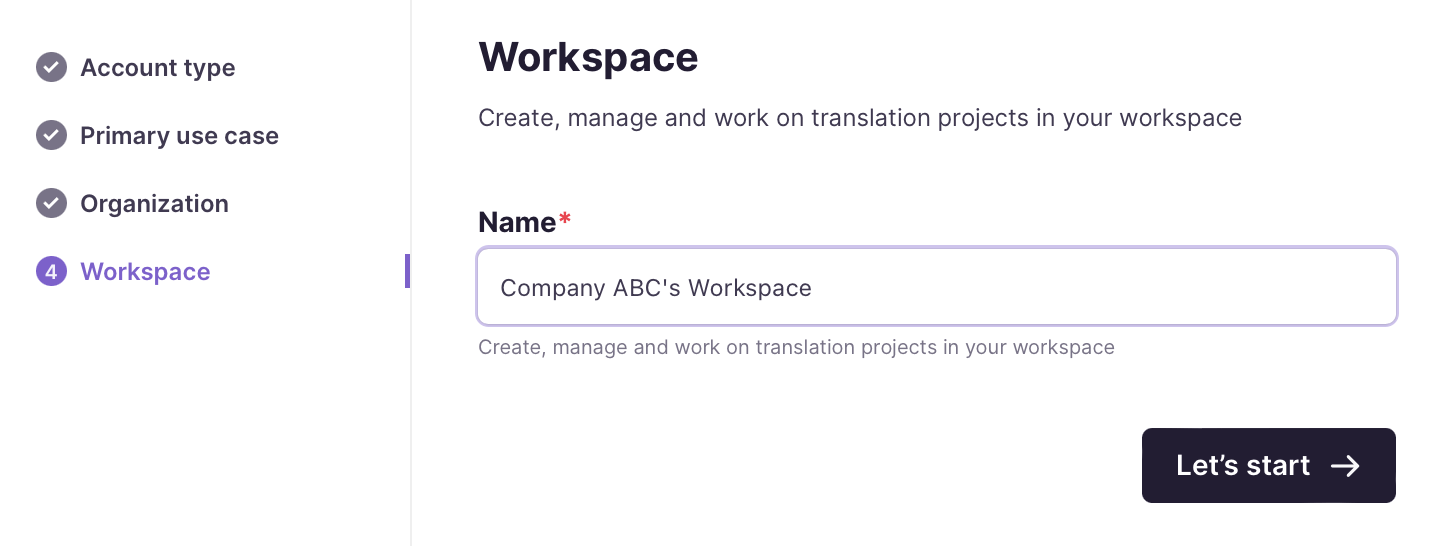
4. Name your workspace
Give your first workspace a name. You can create additional workspaces later if you need them.
💡 You can have an unlimited number of workspaces as part of your subscription.
Your business workspace is ready and you can start translating.
Set up as a language service provider (LSP)
Choose this option to set up on Smartcat as an LSP.
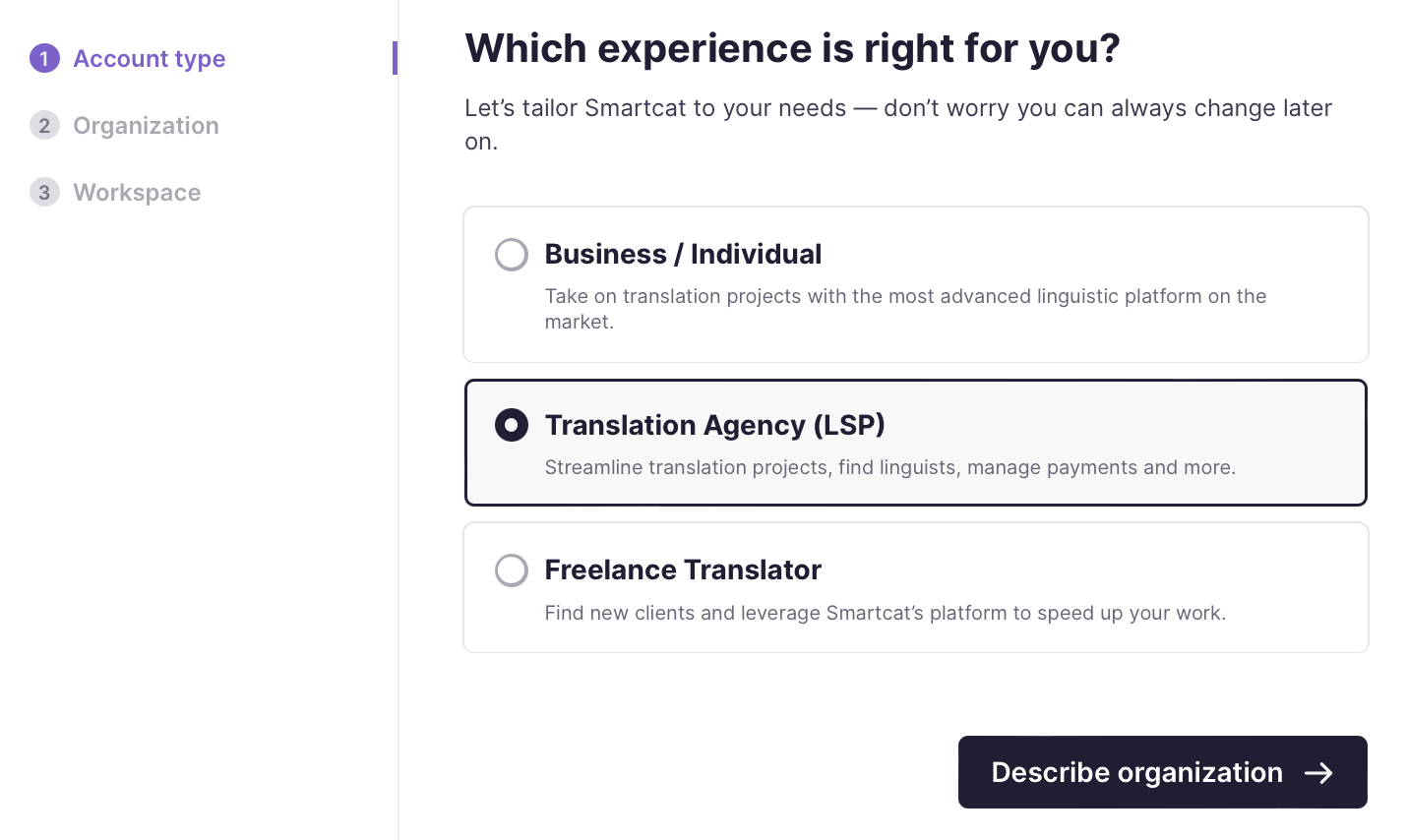
1. Select "Translation Agency (LSP)" as the account type
Select this option, then click Describe organization to proceed.
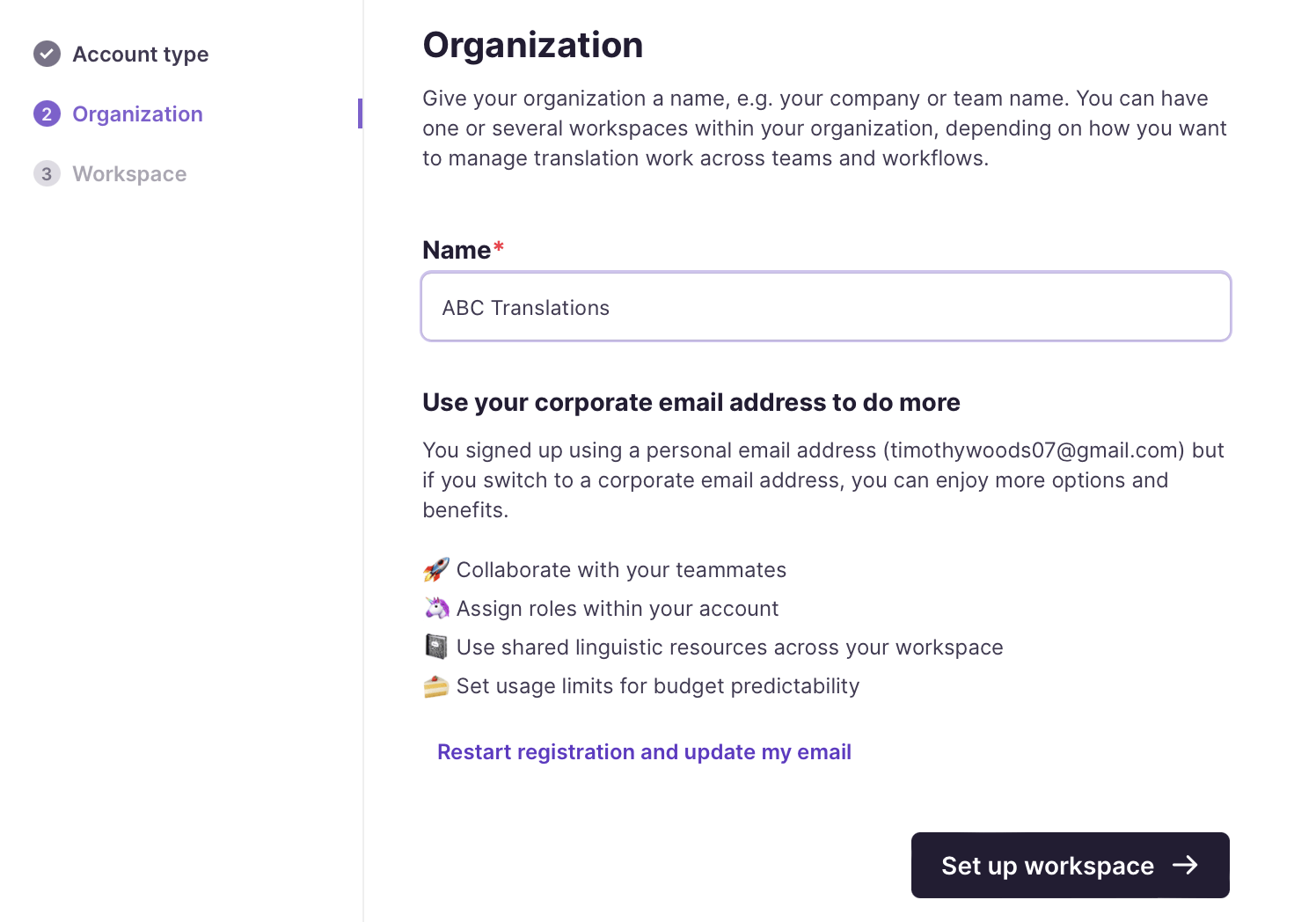
2. Name your organization
Enter the name of your organization for your Smartcat account and click Set up workspace.
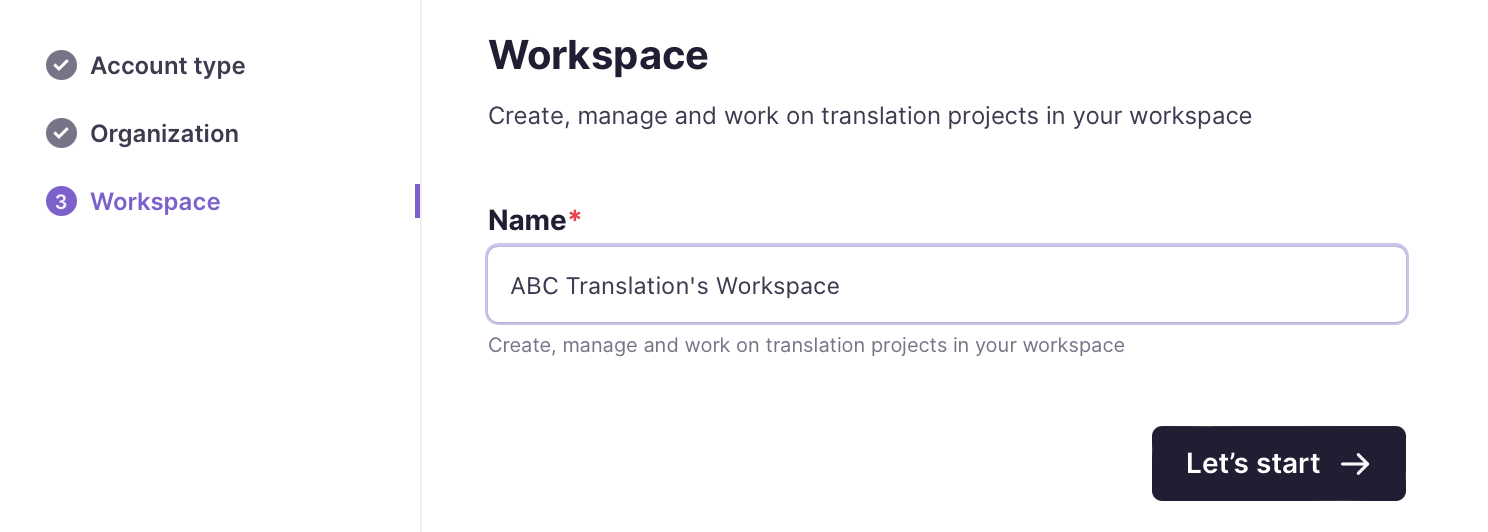
3. Name your workspace
Give your first workspace a name. You can create additional workspaces later if you need them.
💡 You can have an unlimited number of workspaces as part of your subscription.
Your LSP workspace is ready and you can start managing translation work.
Set up as a freelance translator or linguistic editor
Are you a freelance professional linguist? From finding freelance work to using the free Smartcat CAT editor and translating your own files, Smartcat has you covered.
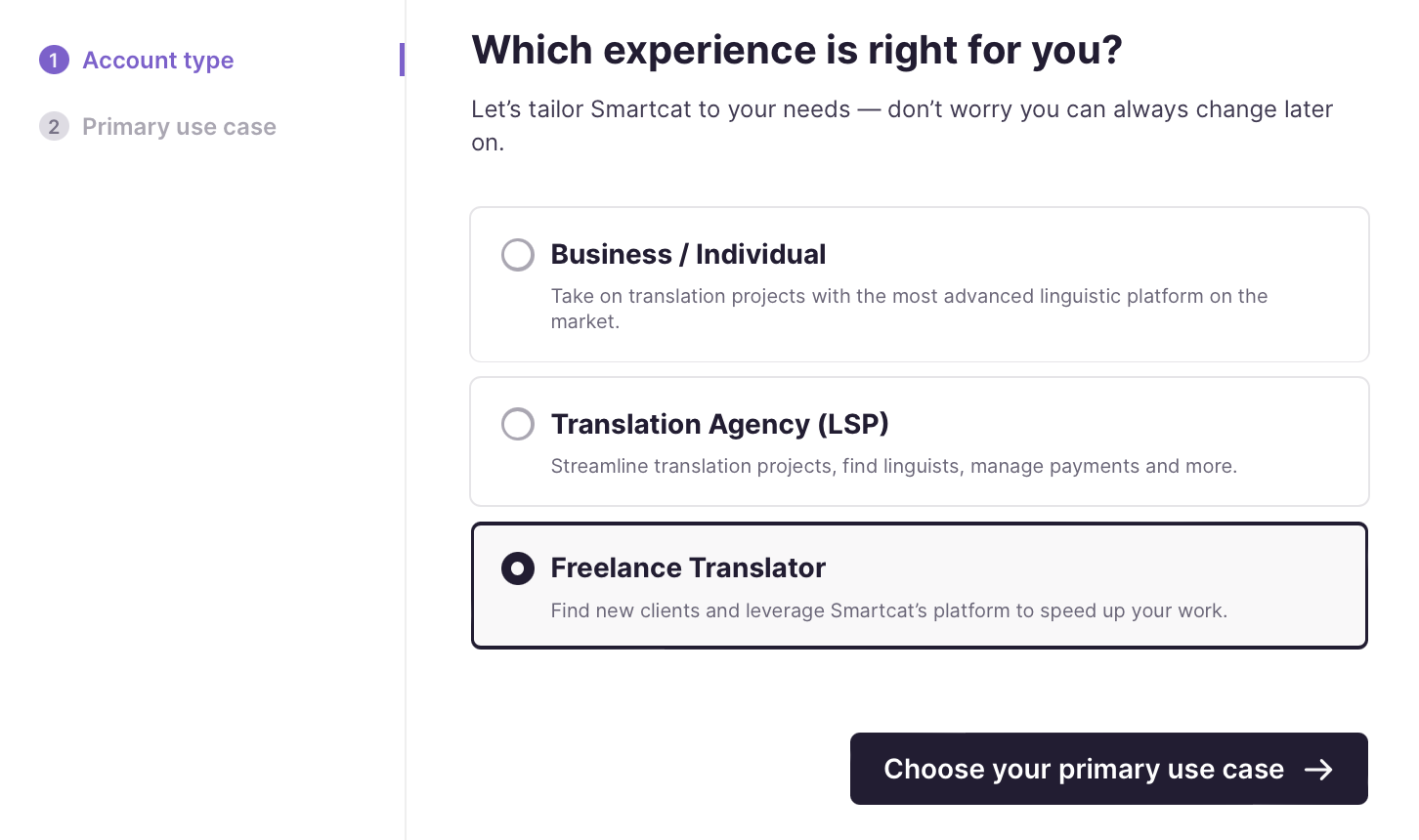
1. Choose "Freelance Translator" as the account type
Select Freelance Translator and click Choose your primary use case to proceed.
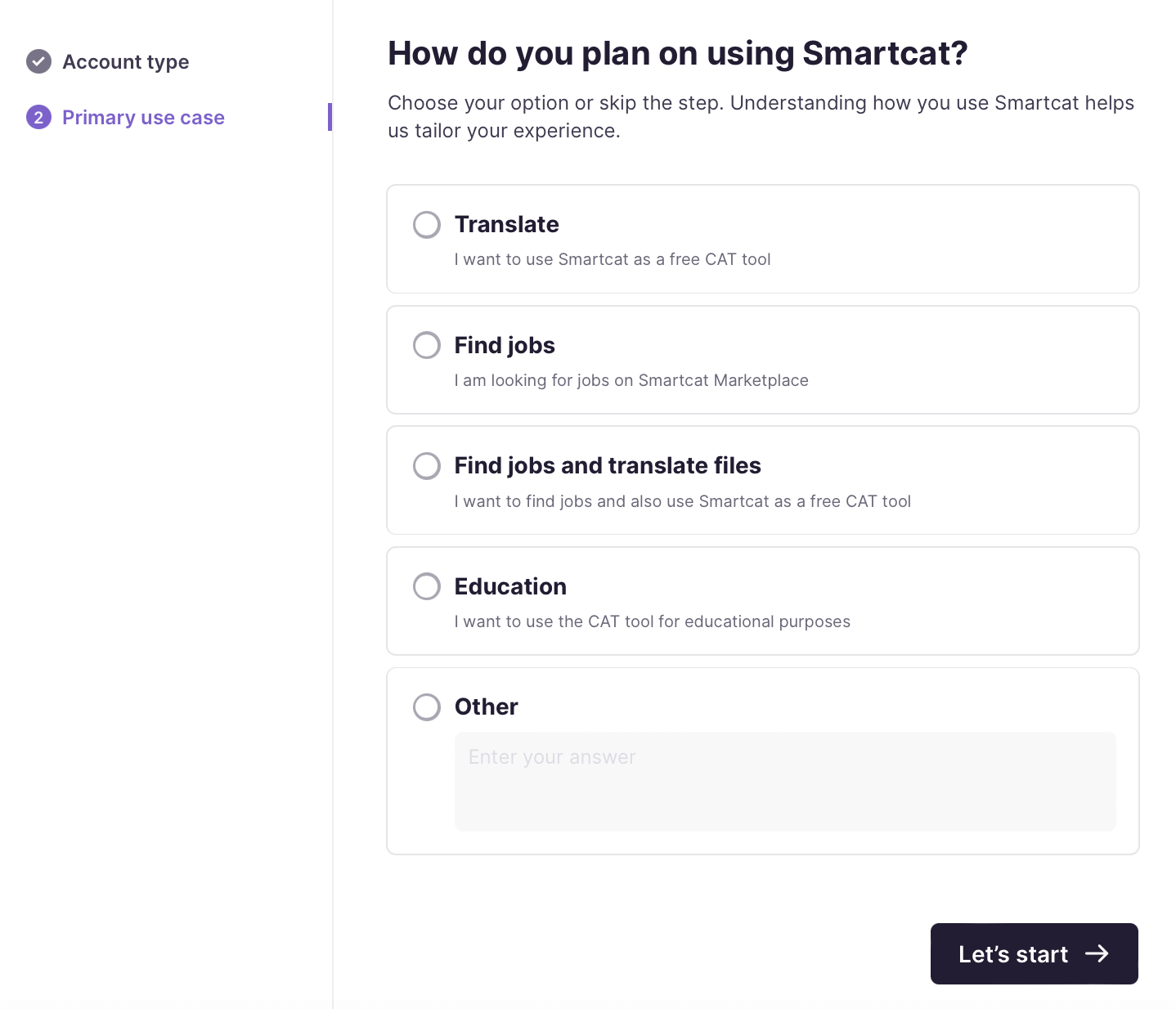
2. Choose your main reason for signing up
Choose one of the listed options. If you have several reasons to sign up, do not worry: you can do all of the listed use cases, and much more, once you sign up. This step only tailors your experience to your most important reason for signing up.
Once you select your option, click Let's start and you are good to go.
Your freelance account is ready and you can start translating.
Still need help?
Our support team responds within one business day.