Connect Contentful with Smartcat
Overview
Contentful lets you create, update, and distribute content for your website, mobile app, or any other content-displaying medium. With the integration between Contentful and Smartcat, you can send content from Contentful to Smartcat, translate it, and request the translation back once it is complete.
The integration supports all Contentful fields enabled for localization — that is, all fields with Enable localization checked in Settings.
Setup
-
Install the app via this link: https://www.contentful.com/marketplace/app/smartcat/
-
Select the Contentful Space and Environment to connect Smartcat to
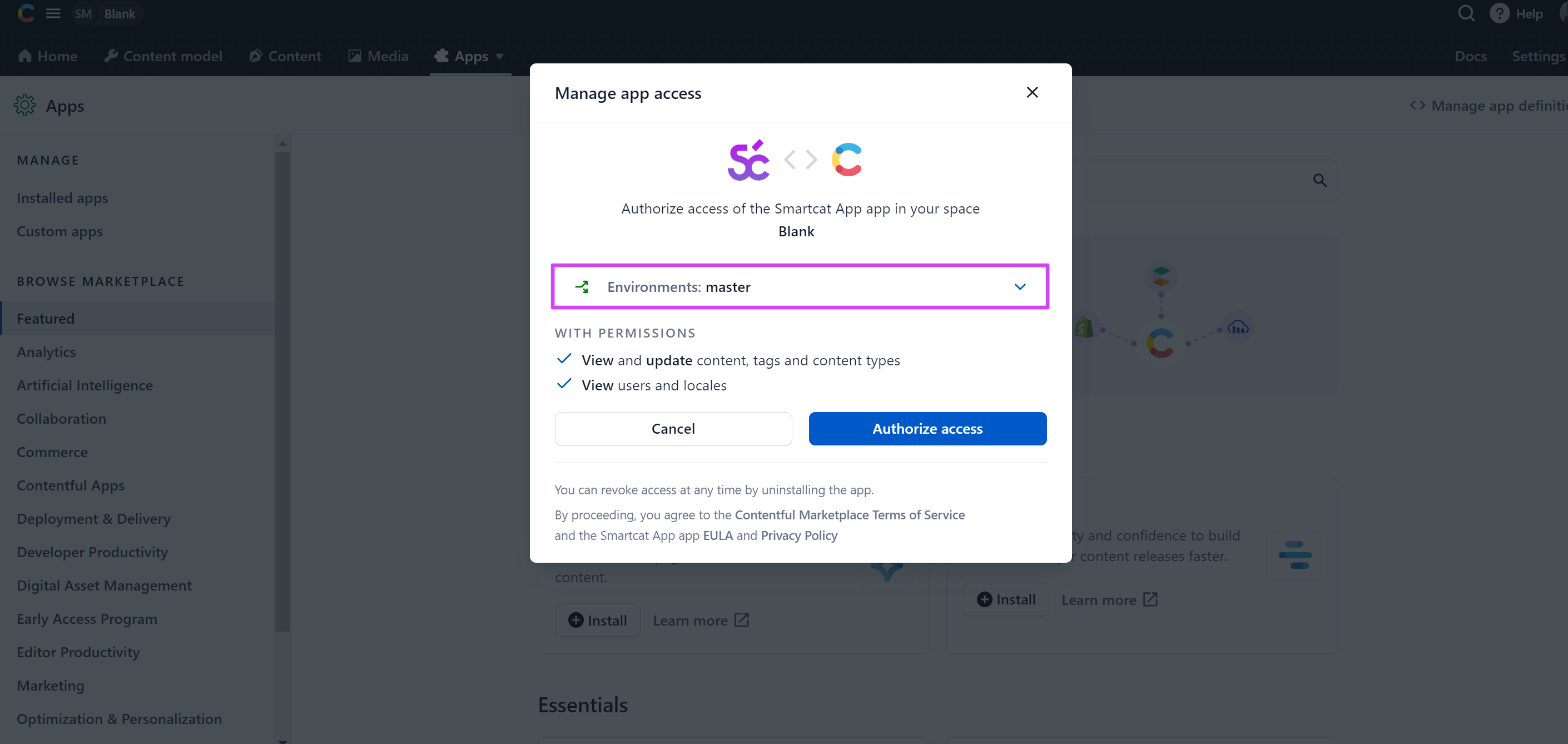
-
Click Install, then Authorize access on the screens that follow
-
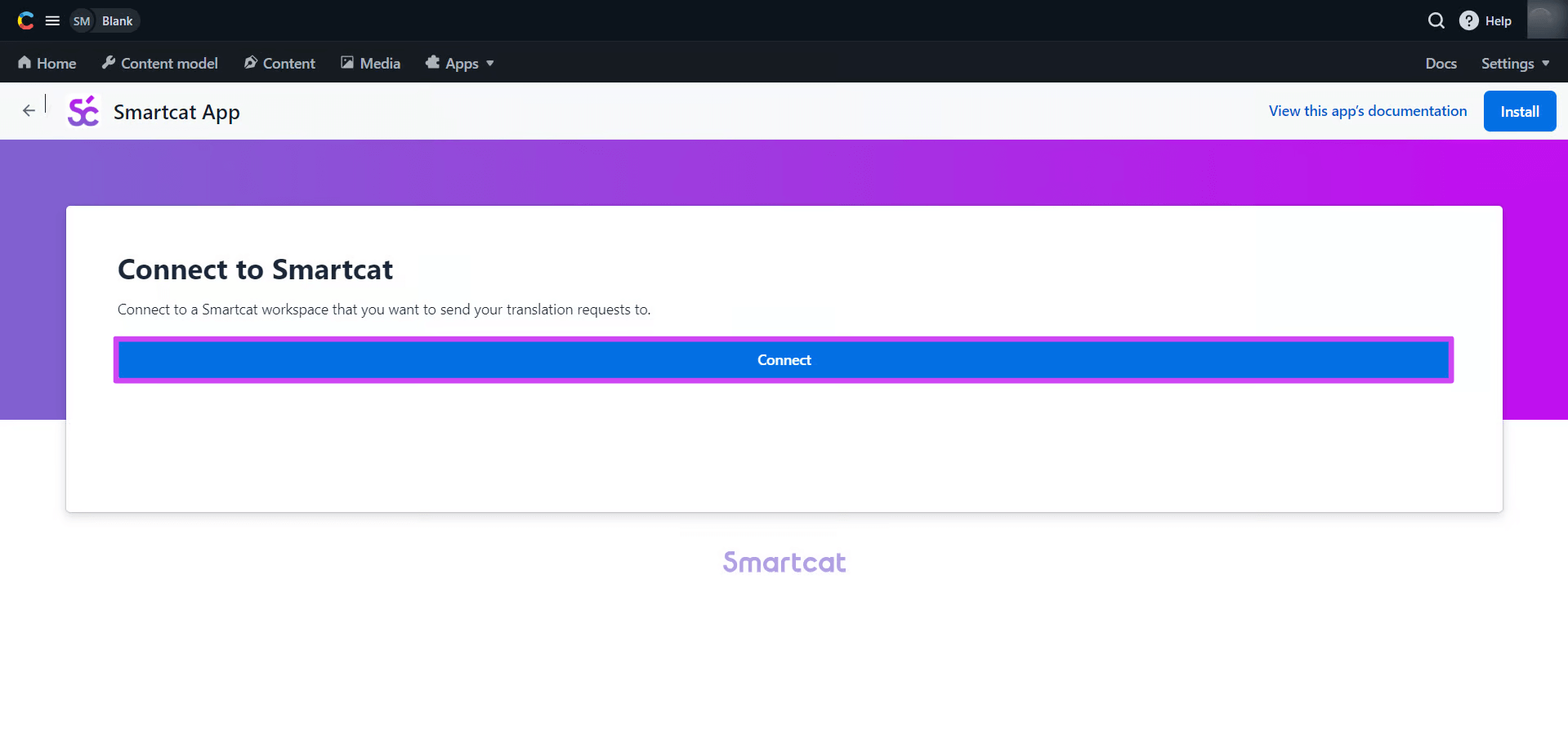
On the final screen, click Install and Connect to your Smartcat account
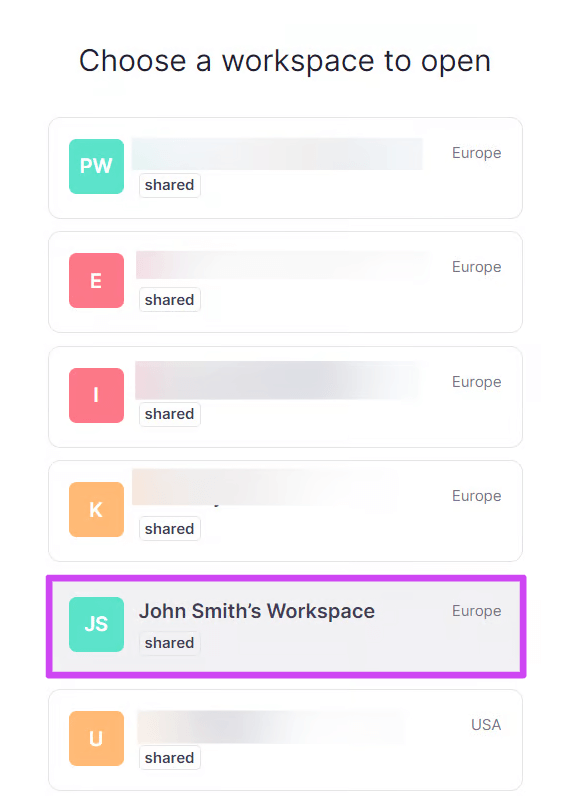
- Select your Smartcat Workspace
- Configure the Smartcat App as a sidebar widget for the content types you want to translate through Smartcat
📌 Before you configure content types, familiarize yourself with the possible approaches to content localization in Contentful and how to prepare your content models for localization.
The integration is now installed and connected to your Smartcat Workspace.
Creating content
- Go to the Content tab, click Add Entry, and add a new entry. Alternatively, open an existing content piece and skip this step. This example uses an entry of the Product Description (Multilingual) type
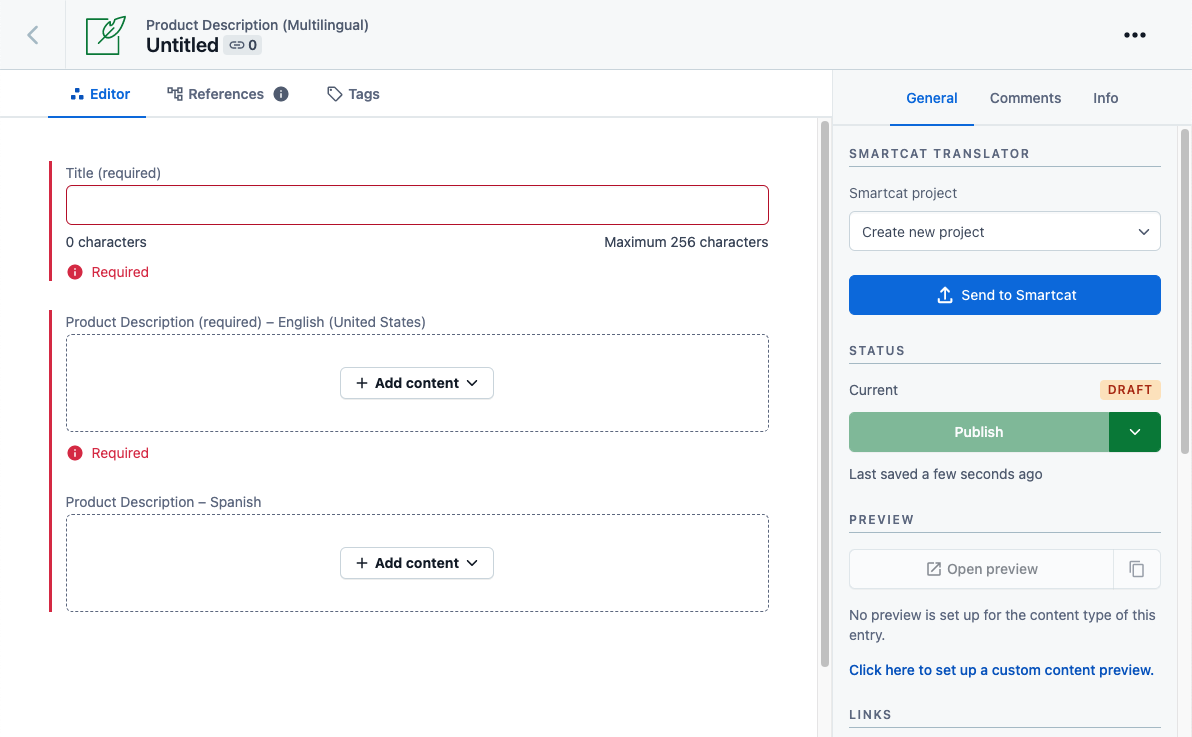
- Wait until the Smartcat Translator loads in the sidebar. You receive a notification that your content model was updated
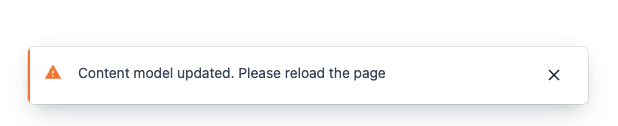
- Reload the page to see the Languages field
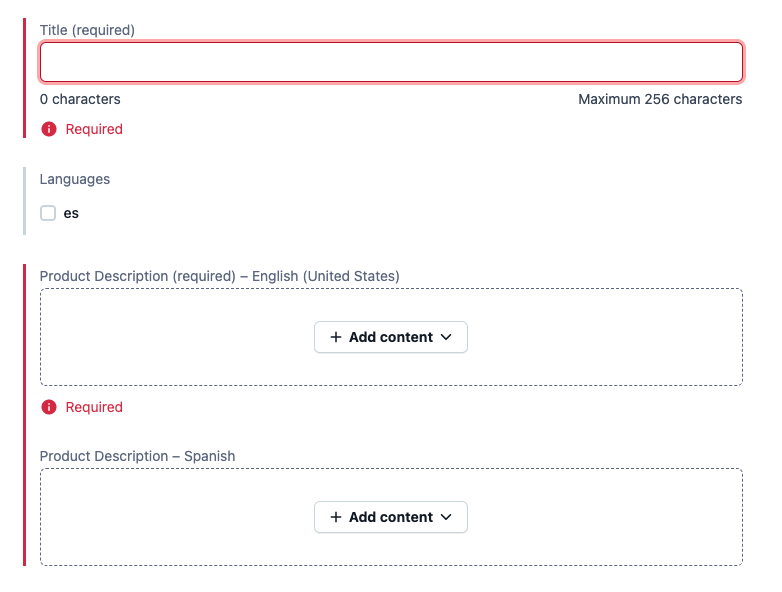
Smartcat detected a missing Languages field and added it to the content model, populating it with the list of languages in your Contentful Space. You use this field to determine which languages this content needs to be translated into through Smartcat.
📌 The Translation section provided by Contentful and shown in the sidebar does not control the list of languages in the object — it only lets you show or hide some languages in the content editor.
- Create the content. Add the title for the multilingual content entry and the content for the product description itself
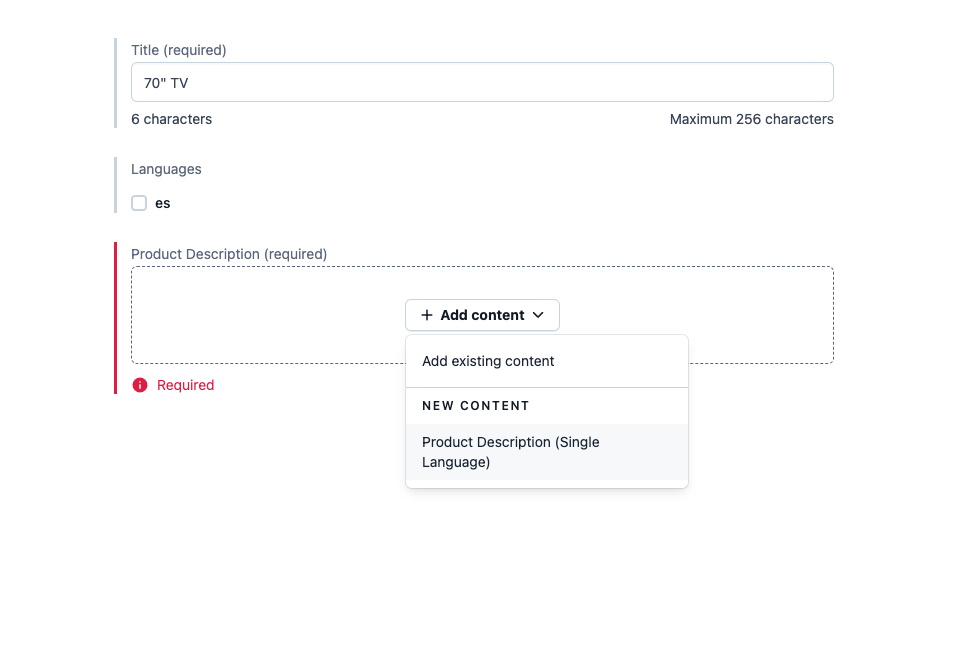
- Go back to the main content object. The English version references the newly created content of the Product Description (Single Language) type
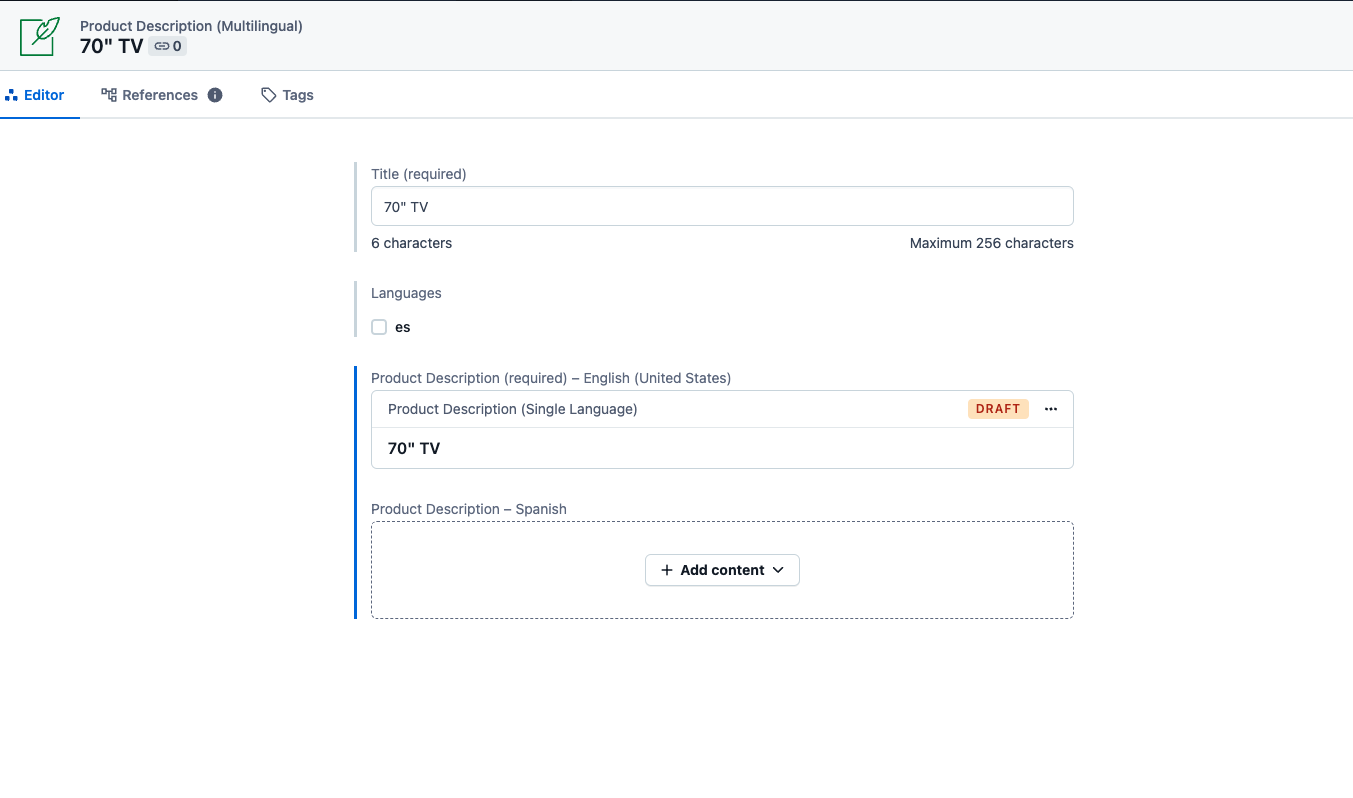
Your content is now ready to send to Smartcat for translation.
Translation process
-
Enable one or more languages for translation. Make sure your changes were saved — check the Last saved… status under the Publish button in the sidebar
-
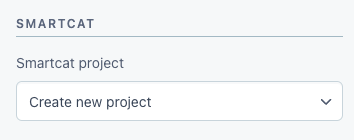
Pick an existing project or choose to create a new one automatically
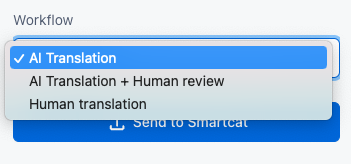
- Choose a translation workflow. You can translate the content fully automatically (AI translation), automatically with human editing on top (AI translation + Human review), or manually (Human translation)
-
Click Send to Smartcat in the sidebar
-
After synchronization is complete, the Smartcat App shows links to the project and specific language files
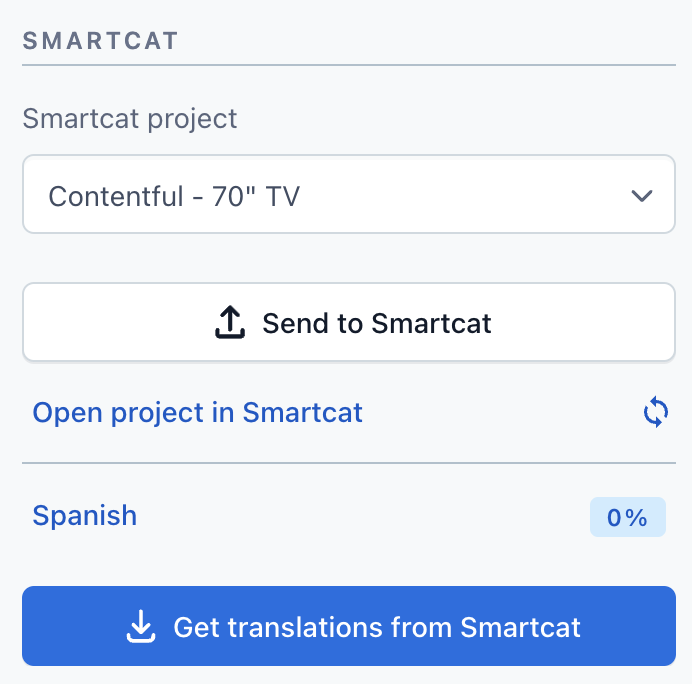
- Follow the links in the sidebar to open the project in Smartcat, or open individual files directly in the CAT editor for the selected language
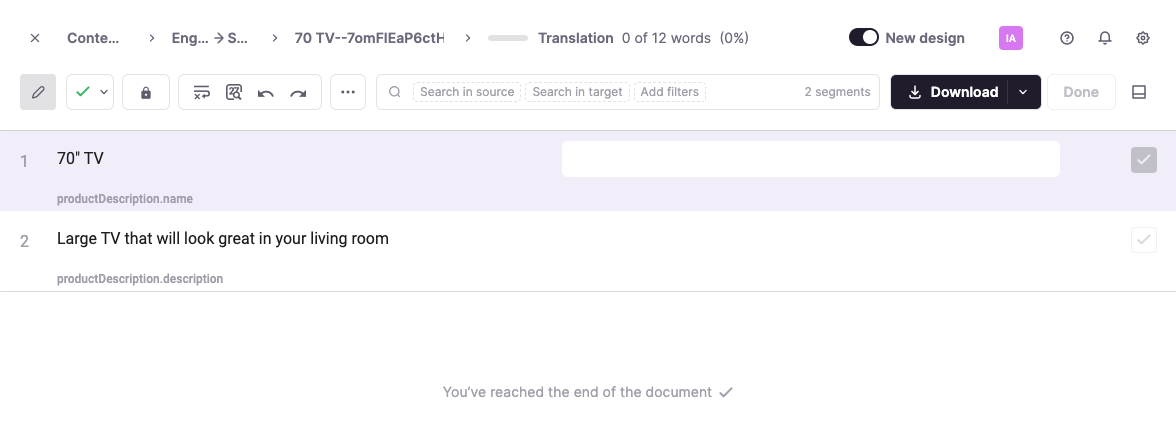
- When editing is done, go back to Contentful and request the translations by clicking Get translations from Smartcat. Translation progress information updates automatically
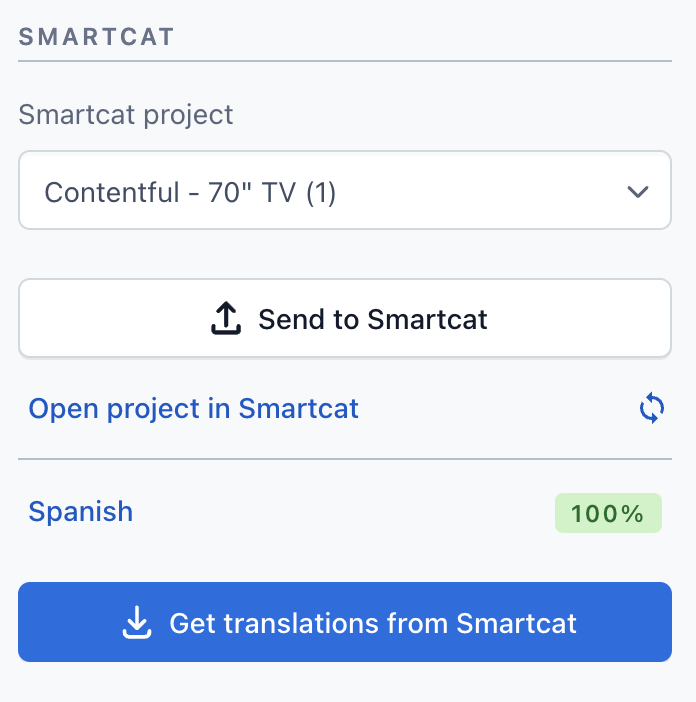
Smartcat notifies you when translations have been received.
- You now have the translated versions of your object. Smartcat has created a new content entry of the Product Description (Single Language) type and referenced it from the main object
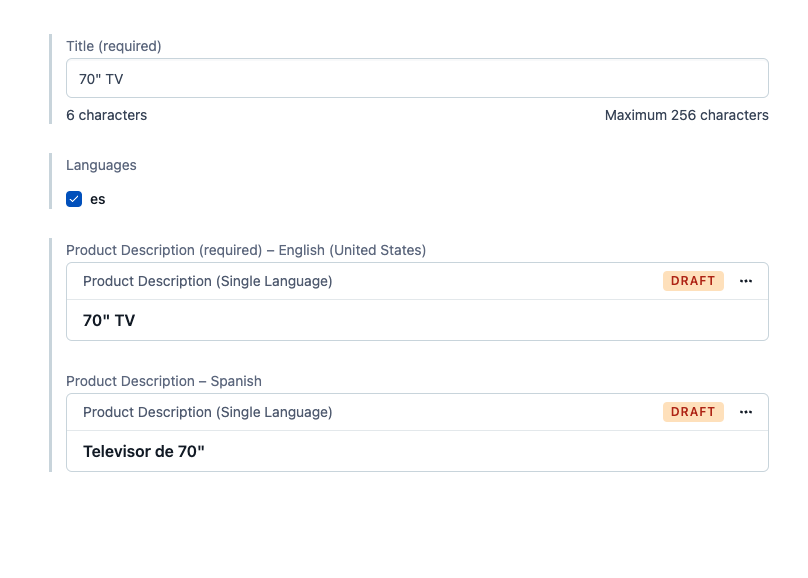
Click this object to see its properties. Every field marked as localizable now has translations.
Still need help?
Our support team responds within one business day.