Translation Memory: Advanced Configuration
Overview
Translation Memory (TM) matching in Smartcat compares new source segments against your existing TM entries to find reusable translations. Match percentages indicate how closely a new segment matches stored entries, ranging from fuzzy matches (50-99%) to exact matches (100%) to context-verified matches (101-103%).
When to use it
Use TM matching when you want to:
-
Leverage previous translations — Reuse work from past projects to save time and cost
-
Maintain consistency — Ensure the same source text gets the same translation across documents
-
Speed up translation — Automatically insert high-confidence matches without manual work
-
Reduce costs — TM matches reduce the necessity of human review since it uses already confirmed translations. If you are on one of the current pricing plans (Adapt, Accelerate, Anticipate, or Autonomous), TM matches of 100% or higher do not consume Smartwords; fuzzy matches of 50-99% still consume Smartwords at the standard rate of 1 Smartword per source word. On Smartcat’s legacy pricing plans, TM matches still consume 1 Smartword for each source word.
How it works
Match percentage calculation
When you open a document, Smartcat compares each source segment against your enabled TMs:
| Match Type | What it means | Confidence level |
|---|---|---|
| 50-74% | A fuzzy match with similar but not identical text. Differences may include word changes, additions, or deletions. | Low — requires review |
| 75-84% | A fuzzy match that is more similar than a low confidence match, but still not identical text. Differences may include word changes, additions, or deletions. | Medium — likely correct |
| 85-94% | A high confidence fuzzy match | High — likely correct |
| 95-99% | A nearly exact text match with small differences. | High — likely correct |
| 100% | Exact text match. The source is identical, but context wasn't verified. | High — likely correct |
| 101% | Exact match + one adjacent segment matches context stored in TM. | Very High — context verified |
| 102% | Exact match + both adjacent segments match context stored in TM. | Very high — full context match |
| 103% | Exact match + segment key/ID matches (software files only). | Highest — key verified |
💡 Tip: Review 100% matches carefully during translation — they may need adjustment for the specific context, while 101%+ matches provide additional confidence through context verification.
How context matching works
When Smartcat stores a segment in the TM, it also stores the content of the previous and following source segments as context metadata (x-context-pre and x-context-post).
Example of what's stored in the TM:
-
Previous segment: "I live in a small village."
-
Source segment: "I have a small house." → Target: "J'ai une petite maison."
-
Following segment: "It is blue."
When the same segment appears in a new document:
-
If neither adjacent segment matches → 100% match
-
If one adjacent segment matches → 101% match
-
If both adjacent segments match → 102% match
Context matches provide higher confidence that the translation is correct for the specific location in the document.
💡 Tip: For maximum consistency, use TMs with context matches (101%+) as they provide the highest confidence that the translation is appropriate for the specific document location.
How key ID matching works (103%)
For many files (JSON, XLIFF, RESX, etc.), segments often have unique identifiers or keys. Smartcat can use these keys as an additional context signal.
When a document uses ContextId matching (determined by file format):
-
A 103% match means the source text is identical AND the segment's key/ID matches the TM entry
-
This is the highest confidence match available
⚠️ Key ID matching (103%) is only available for file formats that contain segment identifiers. Standard document formats use previous/next context matching (max 102%).
TM matching priority over AI translation
Smartcat processes segments in this order:
-
TM lookup first — Each segment is checked against your TMs for matches
-
AI translation second — Segments without TM matches (or below your threshold) go through AI translation
By default, TM matches at 100% and above are confirmed automatically and do not require human review. This means:
-
Exact TM matches are trusted and applied without additional processing
-
AI translation only runs on segments that don't have sufficient TM coverage
-
If you are on one of the current pricing plans (Adapt, Accelerate, Anticipate, or Autonomous), TM matches of 100% or higher do not consume Smartwords. On Smartcat’s legacy pricing plans, TM matches still consume 1 Smartword for each source word.
You can configure this behavior in translation rules to require different thresholds for auto-confirmation.
Setting up translation rules with TM priority
When a project could match against more than one TM (e.g. a client-specific TM and a broader company-wide TM), translation rules determine which is checked first:
-
Define an explicit priority order rather than relying on default behavior.
-
Decide how conflicting matches from different TMs are resolved (e.g. highest match % wins vs. explicit TM order wins).
Dialect Handling
TM matching is fundamentally language-pair matching, with dialect as an optional refinement layer:
-
Treat all dialects of a language as one for matching purposes, or
-
Isolate dialects so a TM only matches within the exact dialect it was created in.
Choose based on how much your dialects actually diverge in practice — isolating unnecessarily can reduce match rates without a real quality benefit.
Organizing translation memories
Beyond matching behavior, how you structure your TMs affects long-term maintainability and translator productivity.
Splitting by client, brand, or business unit
You can organize TMs with a high-level structure (one TM per customer) or a more granular one (one TM per project, client sub-brand, or business unit):
-
For clients with a complex corporate structure, match that structure with your TM resources
-
For smaller clients, a single TM takes less time to configure and is easier to maintain
📌 Creating a new TM with each project can help with data segregation, but it can also create a lot of TM duplication that reduces translator productivity.
How Smartcat surfaces the right TM automatically
Whenever you create a project and choose a client or project group, Smartcat automatically fetches the TMs (and glossaries) associated with them — this eliminates most project-setup errors caused by attaching the wrong resource and saves setup time.
Creating a TM
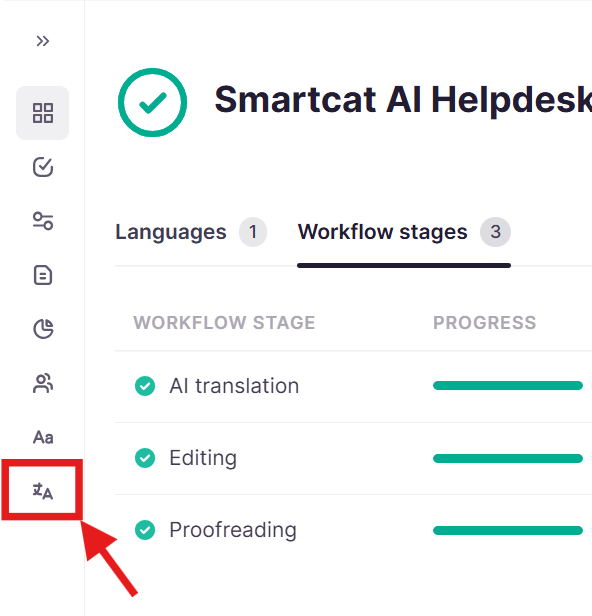
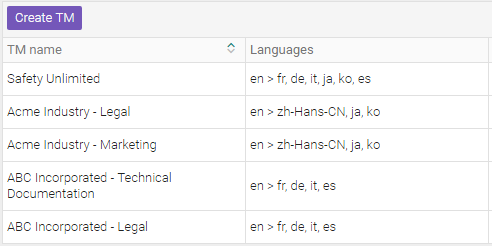
- In the sidebar, go to Intelligence Fabric → Reviewed translations
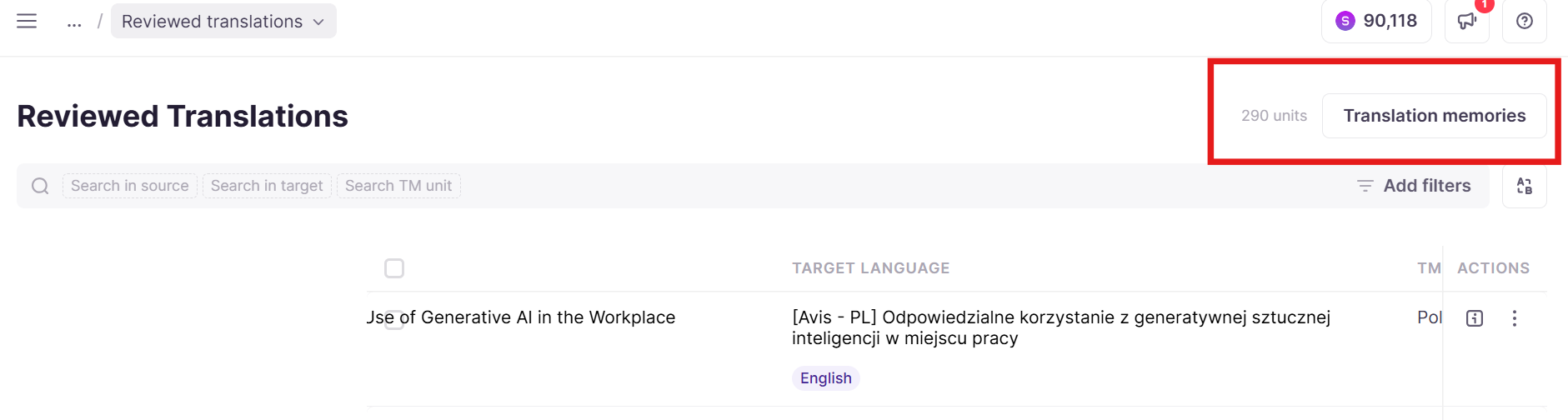
- Click Translation memories at the top right
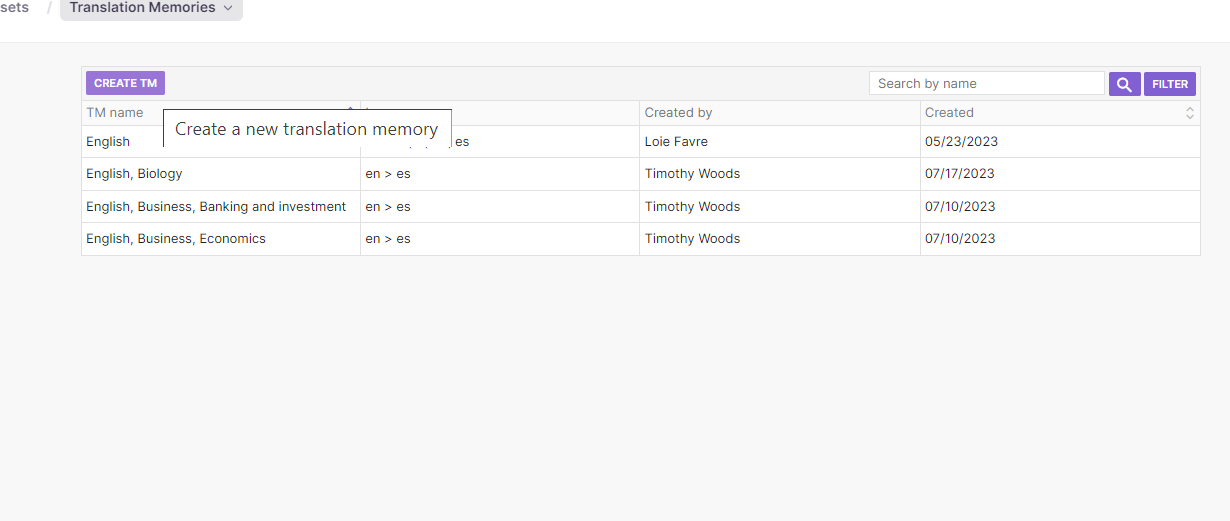
- Click Create TM
- Fill in the fields
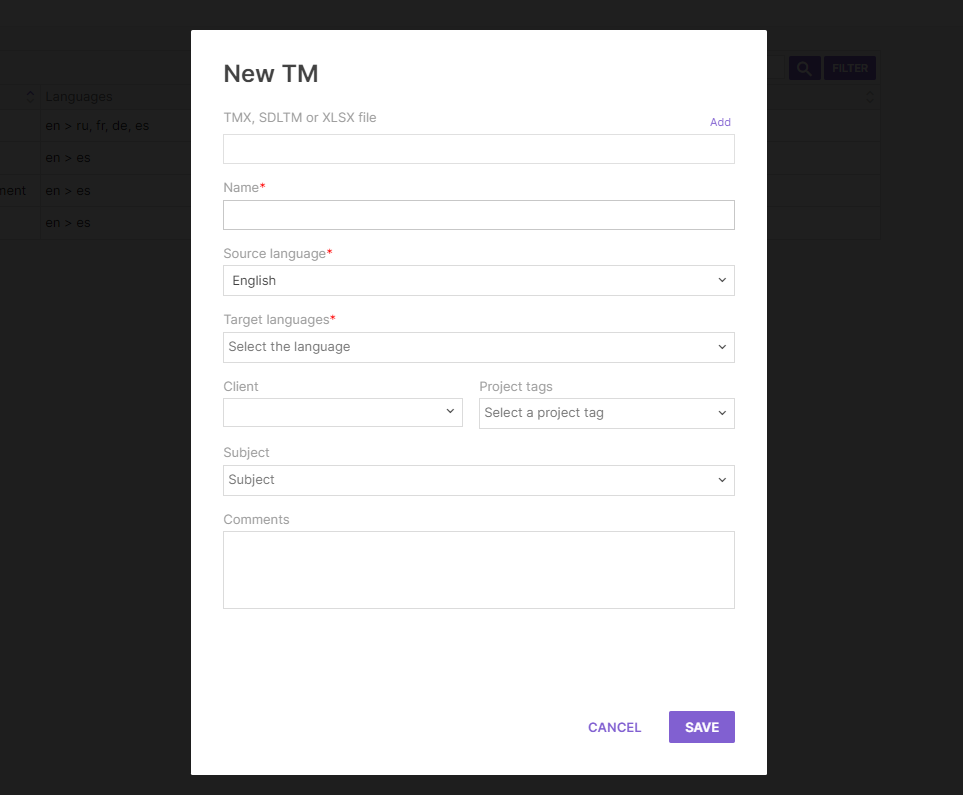
- Upload external TMs in TMX, XLSX, or bilingual-document format, or add new terms one by one as you go
📌 One less-obvious advantage of multilingual TMs: you can create a new TM where the source language is one of the target languages of the original TM — convenient if you work in mixed language pairs.
📌 Quality tag on imported entries: Segments uploaded via TMX, XLSX, or bilingual-document import are tagged as "Reviewed" by default, regardless of how the translation was actually produced (including fully human-translated historic content) — imported segments are not assigned AI translation or Lightly Reviewed unless the import file itself carries quality metadata that Smartcat maps to a lower tier.
This matters if you use Minimum TM segment quality in your translation rules (see Linguistic Asset Rules Reference): a rule requiring Professionally Edited (the top tier) excludes imported entries, since they never carry that tag automatically. A rule set to Reviewed or below accepts imported entries without any adjustment.
Controlling which TM receives new translations (writable TM)
A writable TM is the TM that receives new translation units as your team works. Every segment confirmed in the CAT editor is saved to the writable TM for that language pair. Only one TM can be writable per language pair, per project.
Setting a TM to write mode manually
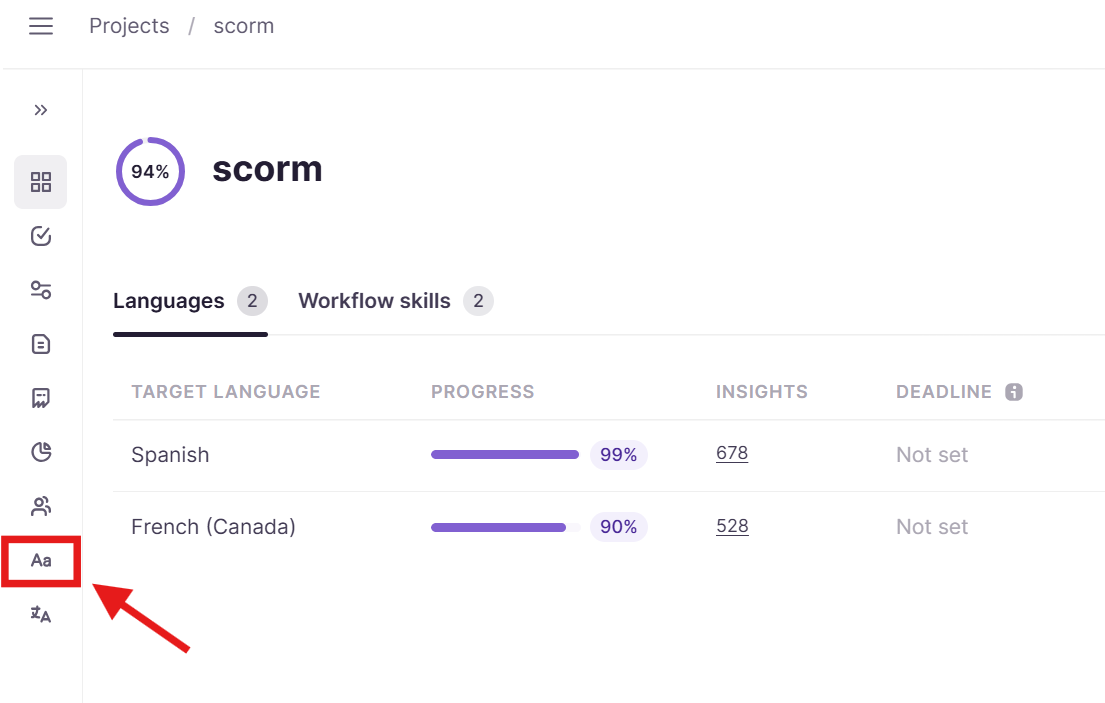
- Open your project and go to the Linguistic assets tab
-
Locate the TM you want to set as writable in the Translation memories section
-
Click Write next to the TM
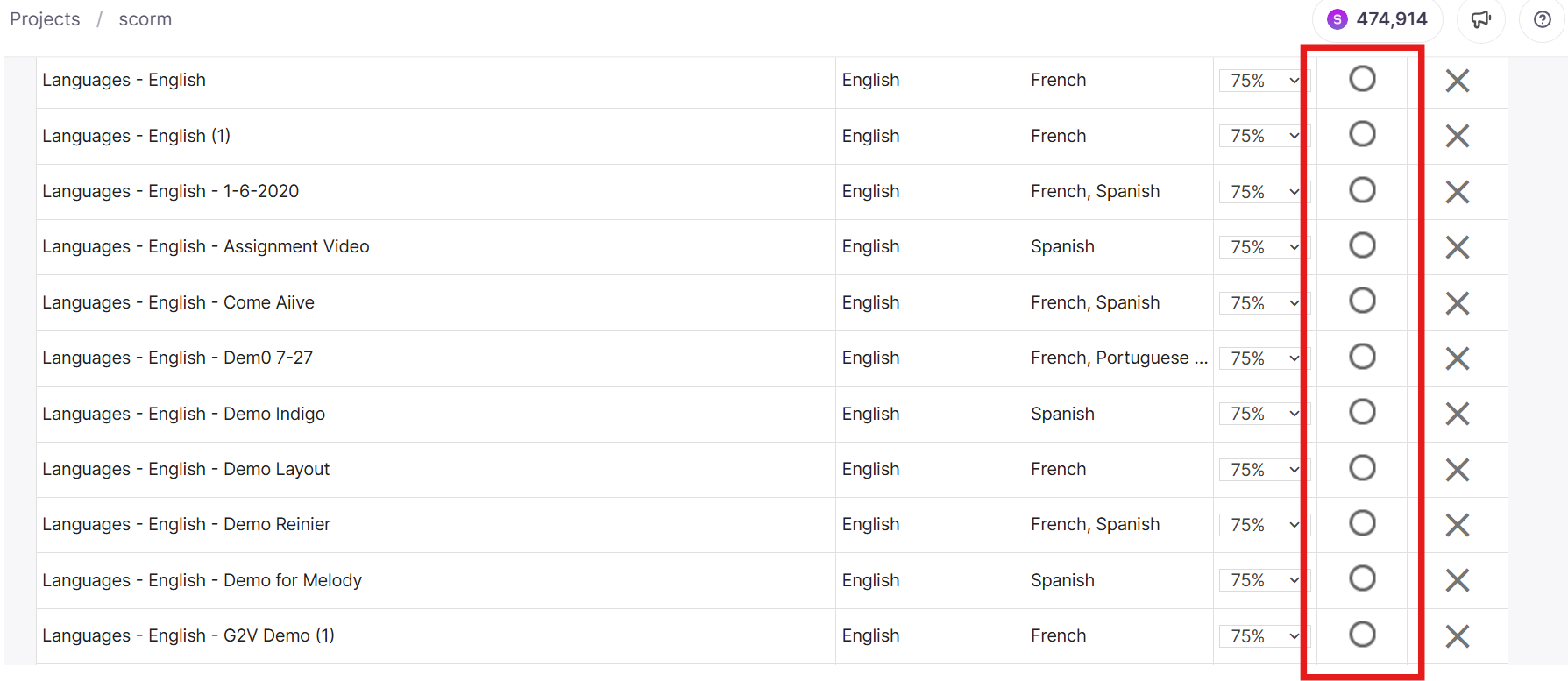
Setting a new TM to write mode automatically sets any previously writable TM (for that same language pair) to read-only. Segments confirmed before the change are not retroactively moved.
Writable TM selection in AI Translation Profiles
When you apply an AI Translation Profile to a project, Smartcat determines the writable TM per language pair in this order:
-
Filter by language compatibility — only TMs matching the project's language pairs are considered
-
First writable TM in the profile wins — if multiple TMs in the profile are marked writable for the same language pair, only the first one listed is used
-
Fallback to project defaults — if no TM in the profile is marked writable, Smartcat selects or creates one automatically, same as a project with no profile
💡 Designate exactly one writable TM per language pair in your profile, and check the TM order before applying it — order determines precedence.
Configuring translation rules
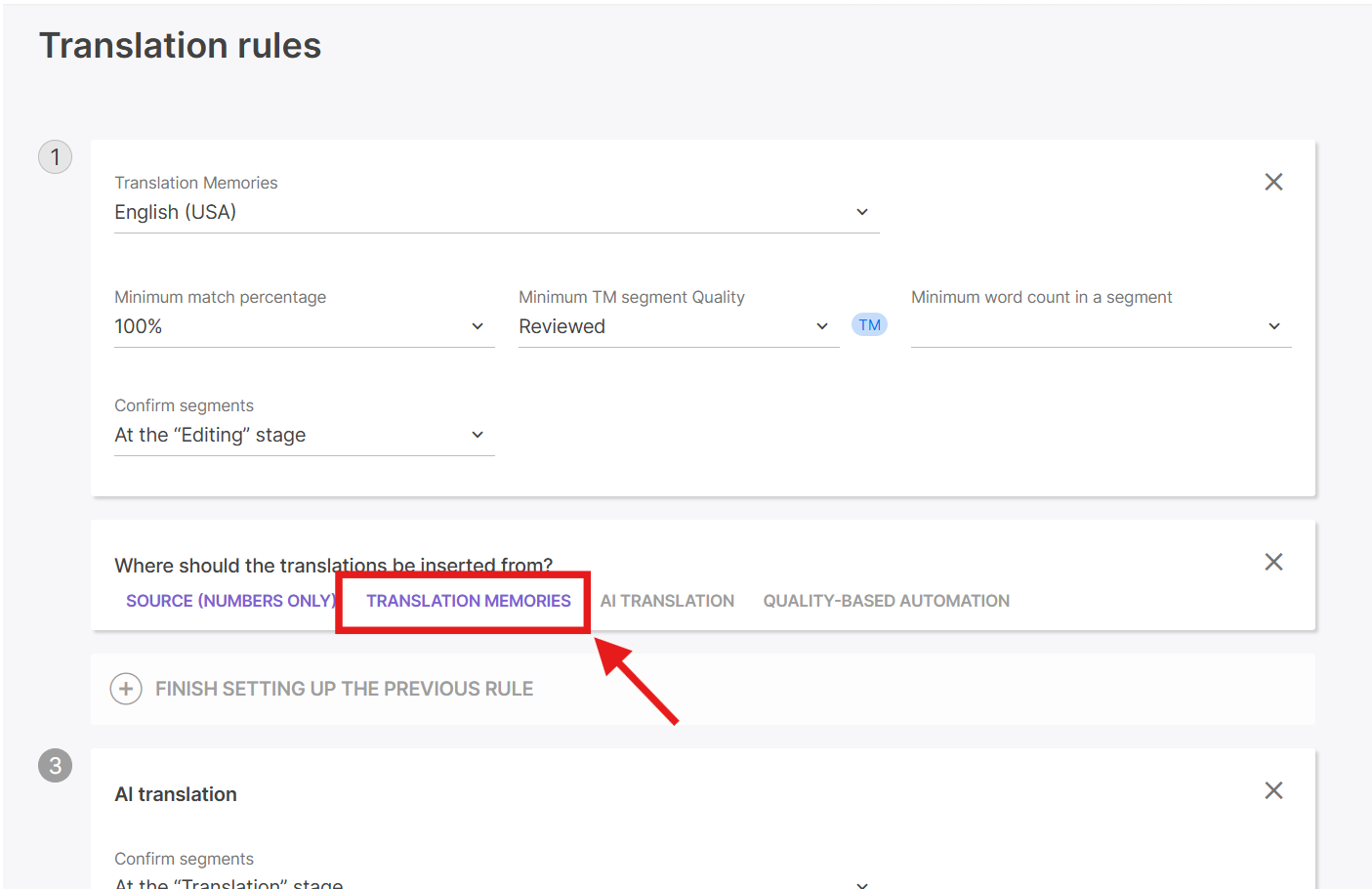
Step 1 — Open automatic translation settings
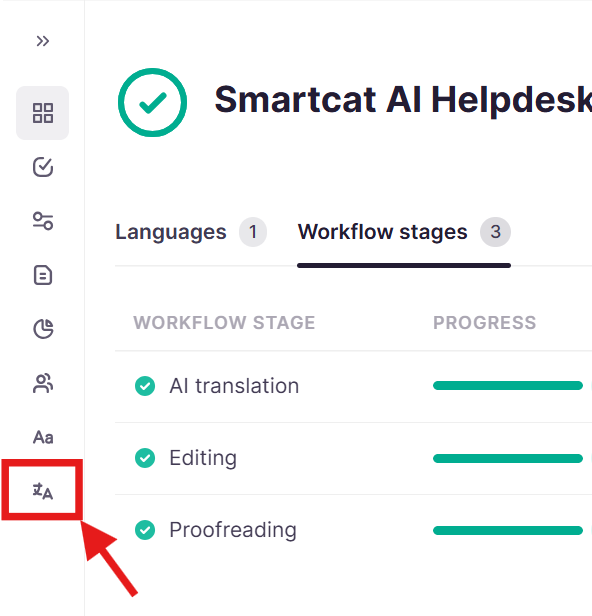
- In the left sidebar in a project, click Translation rules
- Click Add Rule → Translation Memories
Step 2 — Configure settings for the translation rules
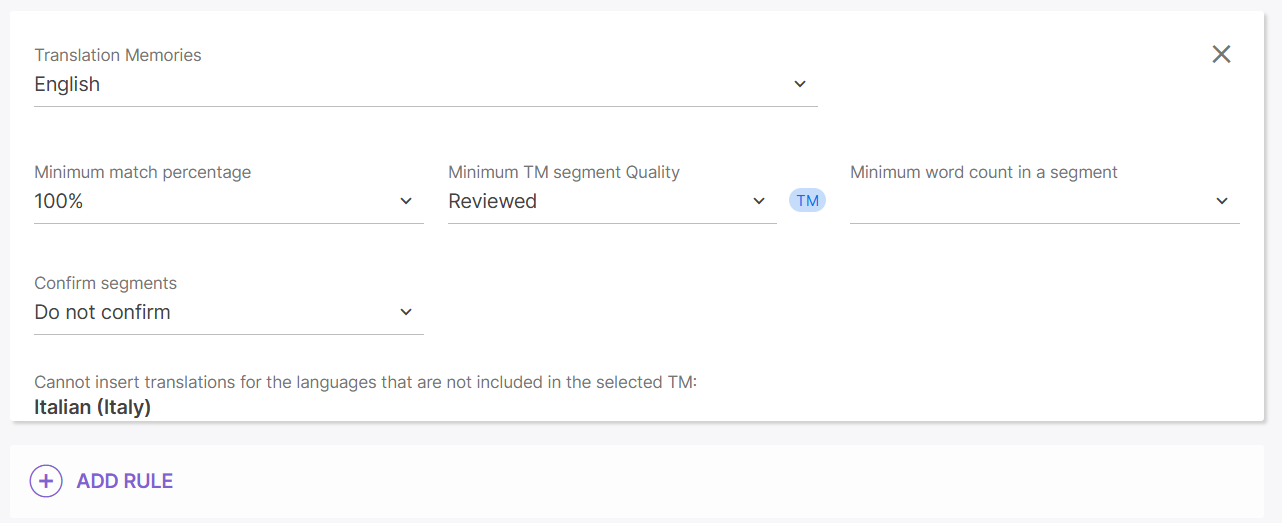
-
Select which TM to use from your enabled TMs
-
In the Minimum match percentage field, specify the threshold for inserting matches
-
Optionally, set Minimum TM segment Quality to only use reviewed TM entries
-
Optionally, set Minimum word count in a segment to avoid inserting matches for very short segments
Step 3 — Configure confirmation behavior
-
In the Confirm segments field, specify whether to auto-confirm inserted translations
-
For high-quality TMs with 100%+ matches, you can confirm at the translation stage
-
For lower thresholds or uncertain TM quality, leave segments unconfirmed for translator review
💡 Tip: Set up separate rules for each TM if you have multiple — rules execute in order, so put your most reliable TM first.
Step 4 — Save and run
Click Save & Run to apply the rules to all documents in the project.
💡 Tip: Use the "Pretranslate" button after configuring rules to apply TM matches to existing documents in your project.
Requirements and Limitations
Requirements
-
The TM must contain entries for the same language pair as your document
-
For automatic translation to insert matches automatically, you must configure translation rules
Limitations
-
The default minimum match threshold is 75% — matches below this are not shown. Any segment matching a TM entry at 75% or higher is inserted from the TM. This is distinct from the Confirm segments configuration — a translation between a 75% and 100% match is inserted from the TM but not automatically confirmed.
-
103% matches are only available for file formats with segment keys (software localization files)
-
Context matching requires the TM to have been populated with context metadata
Troubleshooting
Problem: TM matches aren't being applied to my project
Solution: Check these common causes:
-
Wrong language pair — Ensure the TM contains entries for your document's source and target languages
-
No translation rules — TMs provide suggestions in the editor, but automatic insertion requires translation rules
-
Threshold too high — If your minimum match percentage is set to 100%, fuzzy matches won't be inserted
-
TM is empty — Check that the TM actually contains entries (view TM contents in the TM management area)
Problem: I see 100% matches but expected 101% or 102%
Solution: Context matches require:
-
The TM entries to have been created with context metadata (from a previous project with adjacent segments)
-
The adjacent segments in your new document to match those stored in the TM
-
If you imported TM entries from an external file, context metadata may not have been included
Problem: I don't see 103% matches for my software files
Solution: 103% matches require:
-
A file format that contains segment keys/IDs (JSON, XLIFF, RESX, etc.)
-
The TM entries to have been created from the same or similar file with matching keys
-
Standard document formats (DOCX, PDF, etc.) use previous/next context matching and max out at 102%
FAQs
Can different language pairs in the same project have different writable TMs?
Yes — the rule is per language pair, not per project.
Does changing the writable TM mid-project affect existing entries?
No — only future confirmed segments are affected; prior entries stay where they were saved.
Why isn't my AI Translation Profile setting the writable TM I expect?
Check TM order in the profile — the first TM marked writable for that language pair takes precedence.
Do dialect settings affect Smartwords cost?
Yes, in two ways. First, adding a dialect variant as an extra target language (e.g., fr and fr-CA) is billed as two fully separate word counts — Smartcat treats each dialect as an independent language, not a base language plus surcharge. Second, the "target language with dialects" setting controls whether 100% TM matches from a related dialect (e.g., an es-MX match reused for es) get auto-inserted — this can quietly shift segments between "new" (billed as AI translation) and "matched" (pulled from TM), changing your Smartwords cost. This setting defaults to ON.
Want to learn more?
See how Smartcat can transform your localization workflow.
Still need help?
Our support team responds within one business day.