How to change a team member's role
Overview
Workspace Admins can change the role assigned to any team member, controlling what that person can see and do within the workspace.
When to use it
-
You want to give a team member more or fewer permissions in your workspace
-
A team member needs access to Settings or project management features they cannot currently see
-
You want to restrict a team member's access after a role change
How to use it
Change a team member's role
-
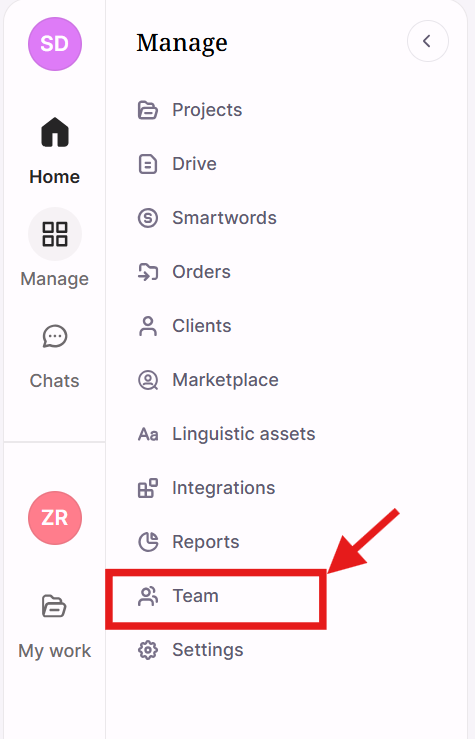
Go to Manage → Team (or Members, depending on your workspace) in the left sidebar
-
Select Team (or Members, depending on your workspace)
-
Find the team member whose role you want to change. Click … to the left of their name and select View profile
-
Click the role dropdown on the right side of the screen under Access level
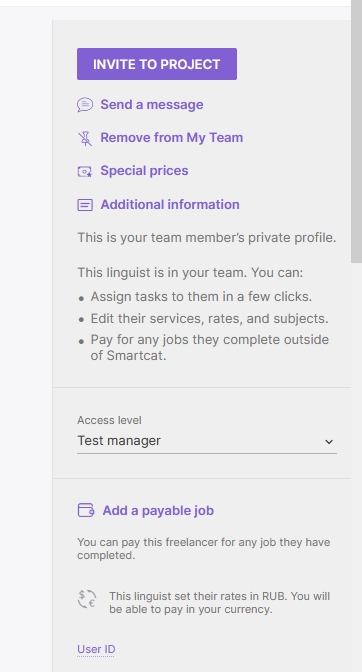
- Select the new role
The team member's permissions update immediately to reflect the new role.
Requirements and limitations
-
You must be a Workspace Admin or have a custom role with the Manage users permission to change team member roles
-
The team member must already be a member of your workspace
FAQs
What roles are available and what can each one do?
See Preset user roles and access rights for a full breakdown of what each role can access and do.
I changed a team member's role but they still can't see Settings. What should I do?
Ask them to refresh the page or log out and back in. If the issue persists, contact support@smartcat.ai.
Can I create custom roles with specific permissions?
Yes, you can create custom roles with specific permissions by adding a User Access Level.
Want to learn more?
See how Smartcat can transform your localization workflow.
Still need help?
Our support team responds within one business day.