Add images as visual context in the CAT editor
Overview
Giving a linguist as much context as possible is especially important when you localize games and apps. Segments might contain only a word or two, so the context is harder to grasp, and the same text within repetitions might have to be translated differently depending on its position in the user interface.
Without additional information, the linguist cannot tell whether the text belongs to a button, a tooltip, the name of a column in a table, and so on.
This is why Smartcat lets linguists attach screenshots and images to segments.
Add an image
- Select a segment in the CAT editor, then click the button with the camera icon on the toolbar

- Upload the file or add a link to the image in the dialog box
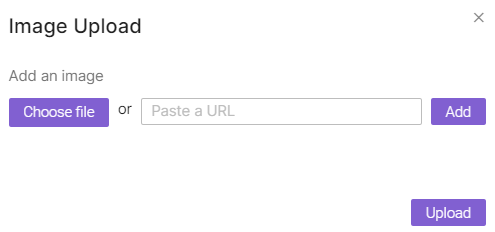
The image is now attached to the segment as visual context.
📌 If you don't see the camera icon button on the toolbar, contact Smartcat and the feature will be enabled for you.
Alternatives
You can attach images to segments in two other ways:
- Add a link to an image stored in an external location in the comment to a segment (.jpg or .png)

- Add links to images in the source file. This method works for special localization formats such as .resx, .po, and .strings. To upload a screenshot, add a link to the image in the comment to the line in the source file. When you upload the file, Smartcat automatically recognizes all the images and uploads them
View added images
Segments that have screenshots attached are marked with the camera icon. Click it to see the screenshot.

FAQs
Why would I attach an image to a segment instead of just relying on the text?
Short segments — especially in games and apps — often can't convey enough context on their own, so an attached screenshot helps a linguist see whether the text belongs to a button, a tooltip, a table column, and so on.
How do I add an image directly in the CAT editor?
Select the segment, click the camera icon on the toolbar, then either upload a file or paste a link to the image.
What if I don't see the camera icon in my editor toolbar?
Contact Smartcat support — the feature needs to be enabled for your account.
Can I add images without using the camera icon?
Yes — you can add a link to an externally hosted .jpg or .png image in a segment's comment, or, for special localization formats like .resx, .po, and .strings, include an image link in the source file itself, which Smartcat automatically recognizes and uploads.
How do I know which segments already have an image attached?
Segments with attached screenshots are marked with a camera icon; click it to view the image.
Want to learn more?
See how Smartcat can transform your localization workflow.
Still need help?
Our support team responds within one business day.